
Stanford Daily DATA Sync QDF
This guide explains how to download two daily reports from SimplePractice and paste them into the Master Spreadsheet so your client and appointment data stays up to date in HubSpot.
Go to talk-to-tasks.app
1 New Clients (Today's Date)
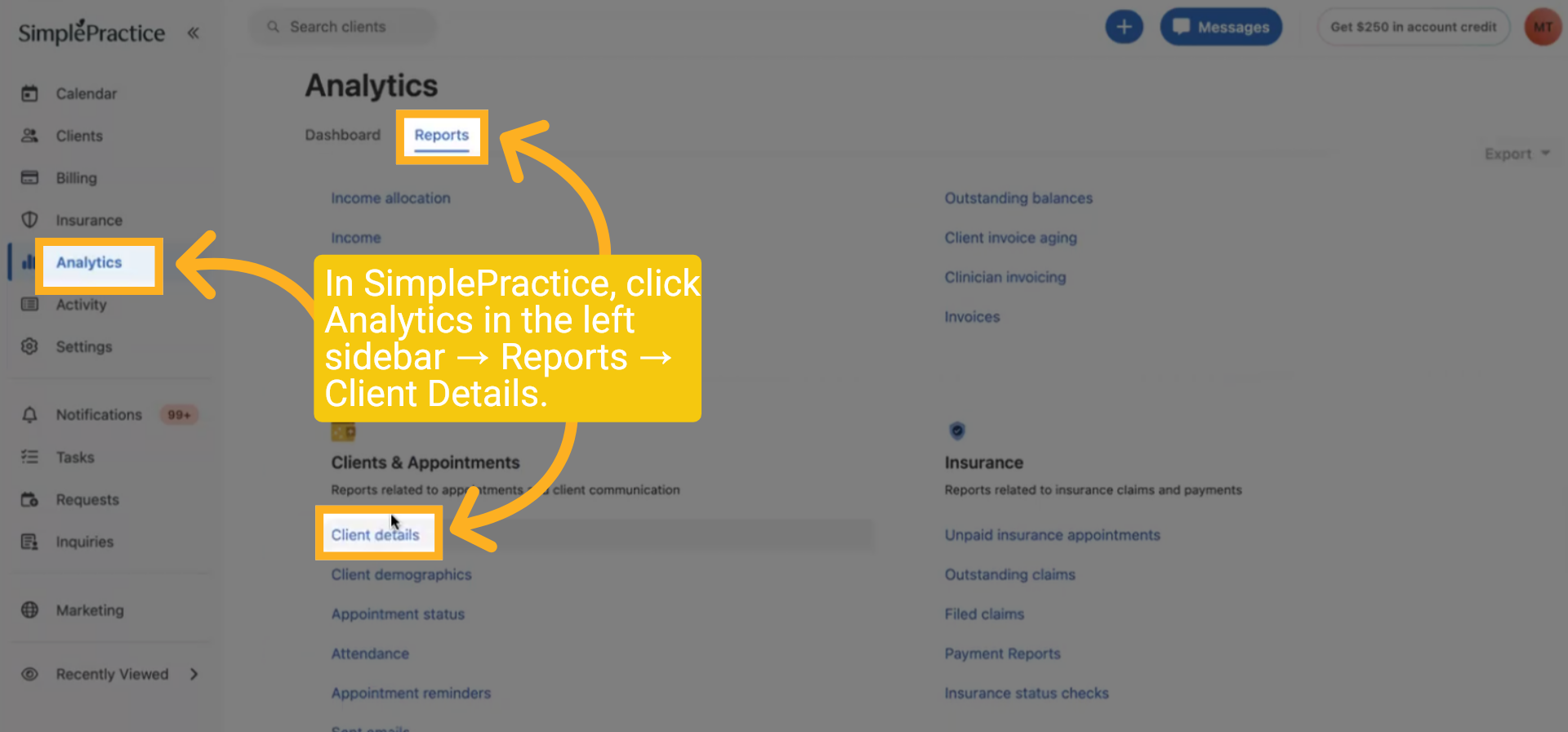
In SimplePractice, click on Analytics in the left sidebar, then select Reports, and finally Client Details.
2 Include Contacts Option
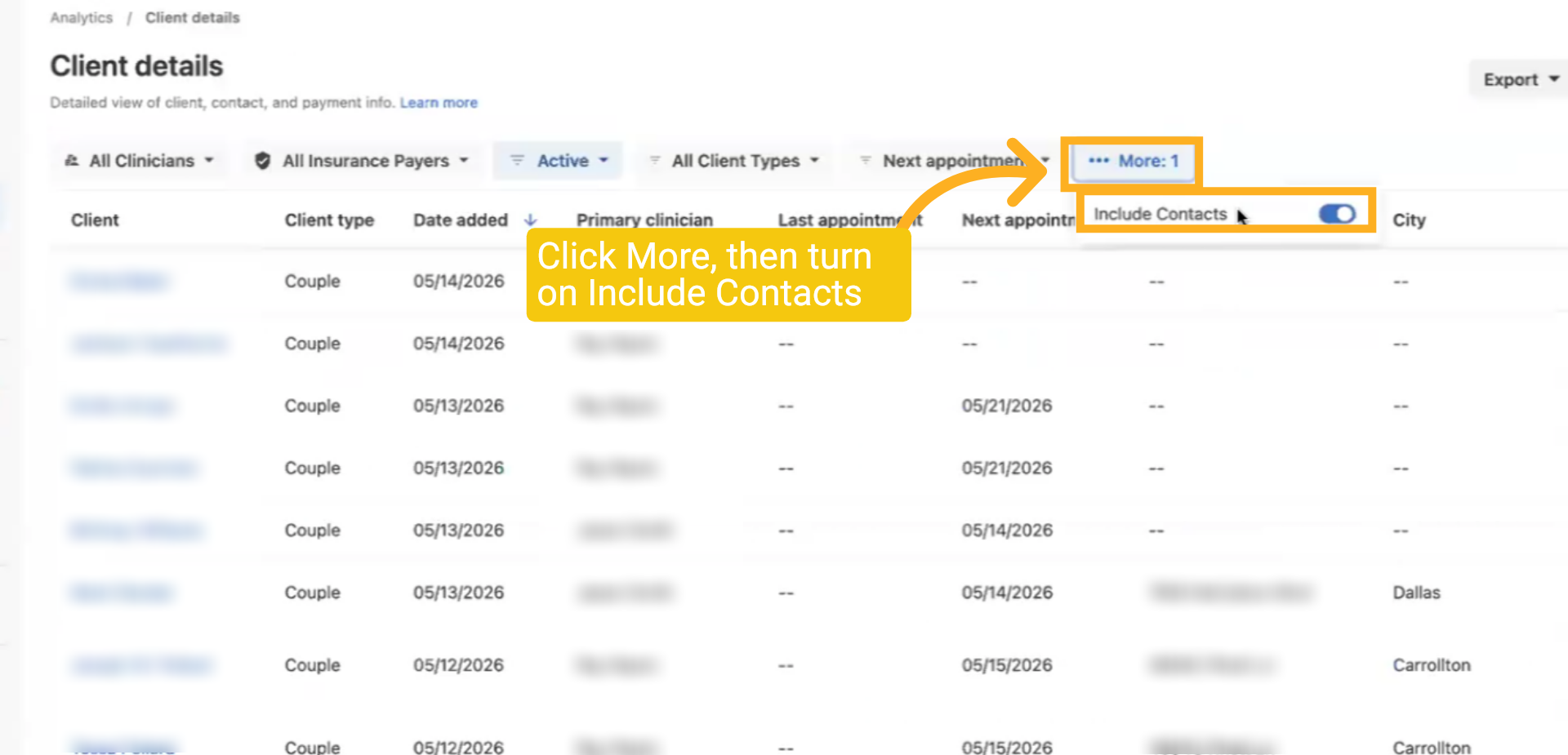
Click on More, then enable Include Contacts.
3 Date Added
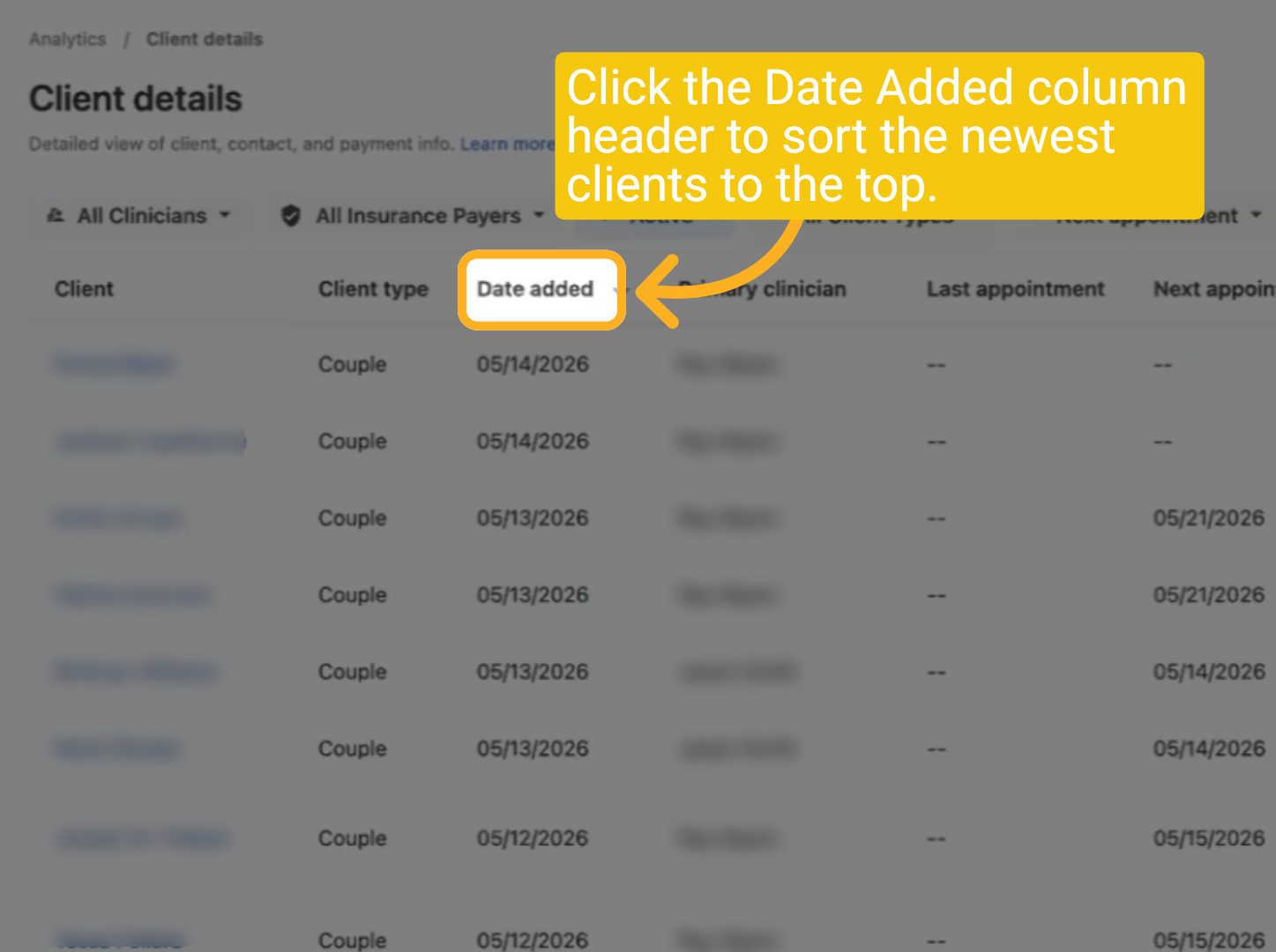
Click the Date Added column header to sort the newest clients to the top.
4 Export
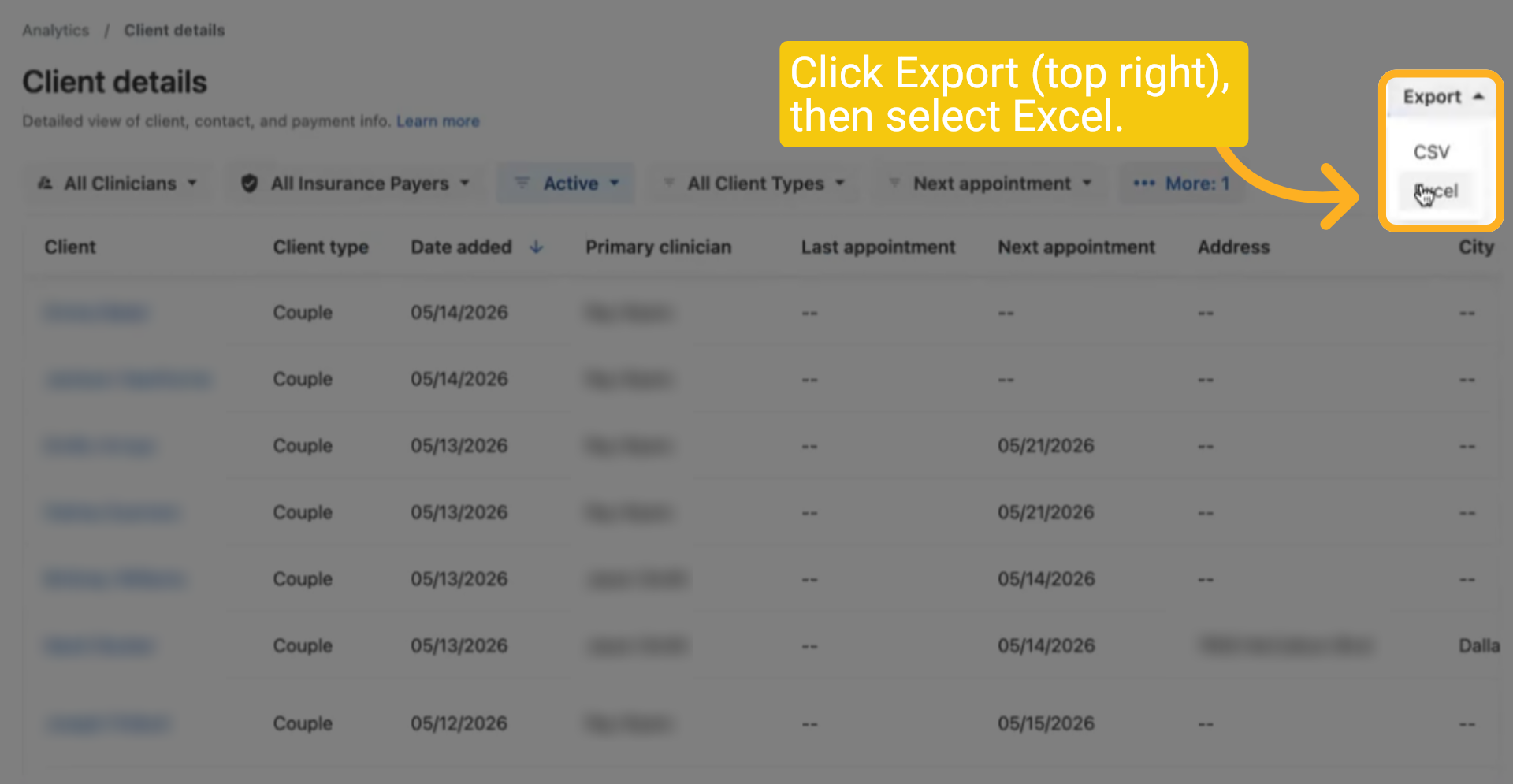
Click Export (top right), then select Excel.
5 Excel
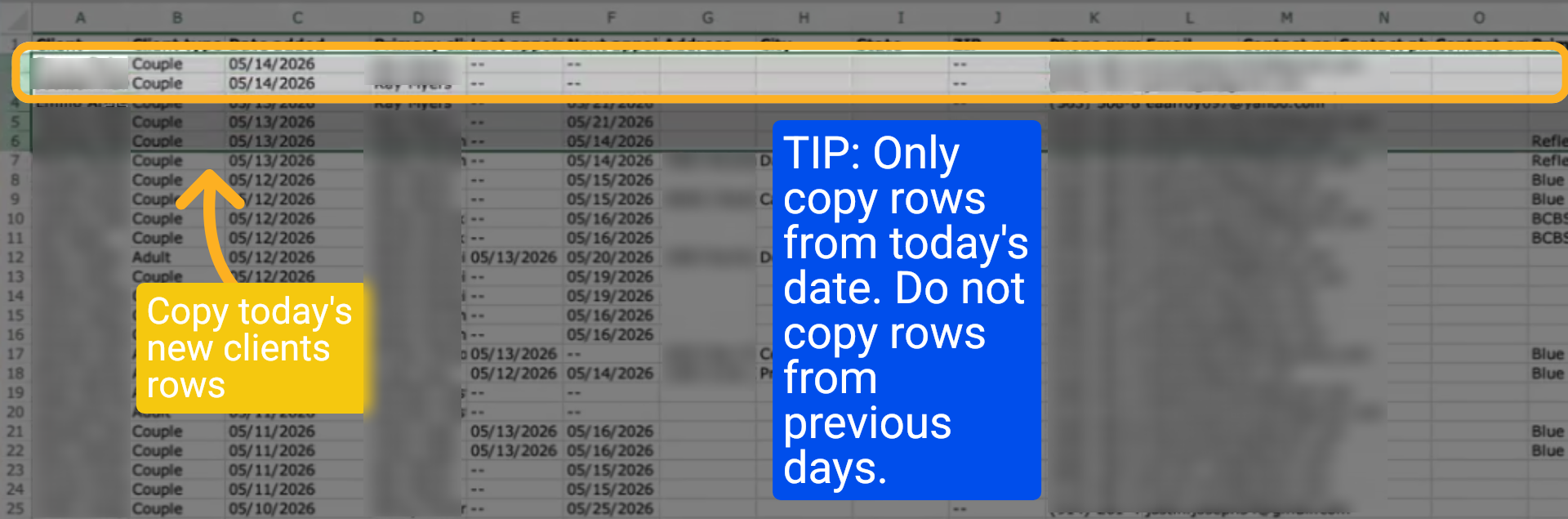
Open the downloaded Excel file. The top rows are today's new clients. Select and copy all of today's rows (Control or Command + C).
6 Stanford CC Master CDHS
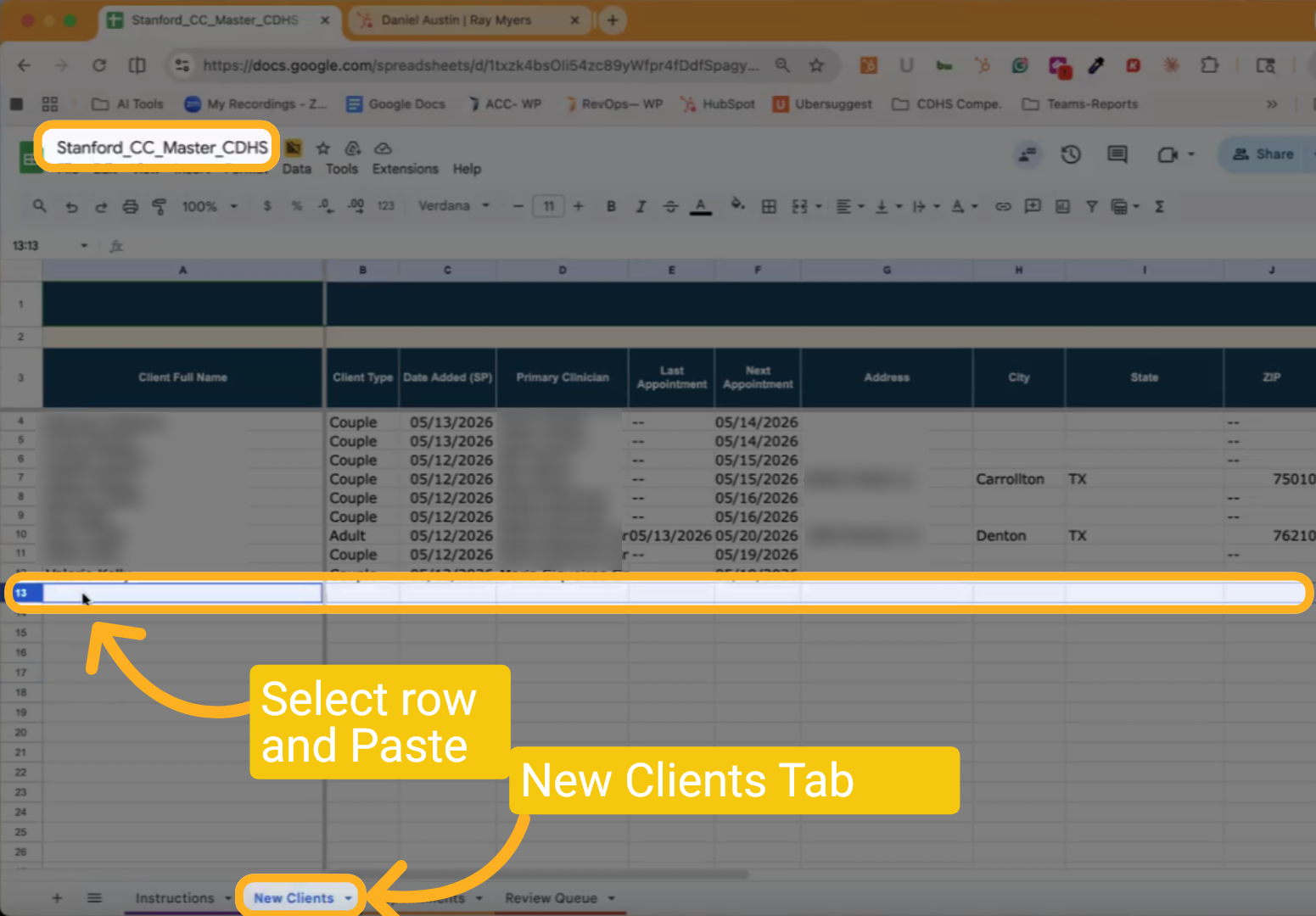
Open the Stanford CC Master CDHS Excel. Click the "New Client" tab at the bottom of the screen. Select the first empty row at the bottom of the list. Paste using PC: Control + V or Mac: Command + V.
7 Check Status
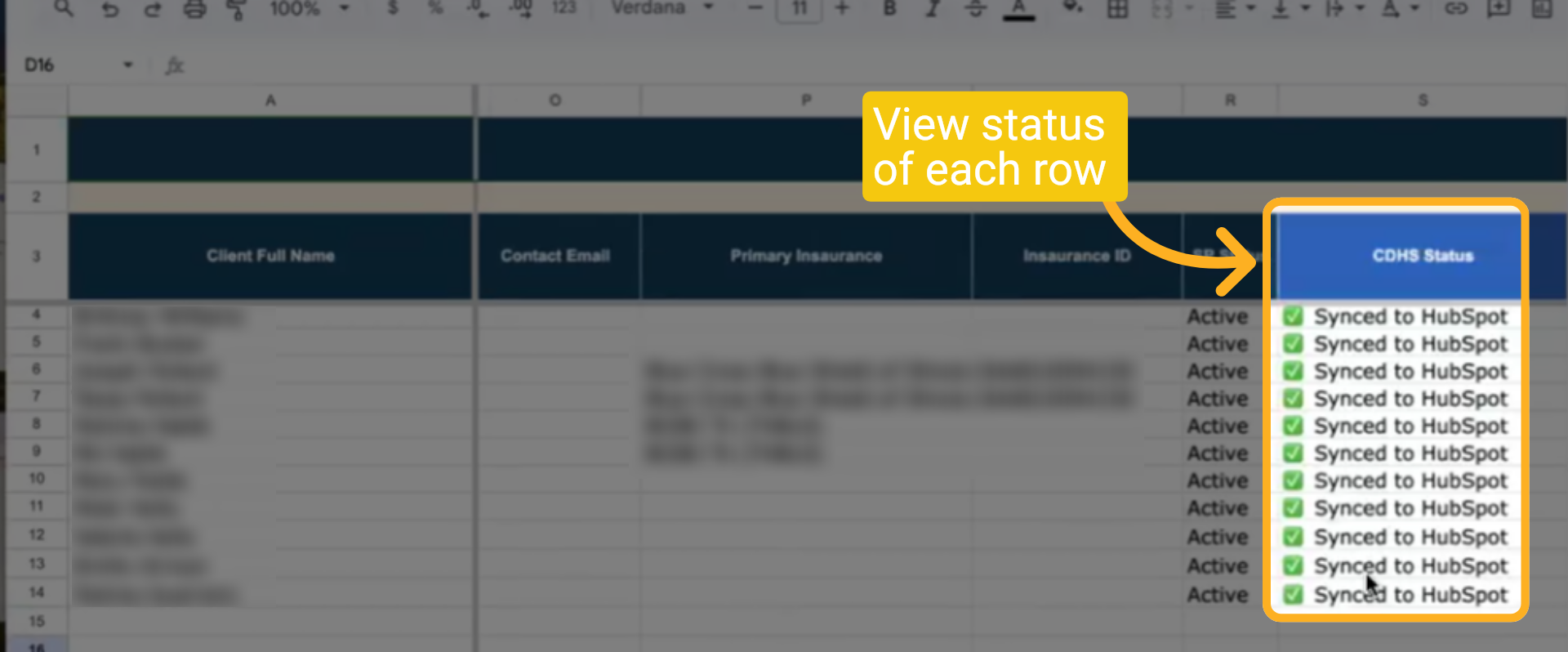
To view the CDHS Status, please scroll to the right to see the current status each row.
8 Appointment Status
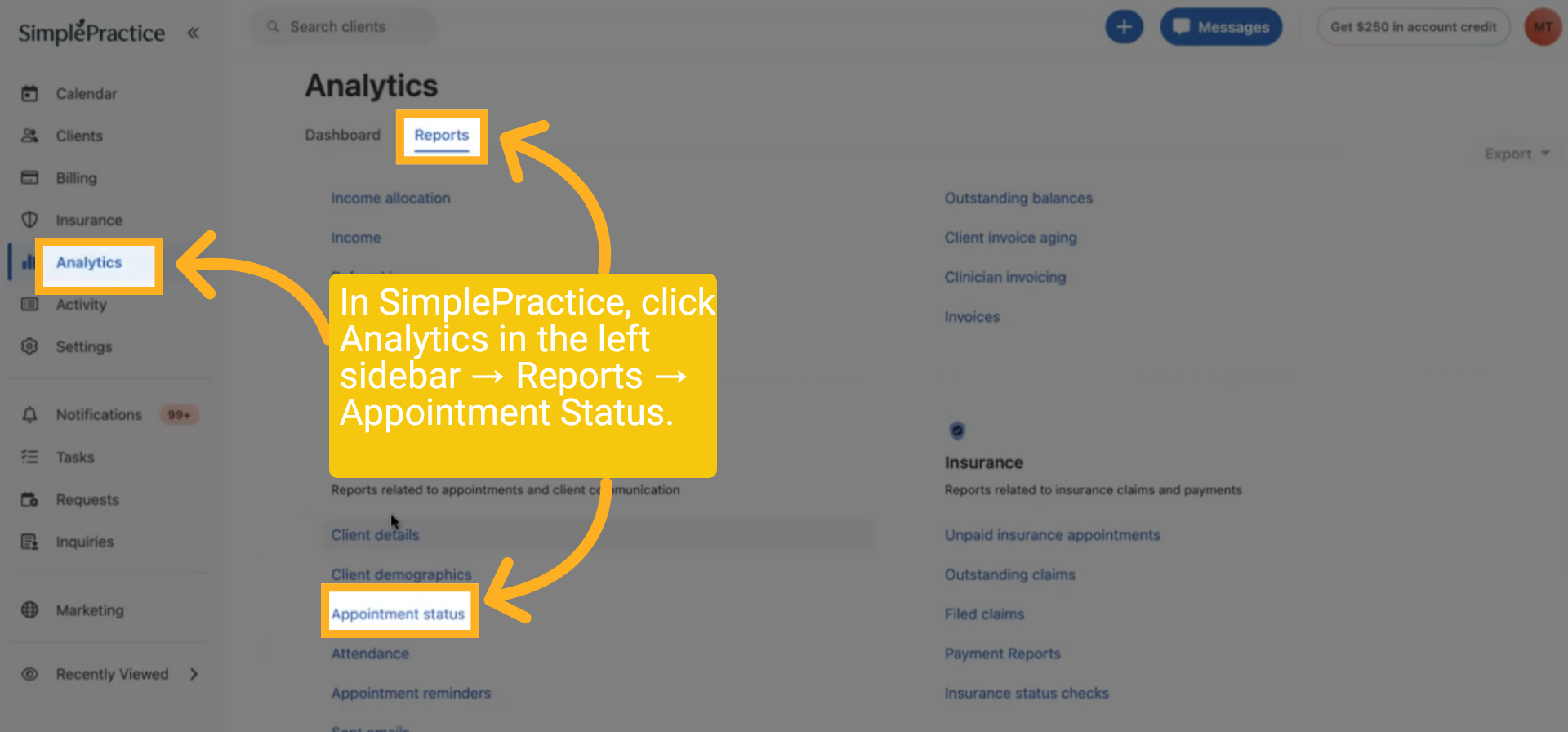
In Simple Practice, click on Analytics in the left sidebar, then select Reports, and finally Appointment Status.
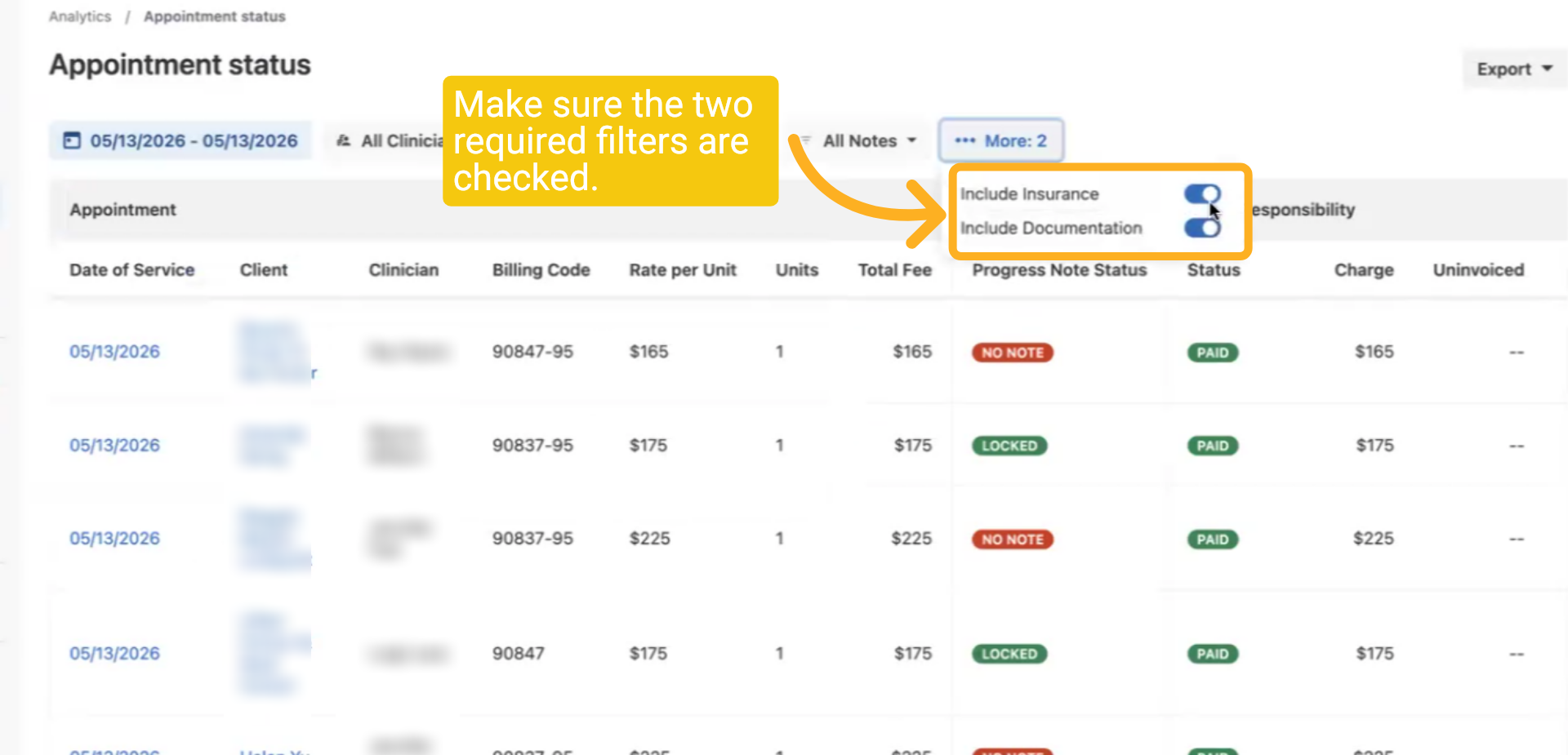
9 Turn on Filter Options
Make sure the two required filters are checked.
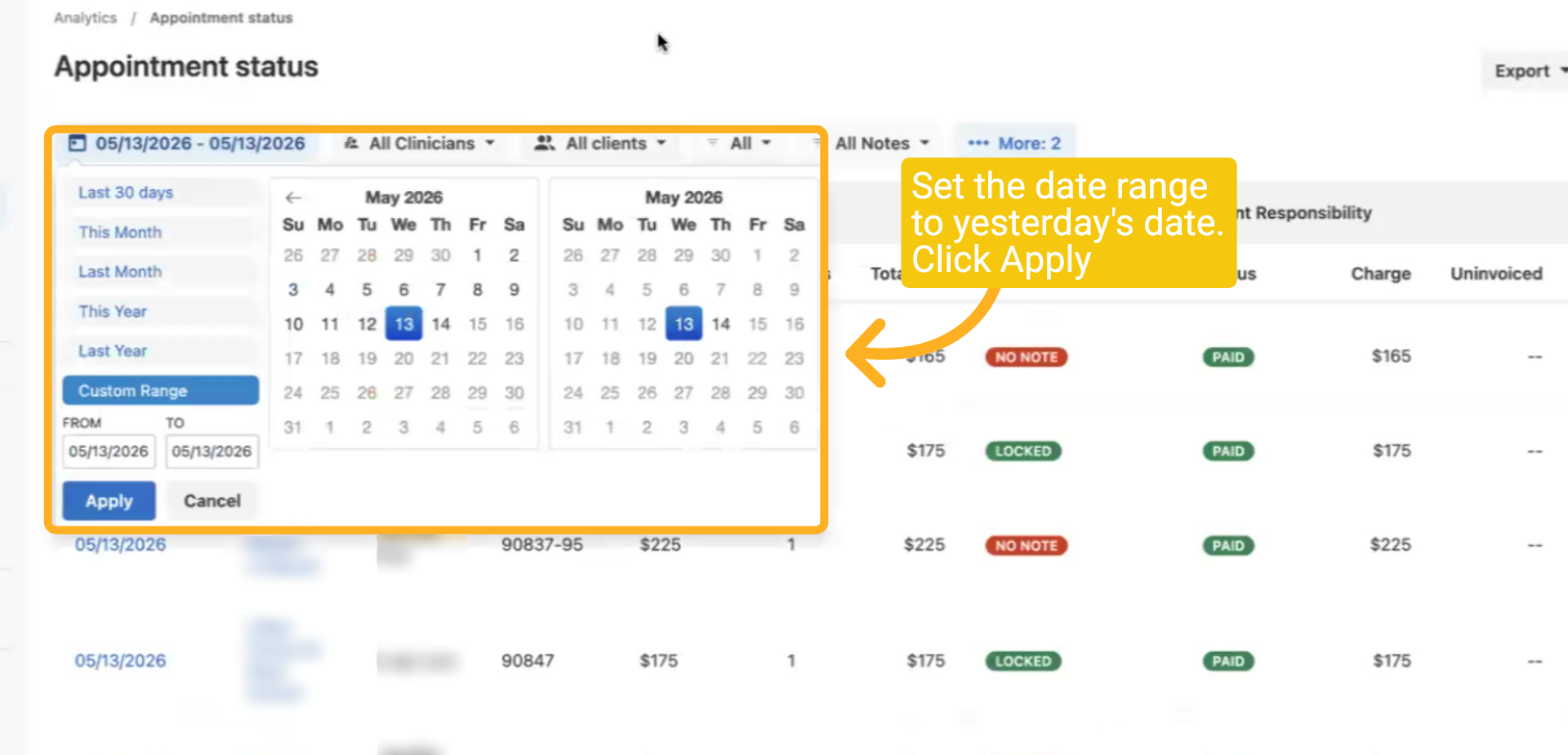
10 Yesterday's Date
Set the date range to yesterday's date. Click Apply.
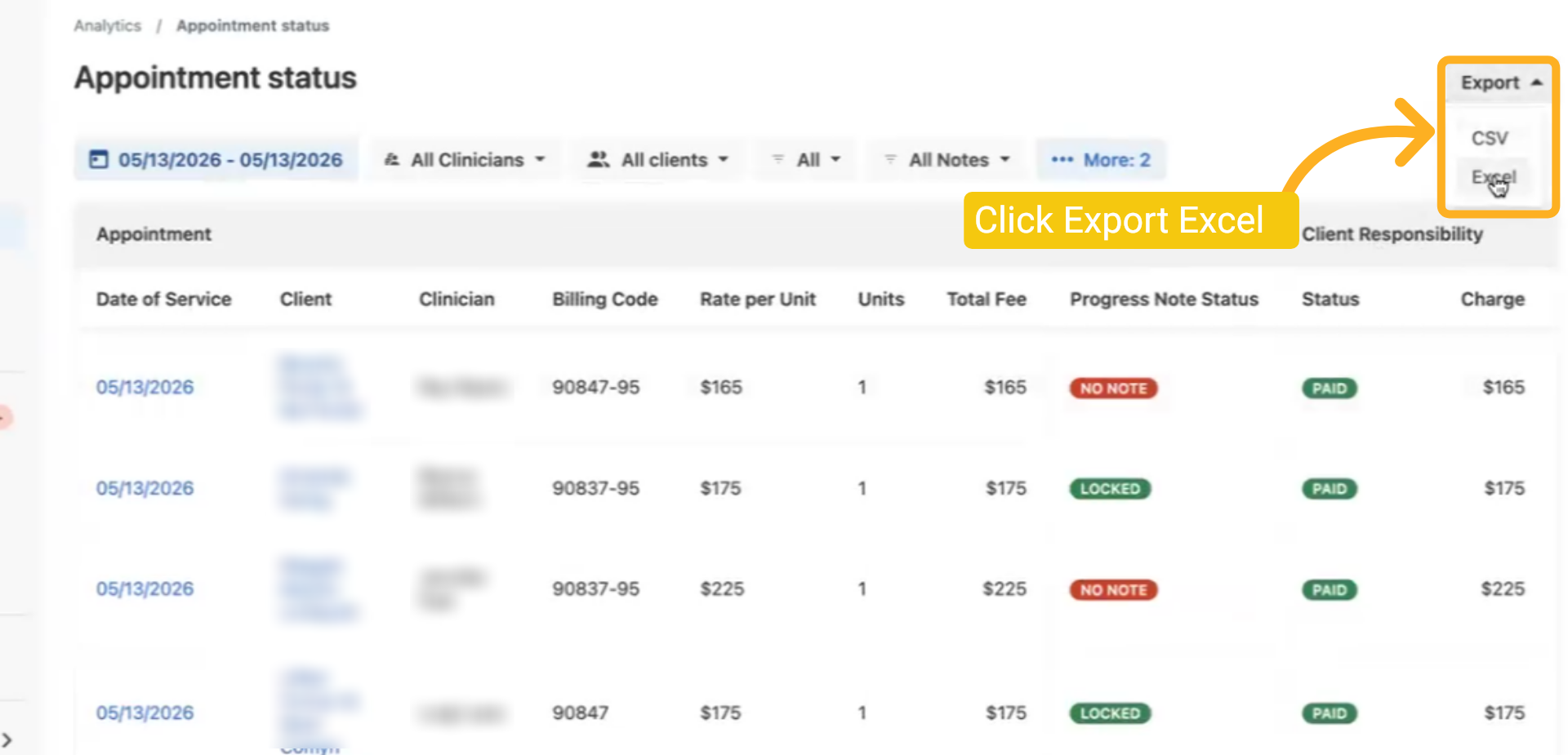
11 Export Excel
Click Export (top right), then select Excel.
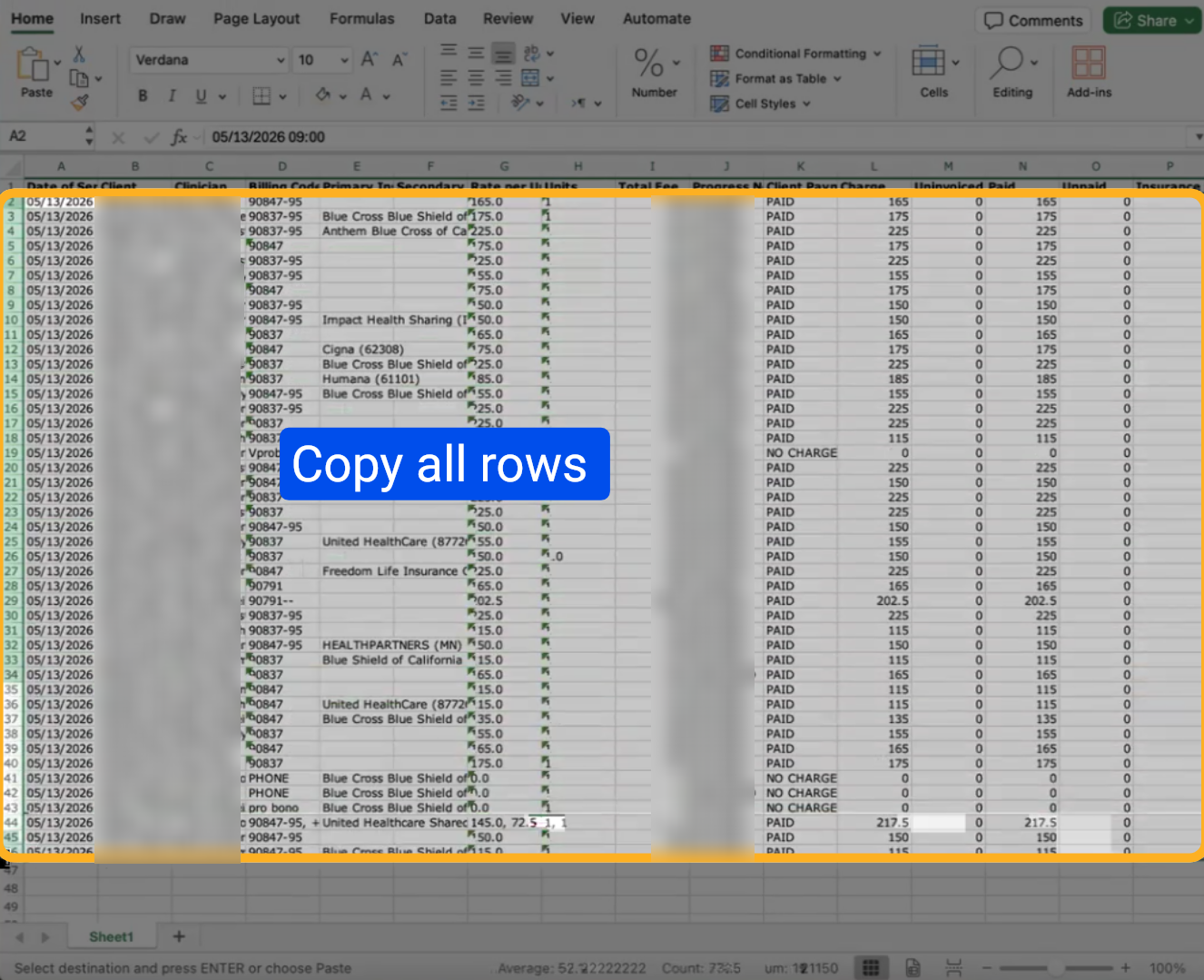
12 Excel
Open the downloaded Excel file. Select all rows using Command ⌘A (Mac) or Ctrl+A (PC), then copy using Command ⌘C or Ctrl+C.
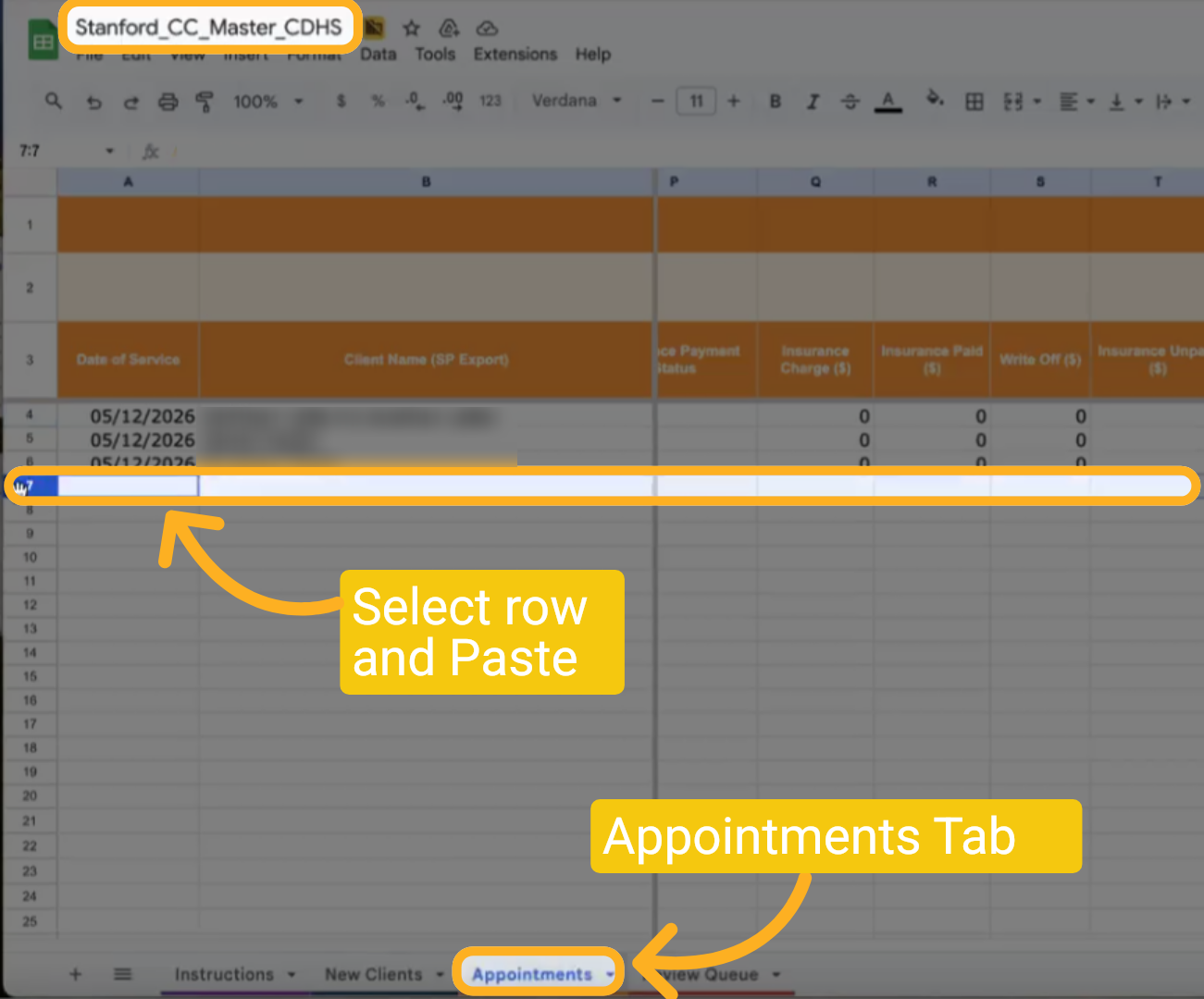
13 Stanford CC Master CDHS
Open the Stanford CC Master CDHS Excel. Click the "Appointments" tab at the bottom of the screen. Select the first empty row at the bottom of the list. Paste using PC: Control + V or Mac: Command + V.
14 Check Status
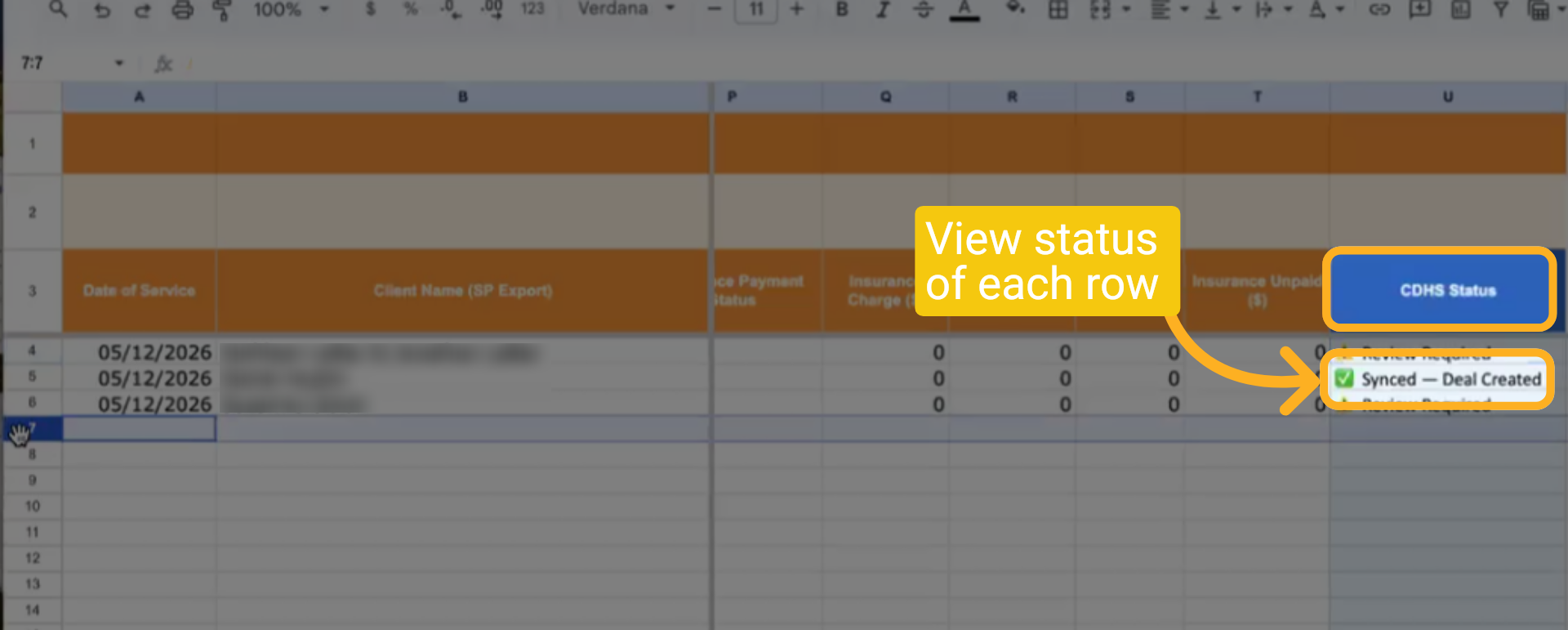
To view the CDHS Status, scroll to the right to see the current status of each row.
15 Invoices
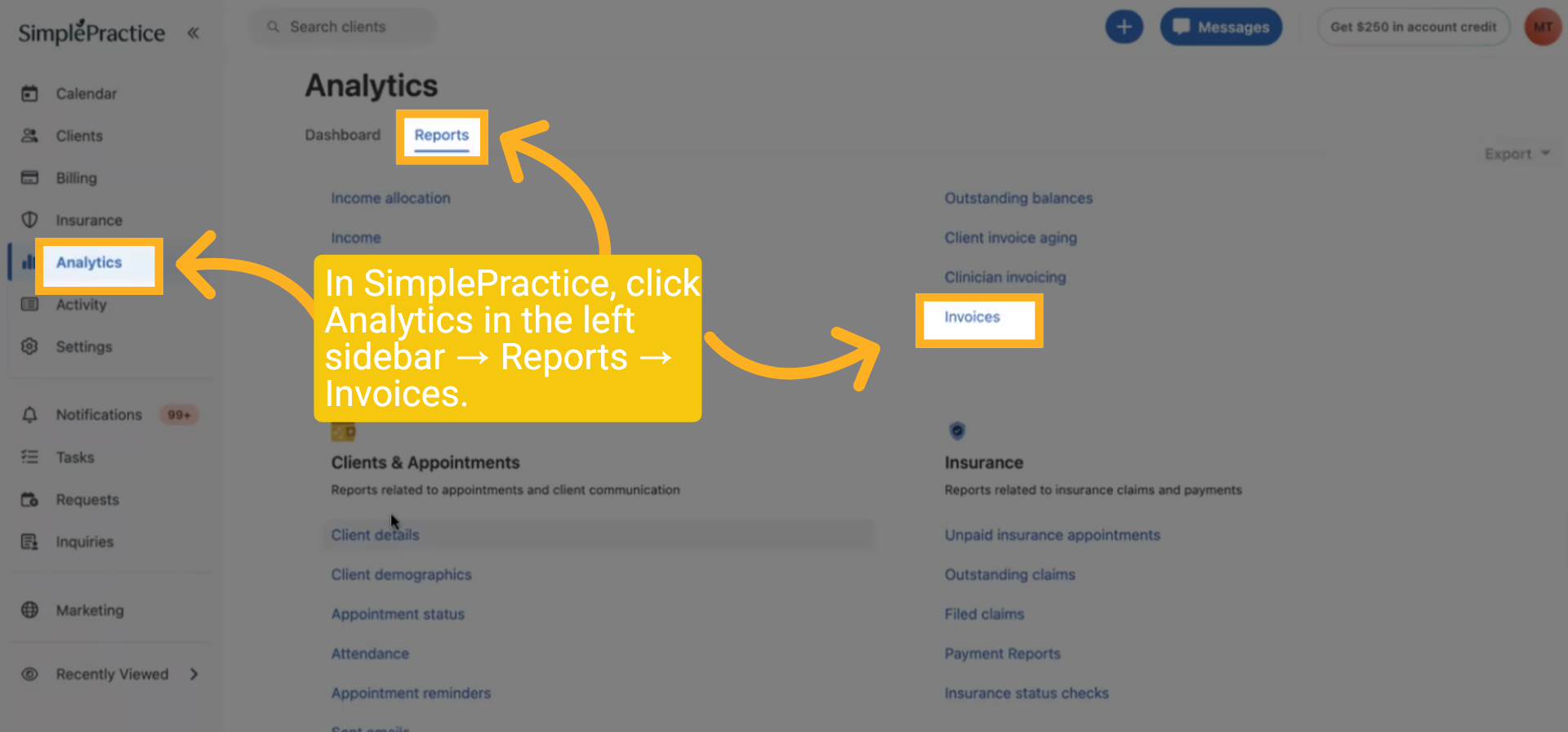
In SimplePractice, click on Analytics in the left sidebar, then select Reports, and finally Invoices.
16 Invoices
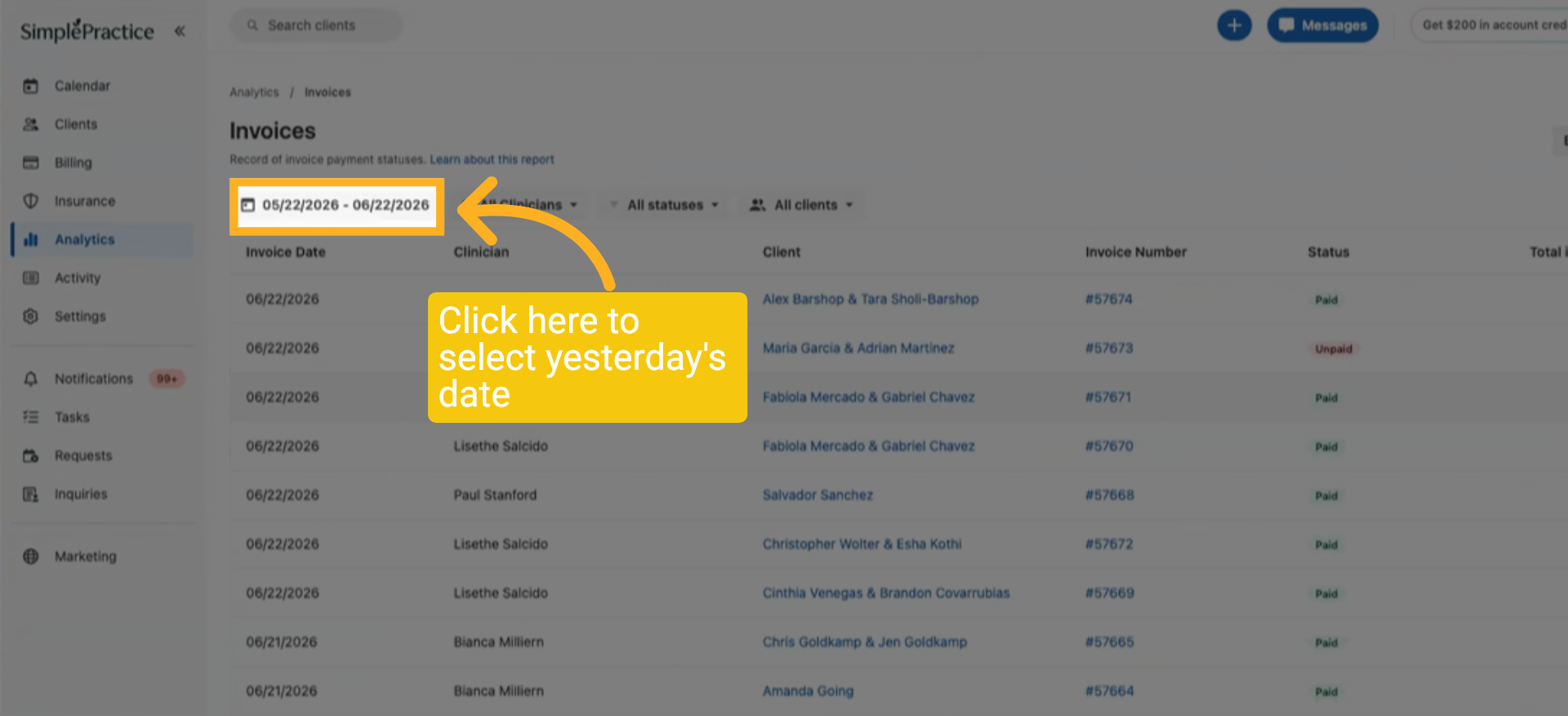
Click the calendar to select yesterday's date.
17 Invoices (Yesterday's Date)
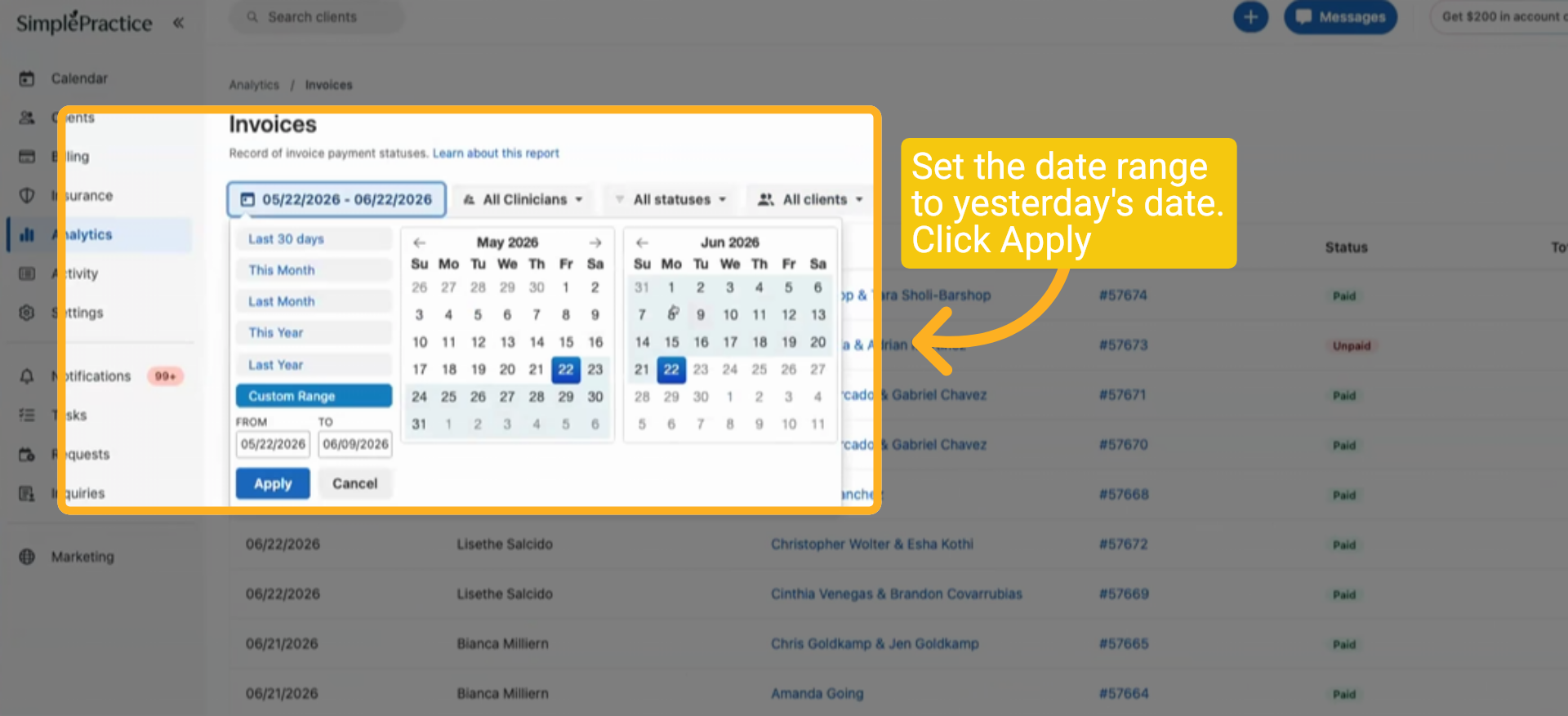
Set the date range to yesterday's date. Click Apply.
18 Export CSV
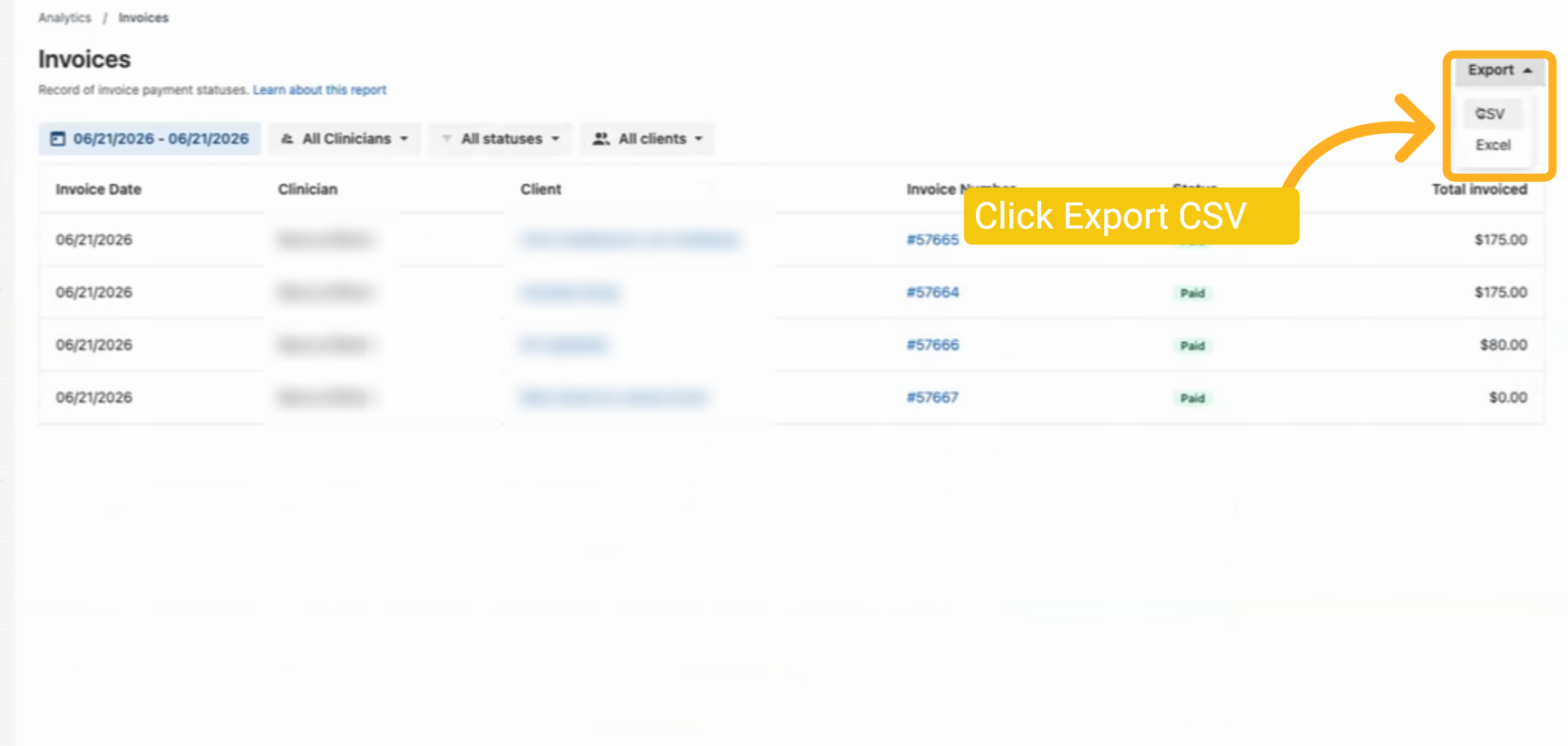
Click Export (top right), then select CSV.
19 Invoice CSV
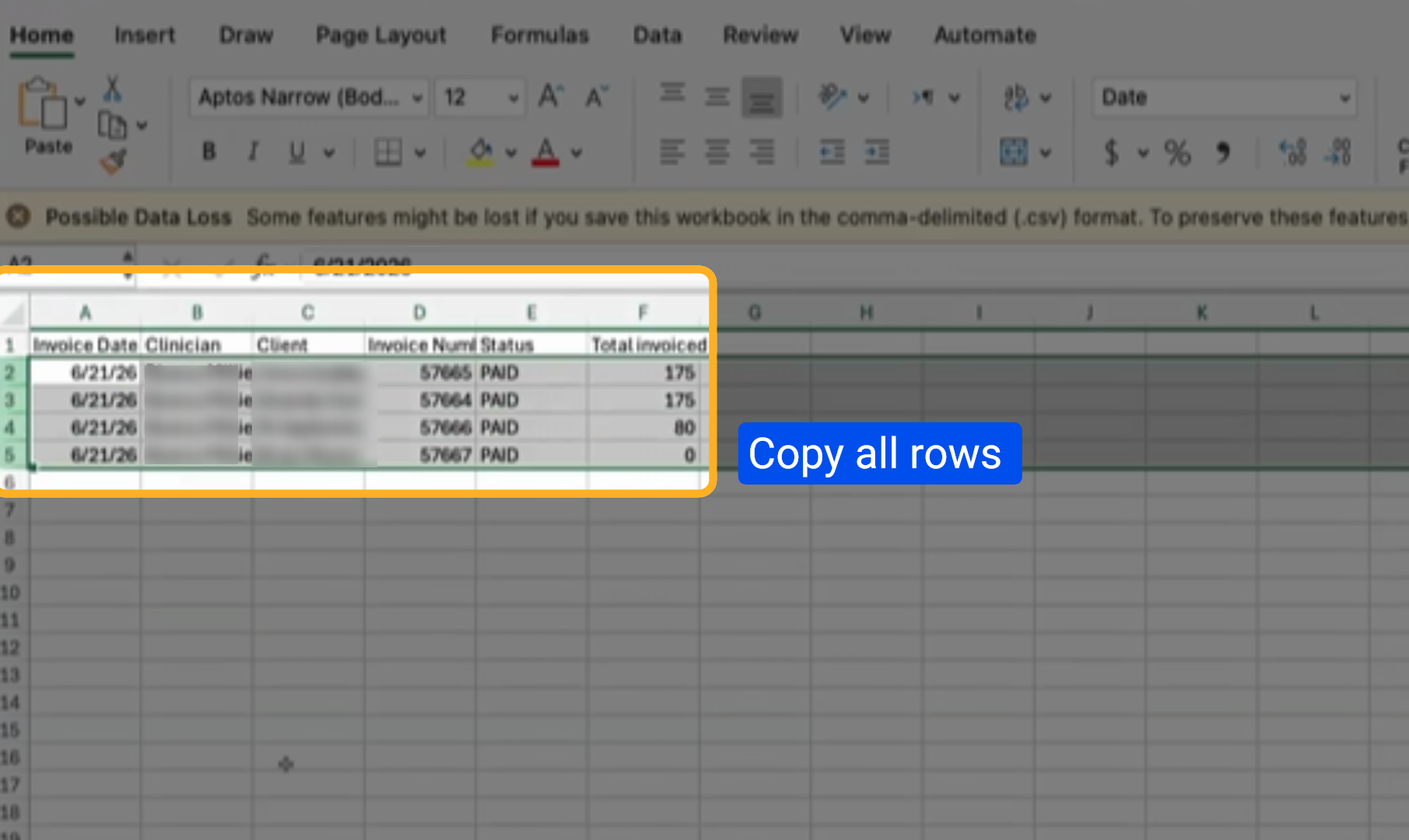
Open the downloaded CSV file. Select all rows using Command ⌘A (Mac) or Ctrl+A (PC), then copy using Command ⌘C or Ctrl+C.
20 Paste into Master Invoice
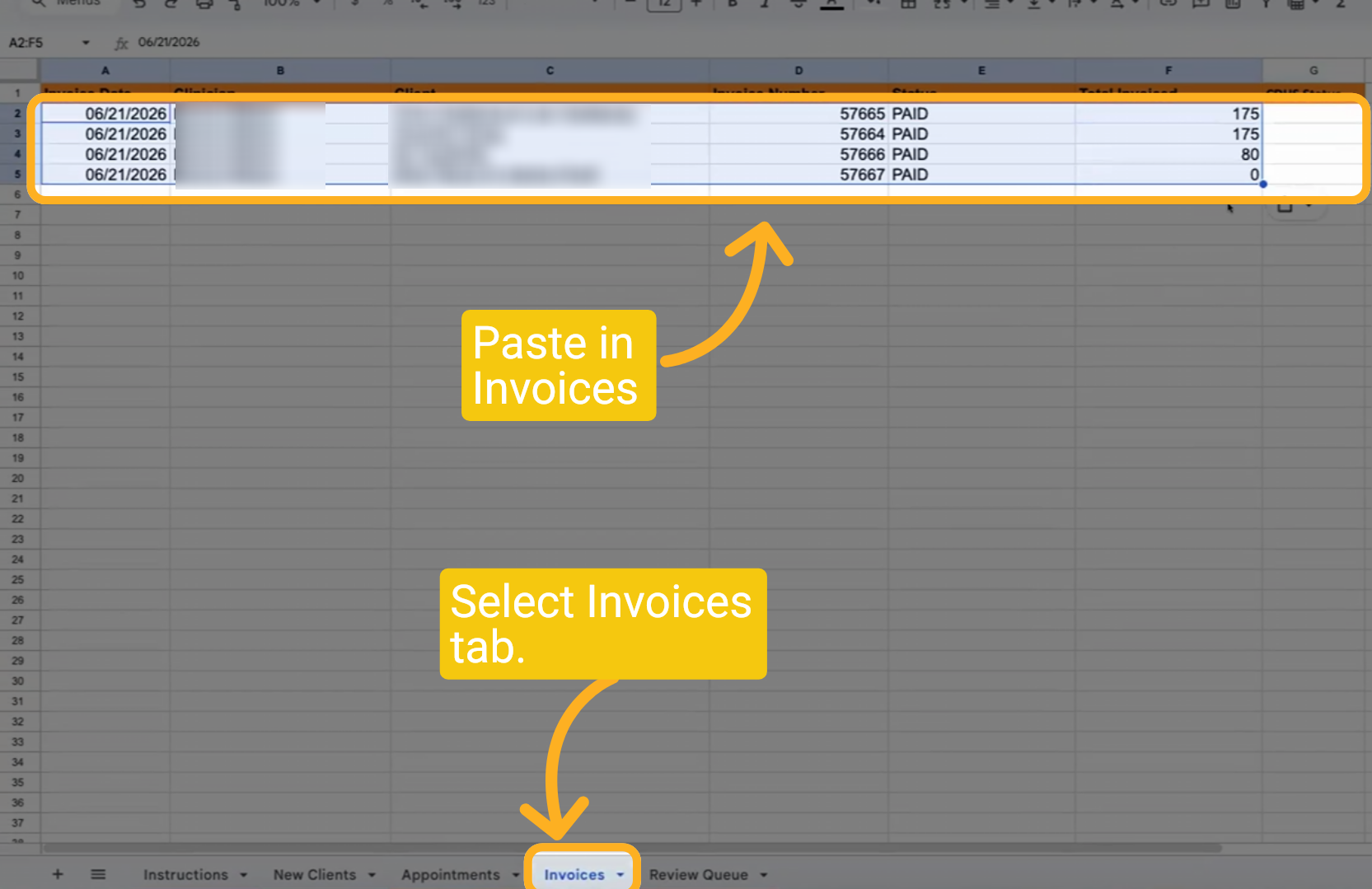
Click on the Invoice tab, then paste it into the Excel file.
Thank you for watching. Follow these steps each day and your data will always be in sync.