ASA - Kixie to HubSpot QDF
This guide explains how incoming calls through Kixie are processed using Talk2Task as a QDF. It covers call monitoring and how tasks are generated automatically from each interaction.
Go to talk-to-tasks.app
1 Open Talks Groups Section
Click "Talks Groups" if you are on a different page to access the main section where all talk groups are listed.
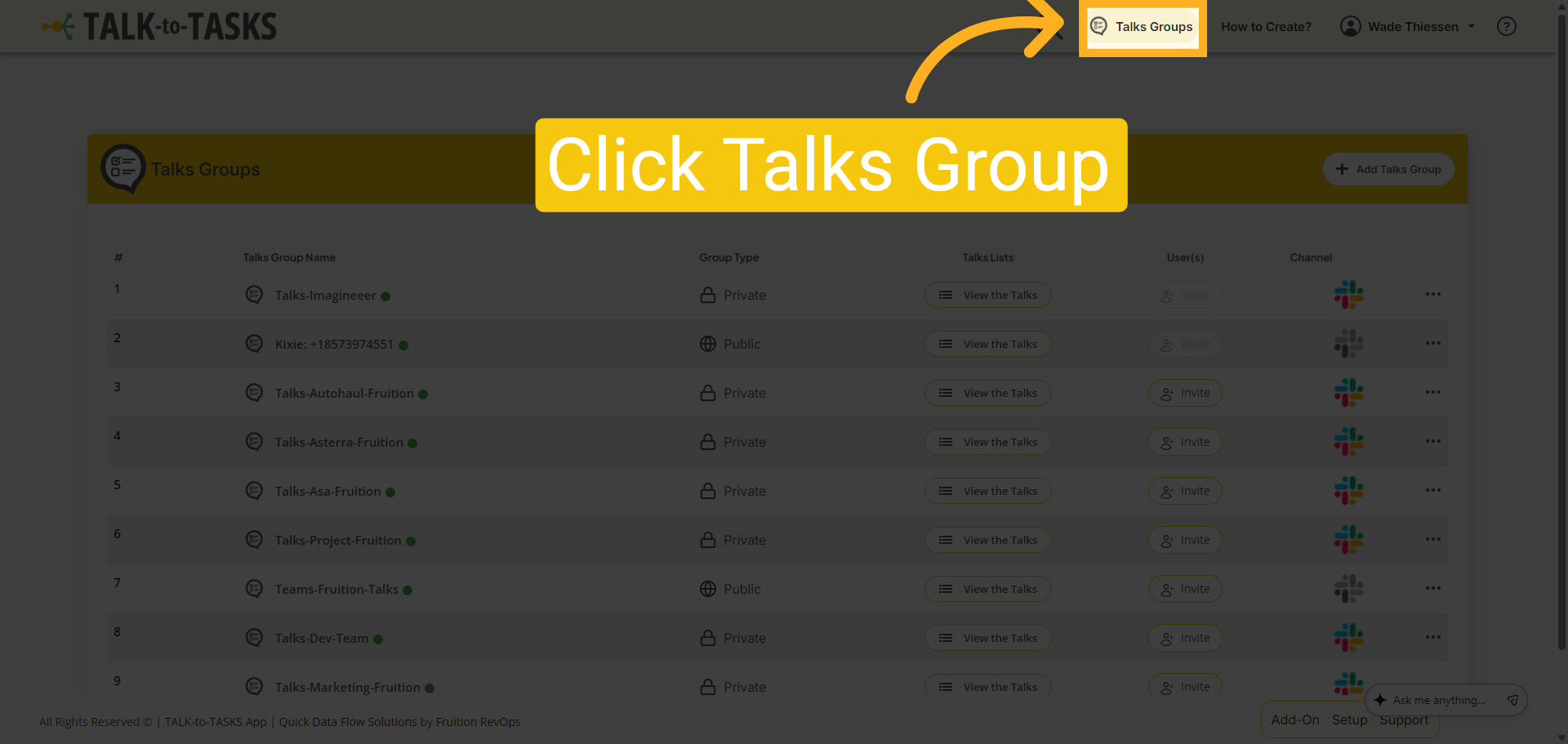
2 View Specific Talks
Click "View the Talks" to see the individual talks within the selected group.
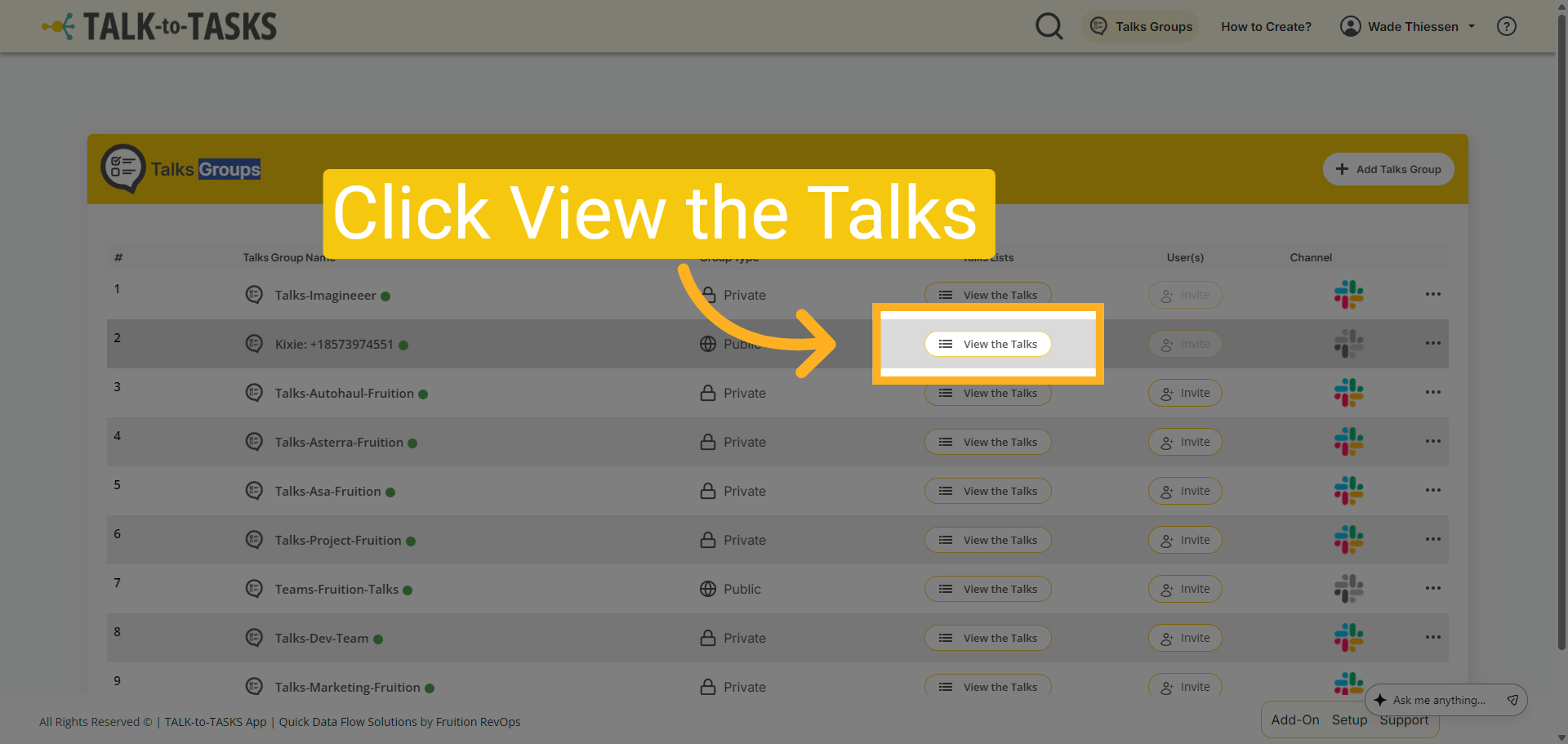
3 Talk Group
Here, you will find the talk group along with options to upload videos or meetings. You can also click on 'View' to see the tasks that have been created or read the transcript.
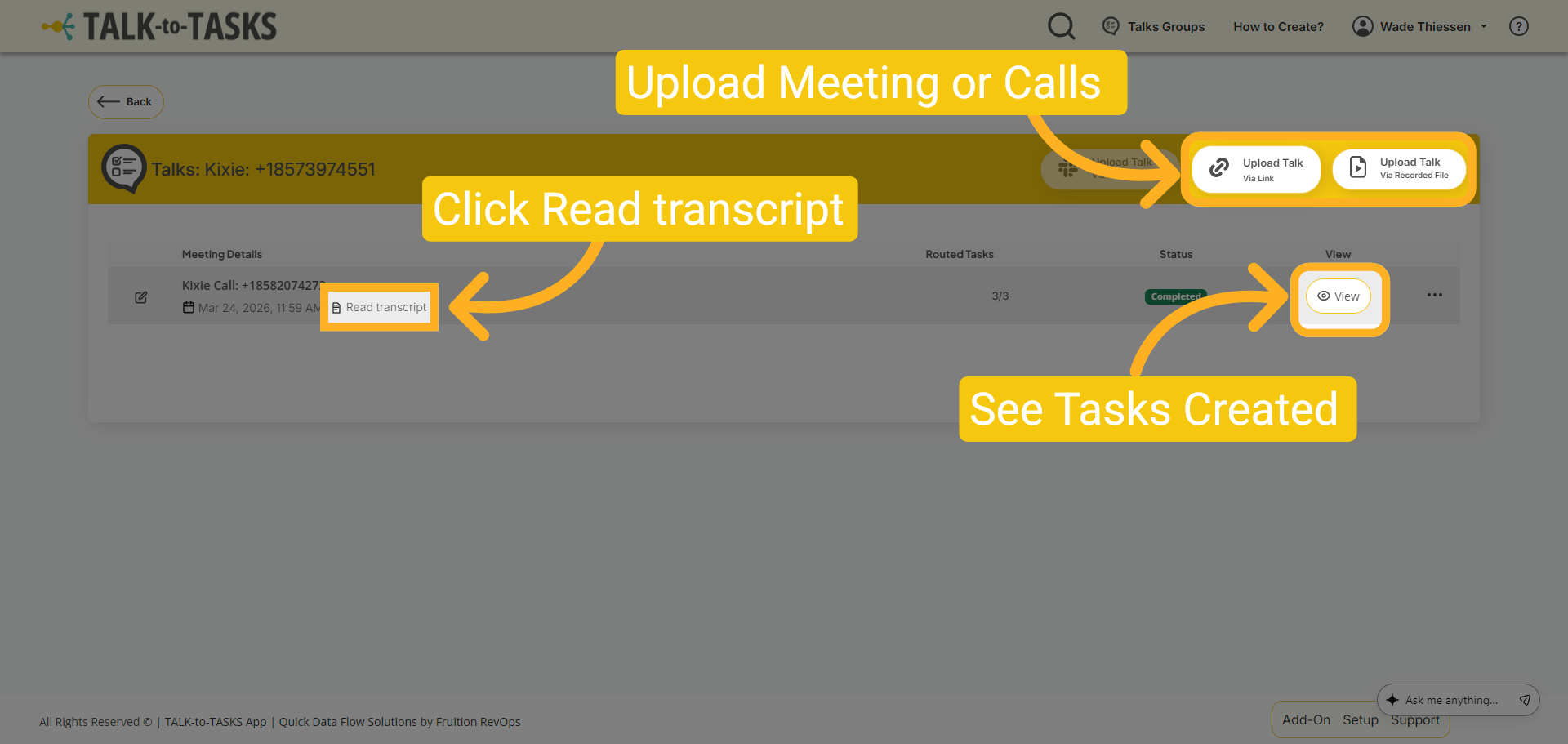
4 Call Transcript Page
The read transcript page offers various options, including an automatically generated Call Summary and Notes. You can listen to the call or access it in HubSpot, where it is linked to the contact.
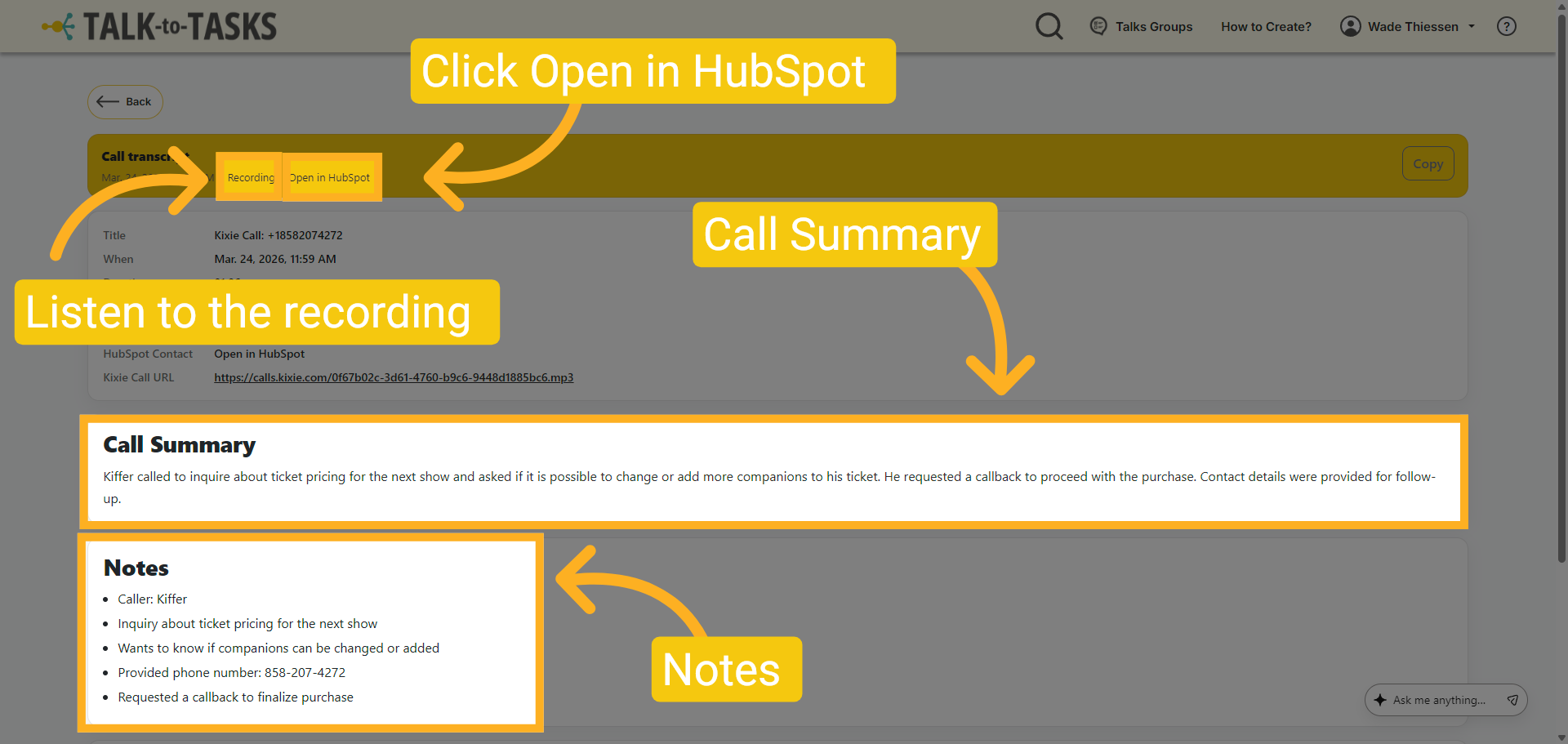
5 Open in HubSpot
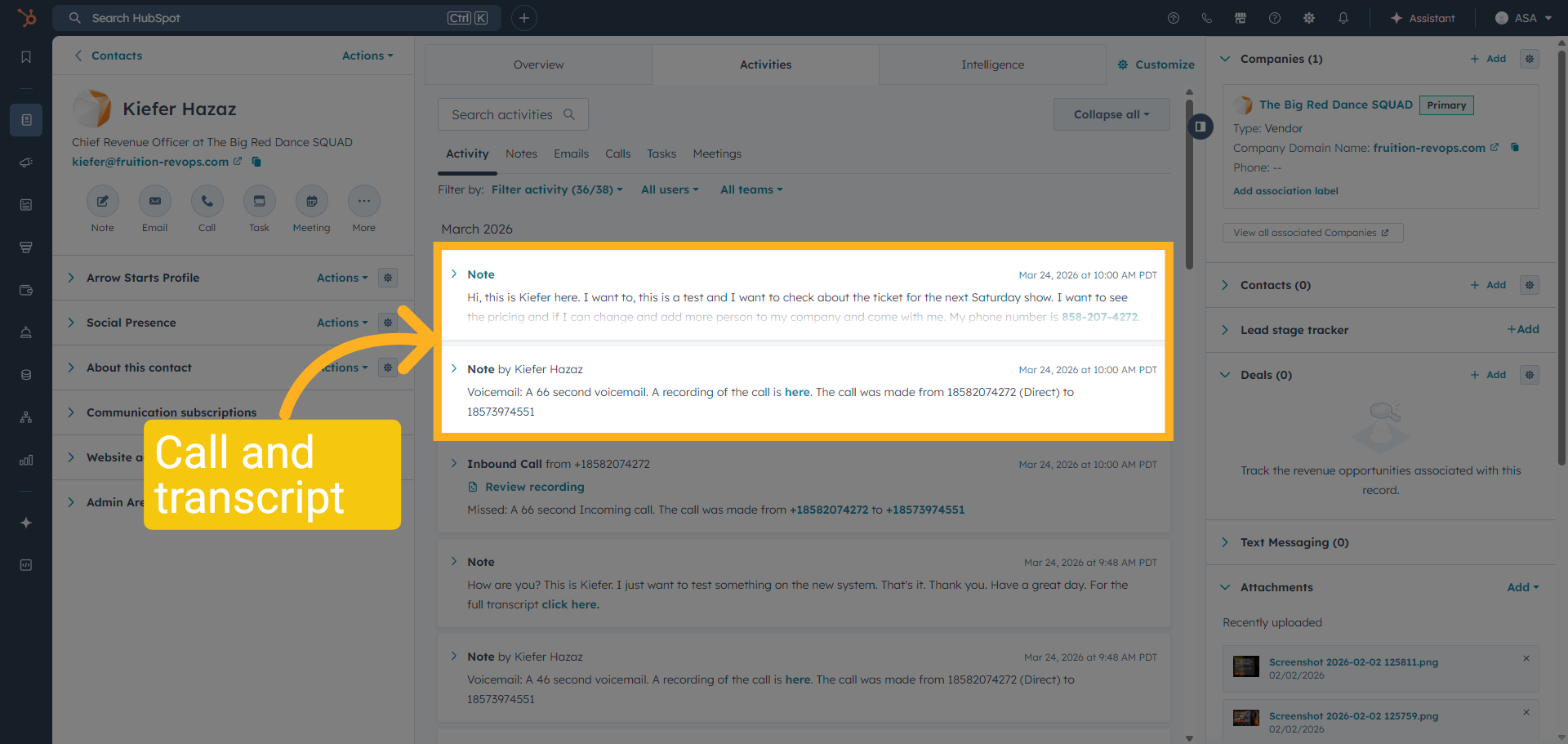
When you click on "Open" in HubSpot, you will see that the call, notes, and transcript are automatically attached to the contact's activity.
6 Listen to Recording
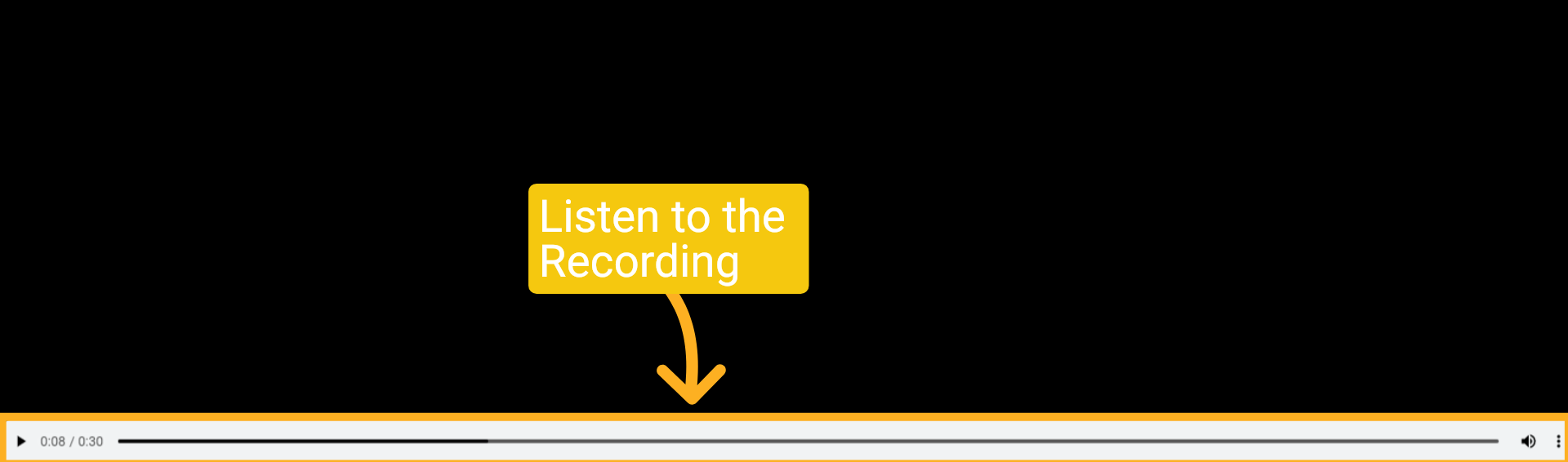
When you click on "Recording," you can listen to the audio recording from Kixie.
7 Tasks for the Call
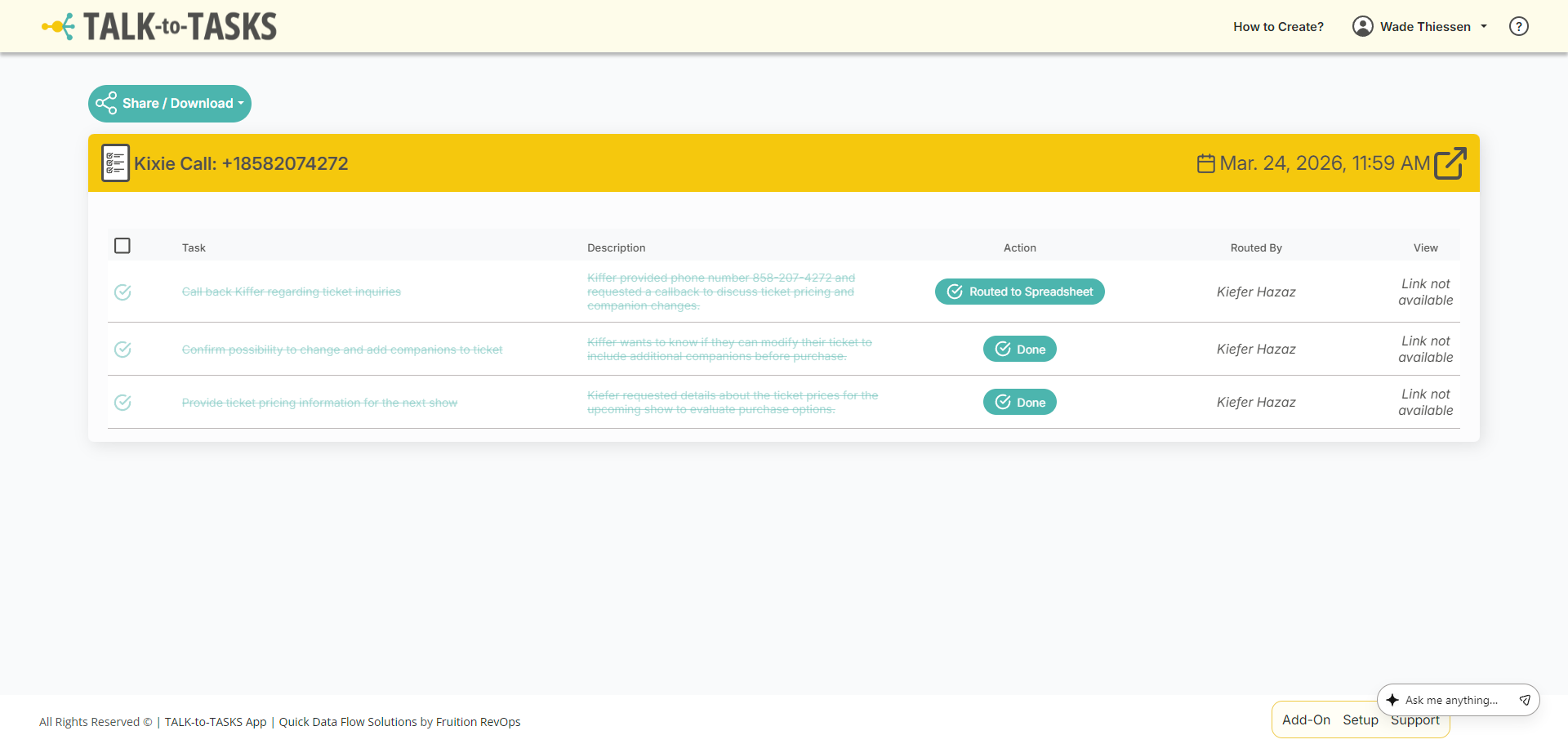
Upon opening the task page, you will find all automatically generated tasks and actionable items.
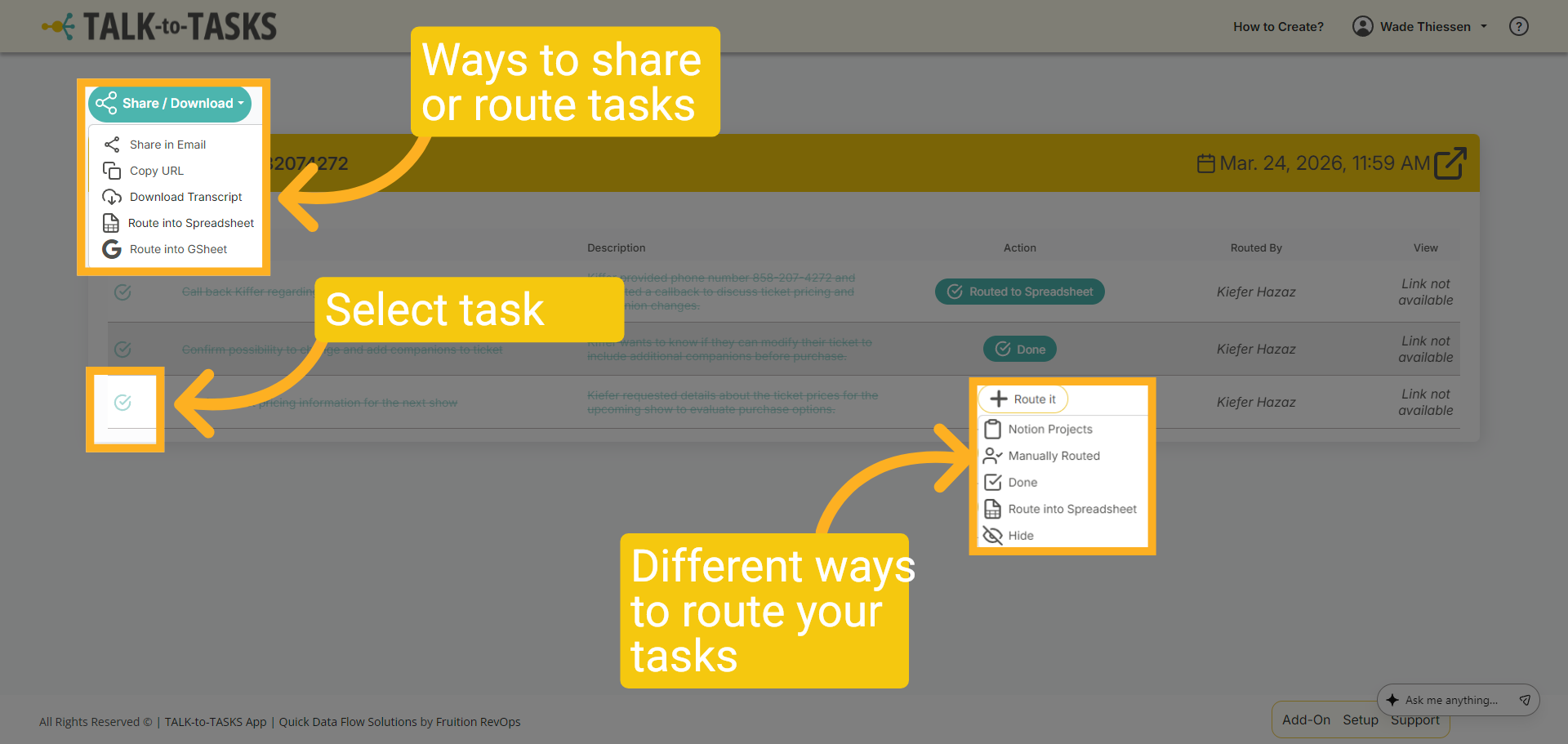
8 Share or Route Tasks
You can easily route or share your tasks by selecting them and choosing the option to share or route to another platform, or export them as an Excel or Google Doc.
After completing this SOP, you will be able to review Kixie call transcripts in Talk2Task, route and share tasks, and download call details for follow-up.