
How to Connect Notion
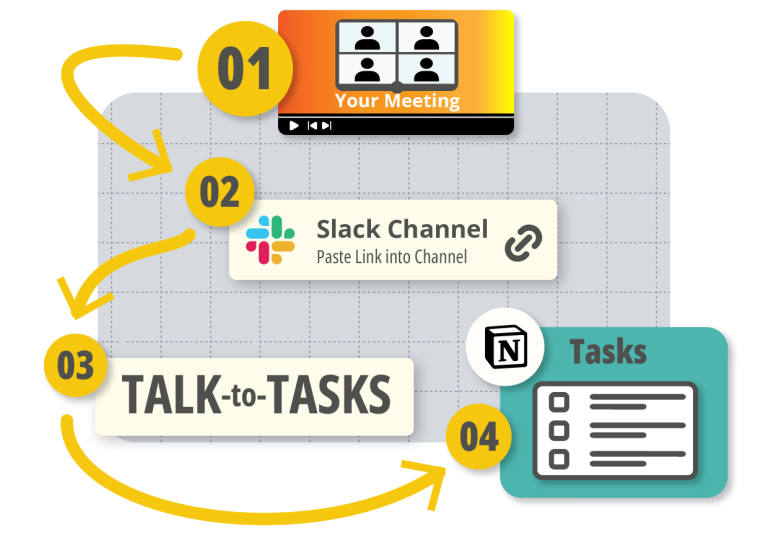
Welcome to Talk-to-Tasks. In this guide, you will learn how to integrate Notion with Talk-to-Tasks. Let’s get started.
1 Integrate with Notion
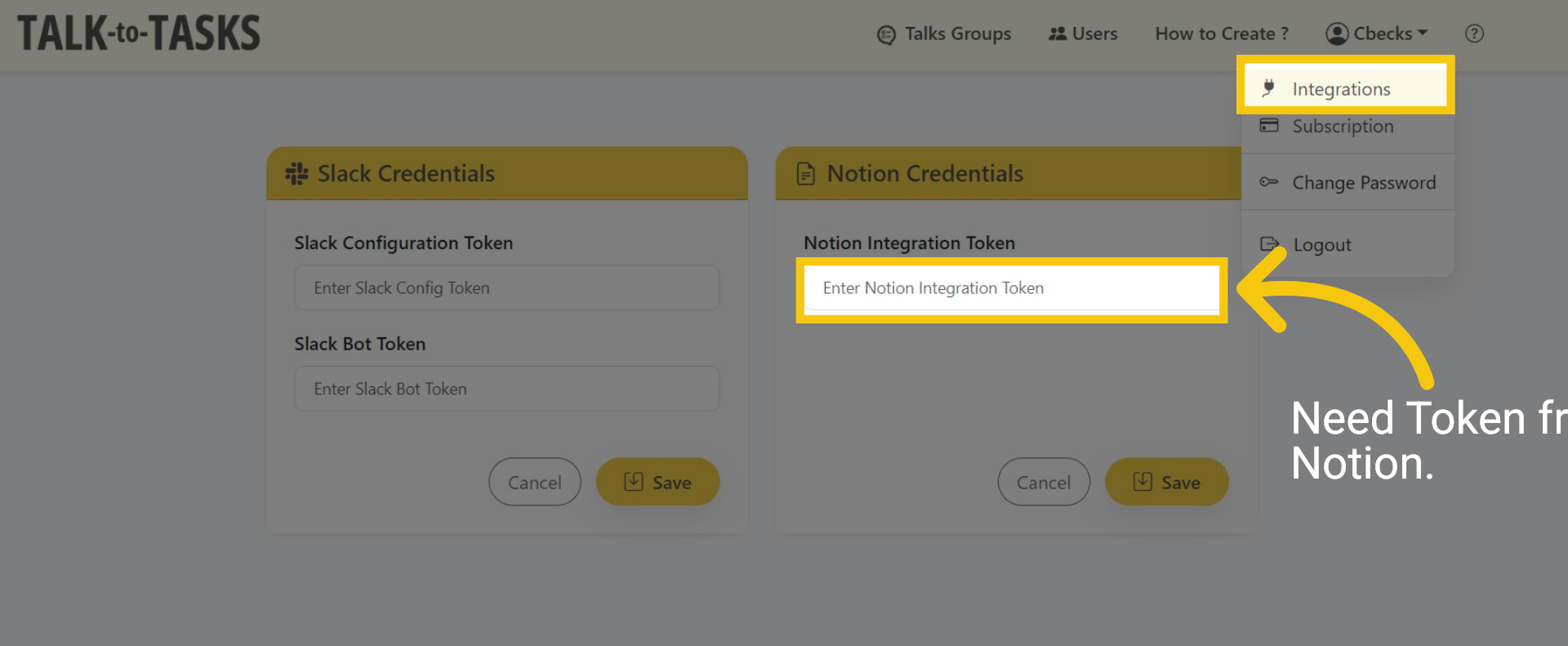
To push your tasks to Notion, you must first obtain an integration token. This necessary token is essential as it serves as a secure key that allows Talk-to-Tasks to connect seamlessly with your Notion workspace.
2 Find Settings in Notion
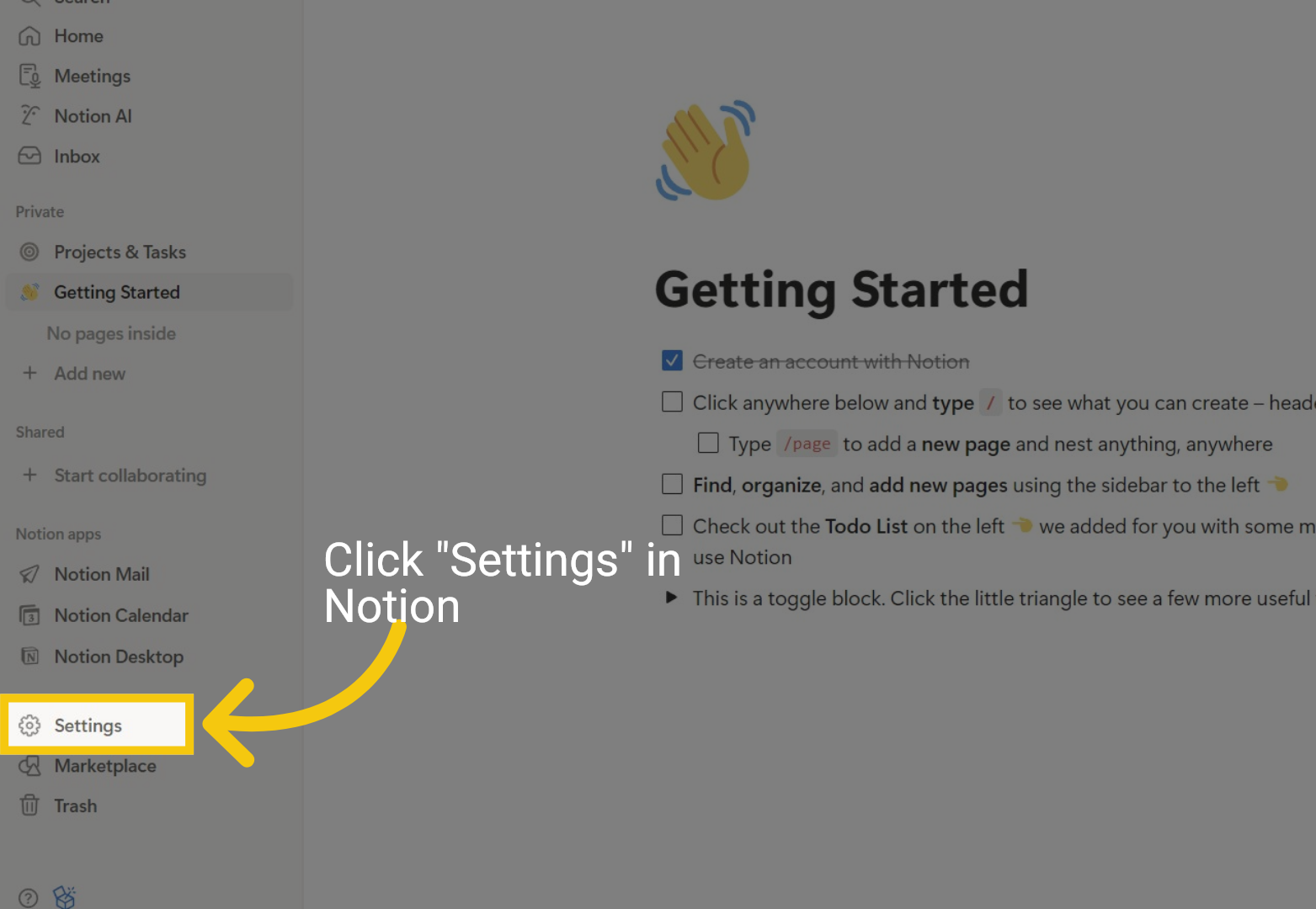
In Notion, navigate to the left-hand sidebar and scroll to the bottom. Click Settings to open your account settings menu.
3 Click on Connections
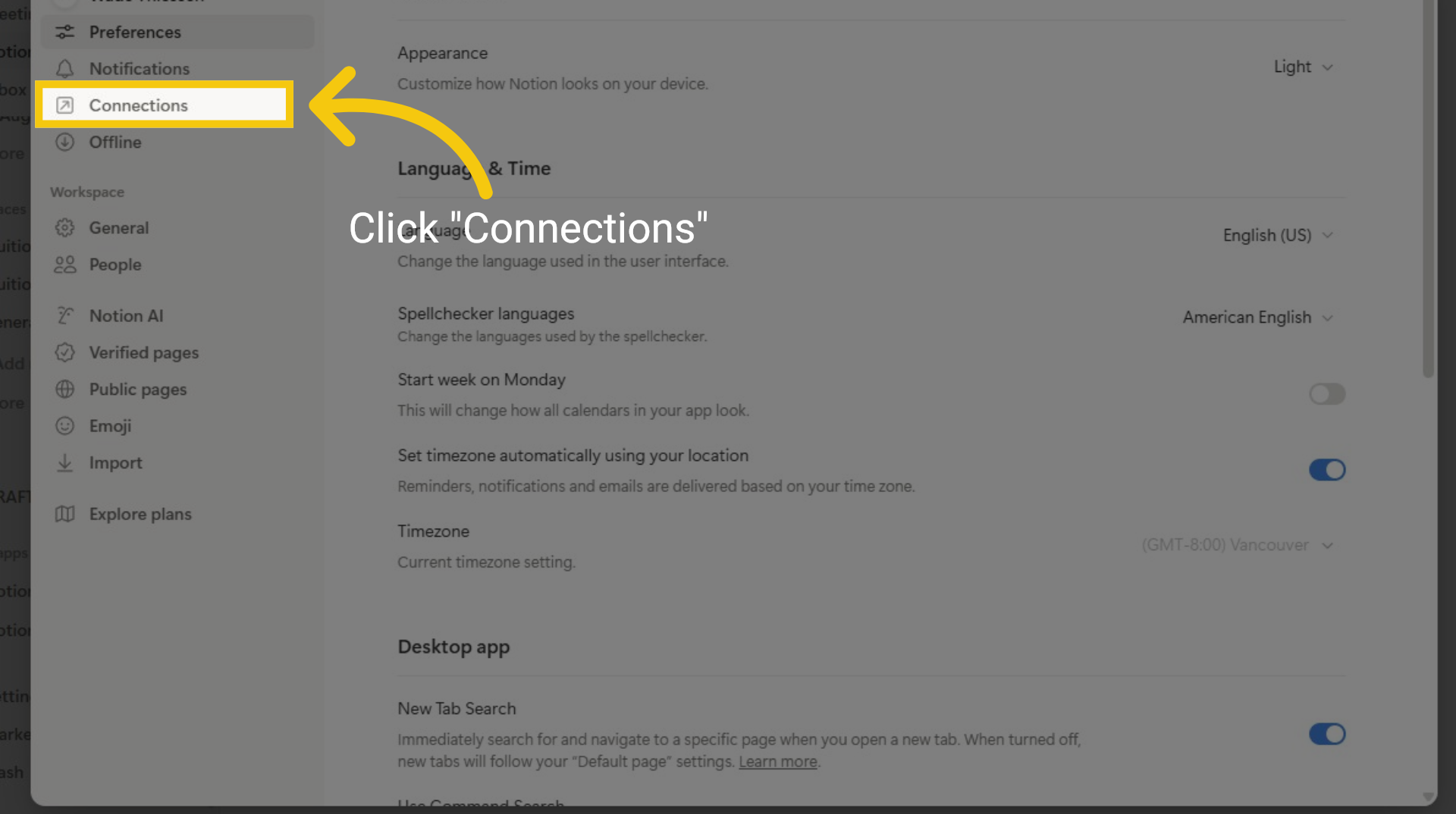
Select the option labelled "Connections." This will take you to the page where you can manage and establish various integrations.
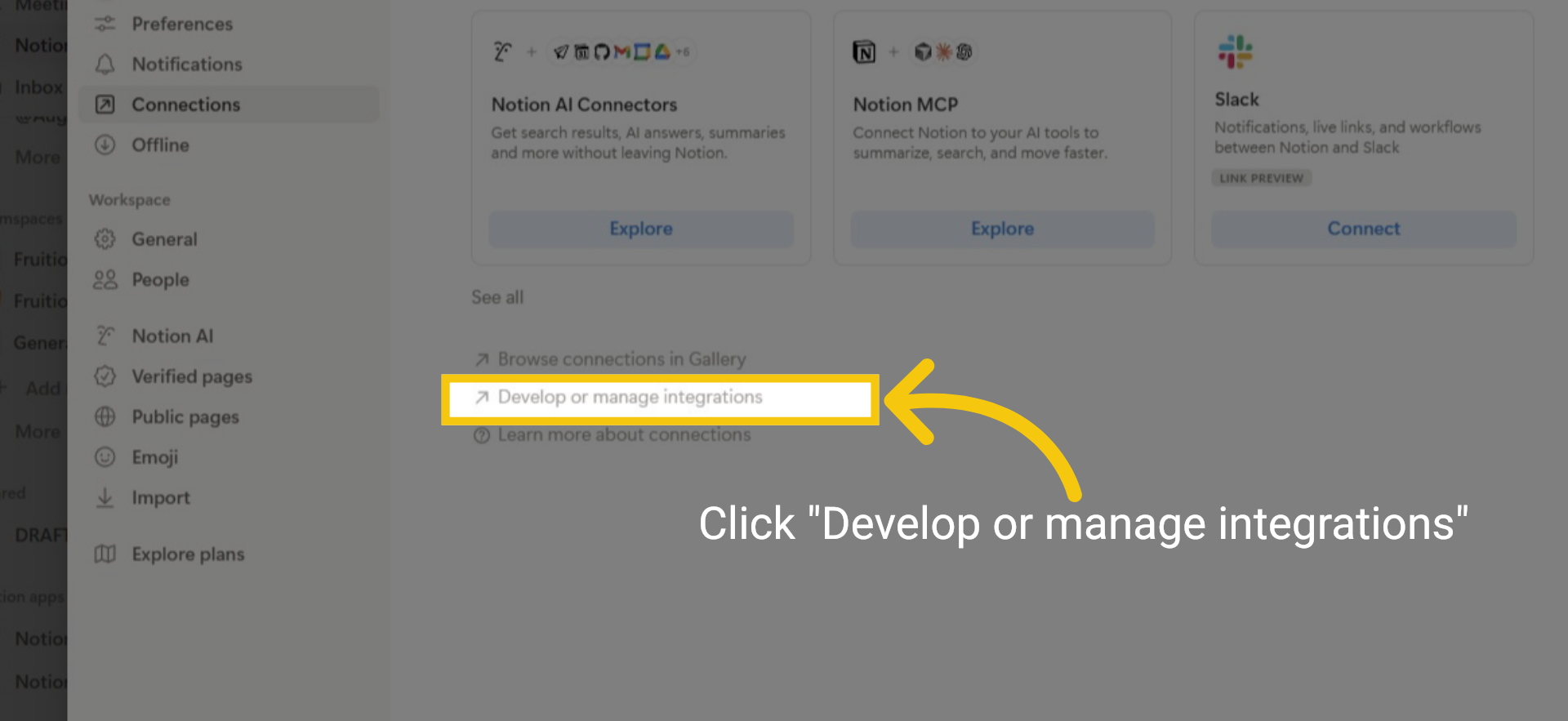
4 Develop or manage integrations
Click the "Develop or manage integrations" option to proceed with the setup for your integrations.
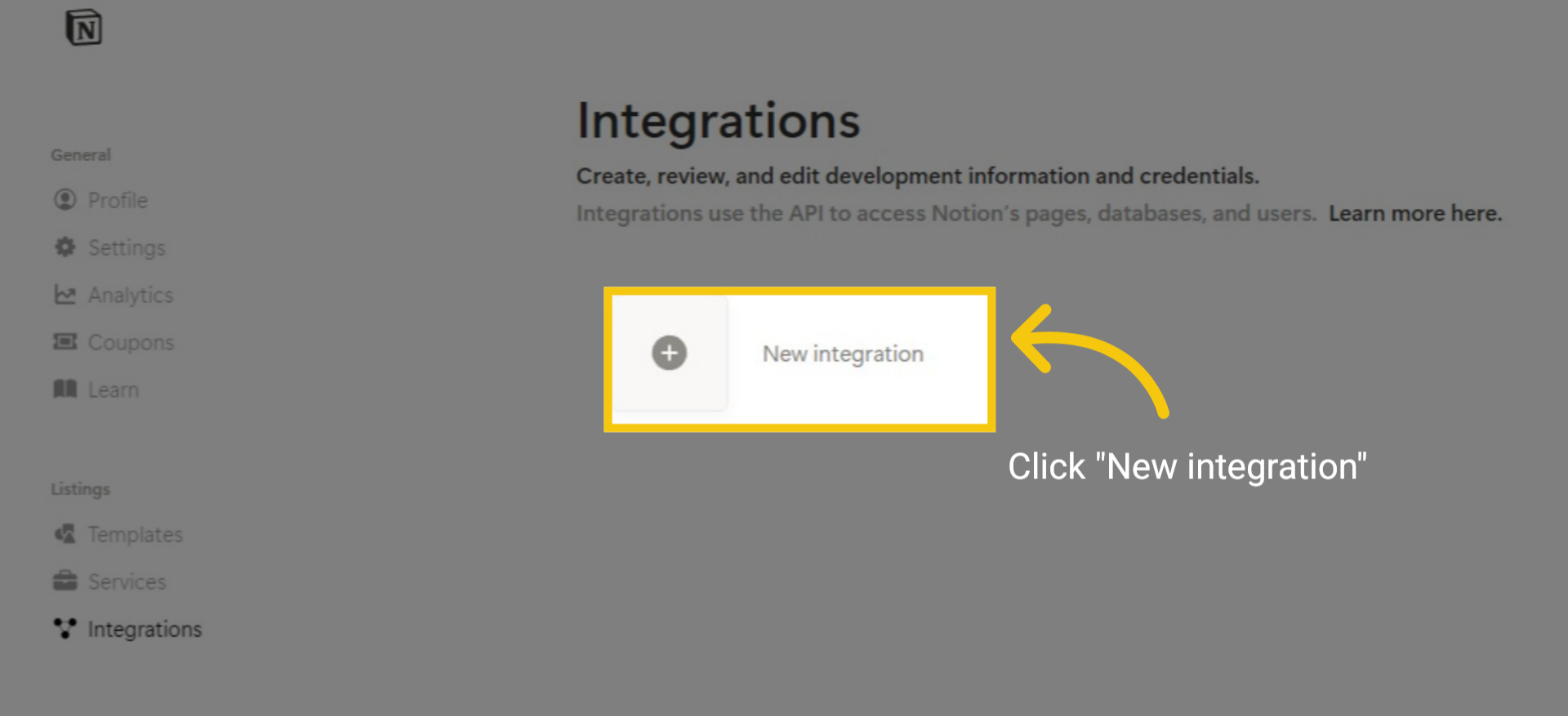
5 New integration
Click the "New integration" option to begin setting up your integrations.
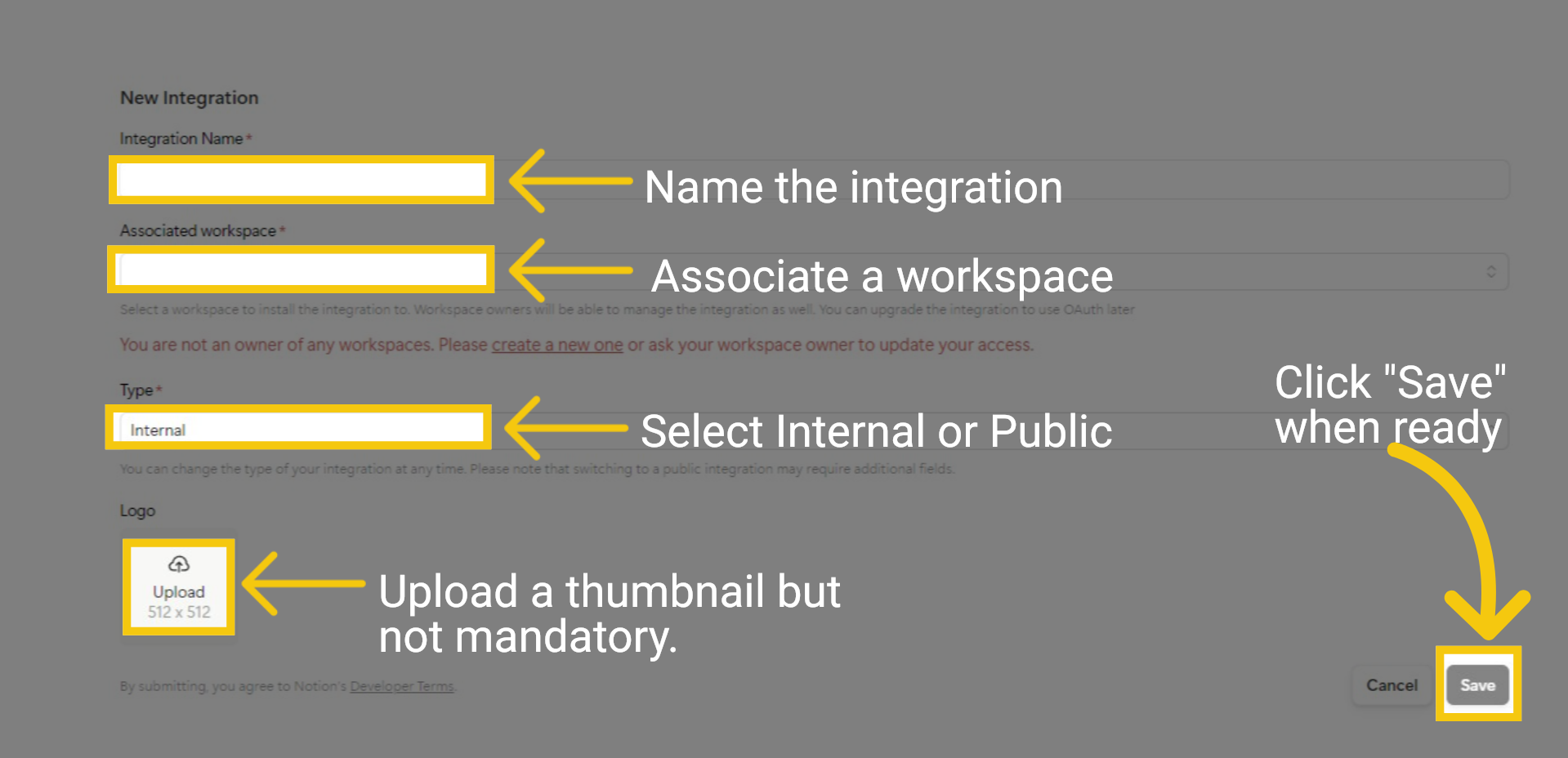
6 New integration
Name your integration and link it to an existing workspace. If you don’t have one, create a new workspace before continuing. Specify whether the integration will be internal or public, and if desired, upload a thumbnail image (this step is optional). After completing all fields, click Save to finalize your integration.
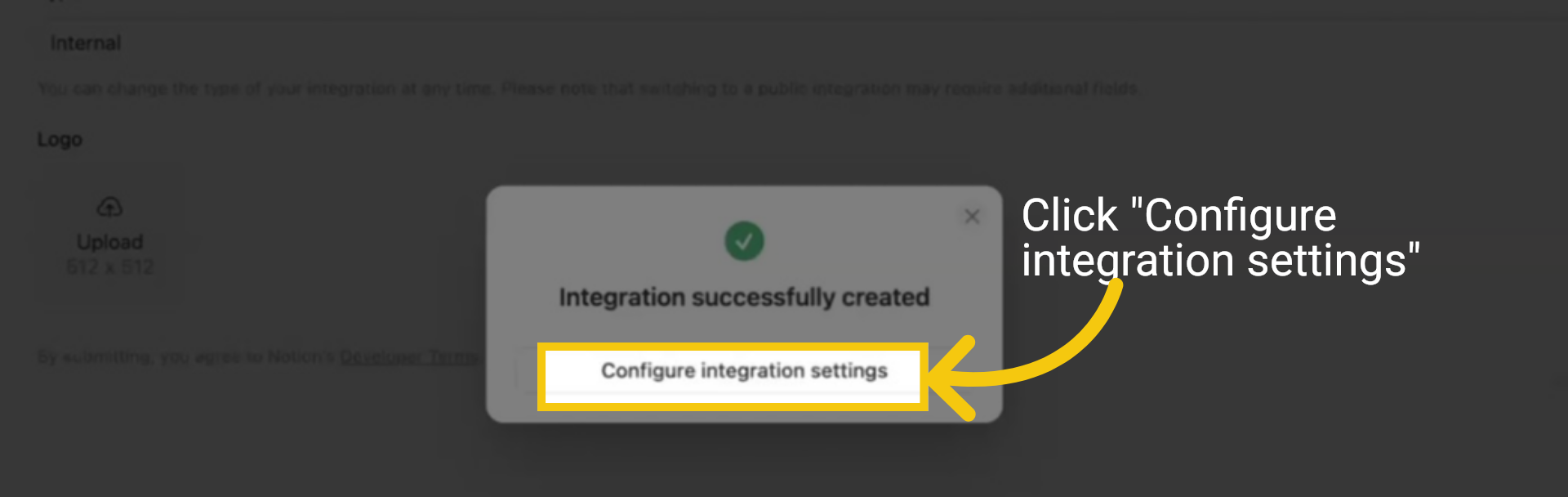
7 Integration Created
Integration has been successfully created and is now ready for use.
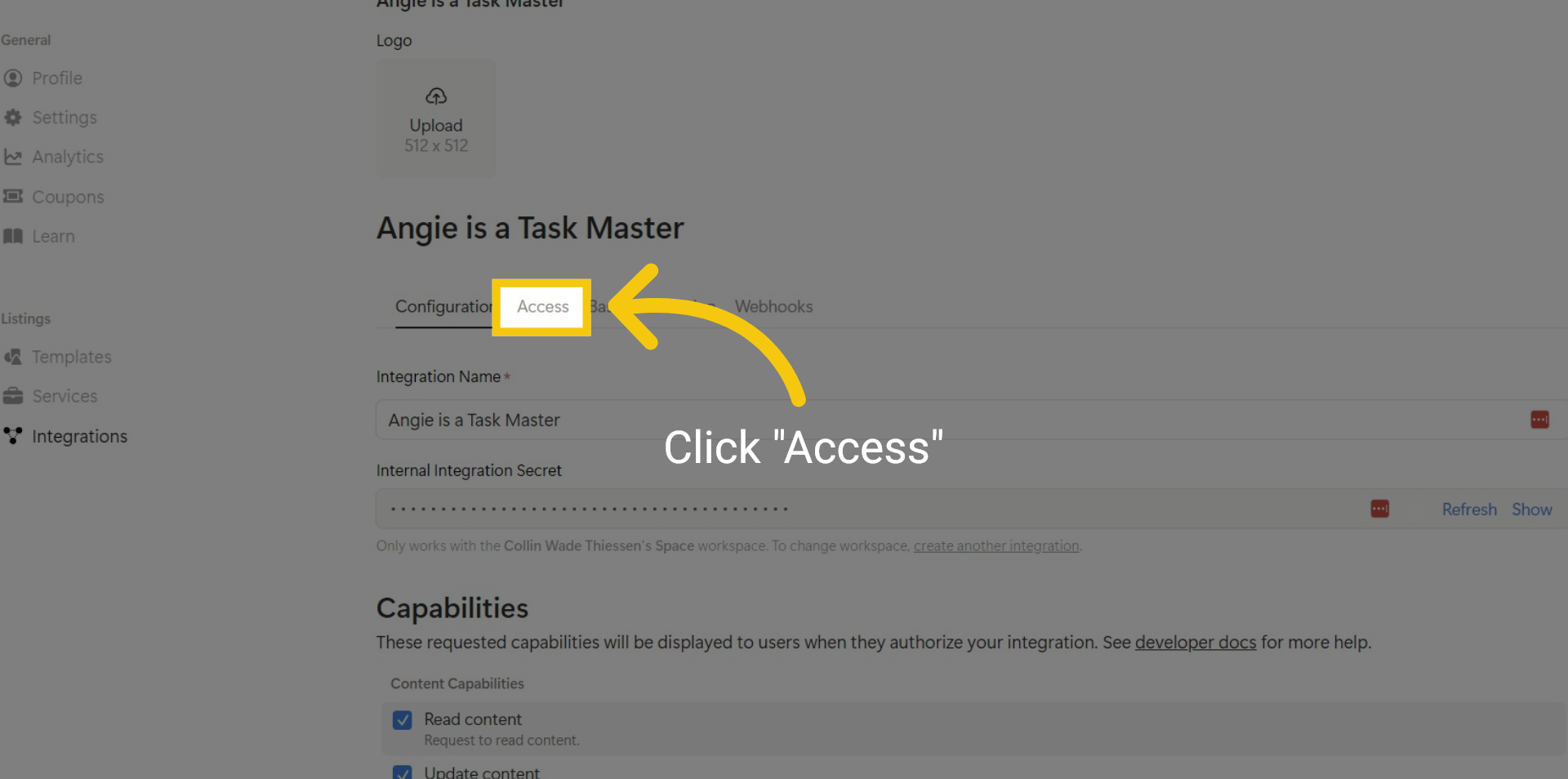
8 Access
Click "Access" to get started. Once your access is granted, you'll be able to edit the page and make the necessary updates.
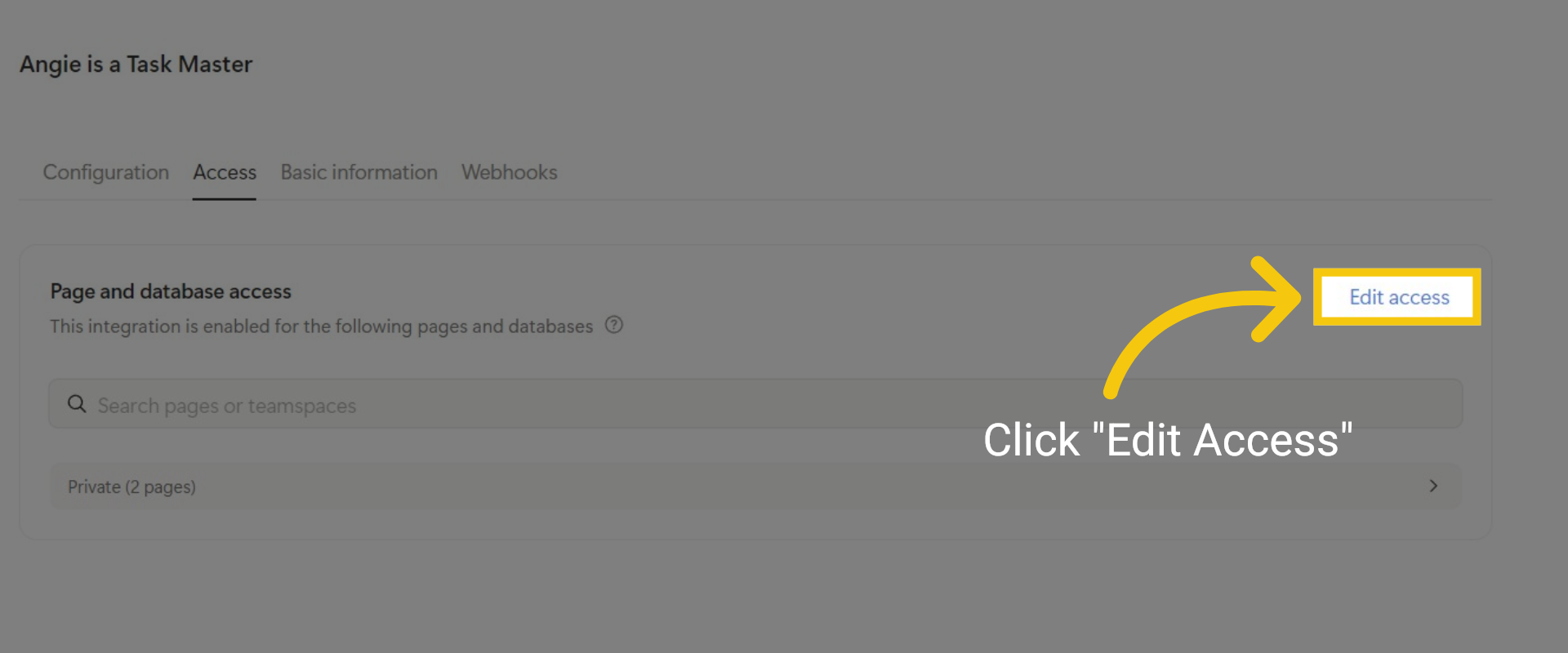
9 Edit Access
Click "Edit Access" to modify permissions so TALK-to-TASK can add tasks to Notion.
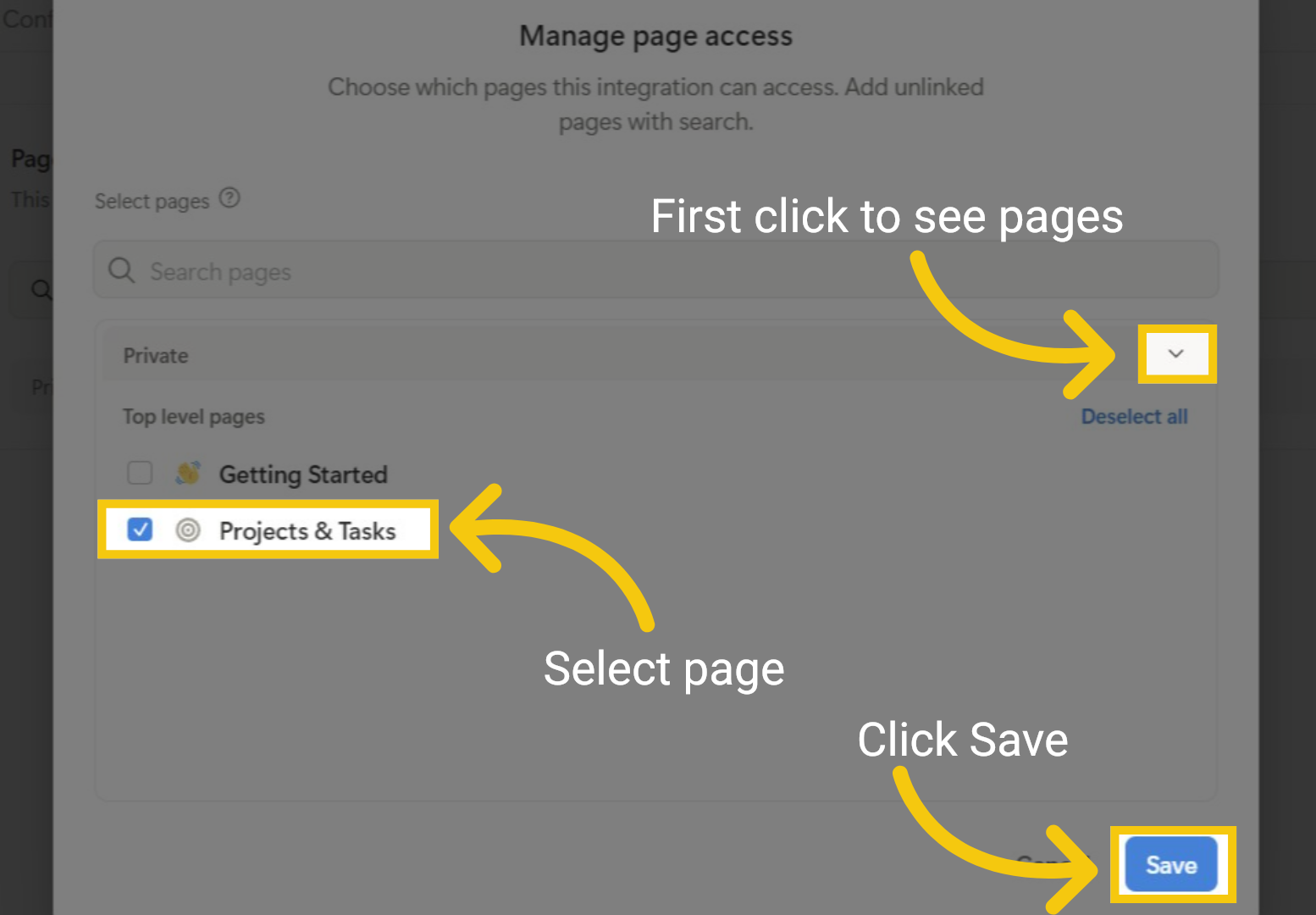
10 Select Page and Save
First, click the small triangle icon to expand and view the list of pages. Select the desired page to grant access, then click Save to confirm your changes.
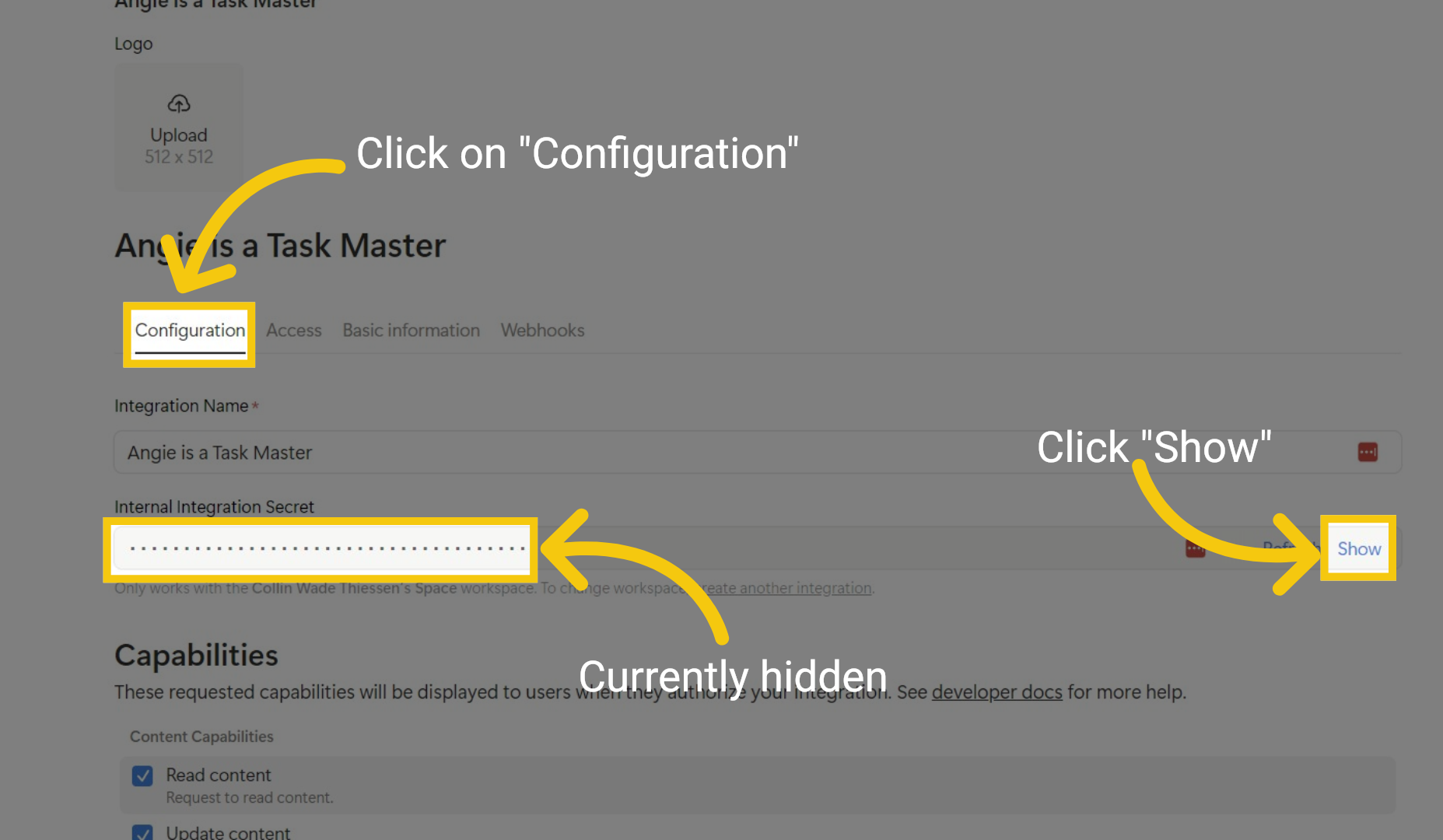
11 Configuration
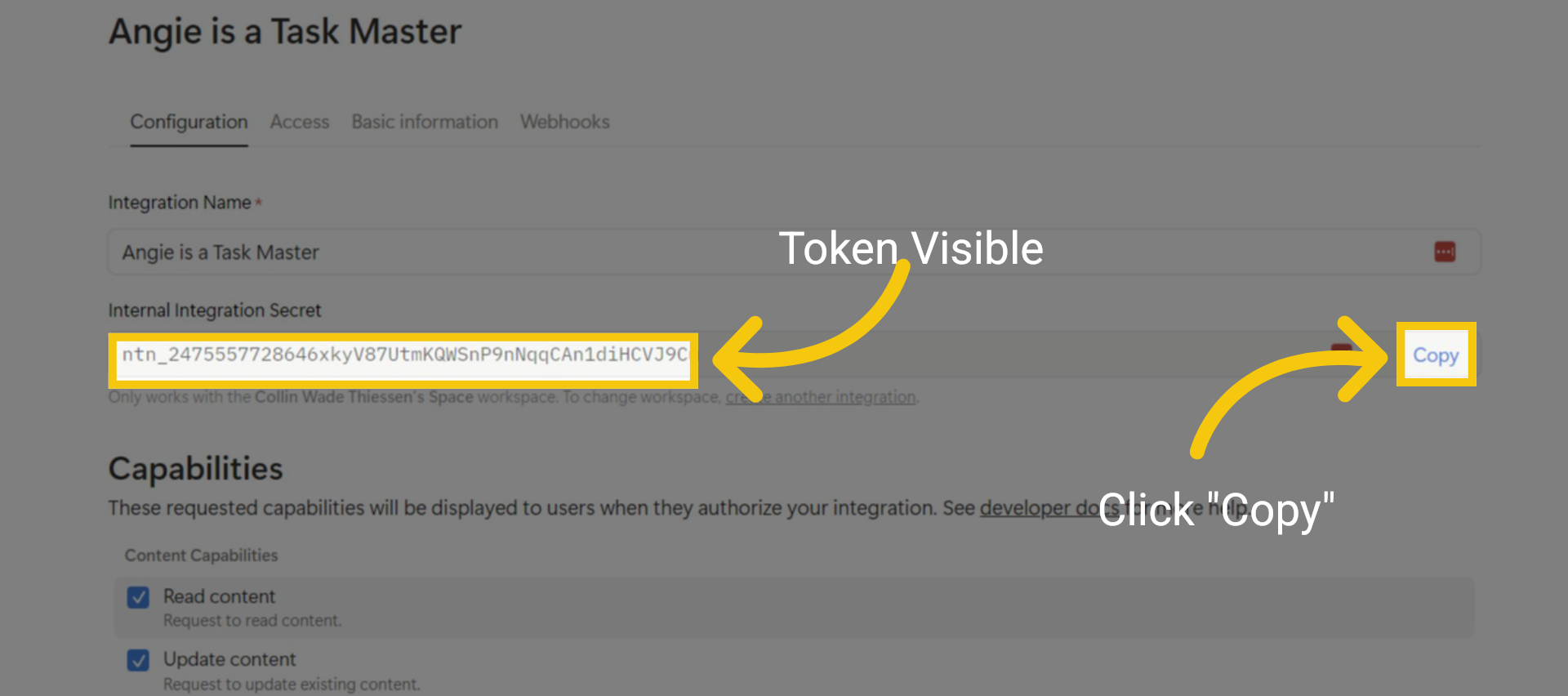
Navigate back to "Configuration." The Notion integration token is initially hidden. Click "Show" to display the token.
12 Copy Token
The Notion integration token is now revealed. Click "Copy", go back to the Talk-to-Tasks integration page.
13 Paste Token on TALK-to-TASKS
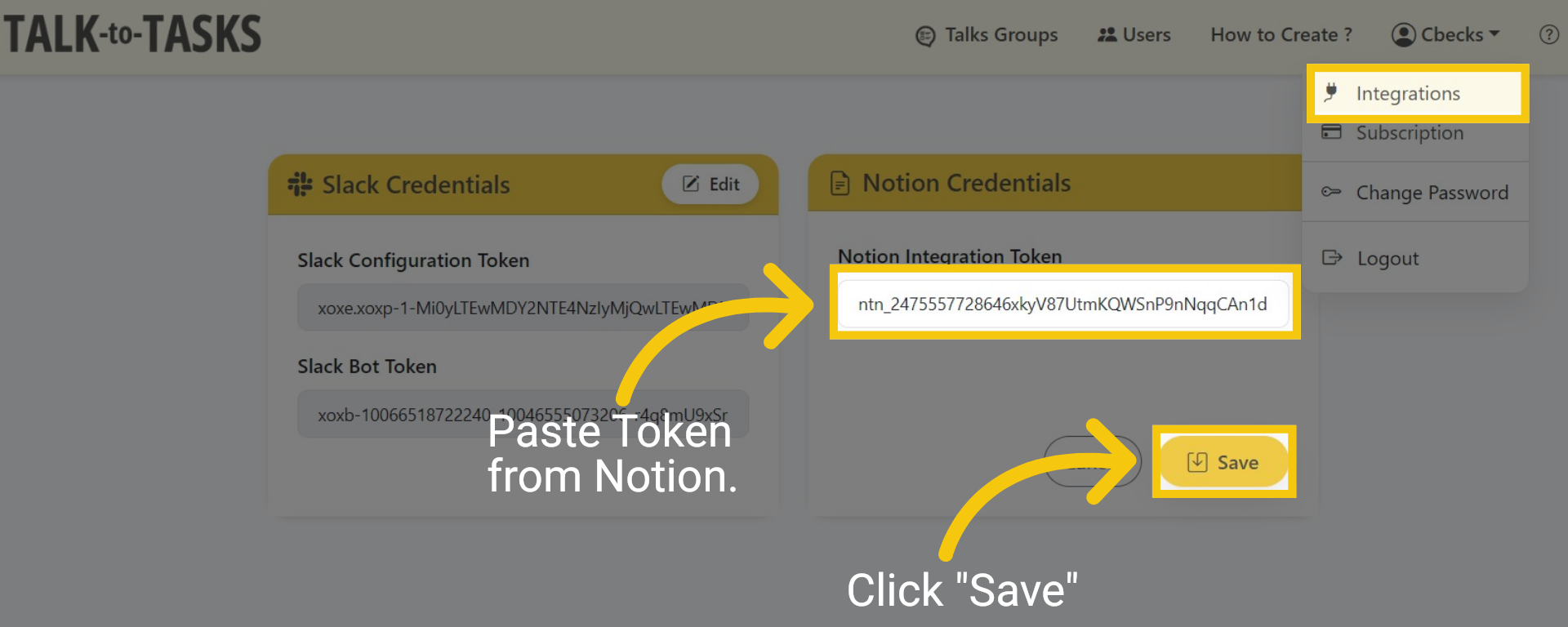
Return to Talk-to-Tasks and go to the Integration page. In the Notion Credentials section, paste your Notion token into the appropriate field, then click Save to finalize the connection.
14 Notion credentials saved successfully!
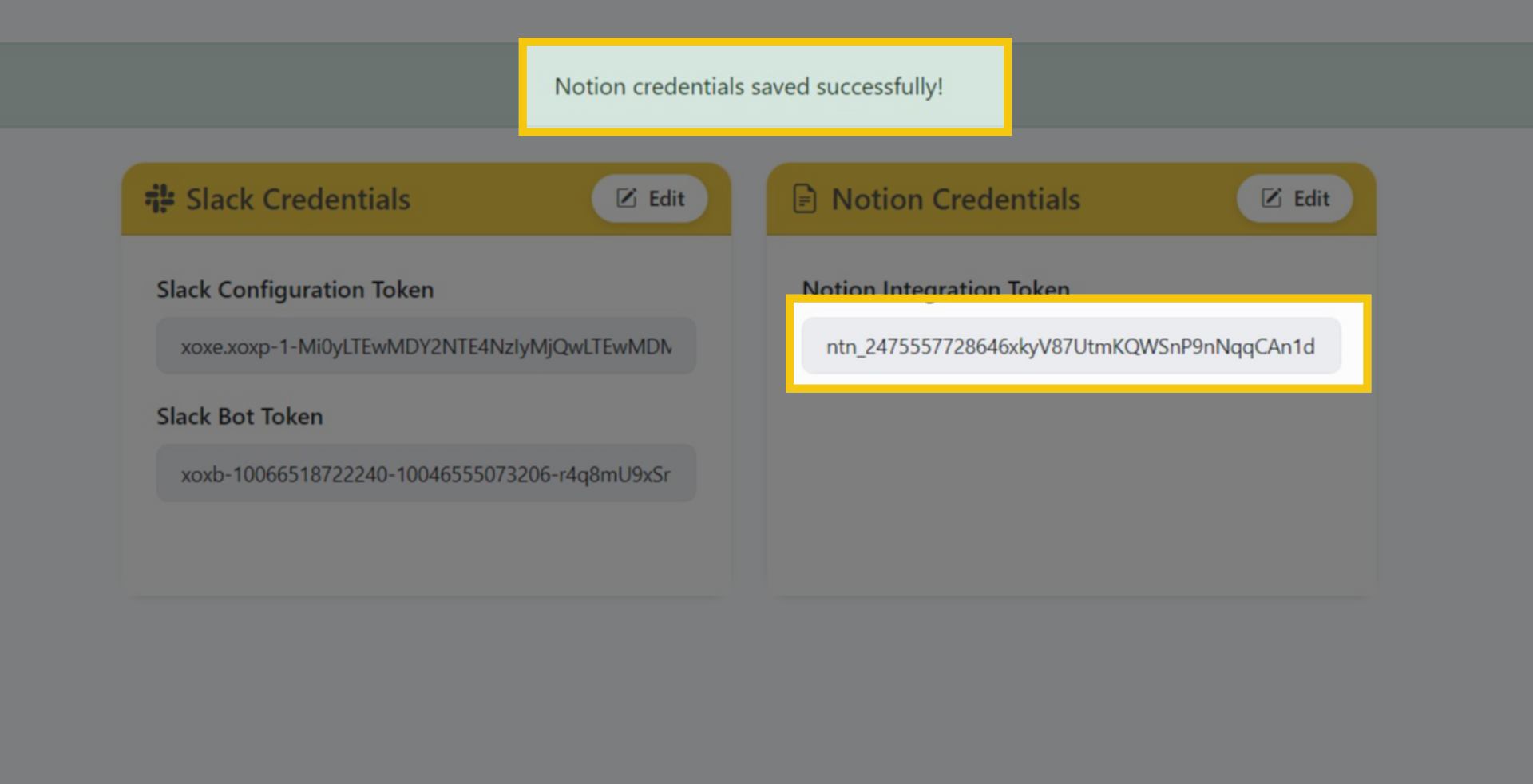
Your Notion credentials have been saved successfully! You can now seamlessly access your Notion workspace to create tasks with the integration.
In this comprehensive guide, you have learned the essential steps to create an integration in the Notion platform and how to connect it to Talk-to-Tasks.
How to Connect Slack
1 Integrate with Slack
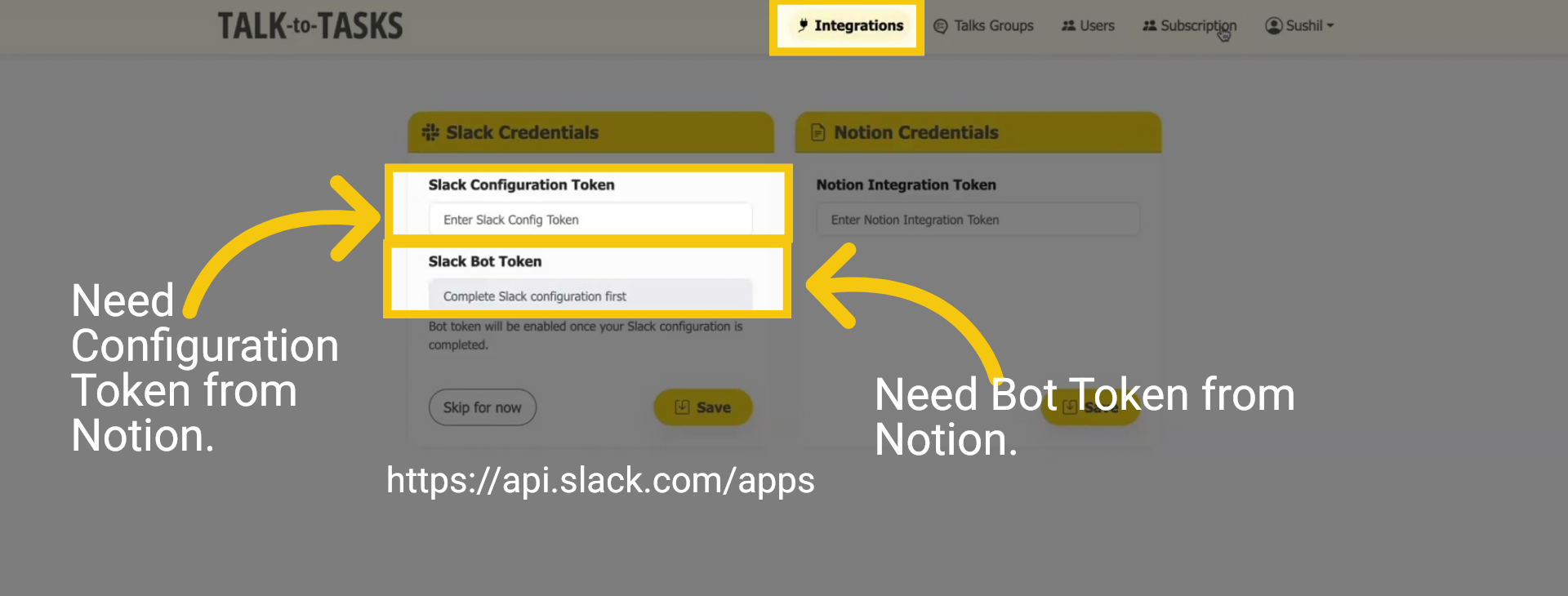
To automate your task creation from Slack, you first need to obtain a Configuration and Bot token. These crucial tokens act as a secure key that enables Talk-to-Tasks to connect seamlessly with your Slack Channel. Goto https://api.slack.com/apps/
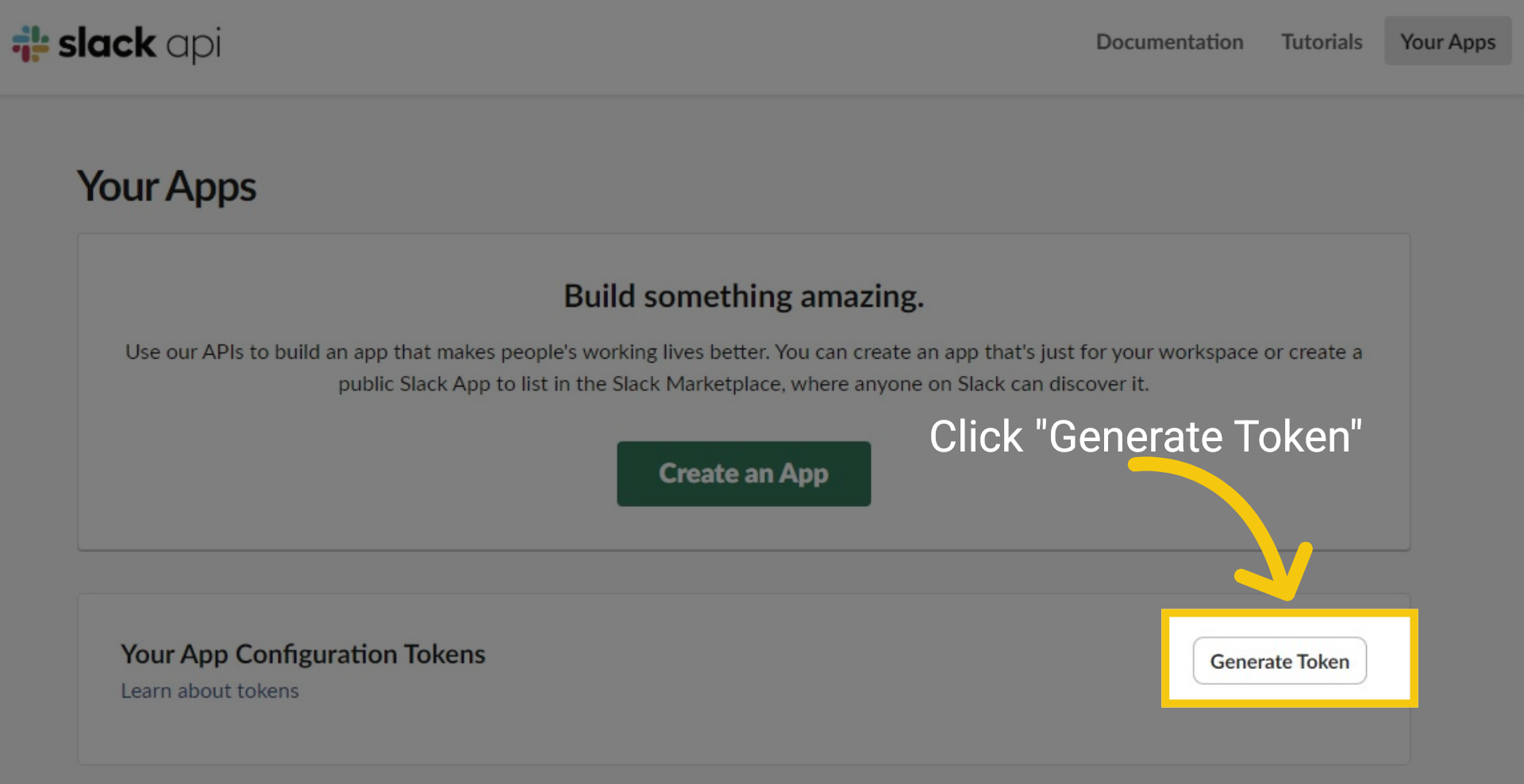
2 Generate Token
On the Slack API page, select "Generate Token."
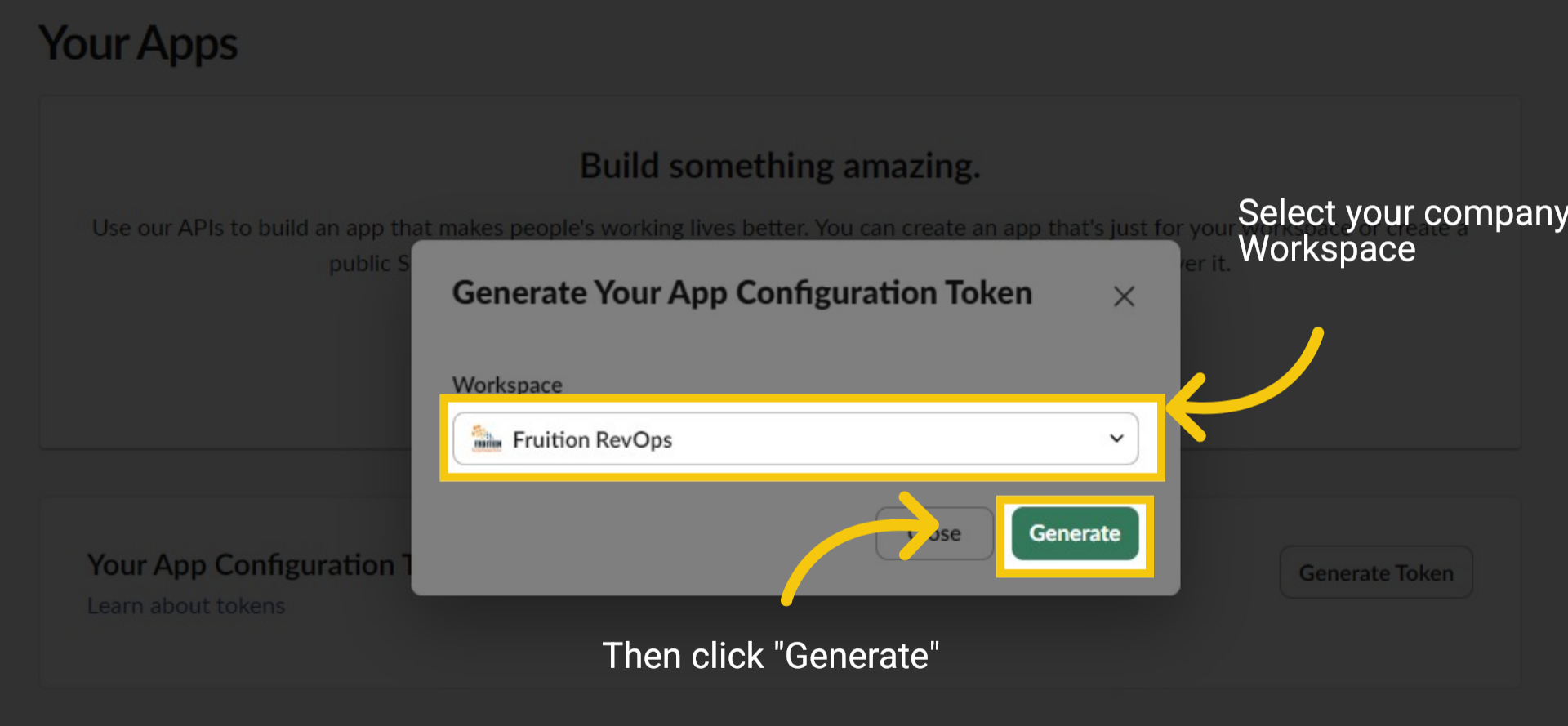
3 Select Your Company Workspace
Choose your company "Workspace" from the pulldown menu, then click "Generate."
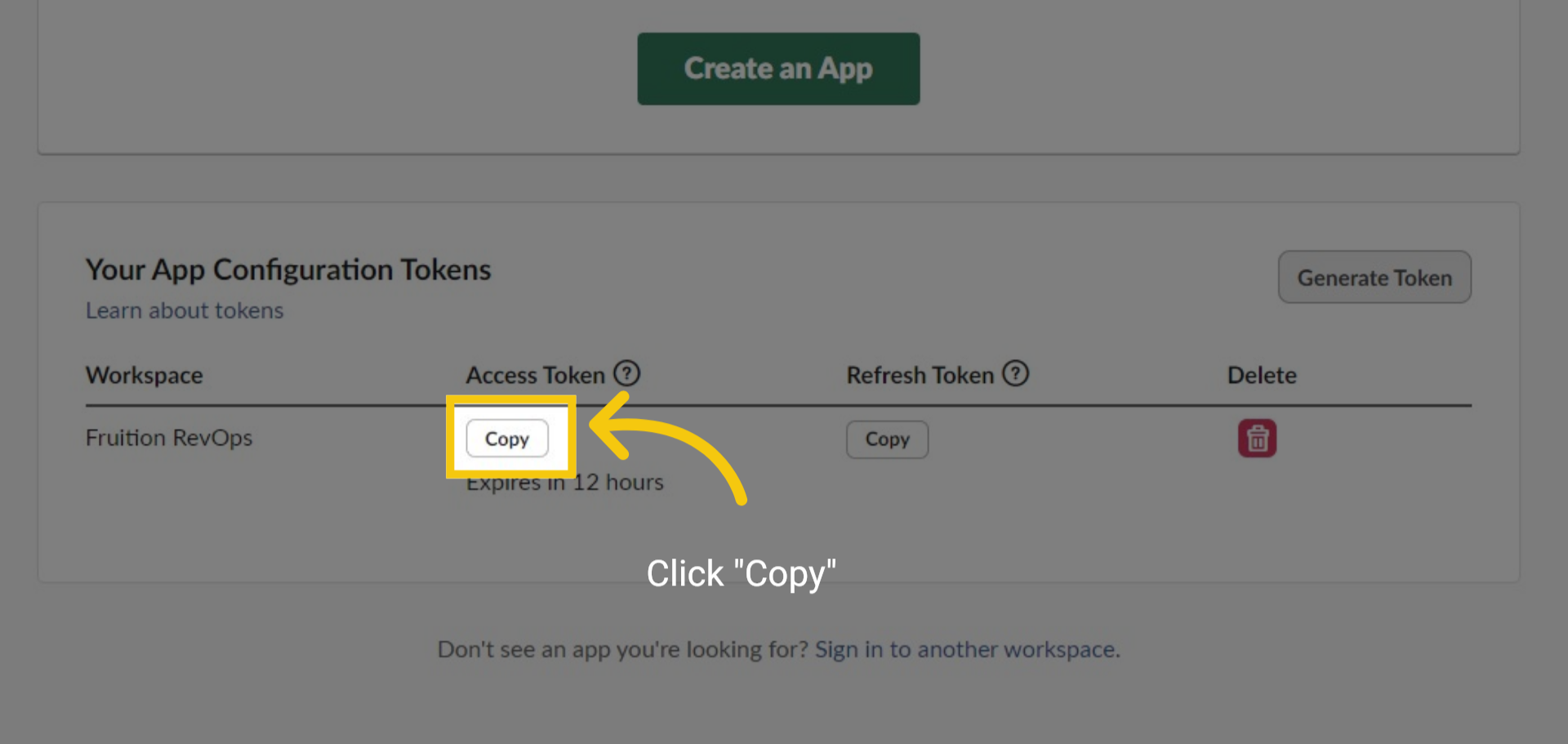
4 Copy Configuration Token
Click the Button "Copy". This will copy the Configuration token you need to connect TALK-to-TASKS to Slack.
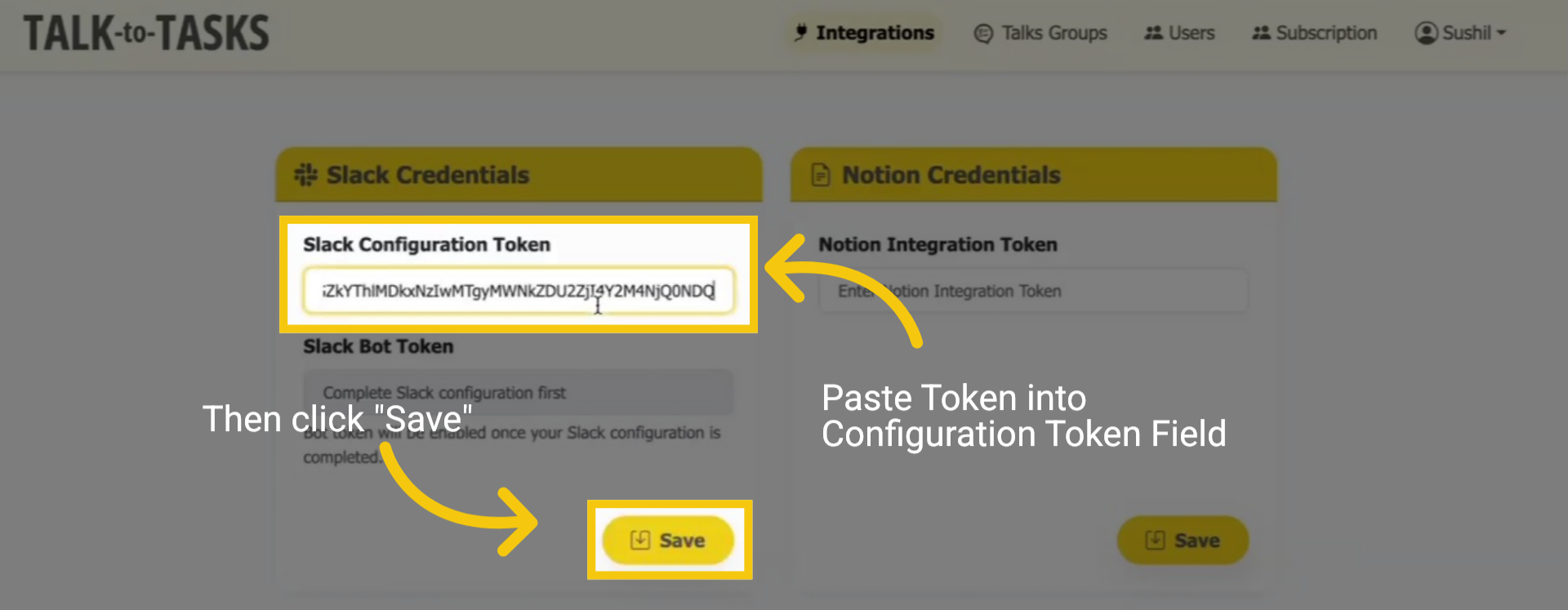
5 Paste Configuration Token
To complete the setup process, please paste the Token in the field labelled Configuration Token. Then click "Save". This will create an app on the Slack API.
6 New APP Created on Slack
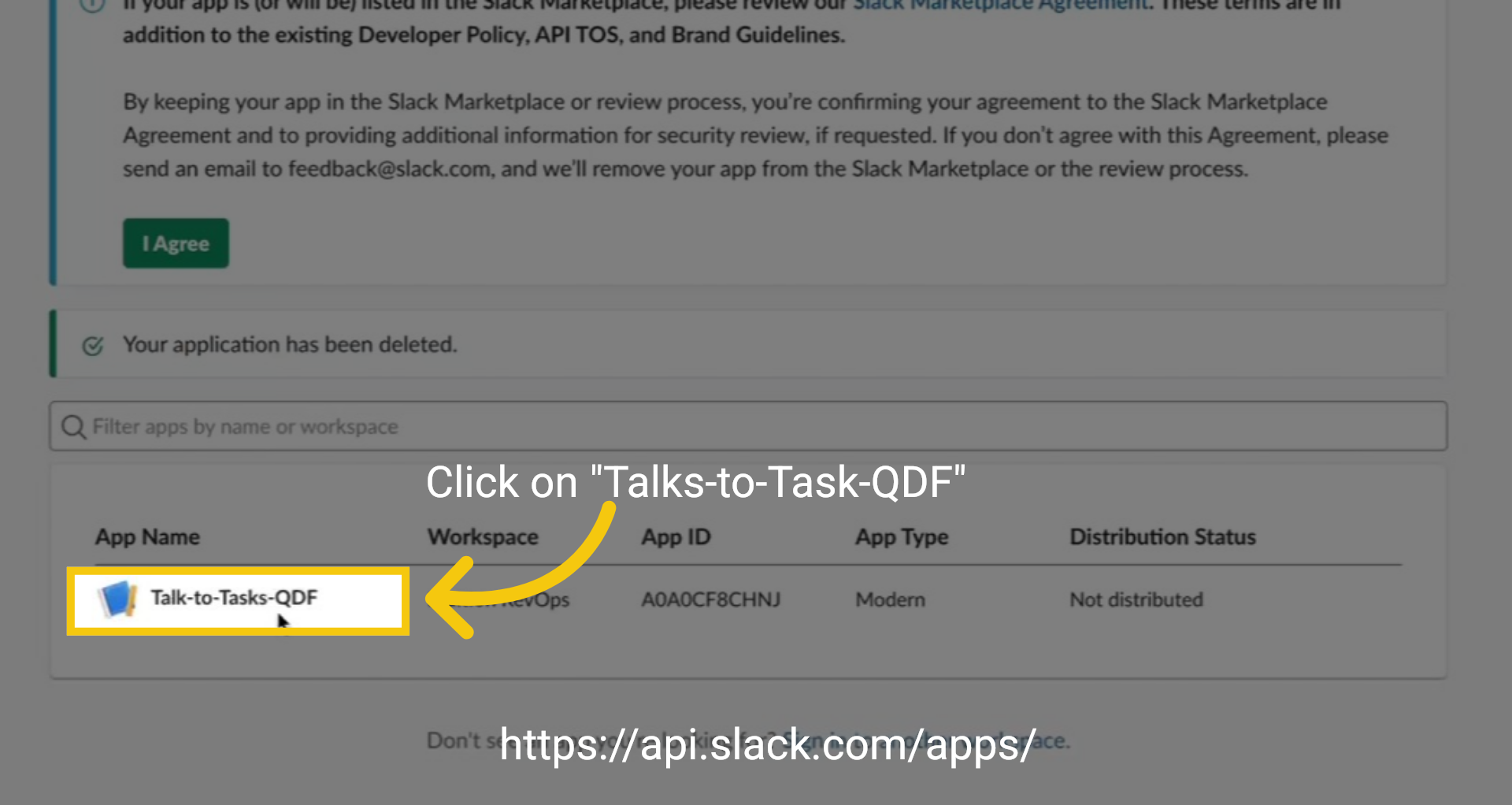
Return to the https://api.slack.com/apps/ Apps page. You will now notice that a new application has been successfully created. Click on "Talks-to-Task-QDF".
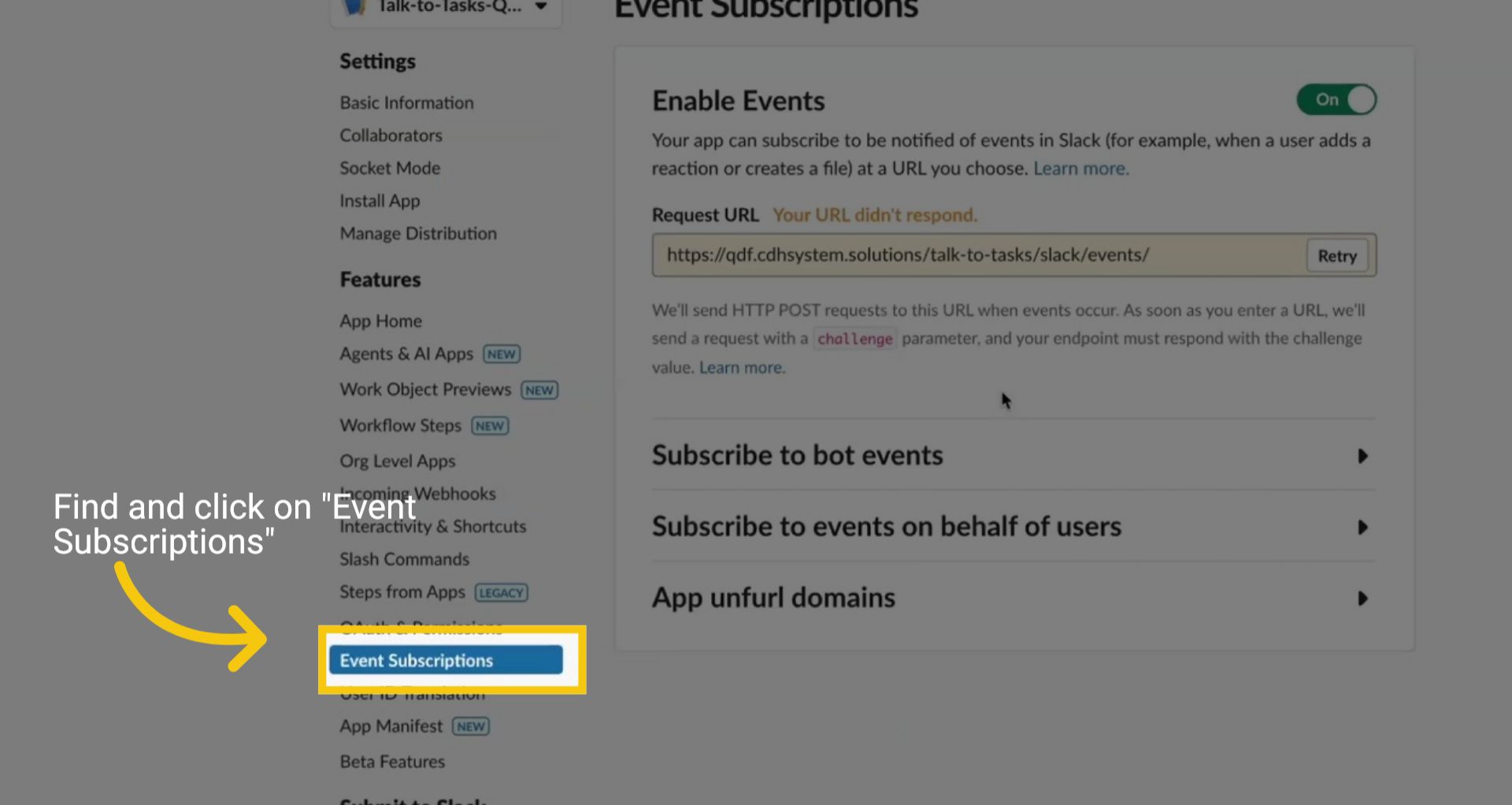
7 Event Subscriptions
Find and click on "Event Subscriptions."
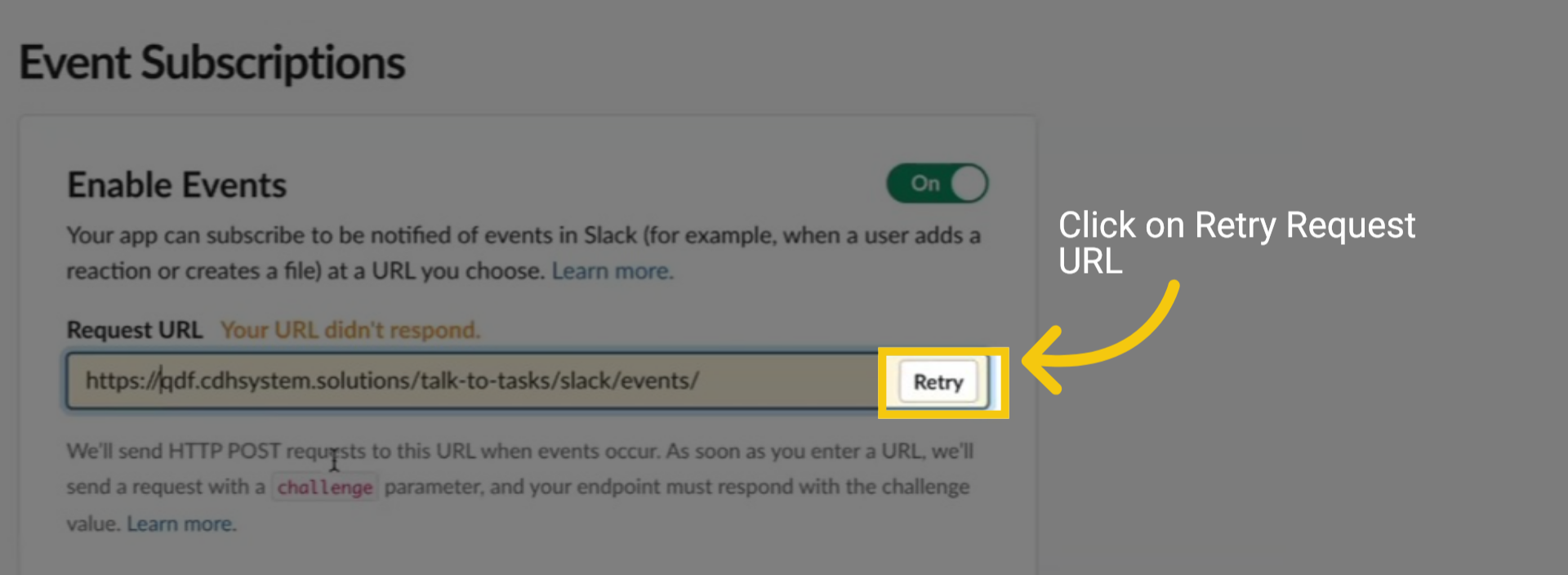
8 Retry Request URL
Click "Retry" and wait for the confirmation message to appear in green that says "Verified."
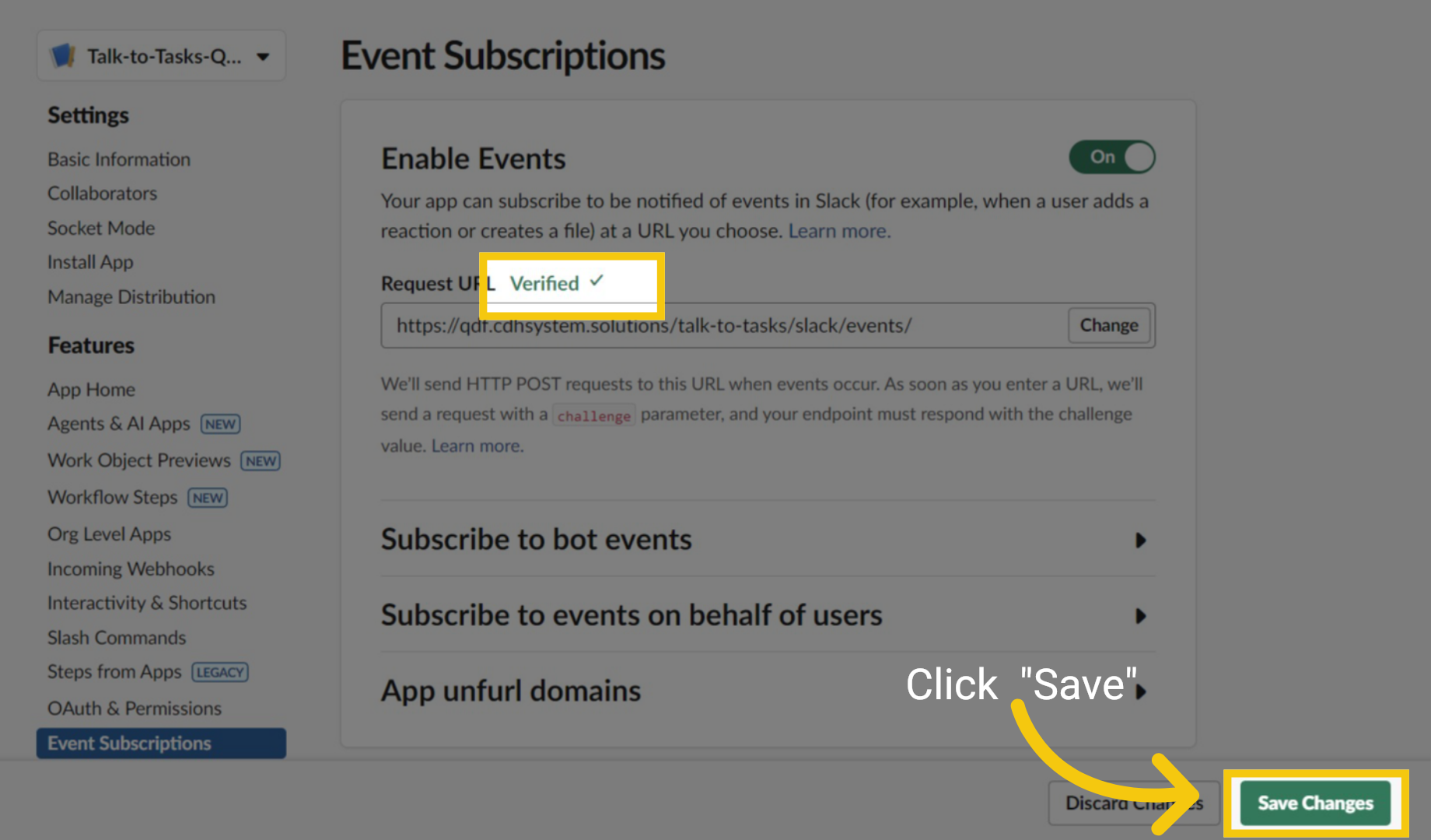
9 Click Save
Next, once you see "Verified" in green, click the Save button at the bottom of the screen.
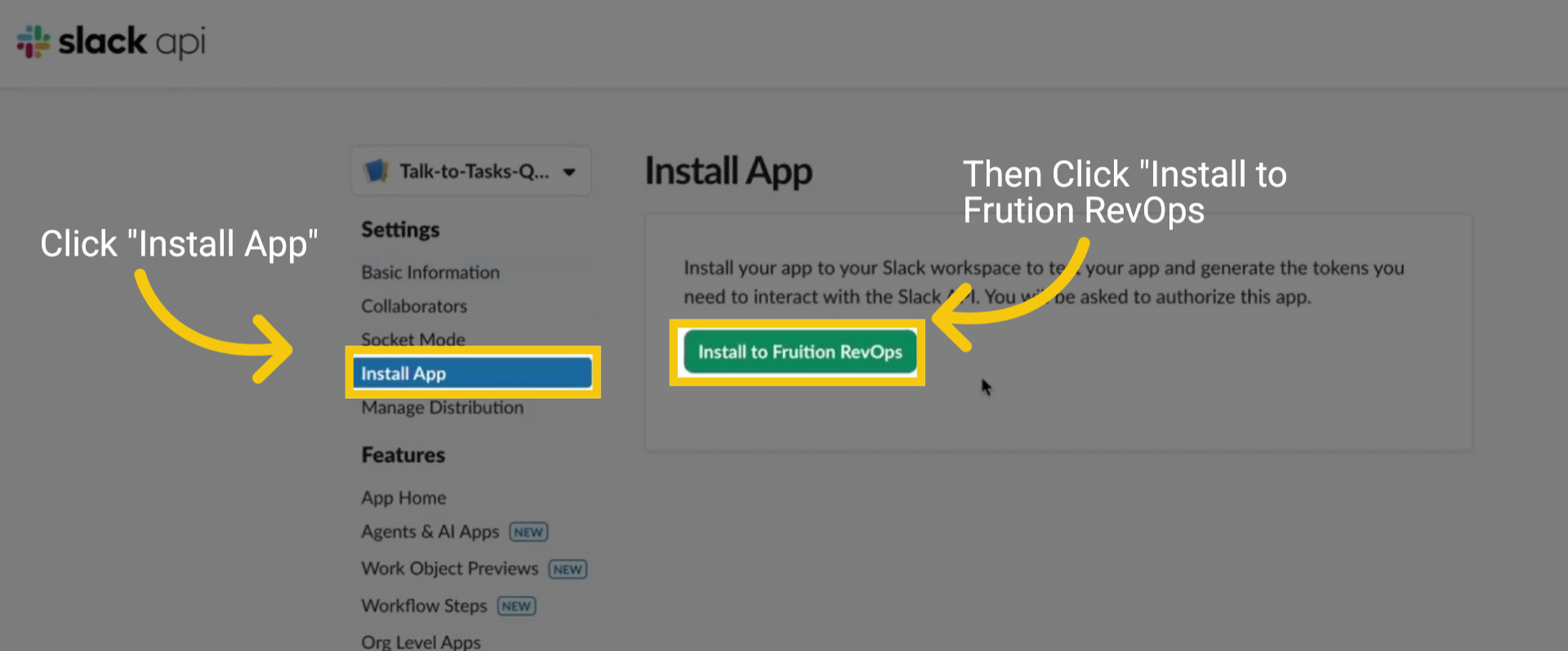
10 Install App
From the menu, locate and select Install App. Once the page loads, click the green Install to Fruition RevOps button to complete the installation.
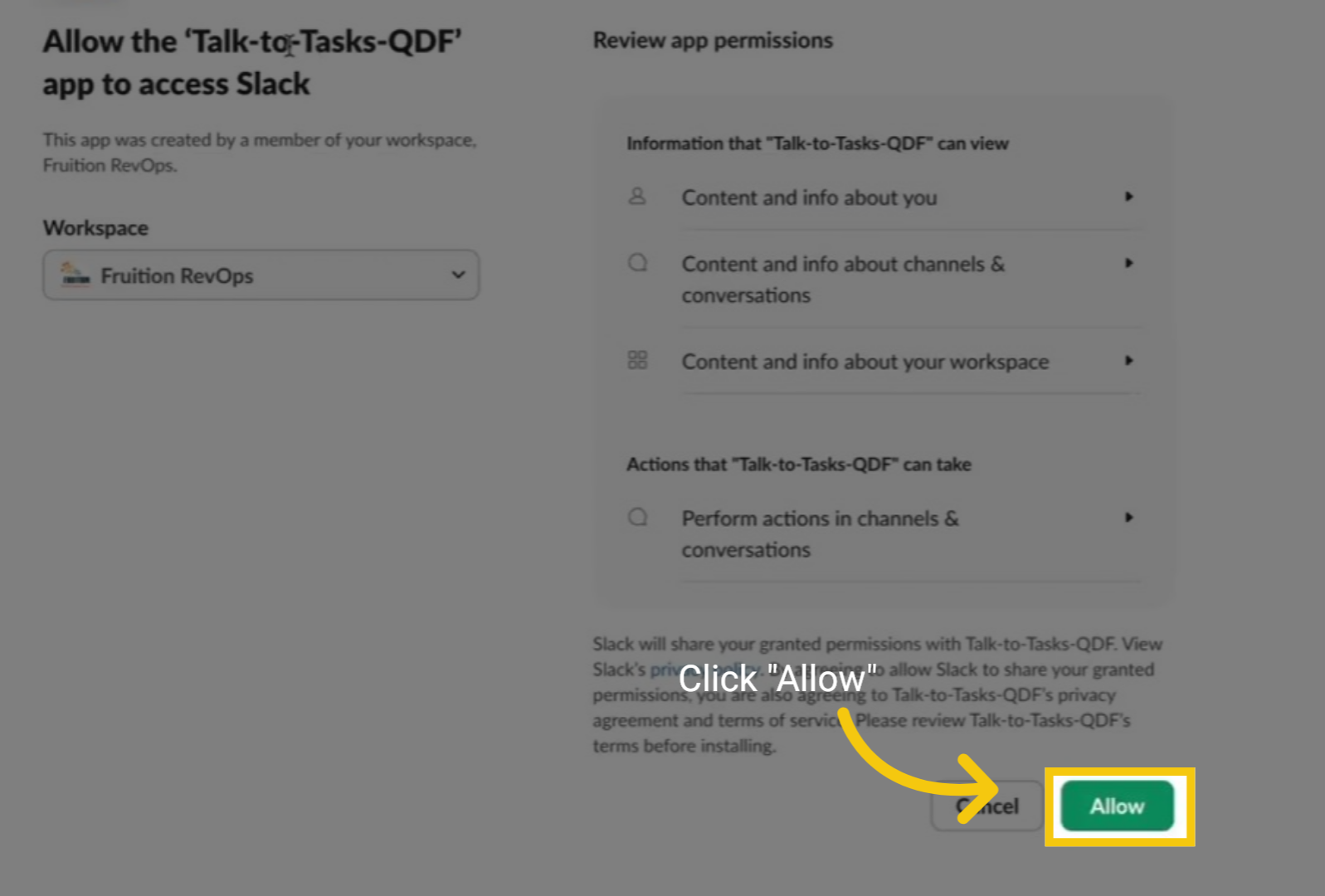
11 Click Allow
Once the page loads, click the green "Allow" button. The page will reload.
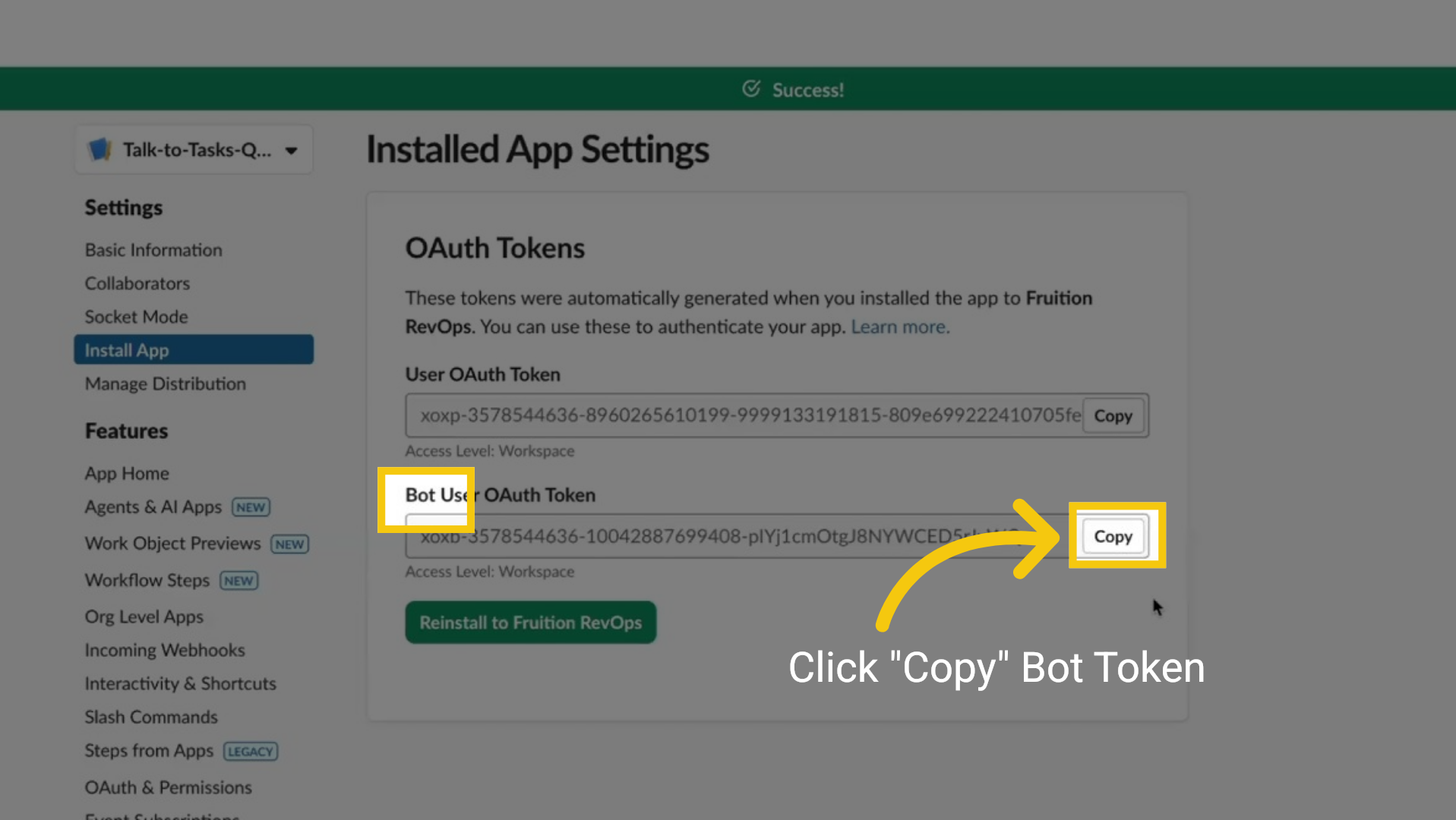
12 Copy Bot Token
Once the page has loaded, click the "Copy" button next to the Bot User OAuth Token field. Then, return to the TALK-to-TASKS integration page with the token.
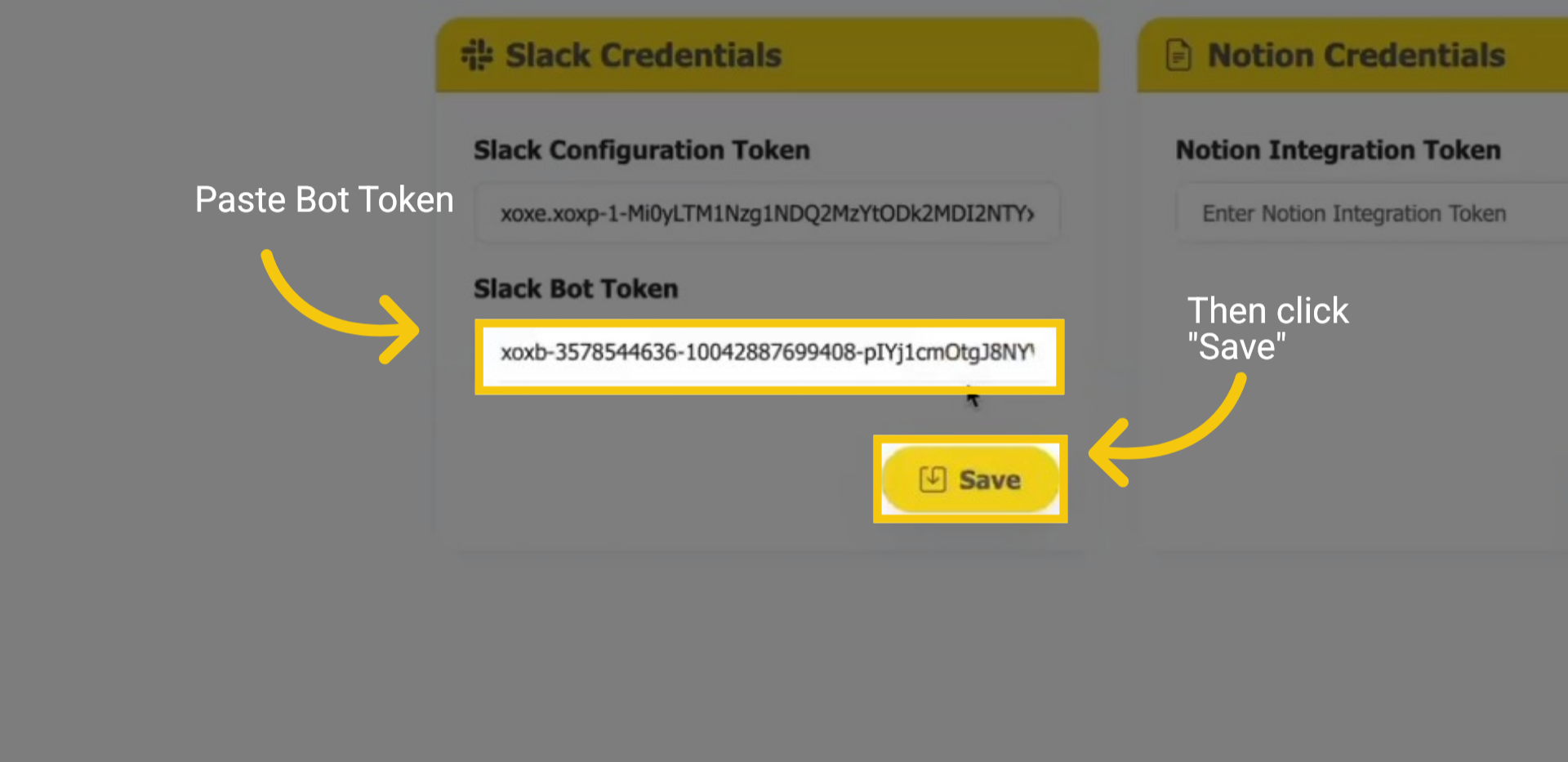
13 Paste Bot Token
After returning to the TALK-to-TASKS integration page. Begin by pasting the token into the Slack Bot Token field and then click "Save
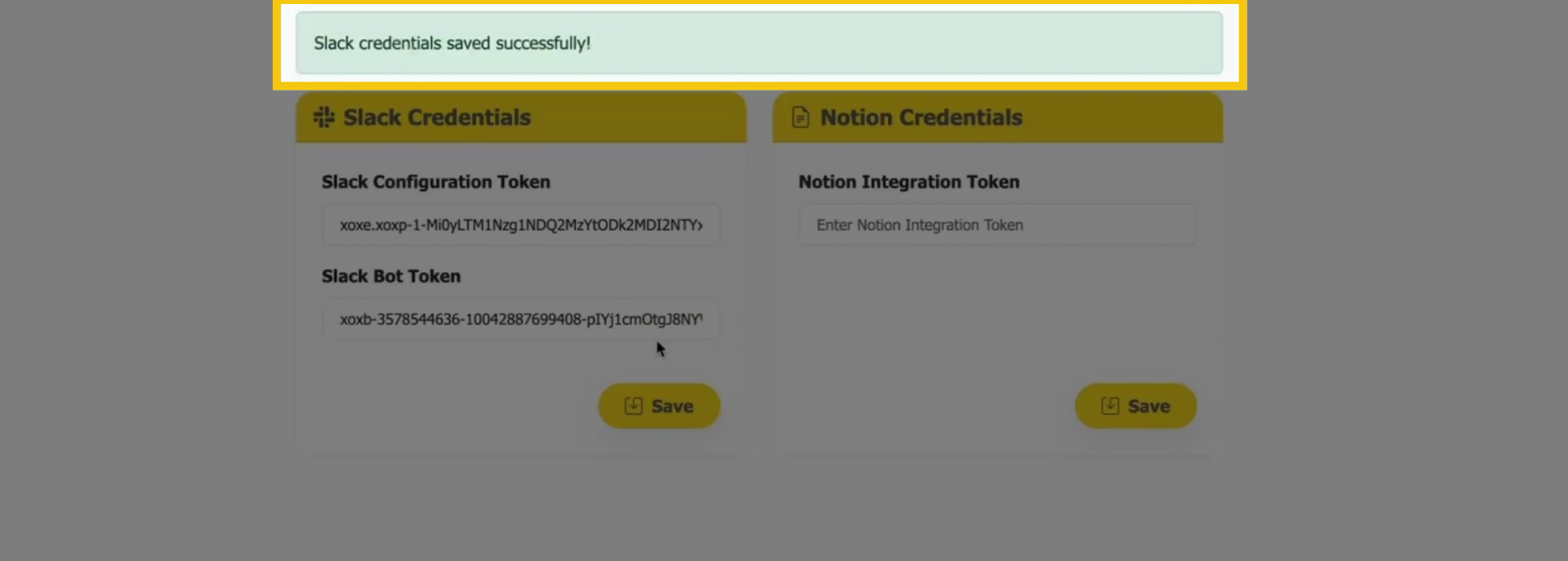
14 Slack credentials saved successfully!
Your Slack credentials have been saved successfully! You can now seamlessly access your Slack Channel to create tasks with the integration.
In this comprehensive guide, you have explored the essential steps required to create an application within the Slack platform. You have learned how to identify the specific tokens necessary for establishing a successful connection. Additionally, you discovered how to seamlessly integrate TalkToTasks with Slack, enabling automated task creation that enhances your workflow efficiency and collaboration within your team. This integration not only streamlines processes but also ensures that tasks are managed effectively right from your Slack interface, ultimately making your daily operations smoother and more productive.