



























How-to Edit Talks and Tasks
In this guide, you will learn how to edit talks and tasks.
1 Talks List
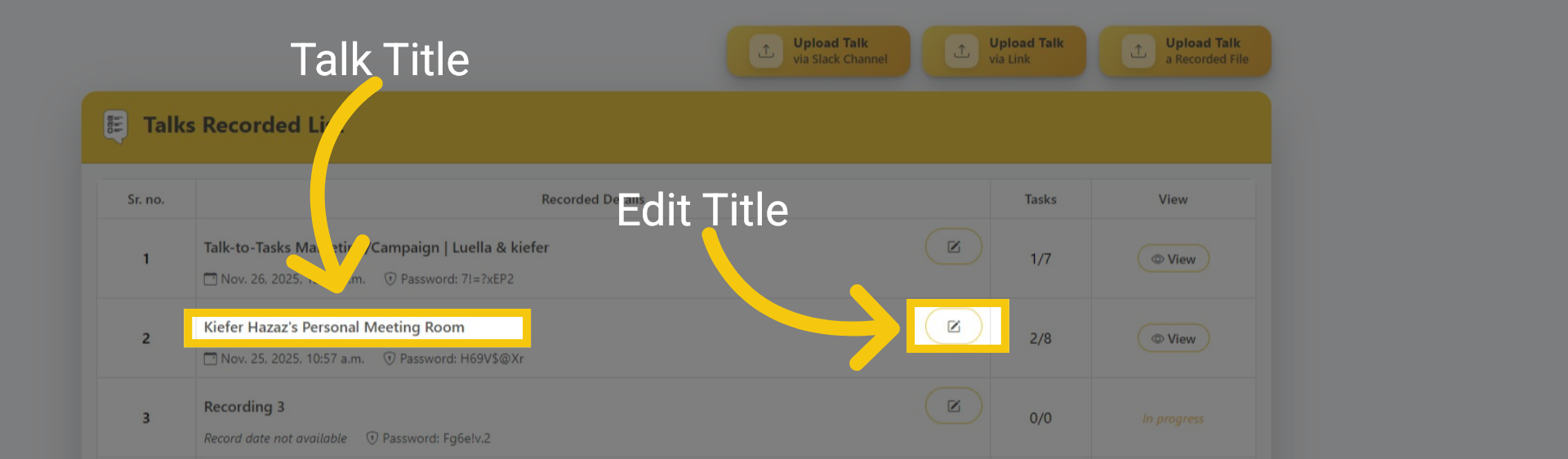
To modify your Talk titles, you can go to your Talk Group. Click the edit icon, as shown in the screenshot.
2 Enter New Title
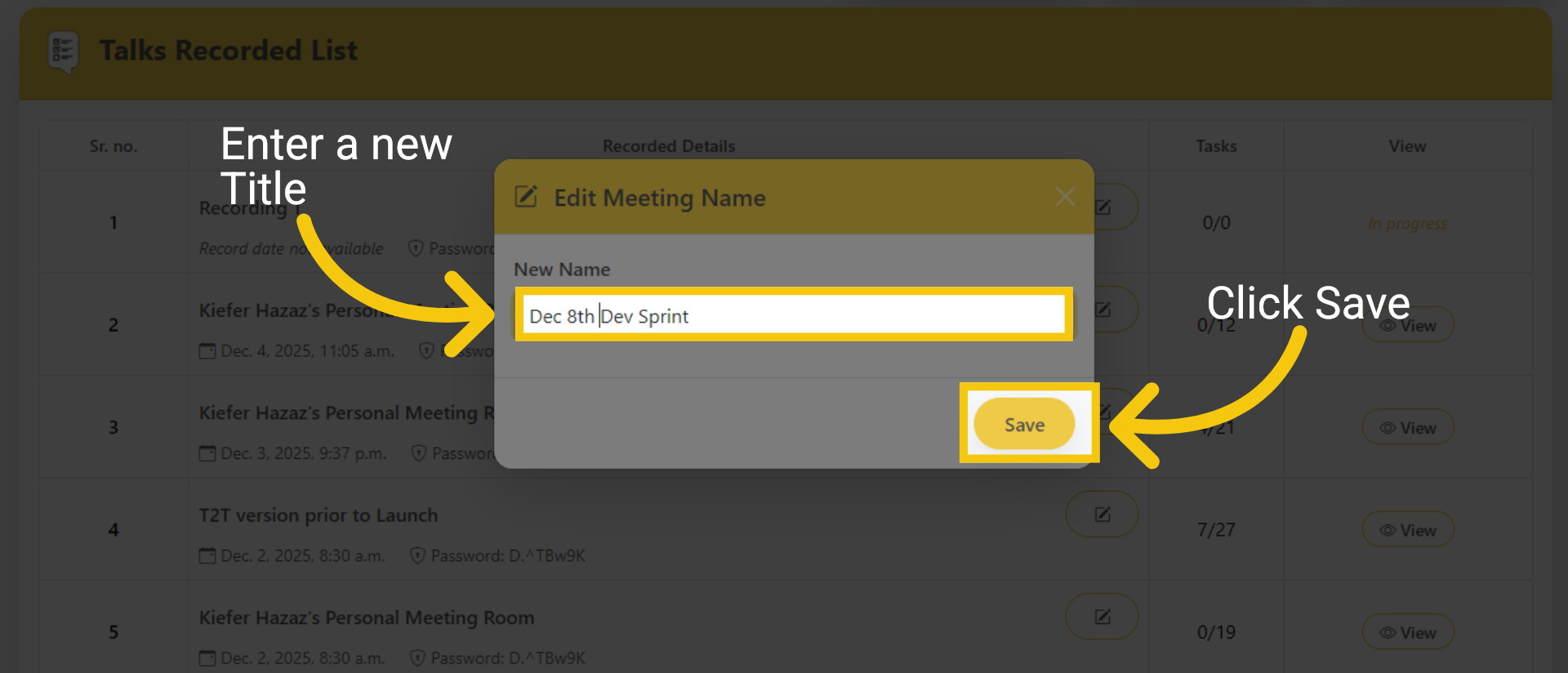
Enter a new title in the designated field. Click the save button.
3 Edit Title of Task
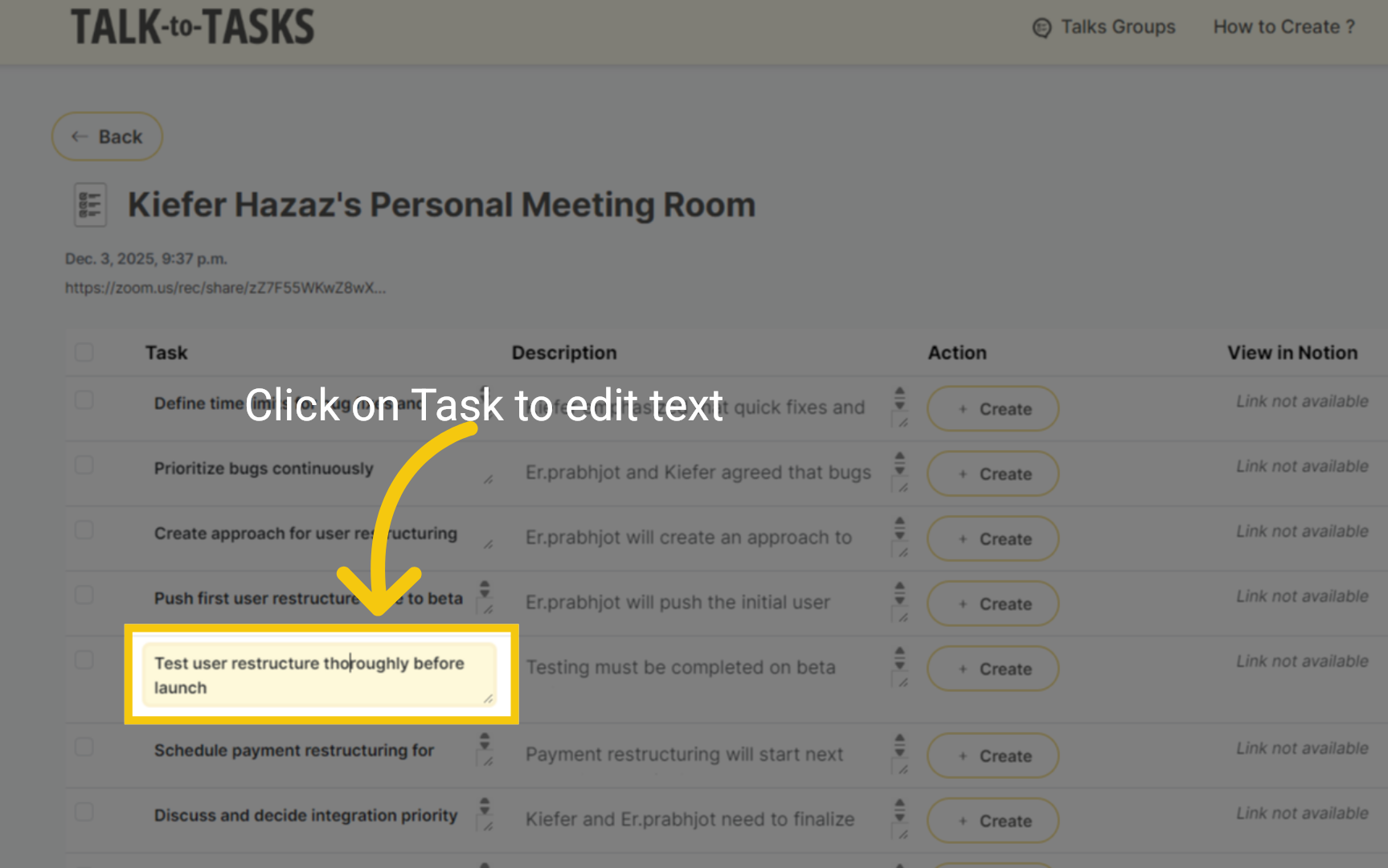
Click the Task Title field. This allows you to customize the text according to your changes. The changes are saved automatically.
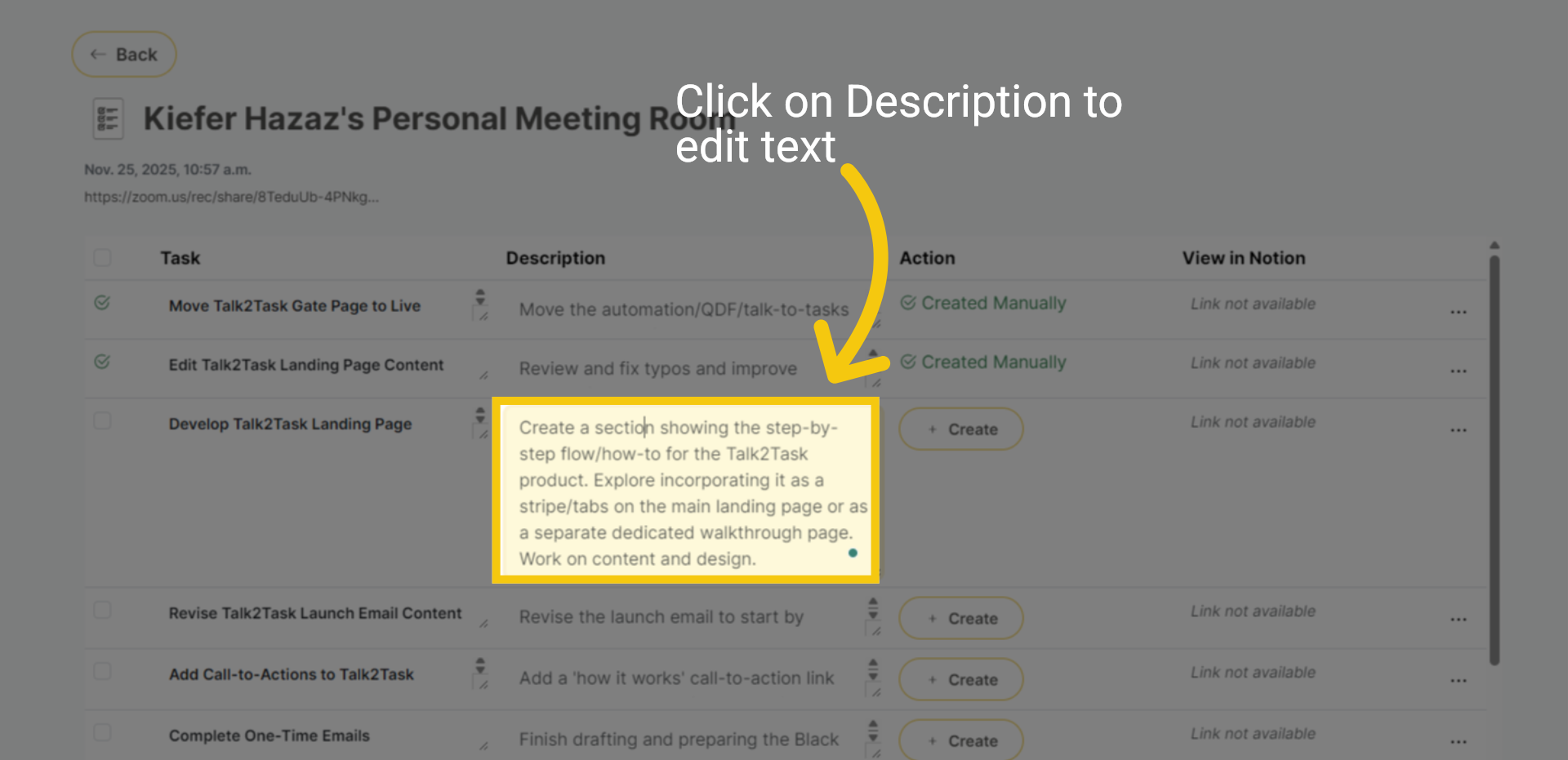
4 Edit Description of the Task
Click the Description. This allows you to customize the text according to your changes. The changes are saved automatically in the field.
5 Hide or Show Tasks
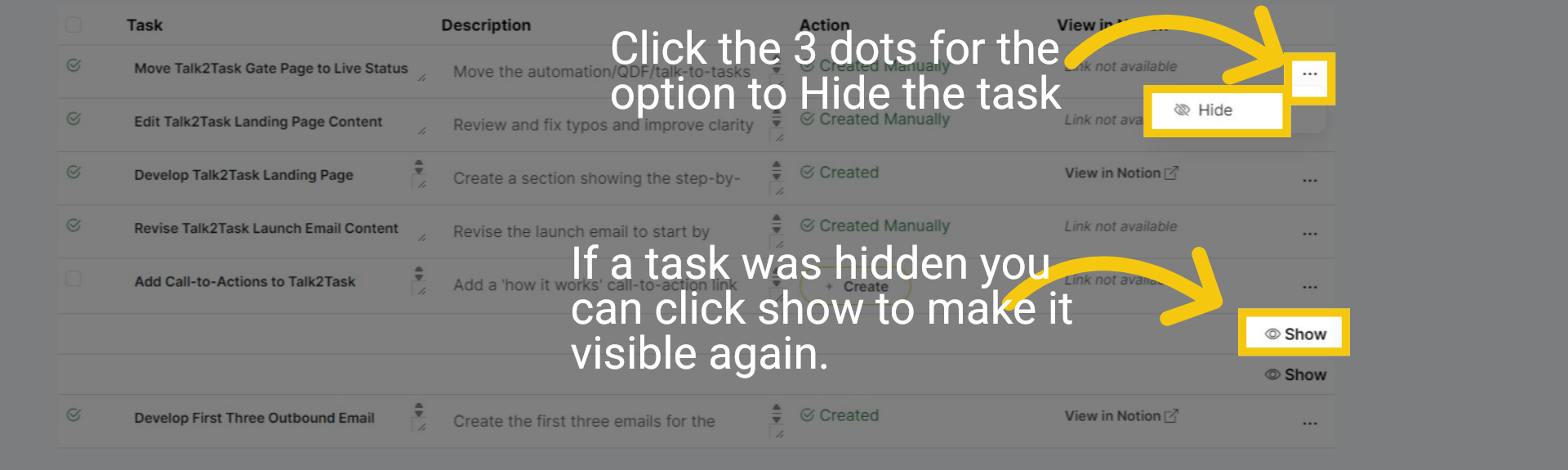
If you come across duplicate tasks or those you do not wish to create, click the three-dot menu next to the task and select Hide. This action will remove the task from your active view. To restore a hidden task, click Show. The task will then reappear in the list, allowing you to create it or send it to Notion as necessary.
6 Thank you
In this guide, you learned how to edit tasks. thanks for watching.