




























How-to Invite and Manage Users
In this guide, you will learn how to invite users to Groups or Channels and manage user permissions.
1 Invite Users to Group or Channel
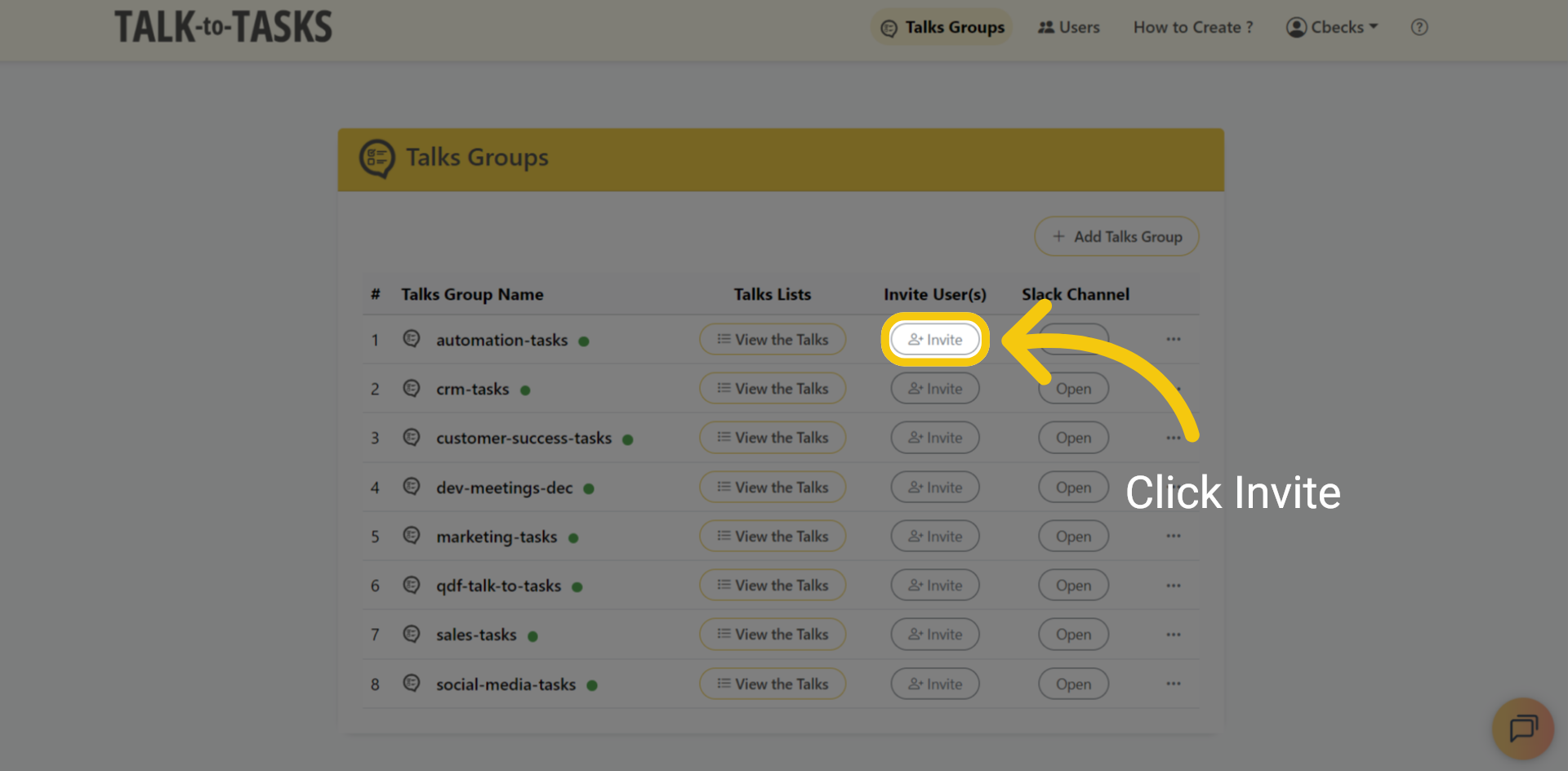
To invite users, click the invite button next to the channel or group you wish to add them to.
2 Existing Users
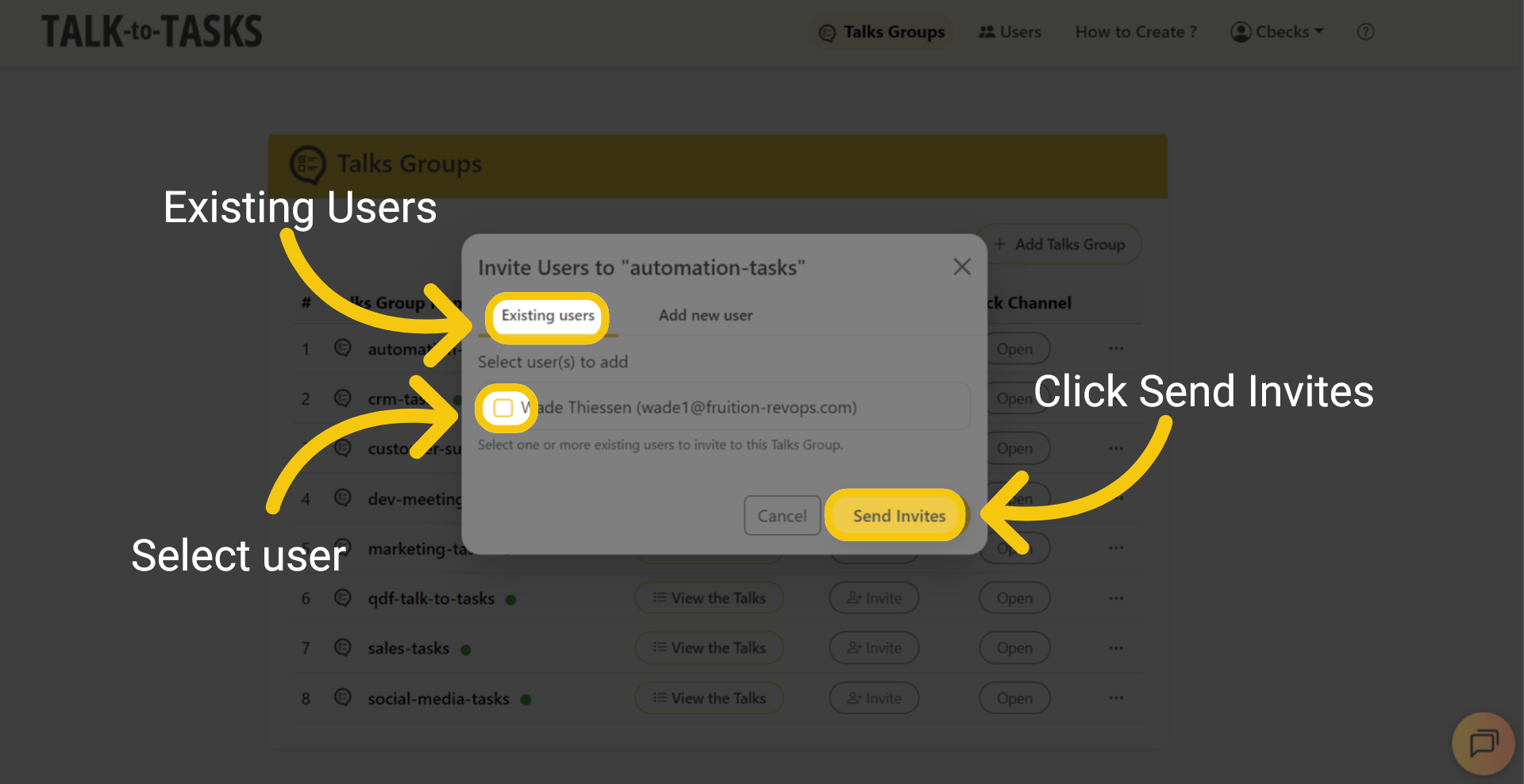
You can choose the user you would like to grant group access to, then click Send Invite.
3 Existing Users
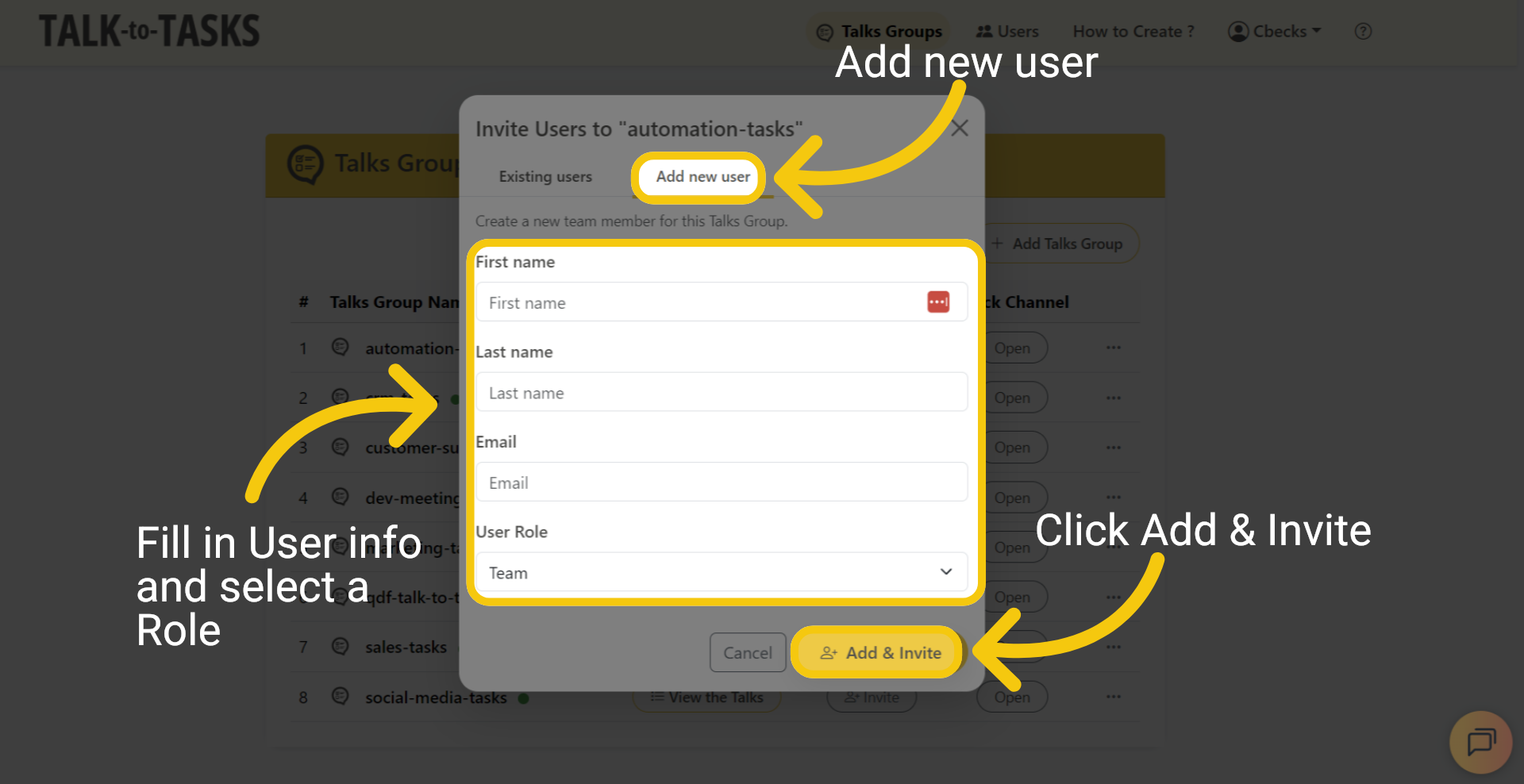
Enter the user information, select a role, and then click Add and Invite.
4 Manage Users
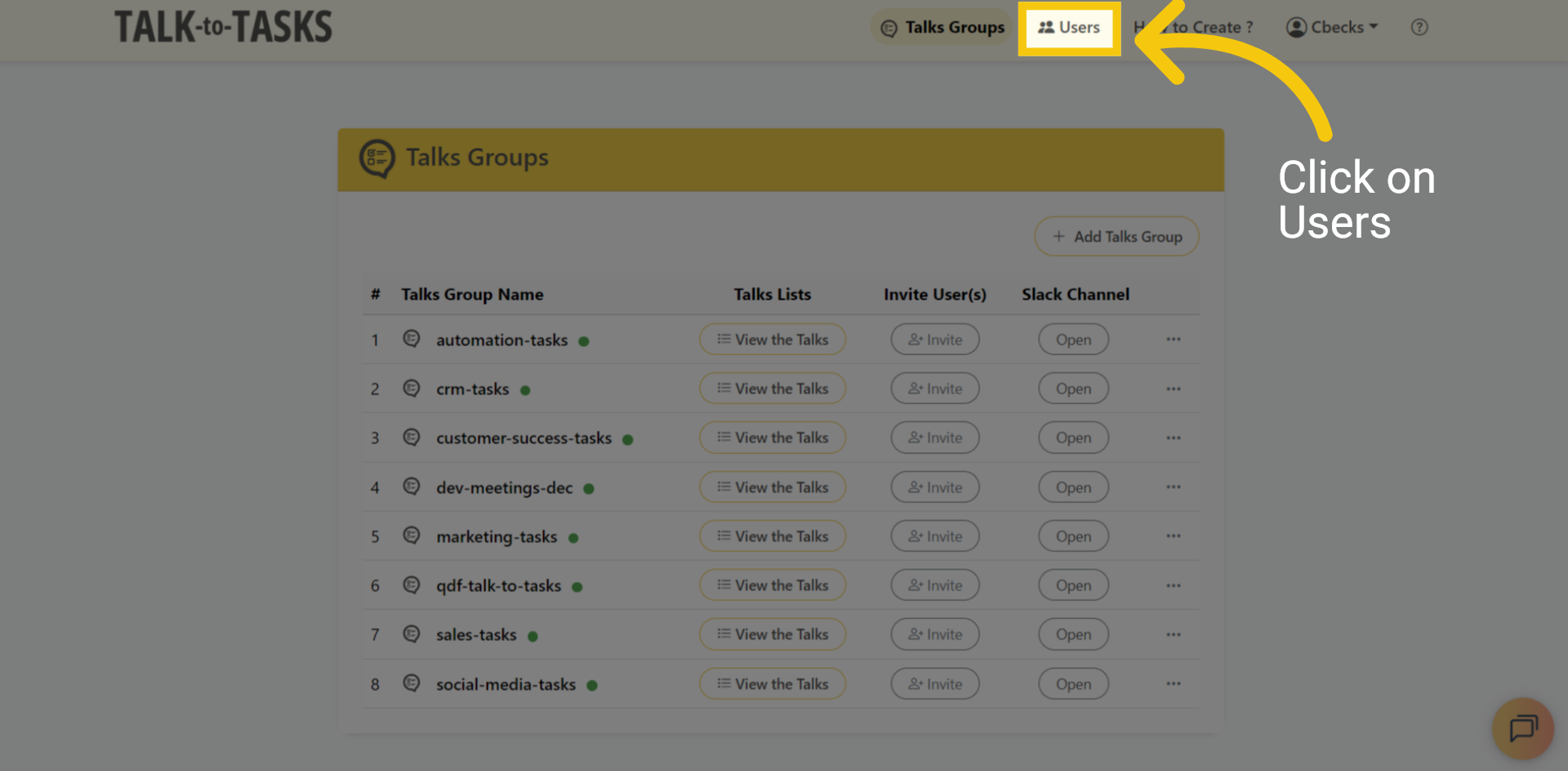
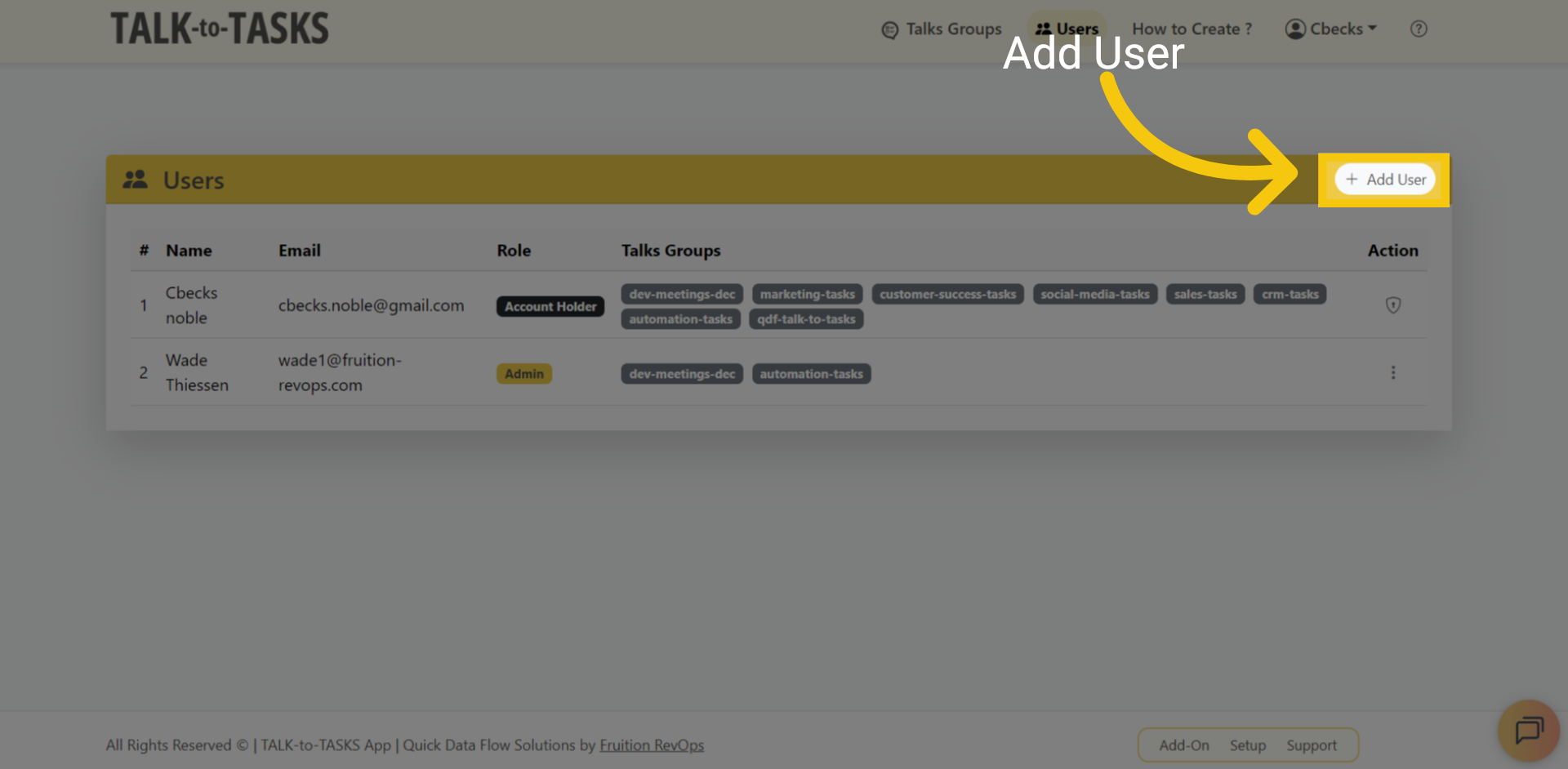
To manage your users, go to the Users menu at the top of the page.
5 Add Users
Click "Add User" to create a new user.
6 User Info
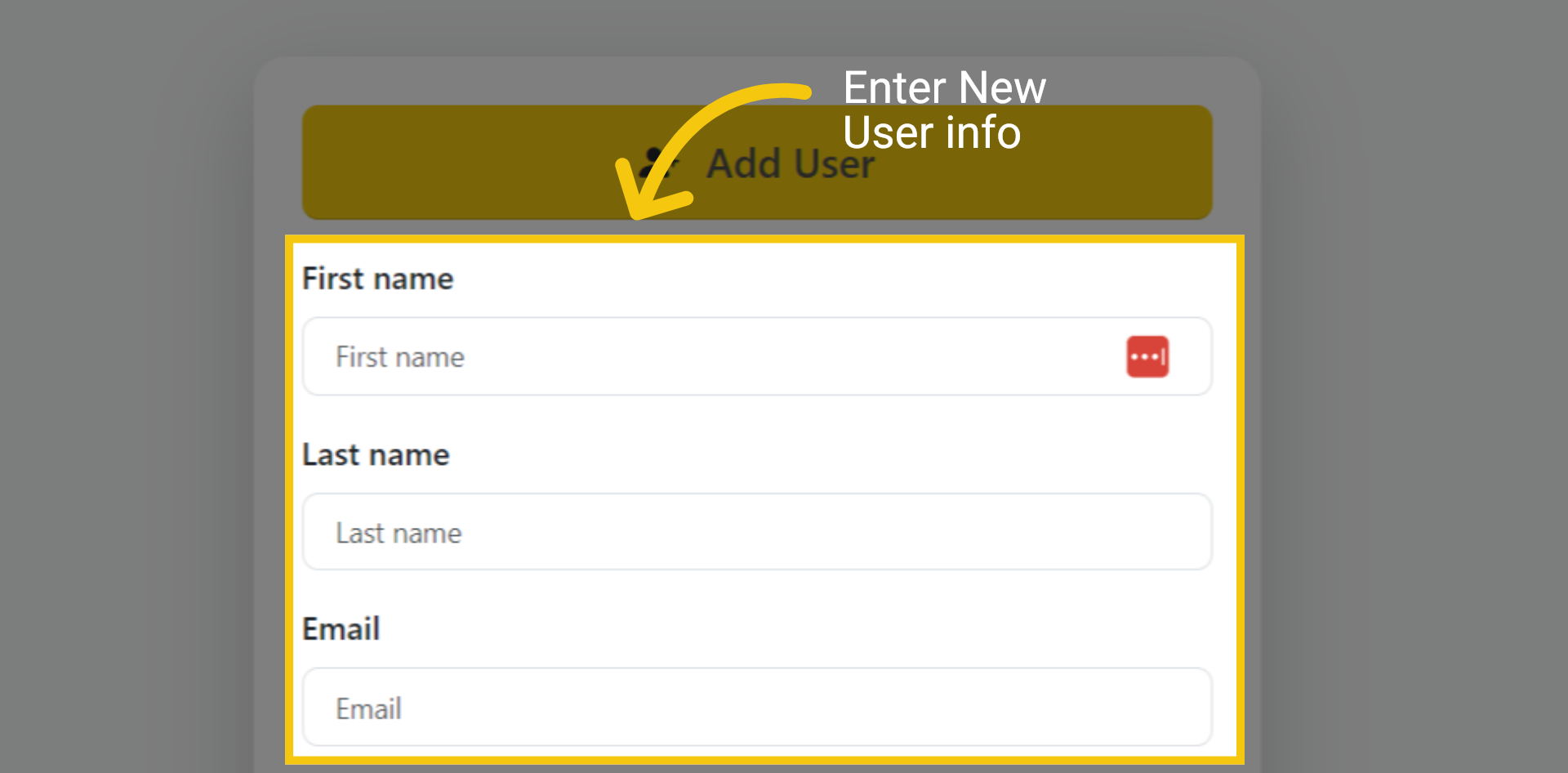
Please enter the new user's information, including their first name, last name, and email address.
7 Group and Role Access
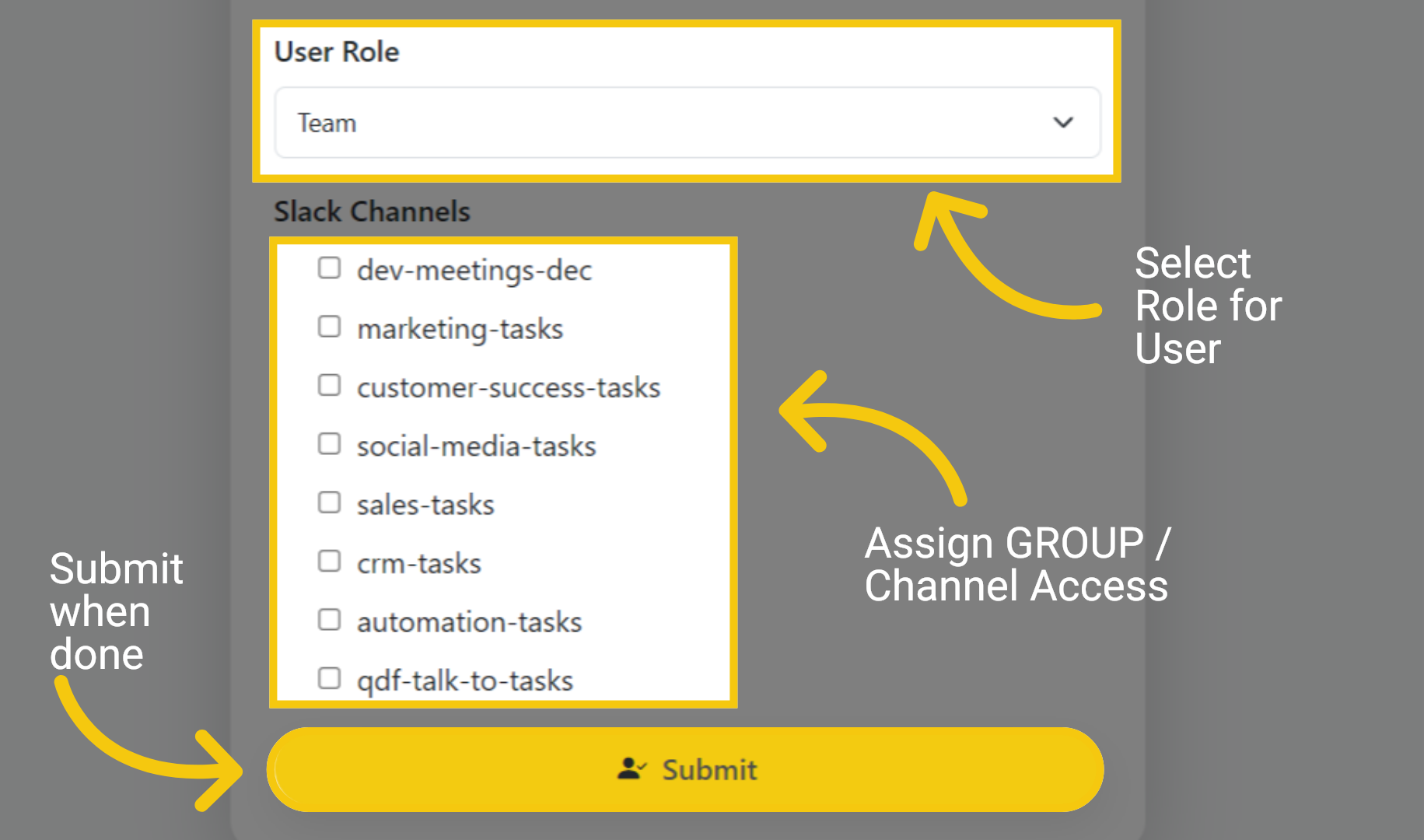
Select a user role and assign the Slack channels or talk groups they will have access to. Click Submit when done.
8 Add or Edit Users
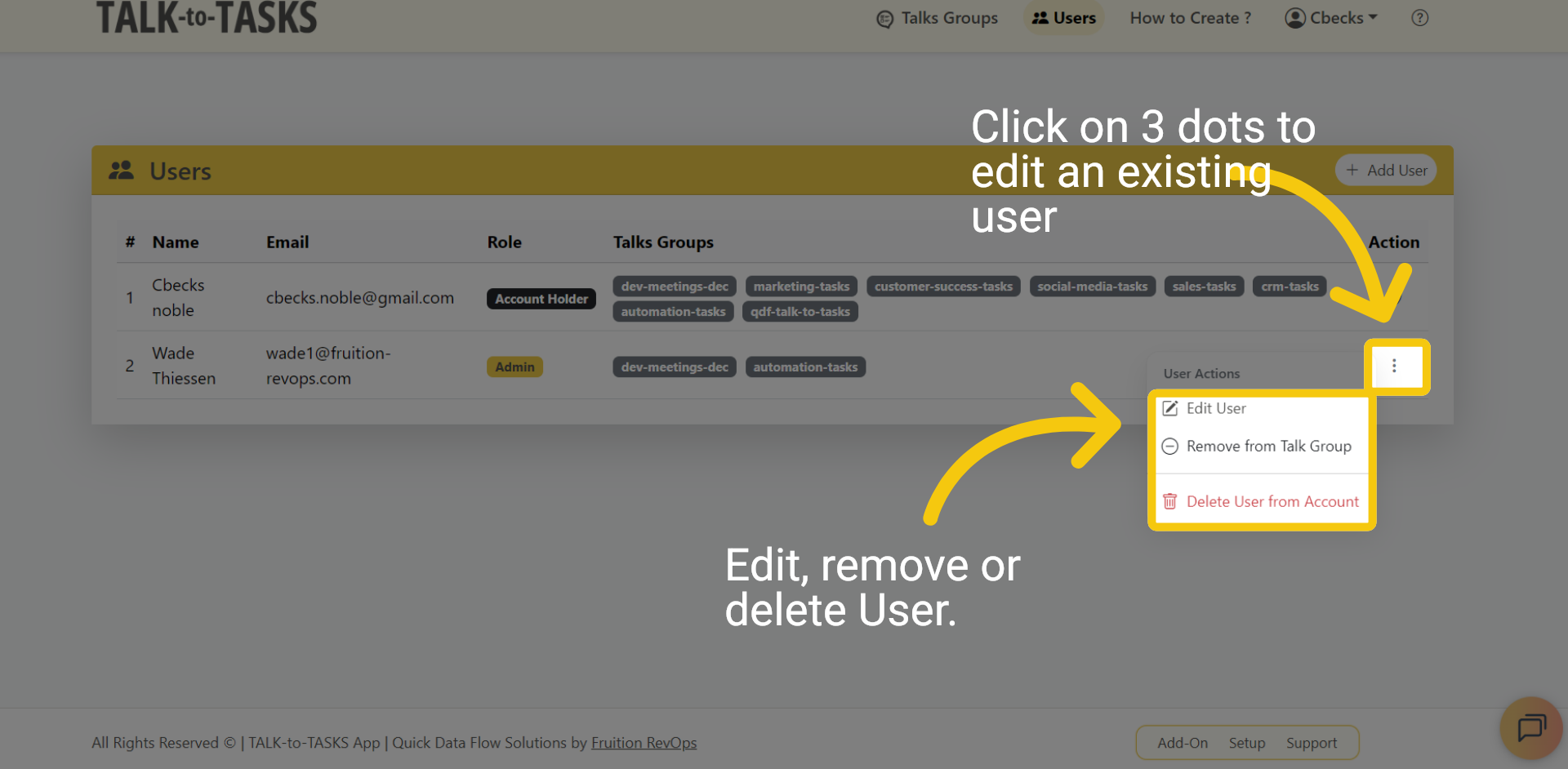
Click the three dots to access options for deleting, editing, or removing an existing user from a group/channel.
9 Thank you
In this guide, you learned how to manage users. Thank you for watching.