



























Create Talk Groups And Tasks From Slack Channel
In this guide, you will learn how to create tasks directly from a Slack channel. Before proceeding, ensure that your Slack workspace is already integrated with TalkToTasks, as this connection is required for the task creation feature to function correctly. Once the integration is set up, you can seamlessly generate and manage tasks within your Slack environment.
Go to qdf.cdhsystem.solutions
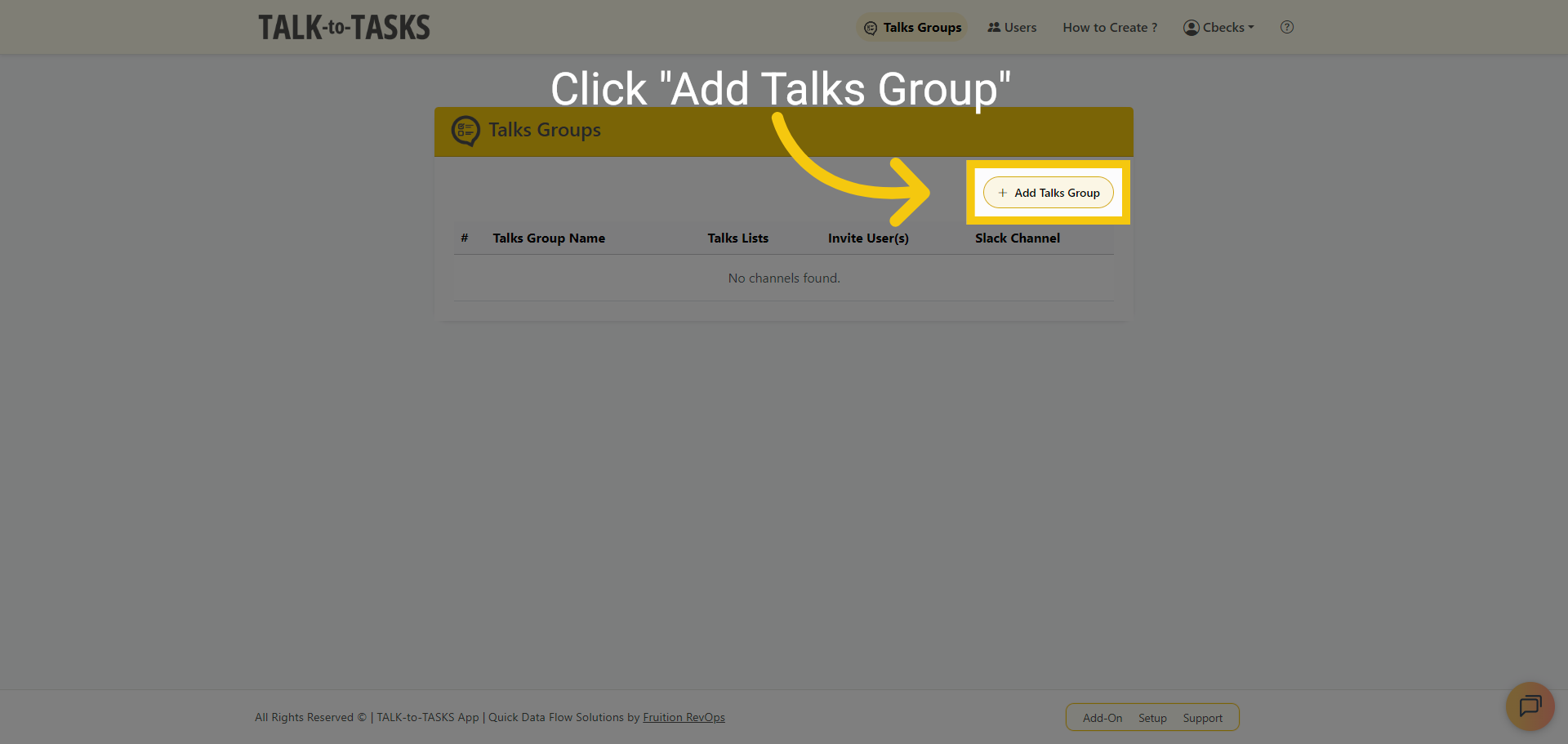
1 Initiate New Talk Group
Click the Add Talks Group button to start creating a new talk group.
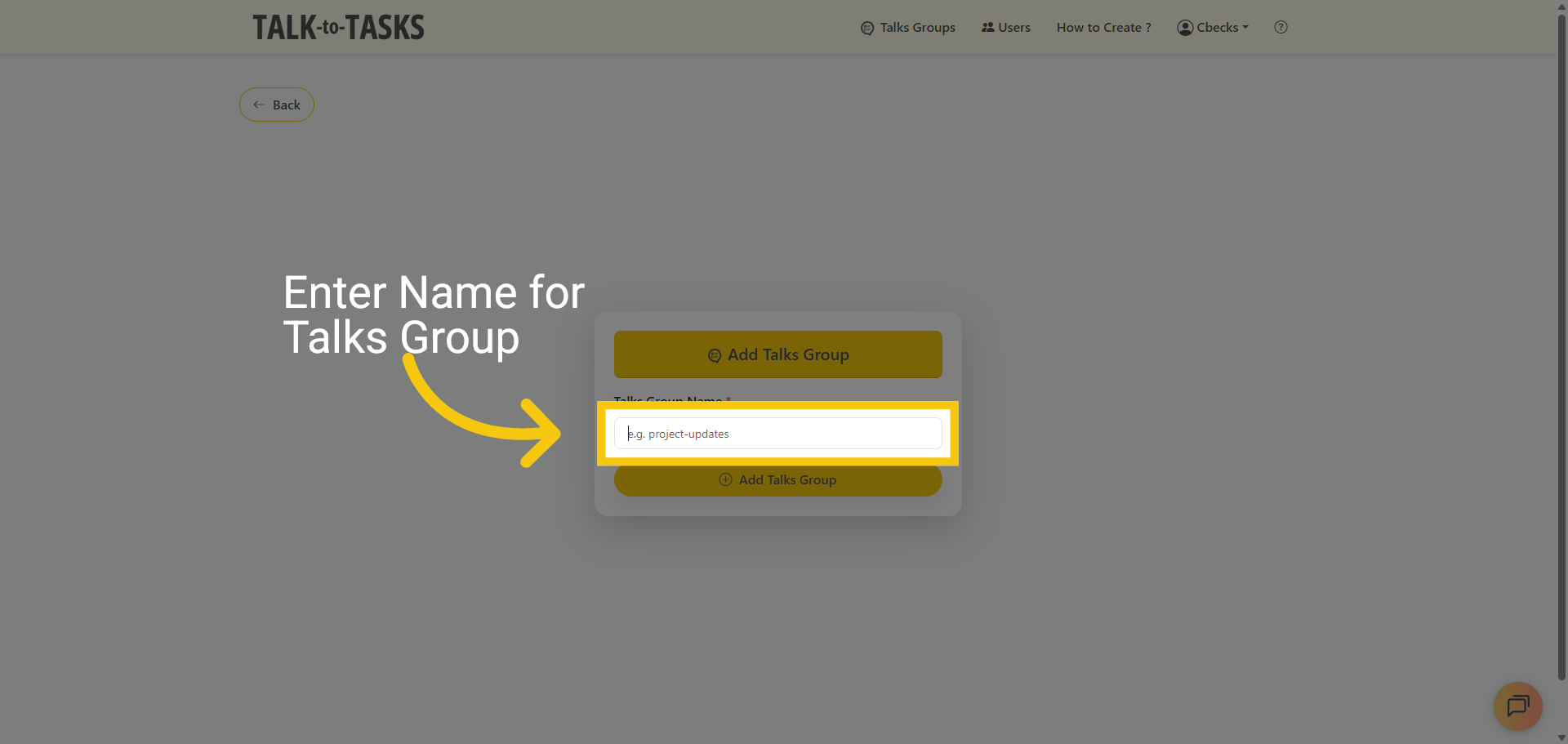
2 Enter Name for Talks Group
Click the Talks Group Name field to enter the name of the new talk group.
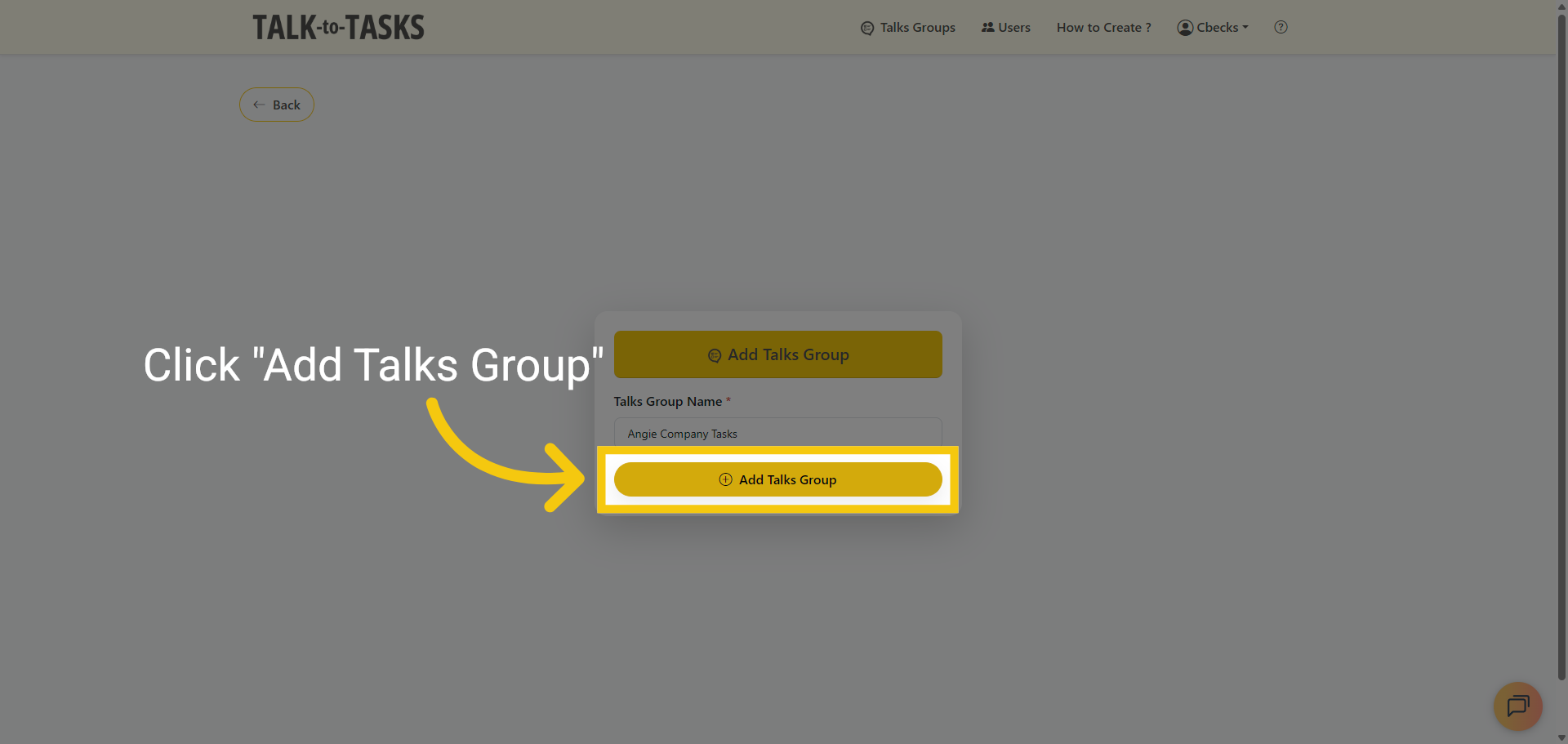
3 Confirm Talk Group Addition
Click the Add Talks Group button to save the new talk group.
4 Switch to Slack
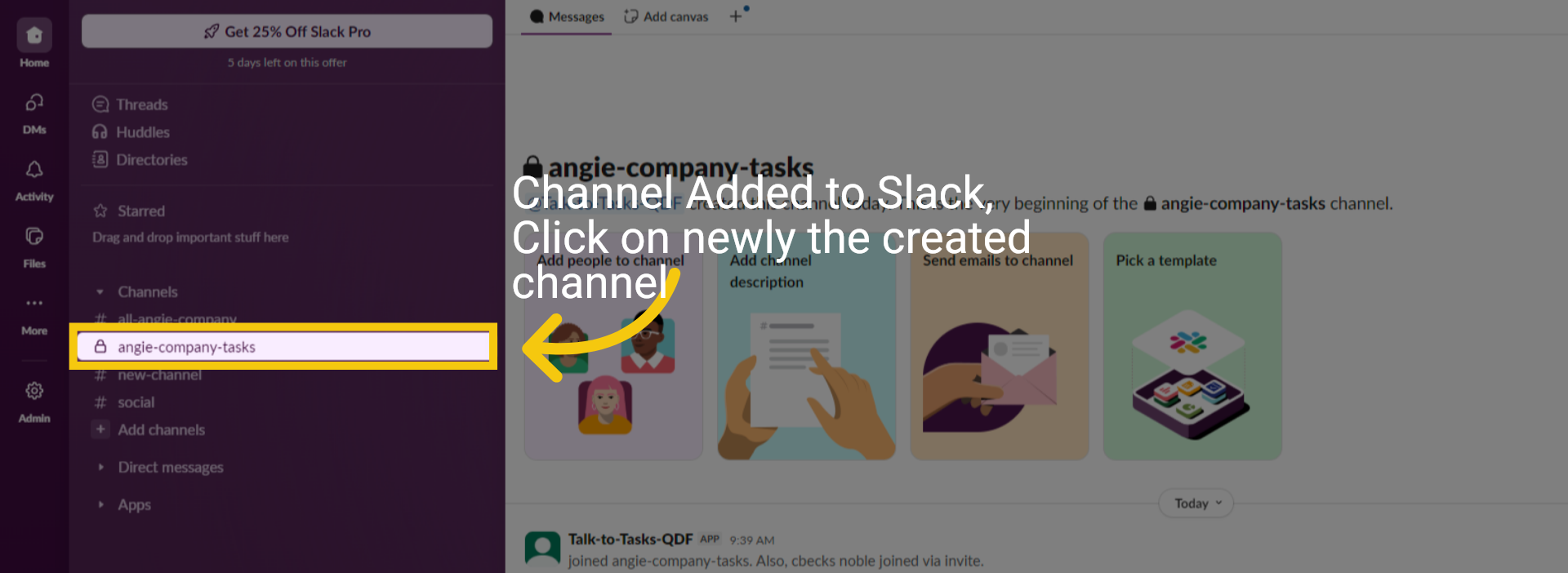
Switch to Slack, and your new channel will be created automatically. Channel Added to Slack, Click on the newly created channel
5 Paste Link into Slack
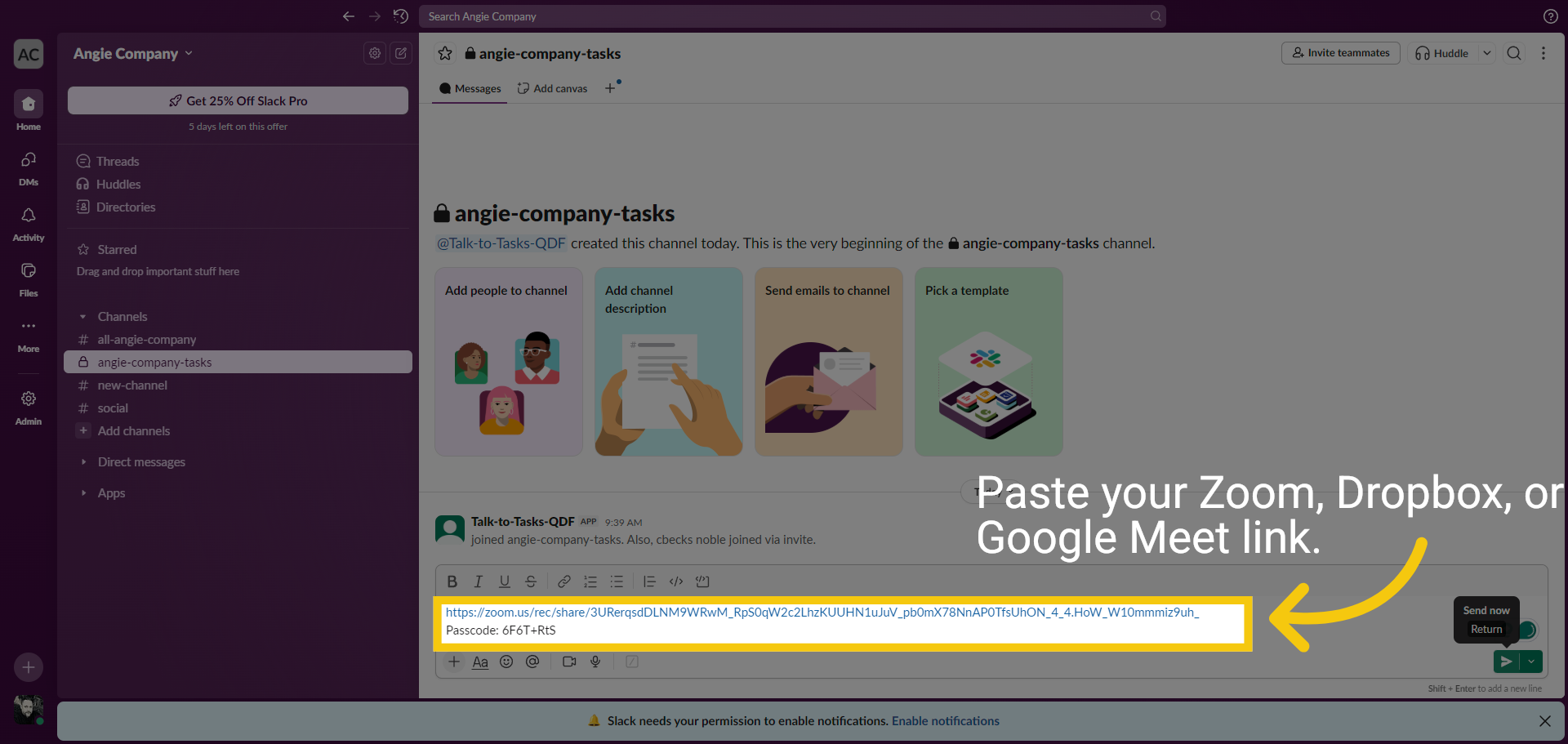
Paste your Zoom, Dropbox, or Google Meet link into the designated field, then click Send Now to create and process your task.
6 Switch Back to TALK-to-TASKS
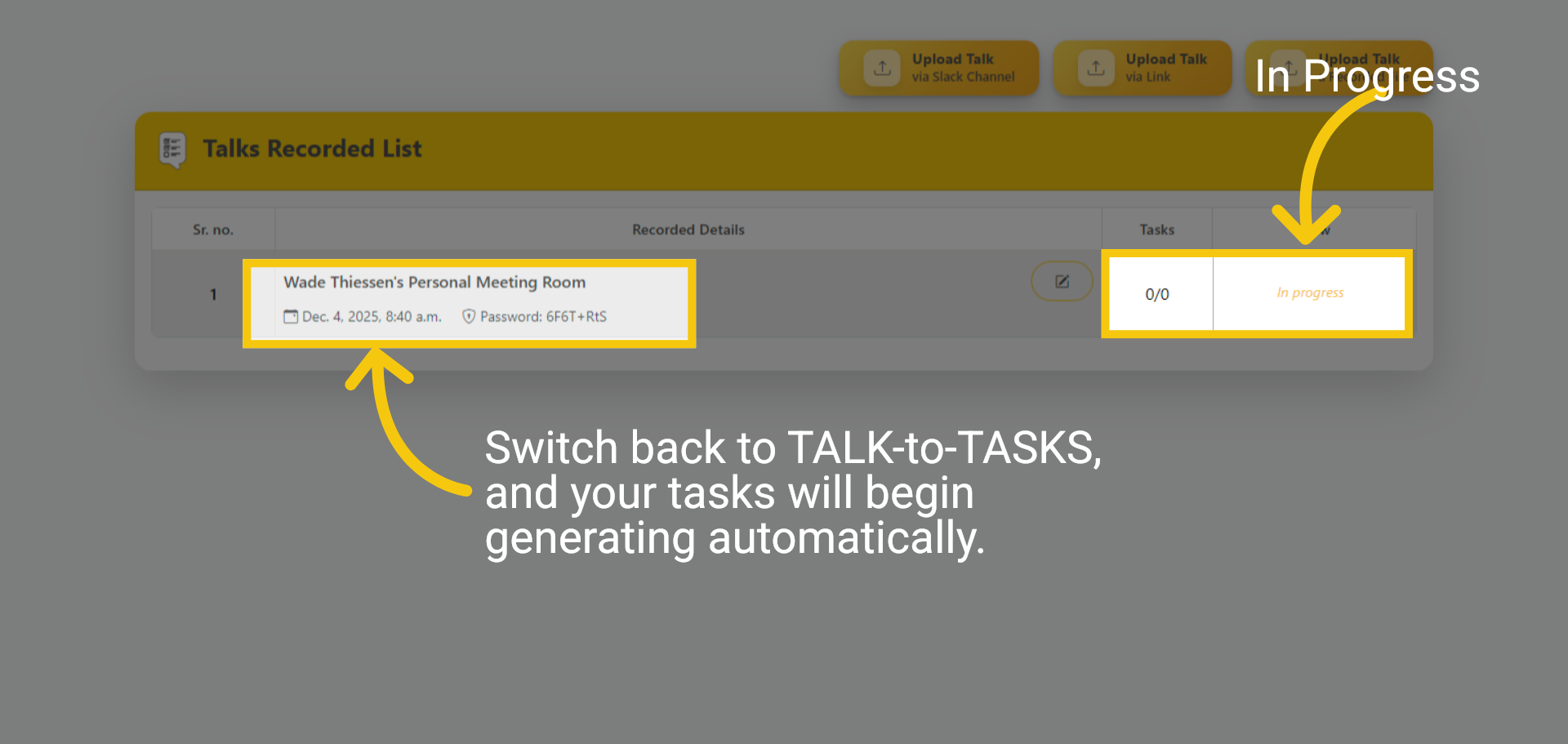
Switch back to TALK-to-TASKS, and the Talk file will be listed, and the tasks will begin generating automatically.
7 Refresh page Task in Progress
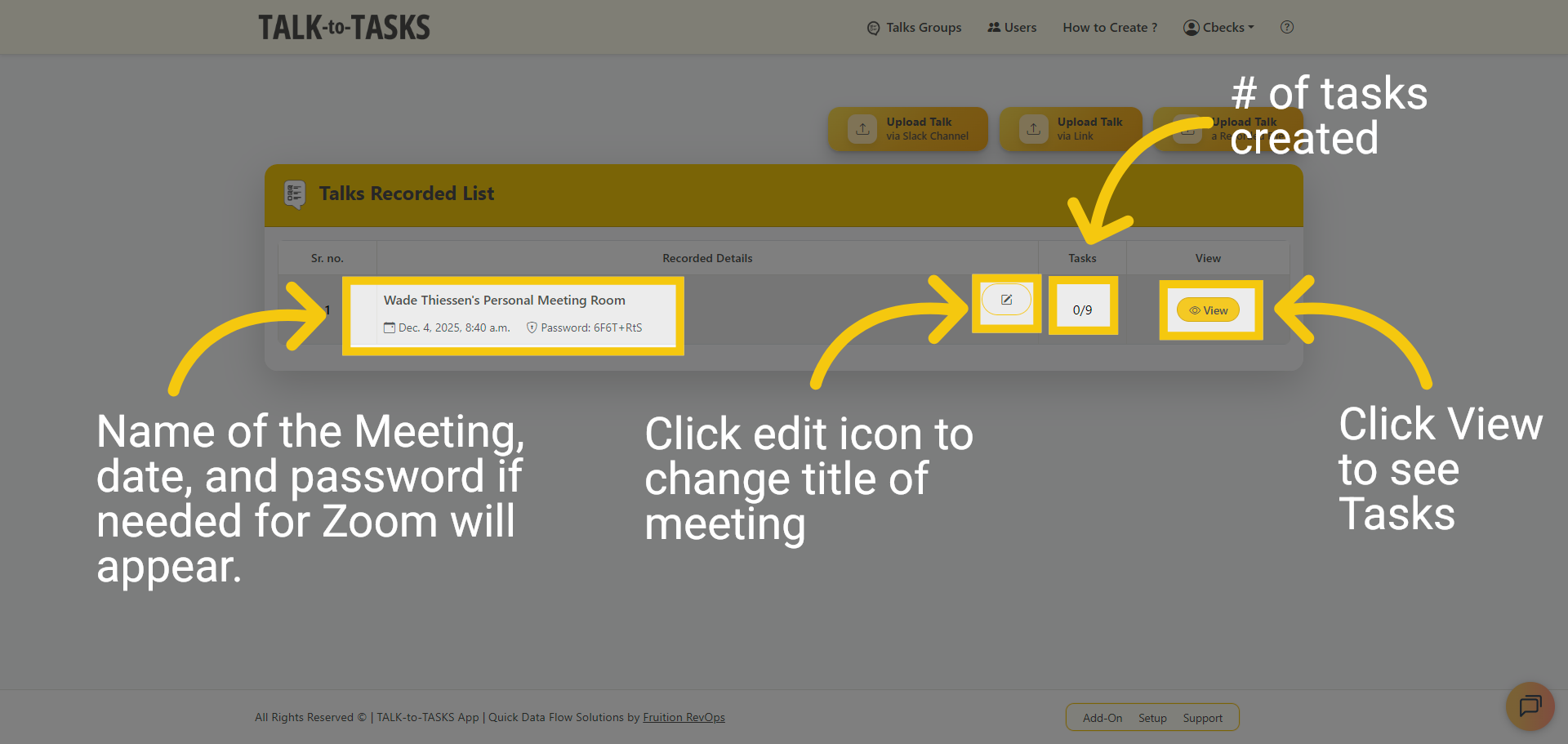
Please refresh the page. This process may take between 30 seconds and one minute, depending on the duration of your recording. The meeting name, date, and password (for Zoom links), number of tasks created, and icon to edit title are automatically added. For Google Meet or Dropbox links, confirm they are publicly accessible before pasting them into Slack so that the system can process them without restrictions. Click View to see the generated Tasks.
8 Generated Tasks
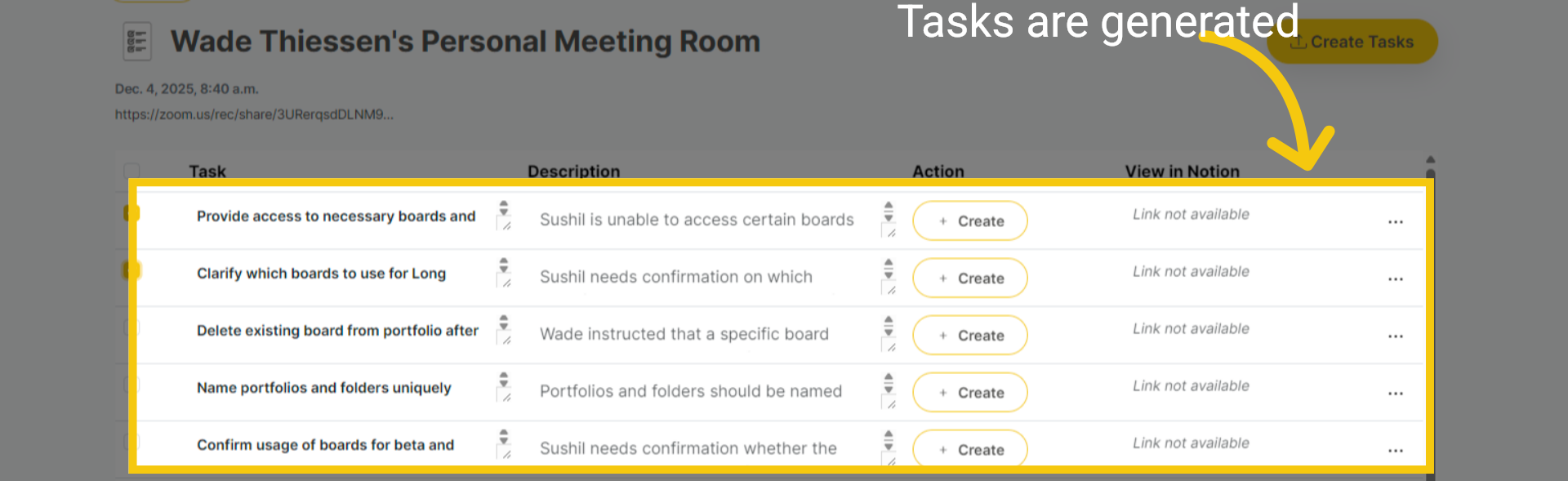
These are the generated tasks. Click on the title or description to edit them easily. You can also hide unnecessary tasks to maintain an organized and focused workspace.
9 Slack Thread
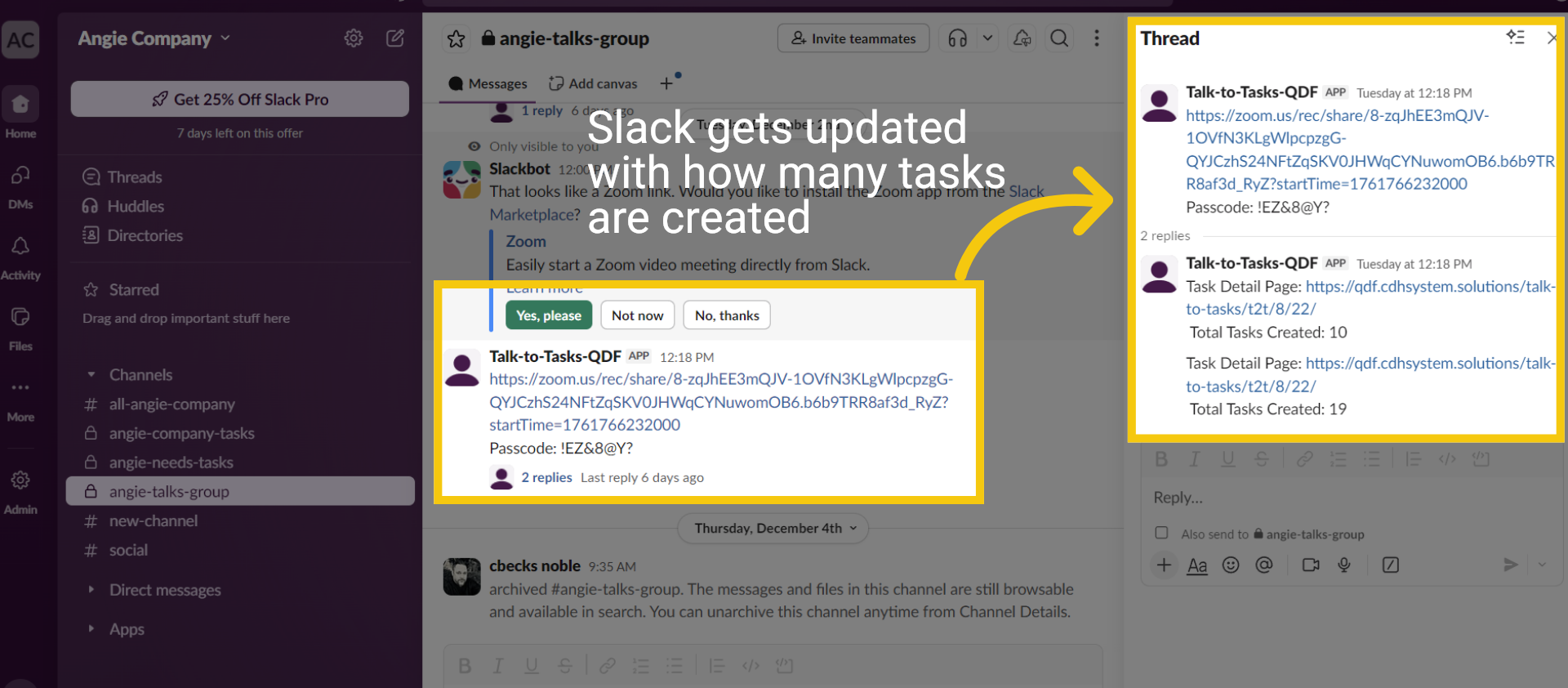
Slack gets updated with how many tasks are created in the thread. The thread can be used to communicate between team members.
10 Ending
This procedure effectively creates a talk group and generates associated tasks from a Slack channel. Thanks for watching.