

























How to Upload a Talk
Welcome to Talk-to-Tasks. In this guide, you'll learn how to create a Talk, upload a local meeting, and add a URL from Dropbox, Google Drive, or Zoom to begin generating tasks directly from your meeting files. Let’s get started.
1 Talk Group Created
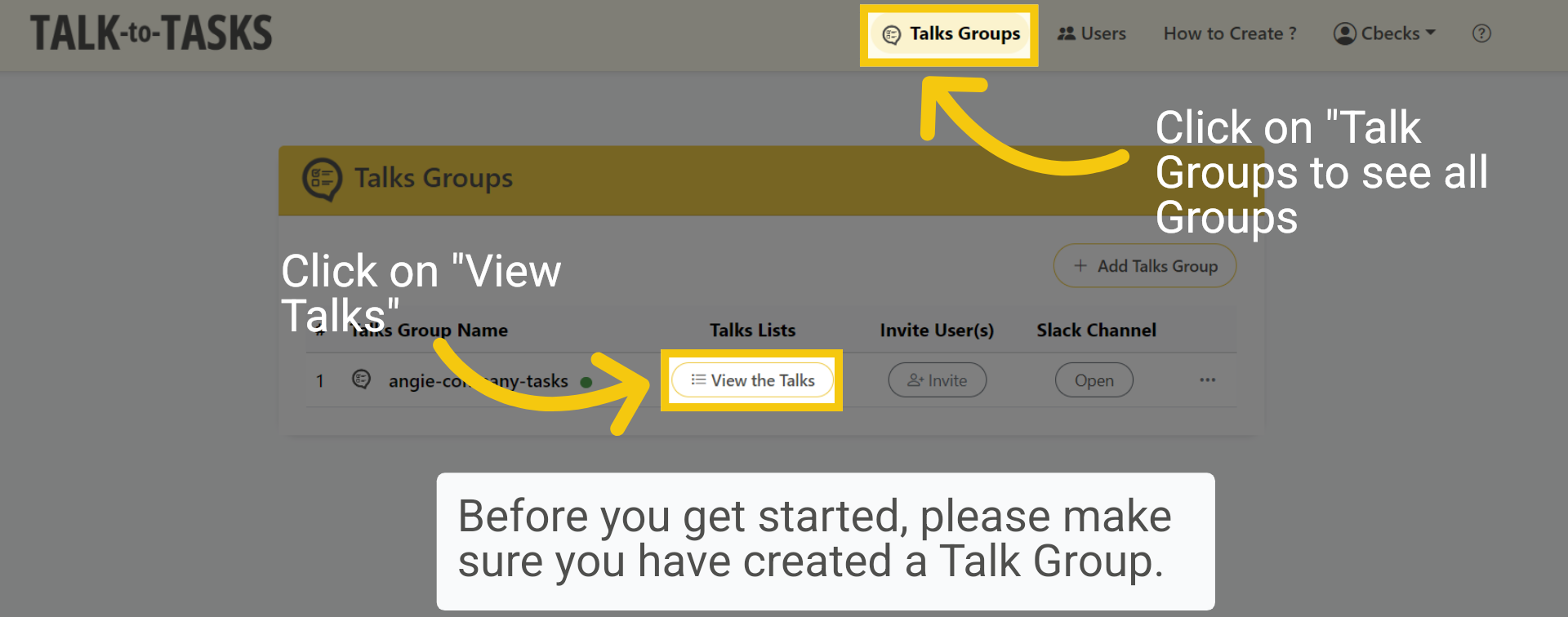
Before you get started, please make sure you have created a Talk Group. Click "View the Talks" to start adding your Talks via files or links, which will be used to generate tasks within the group.
2 Paste Link
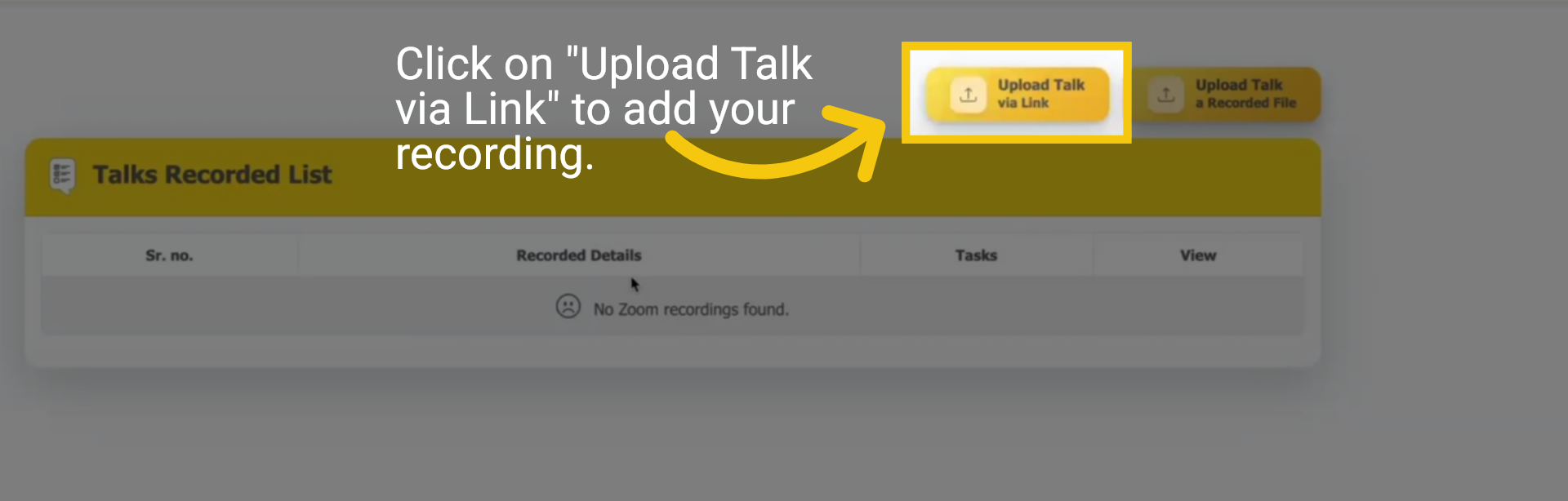
To begin, click on "Upload Talk via Link" to add your recording.
3 Dropbox, Google or Zoom Link
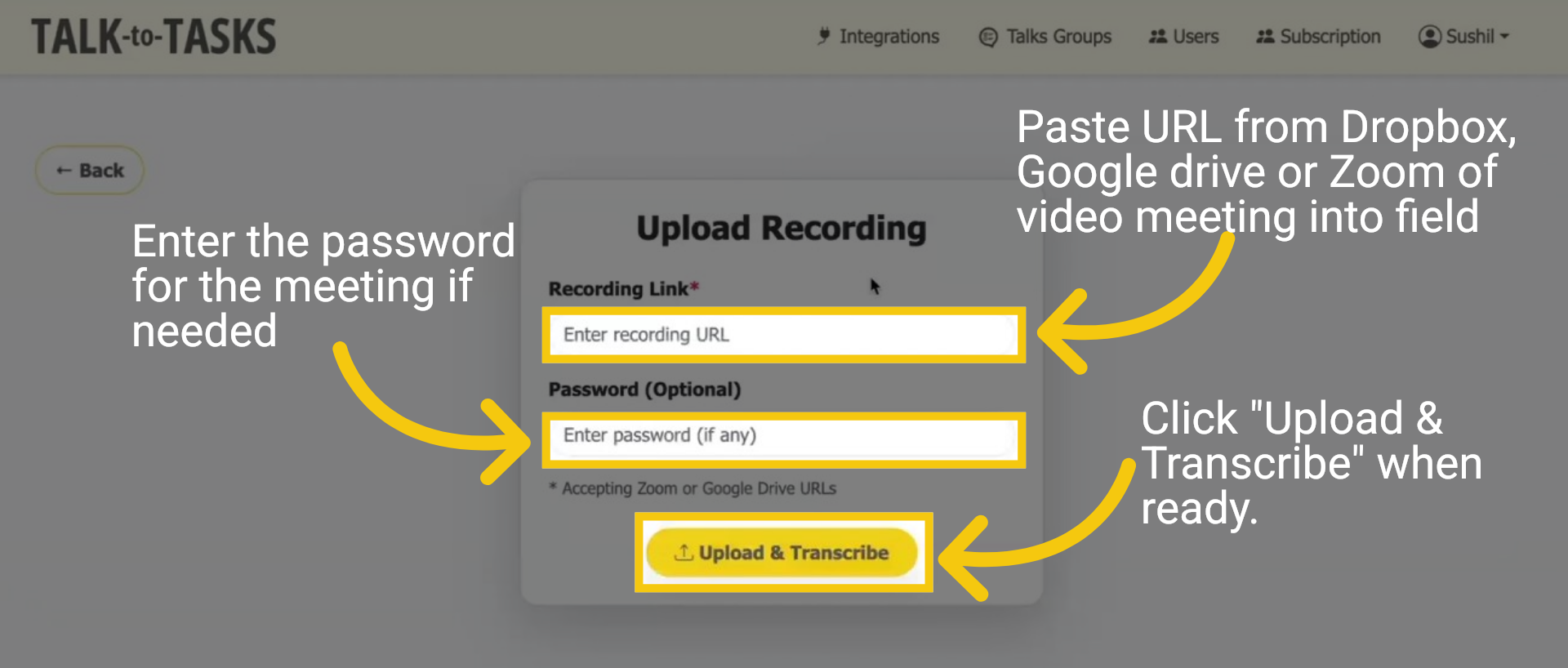
To create tasks using a Dropbox, Google Drive or Zoom link, paste the link into the designated field. If you're using a Zoom link, be sure to include the meeting password if required. For Dropbox and Google Drive links, please verify that they are public so the system can access them. Click "Upload and Transcribe".
4 A Recorded File upload
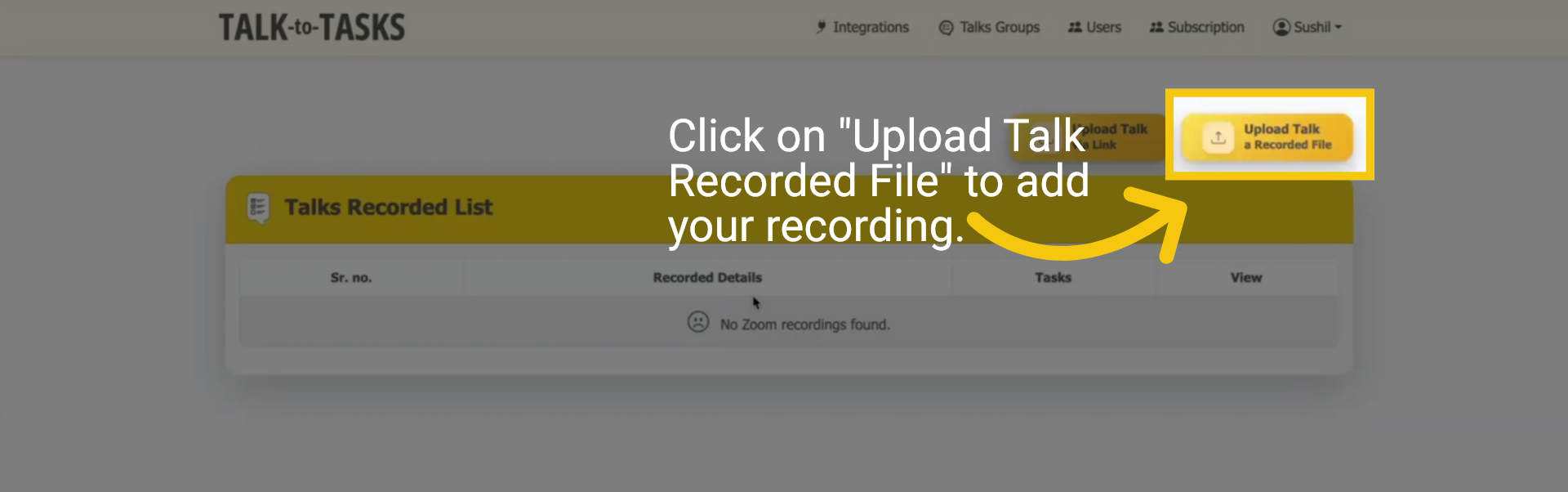
Now, let's try "Upload Talk Recorded File" to add your recording. Click on "Upload Talk Recorded File" to start the process.
5 Choose Local Video
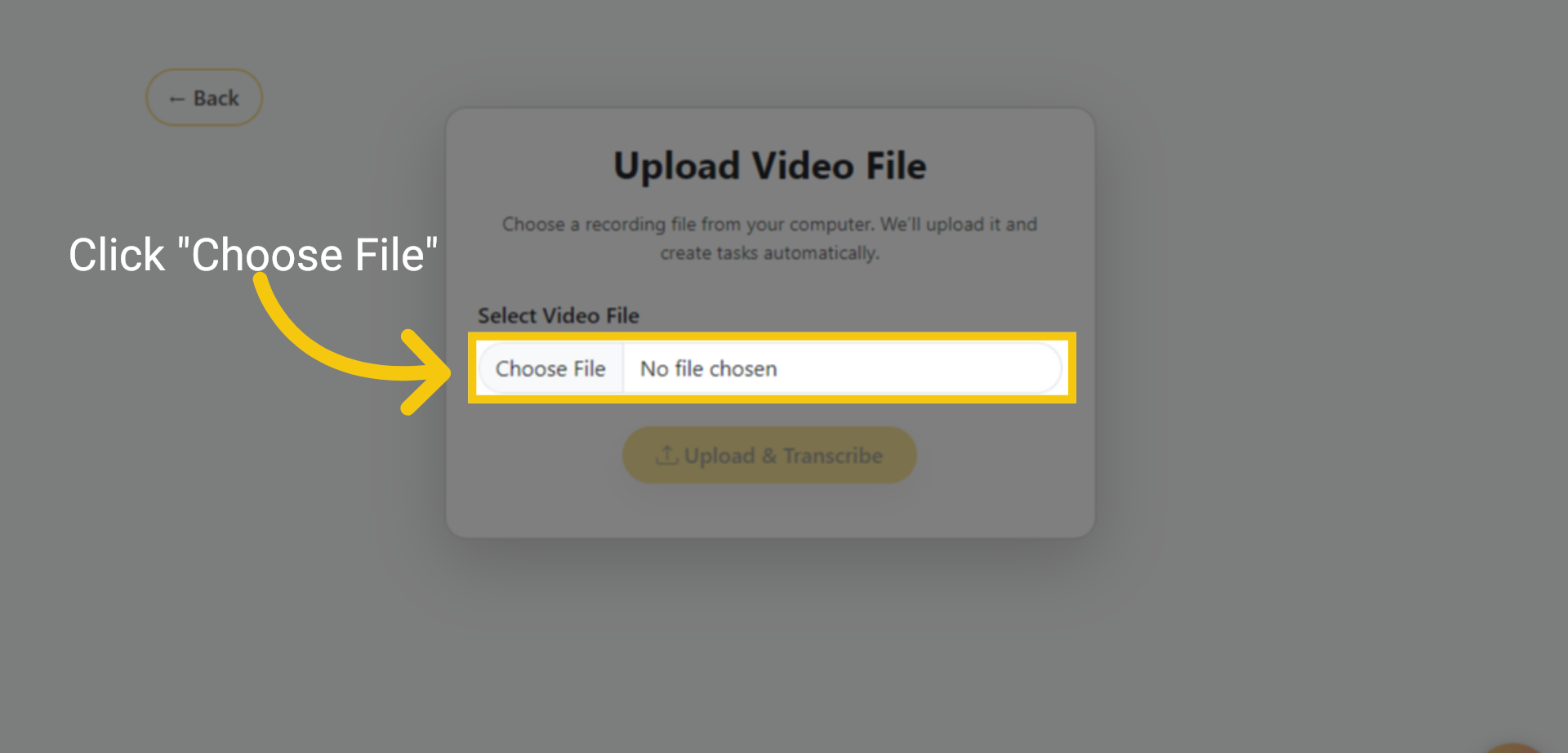
Click the button labelled "Choose File" to begin the process of selecting a file from your computer.
6 Upload Local Video
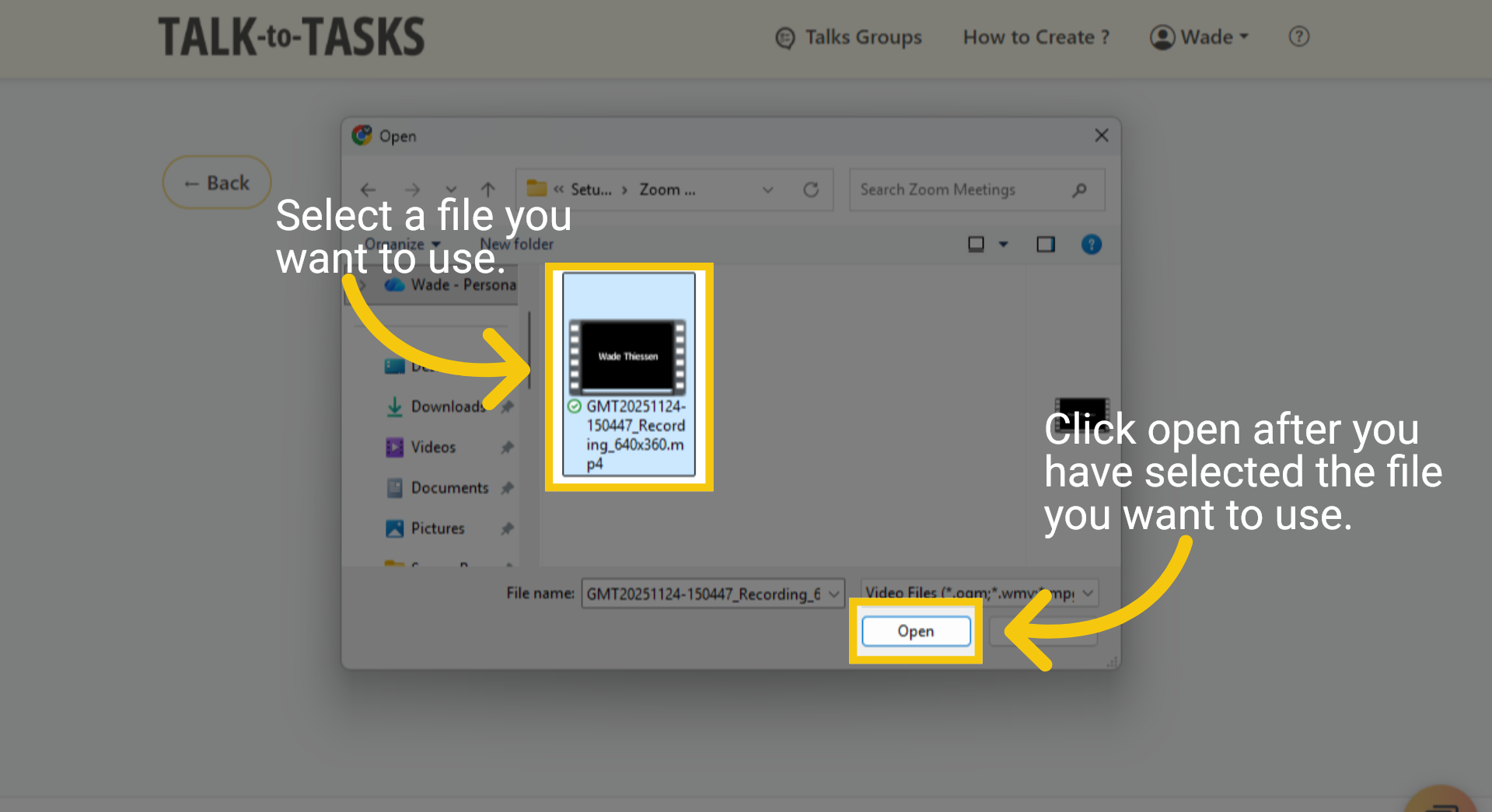
Choose the meeting video file you wish to process, then click Open.
7 Upload and Transcribe Local File
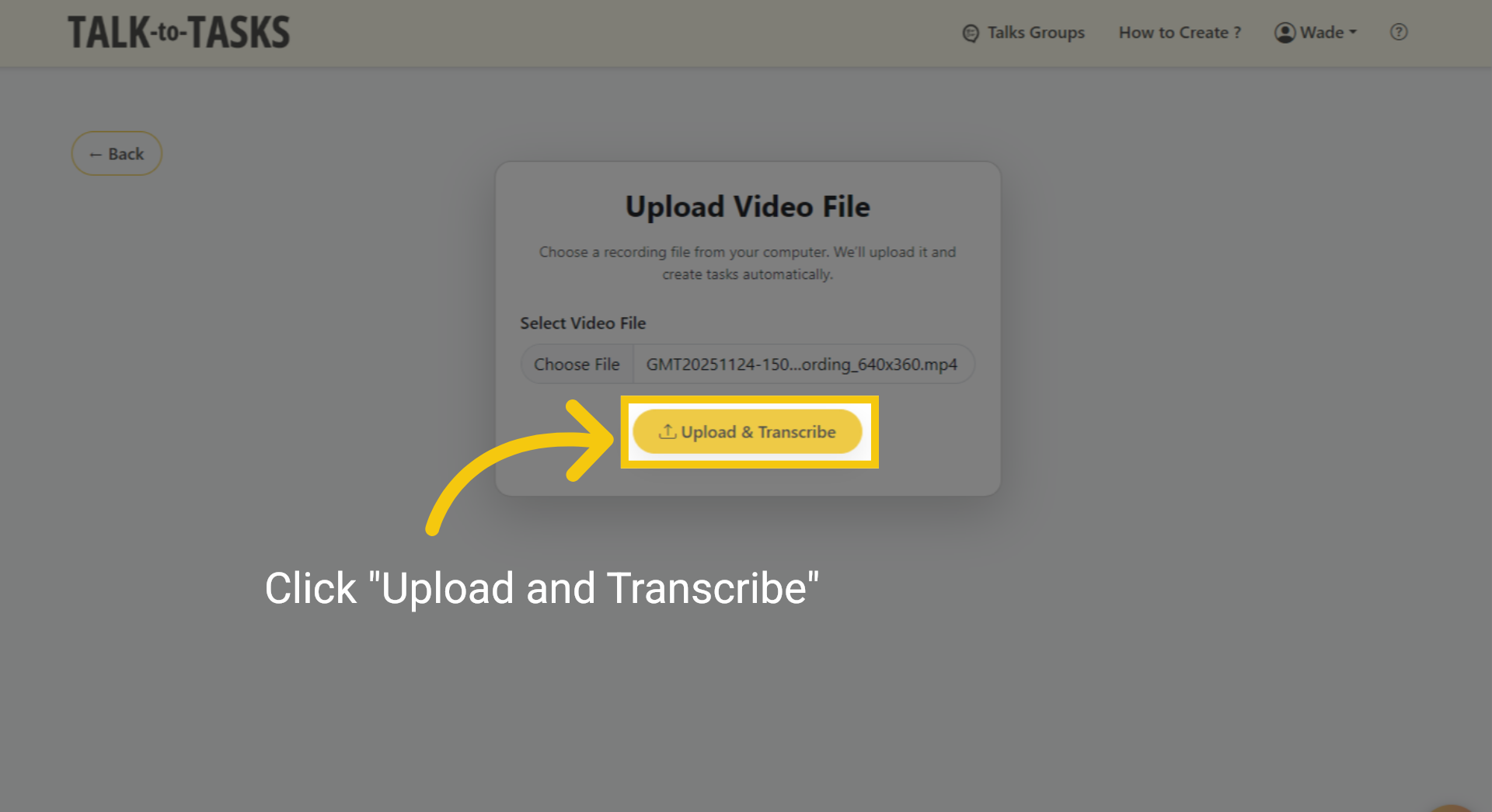
Click "Upload and Transcribe," and the system will start processing your meeting into tasks.
8 Meeting Info and edit Title
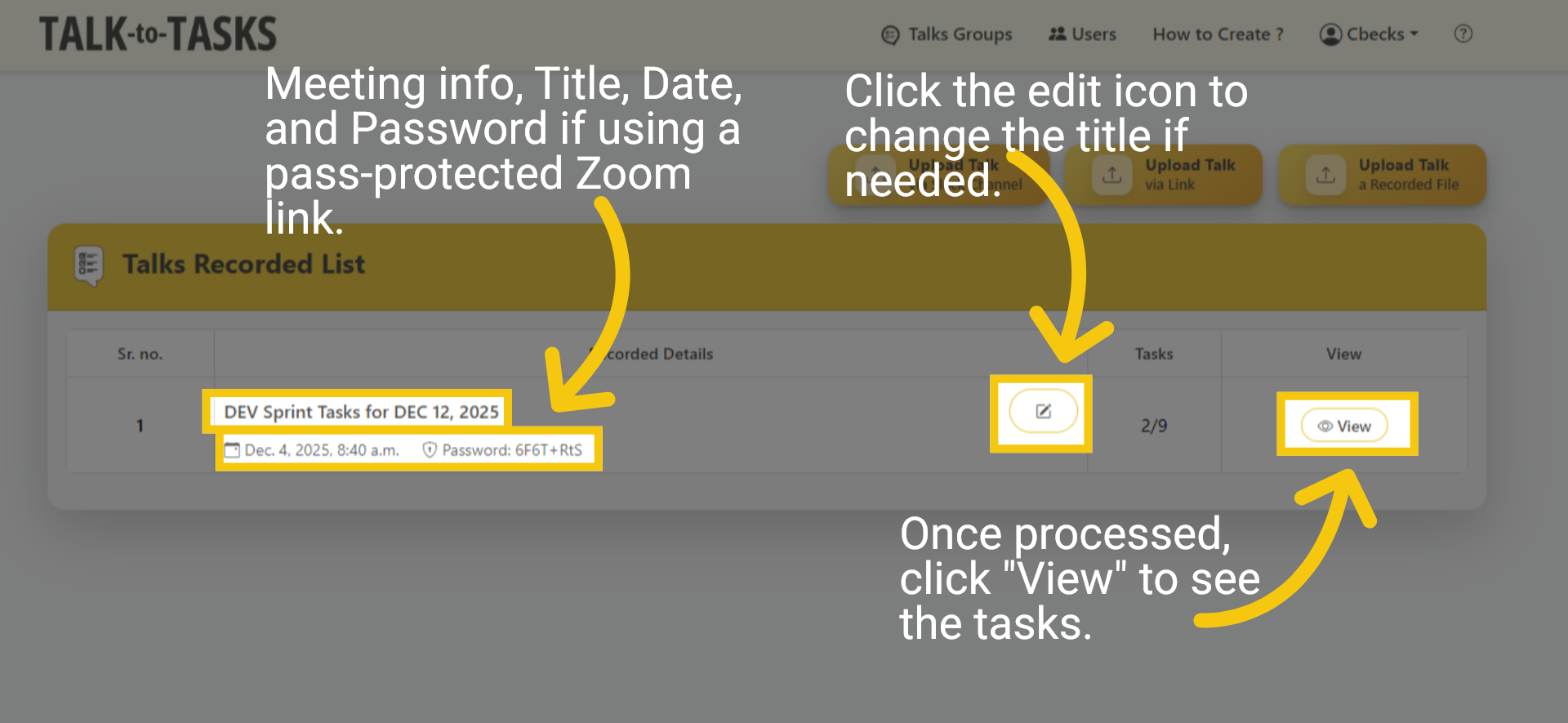
Meeting information includes the title, date, and password for a password-protected Zoom link. To modify the title, click the edit icon. After processing, click "View" to access the tasks.
9 Generated Tasks
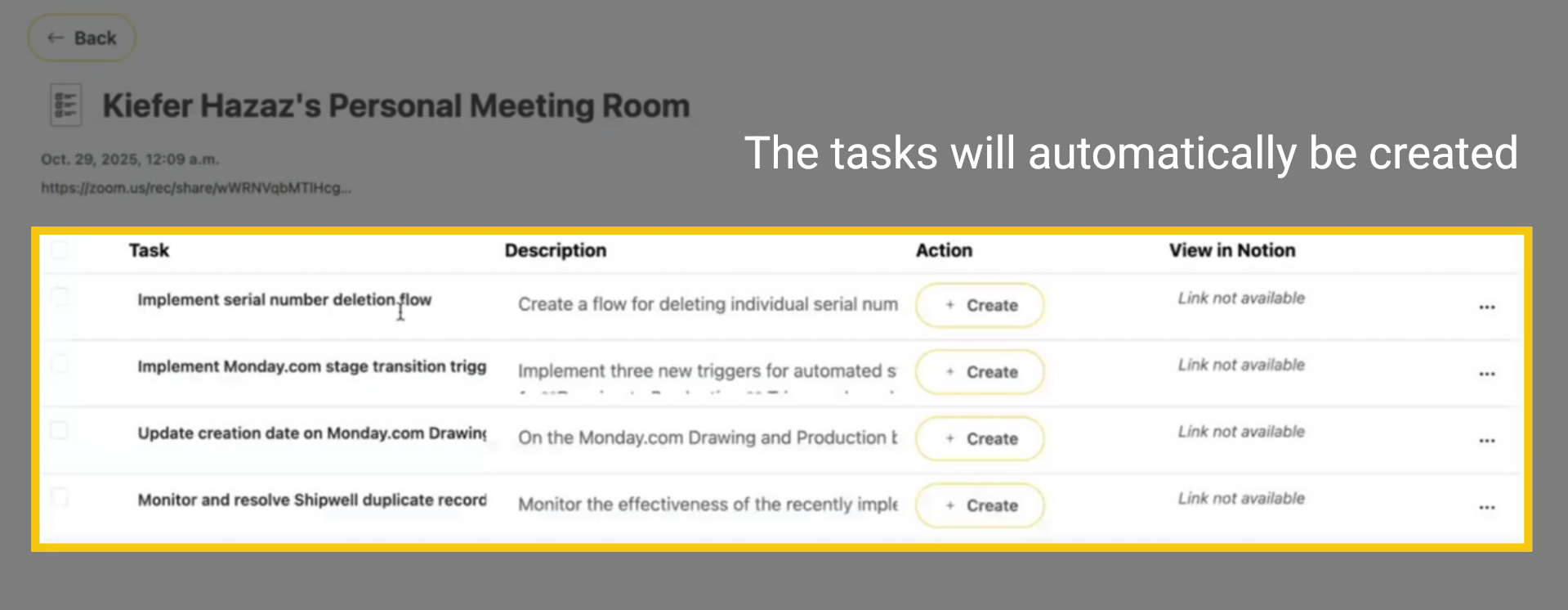
Tasks will be automatically generated for your review.
10 Thank you
This guide outlines how to upload recordings via Dropbox, Google Drive, or Zoom links for easy access, and how to upload a local file, as well as how to edit task titles and descriptions. Thanks for watching.