
Create Customer Order in HubSpot
1 Introduction
In this guide, you will learn how to create a customer order in HubSpot and associate a SKU and a Sales Deal with the Customer Order. This step-by-step process will help you efficiently manage customer orders and their associated records. Let's get started.
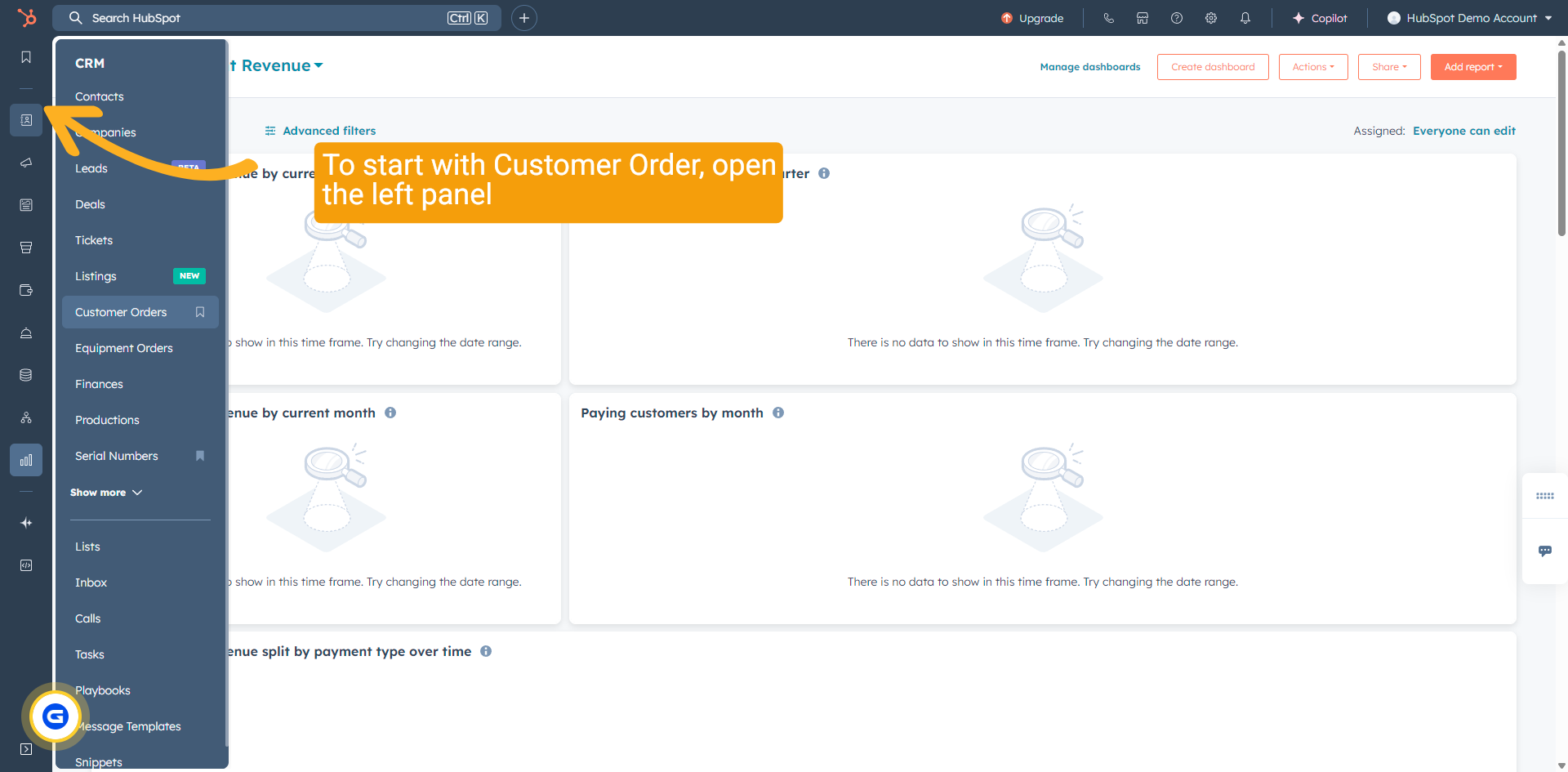
2 HubSpot Menu
In HubSpot on the left hand side there is a menu, and under CRM find the item Customer Orders.
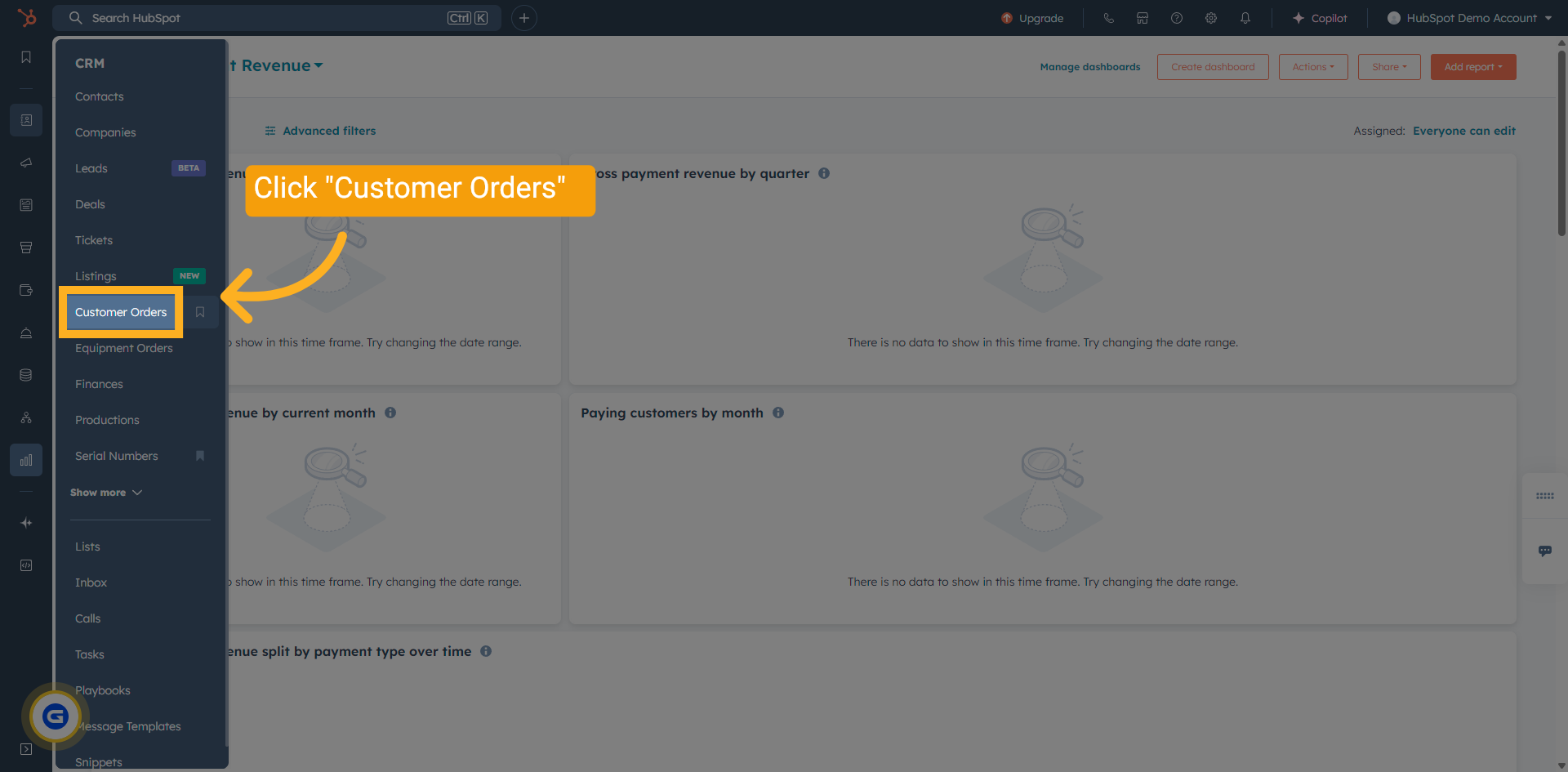
3 Find the "Customer Orders" Menu Item
Go to the menu, find and click on "Customer Orders".
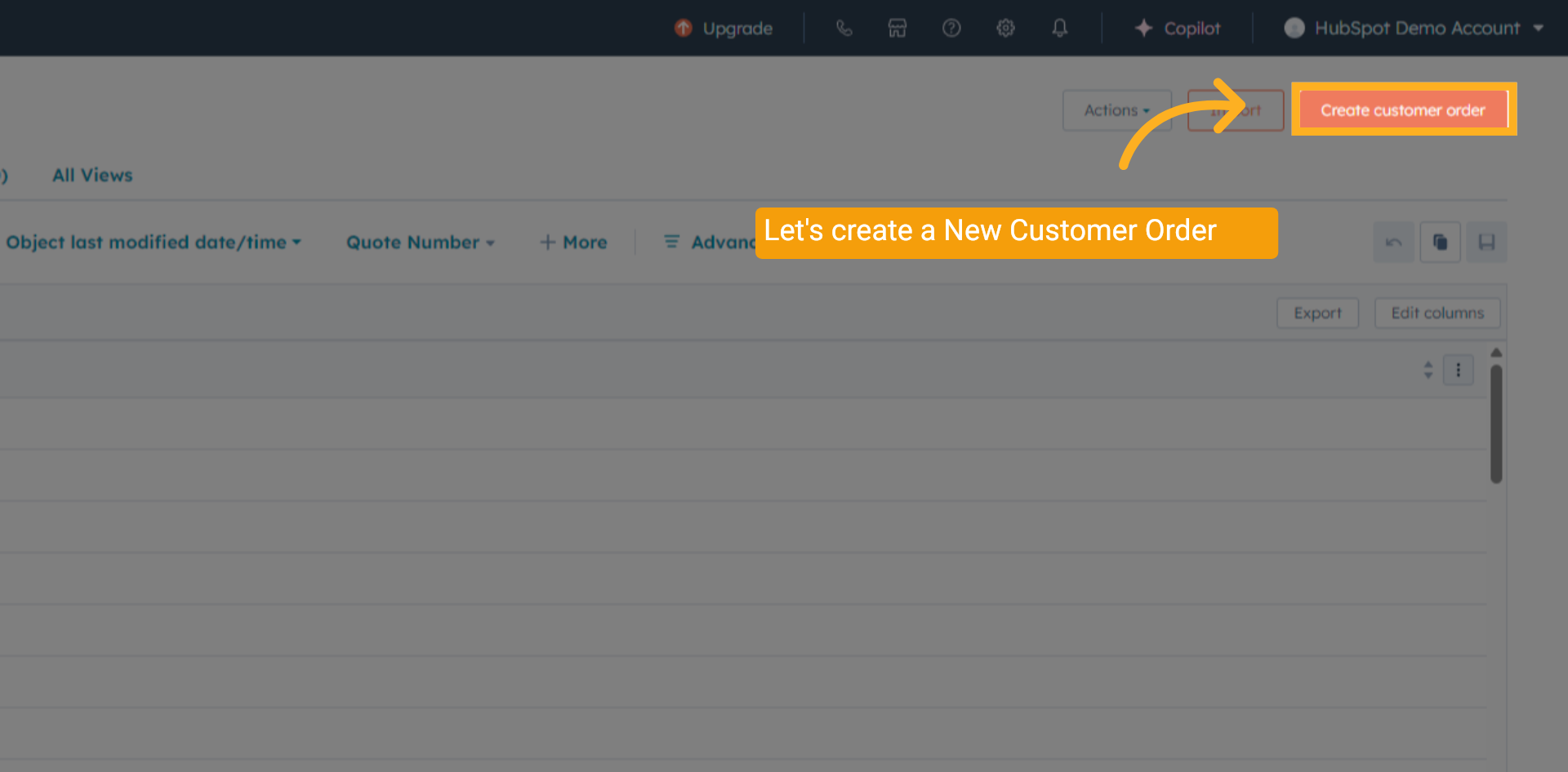
4 Click "Create Customer Order"
Look to the top right and click the button labeled "Create Customer Order".
5 Click "Quote Number"
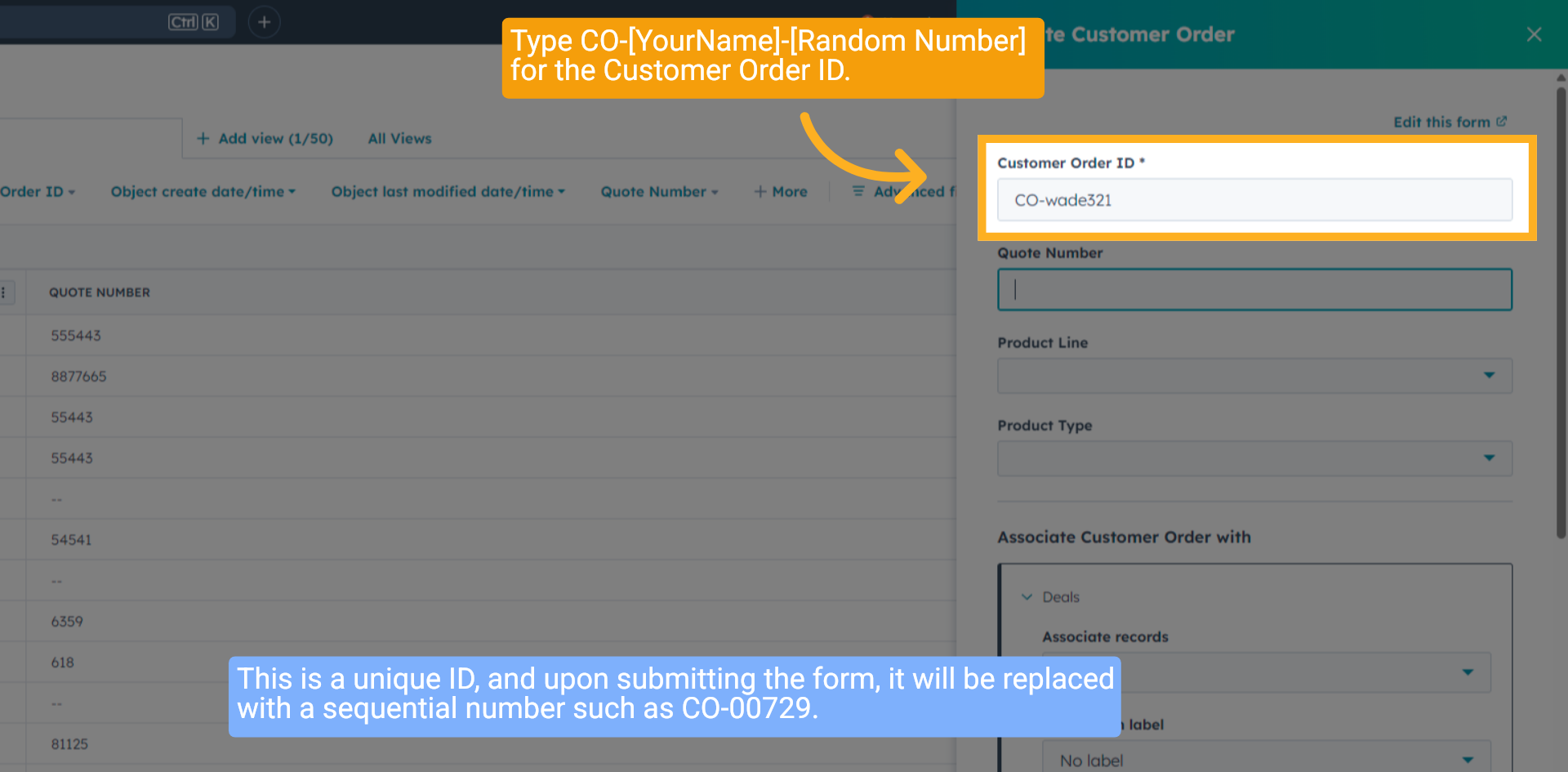
Type in 'CO- your name', and a random number.
The System will autogenerate the number at the end of the process.
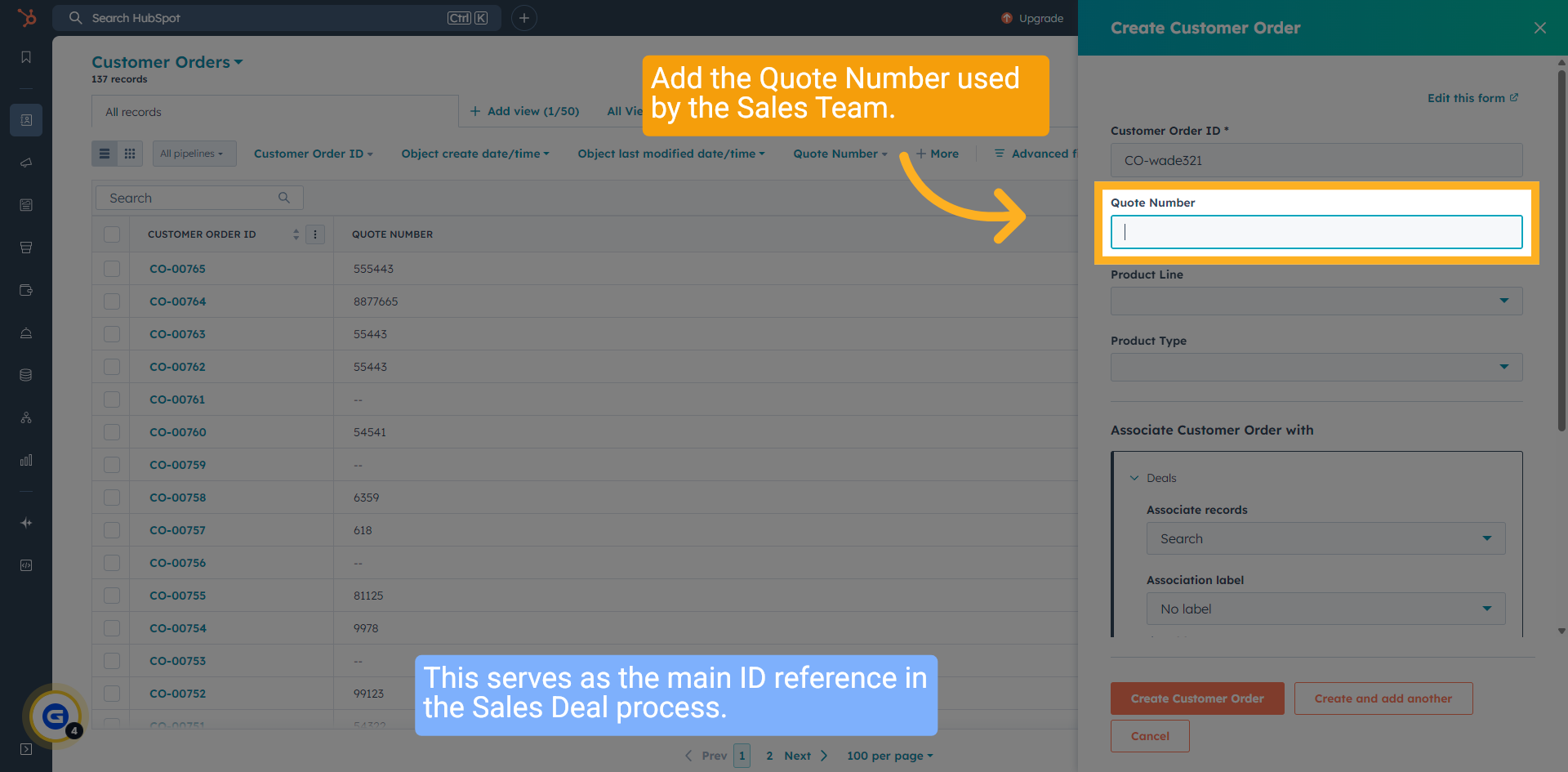
6 Enter the Sales "Quote Number"
Add the Quote Number used by the Sales Team.
This serves as the main ID reference in the Sales Deal process.
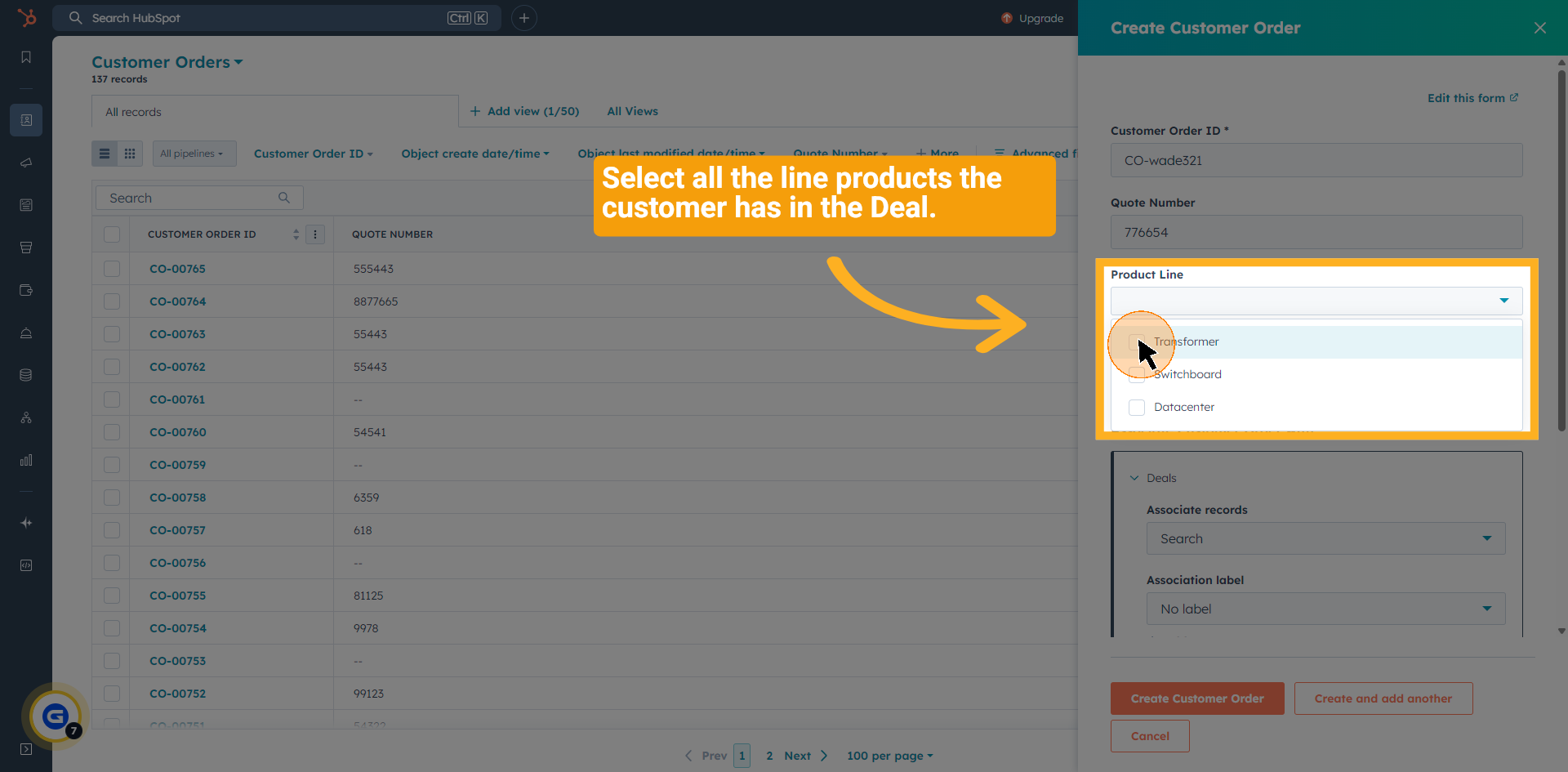
7 Select Product Line
Click on the product line selection area to choose a product line. Select a product line based on deal requirements.
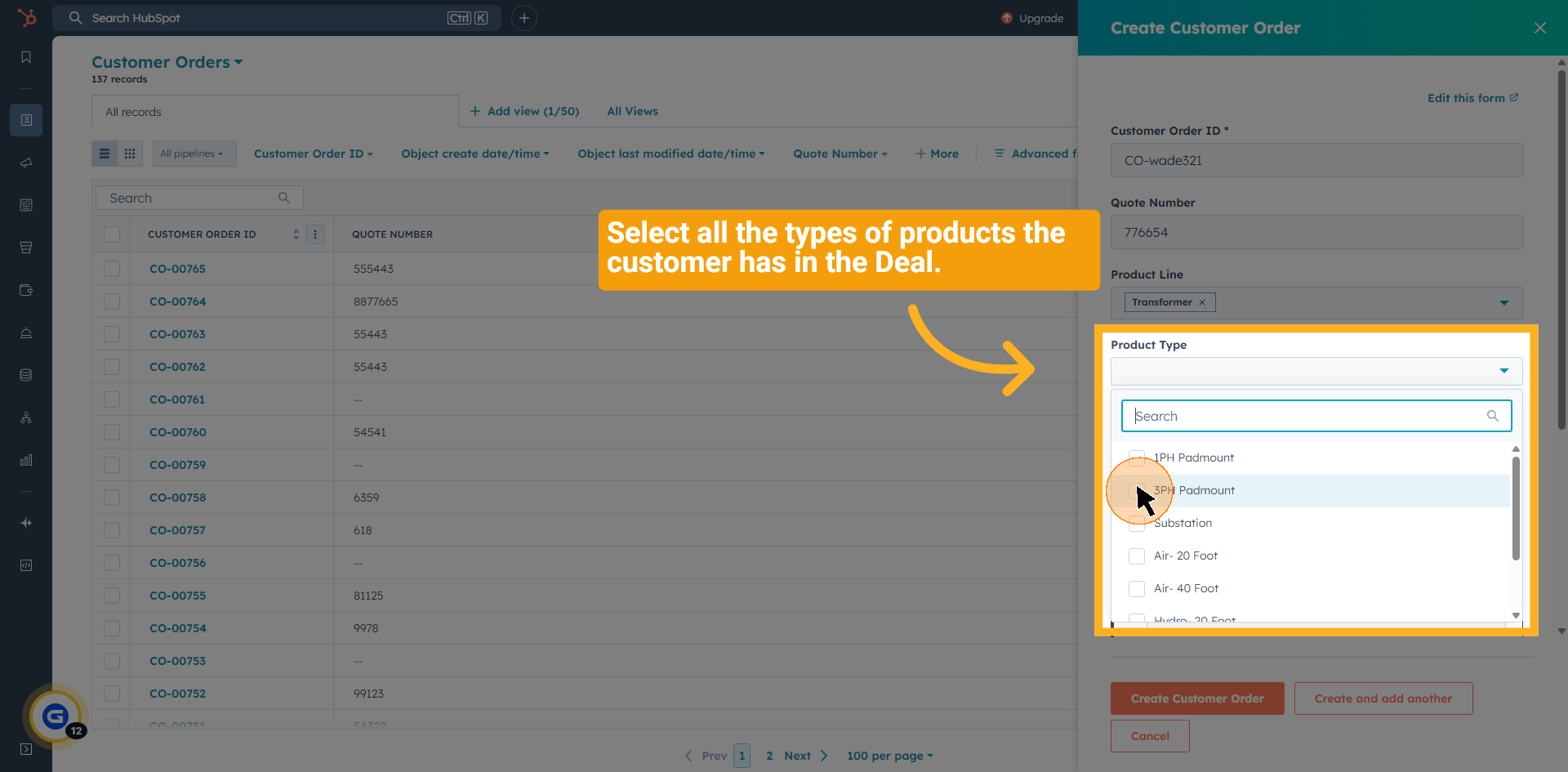
8 Select Product Type
Click on the product type selection area to choose a product type options base on deal requirements.
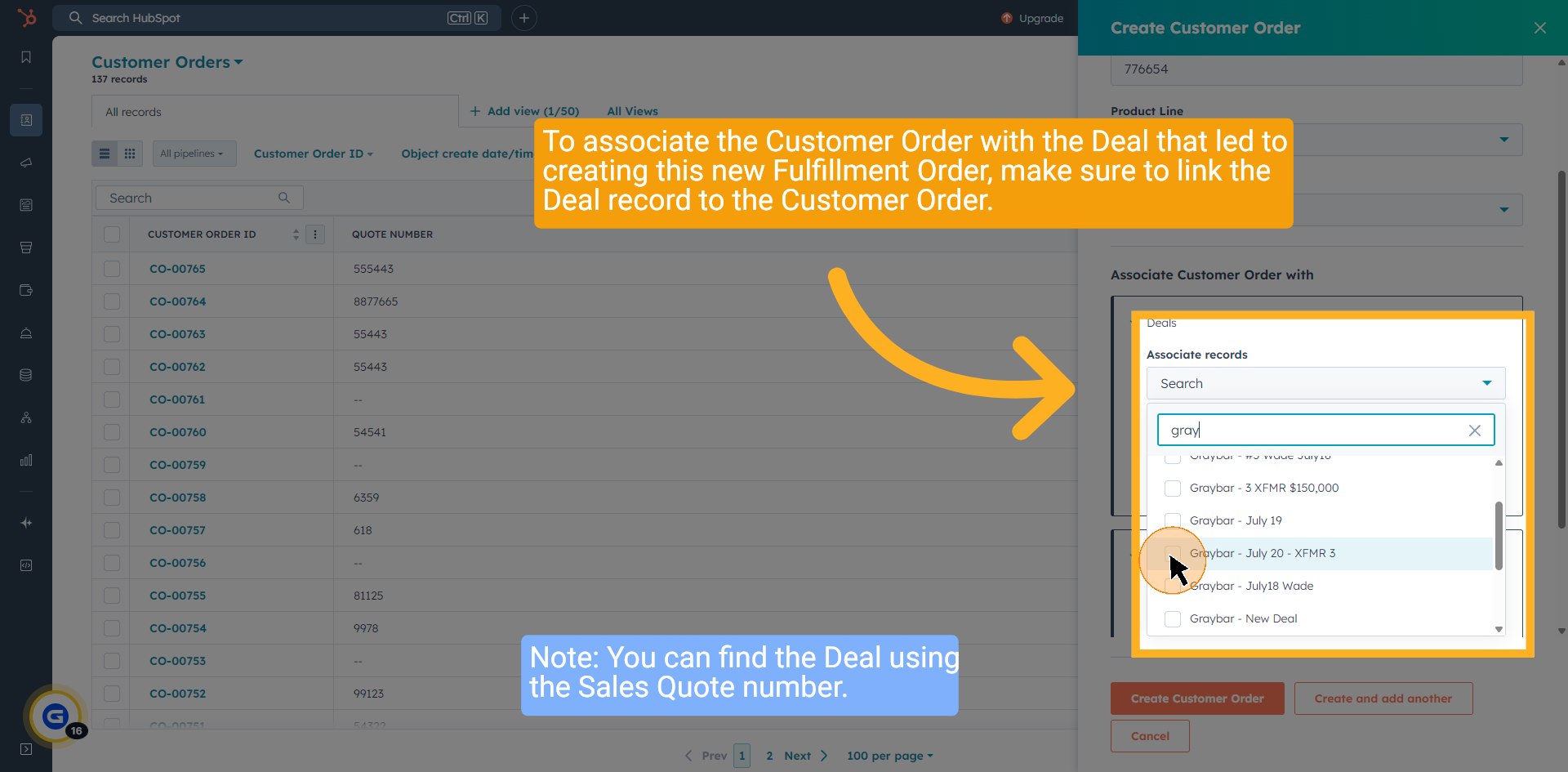
9 Associate Deal
To associate the Customer Order with the Deal that led to creating this new Fulfillment Order, make sure to link the Deal record to the Customer Order.
Note: You can find the Deal using the Sales Quote number.
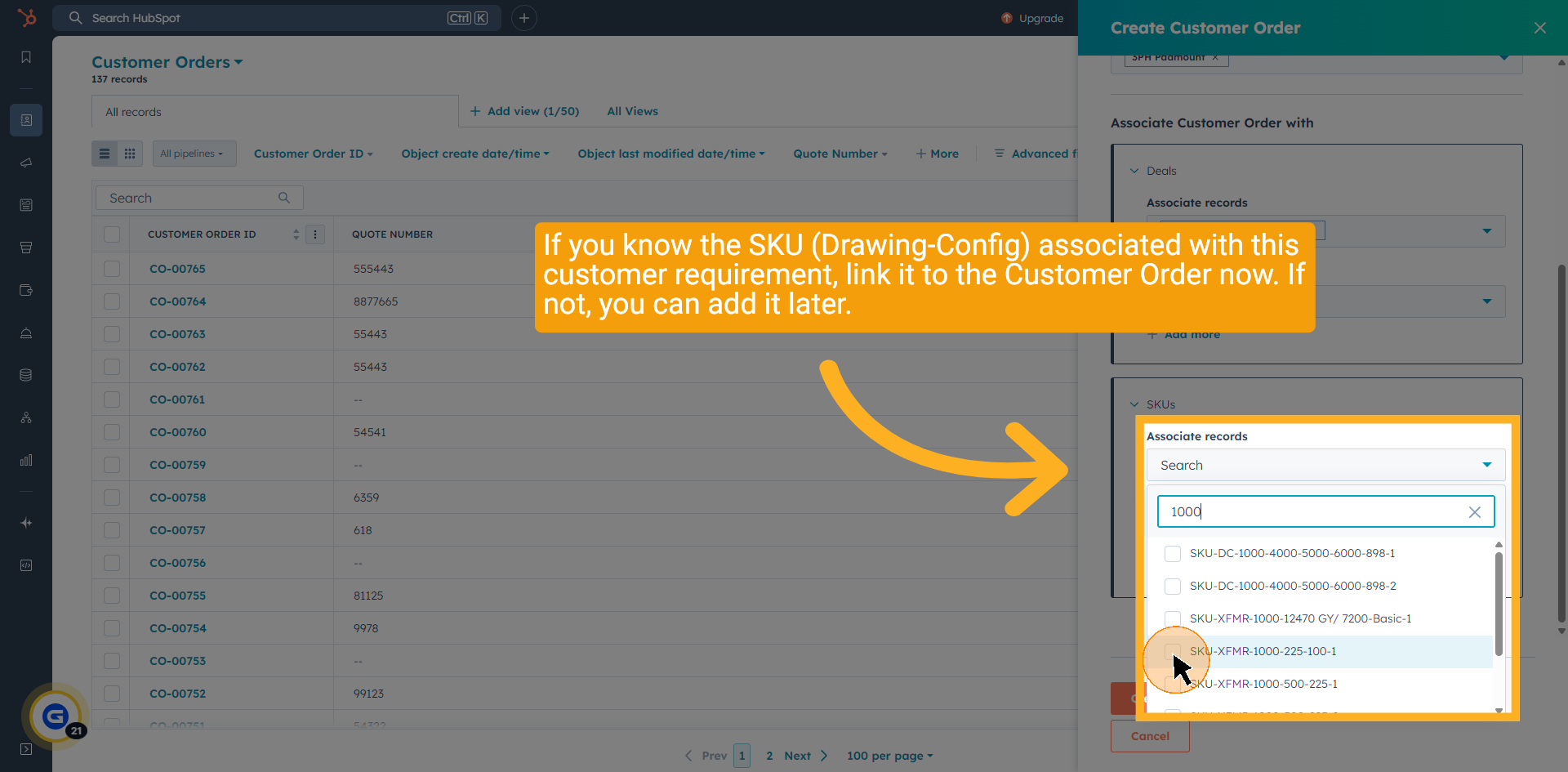
10 Associate SKU
If you know the SKU (Drawing-Config) associated with this customer requirement, link it to the Customer Order now. If not, you can add it later.
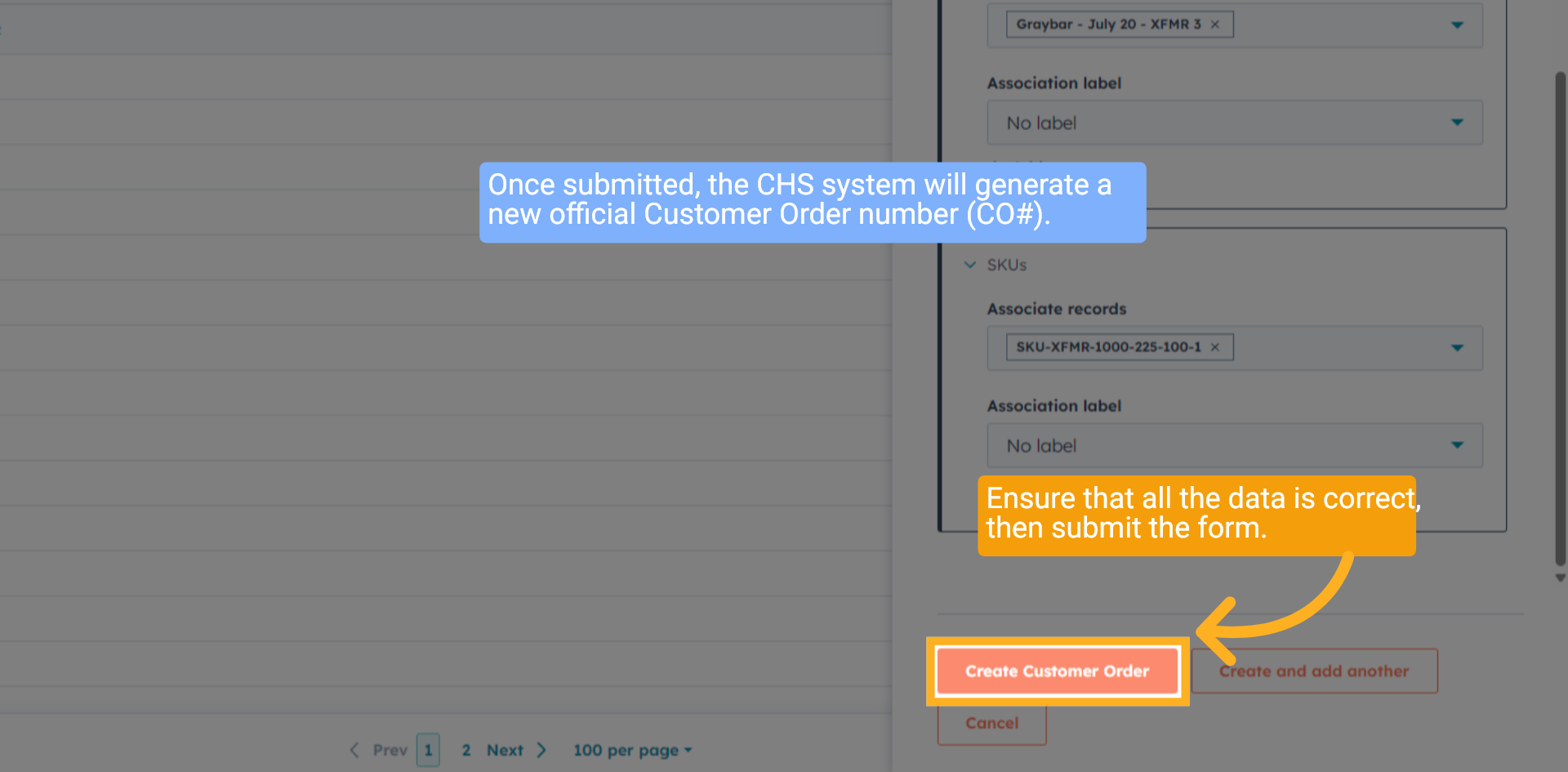
11 Create Customer Order
Once submitted, the CHS system will generate a new official Customer Order number (CO#).
Ensure that all the data is correct, then submit the form.
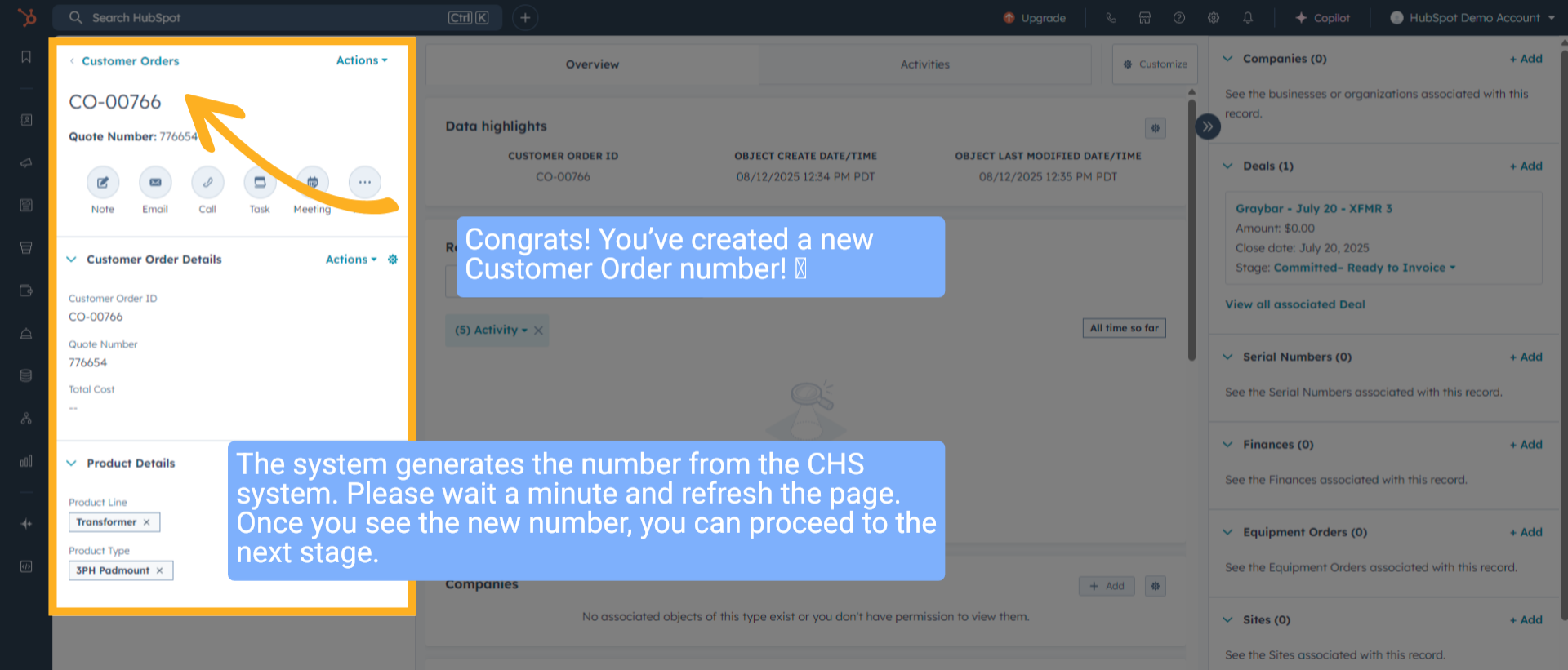
12 Customer Order Number Created
Congrats! You’ve created a new Customer Order number!
The system generates the number from the CHS system. Please wait a minute and refresh the page. Once you see the new number, you can proceed to the next stage.
13 Wrap up
This guide covered creating a Customer Order in HubSpot, including entering order details and associating other parameters with this new Customer Order #ID.
14 Thank You!
Thank You for Watching!