
Moving into Drawing Phase (COM)
Go to app.hubspot.com
1. Introduction
In this guide, you will learn how to create an equipment order in HubSpot and associate a SKU and a Sales Deal with the Customer Order. This step-by-step process will help you efficiently manage equipment orders and their associated records. Let's get started.

2. Find "Equipment Orders" Menu on HubSpot
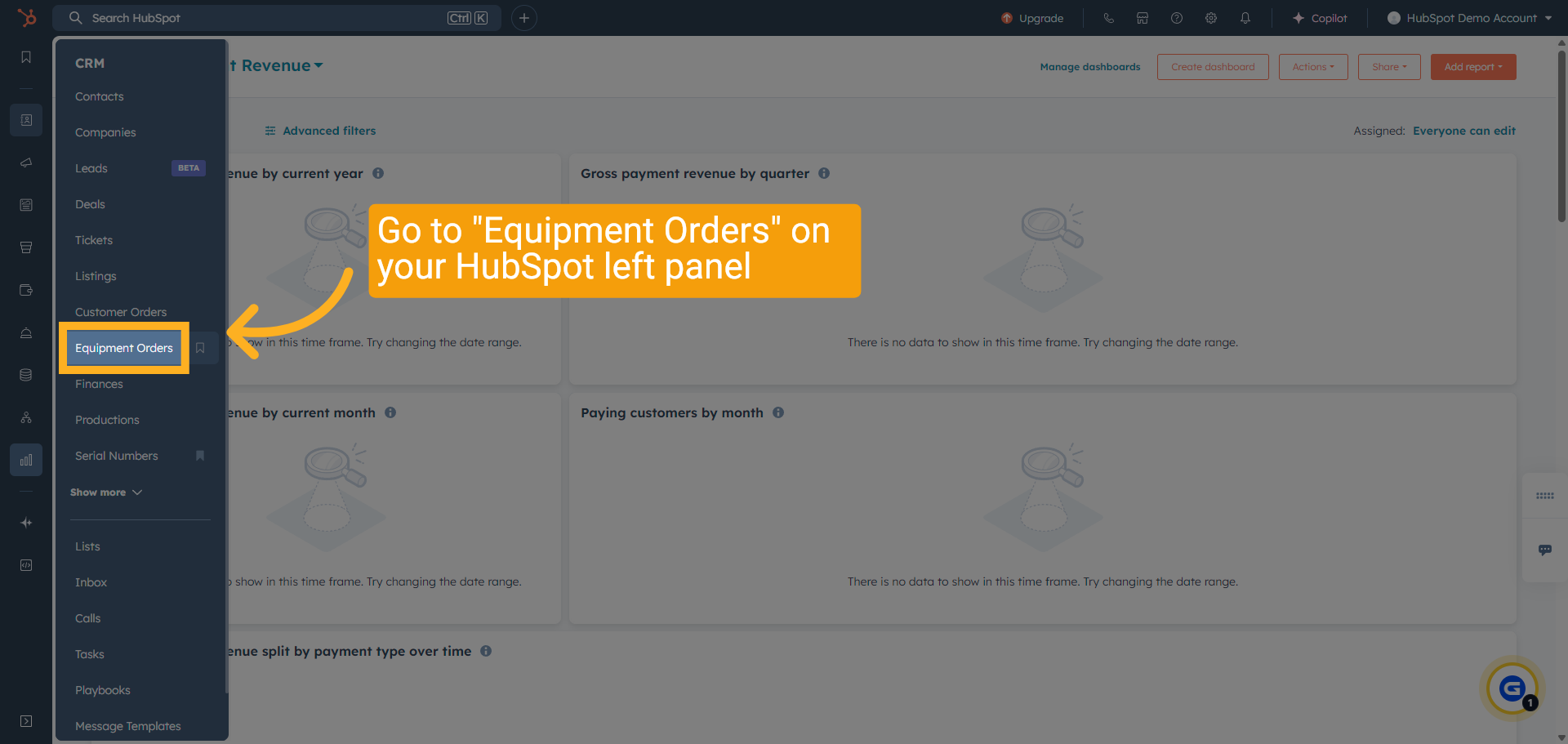
Select "Equipment Orders" from the menu options.
3. Search for the required EQ
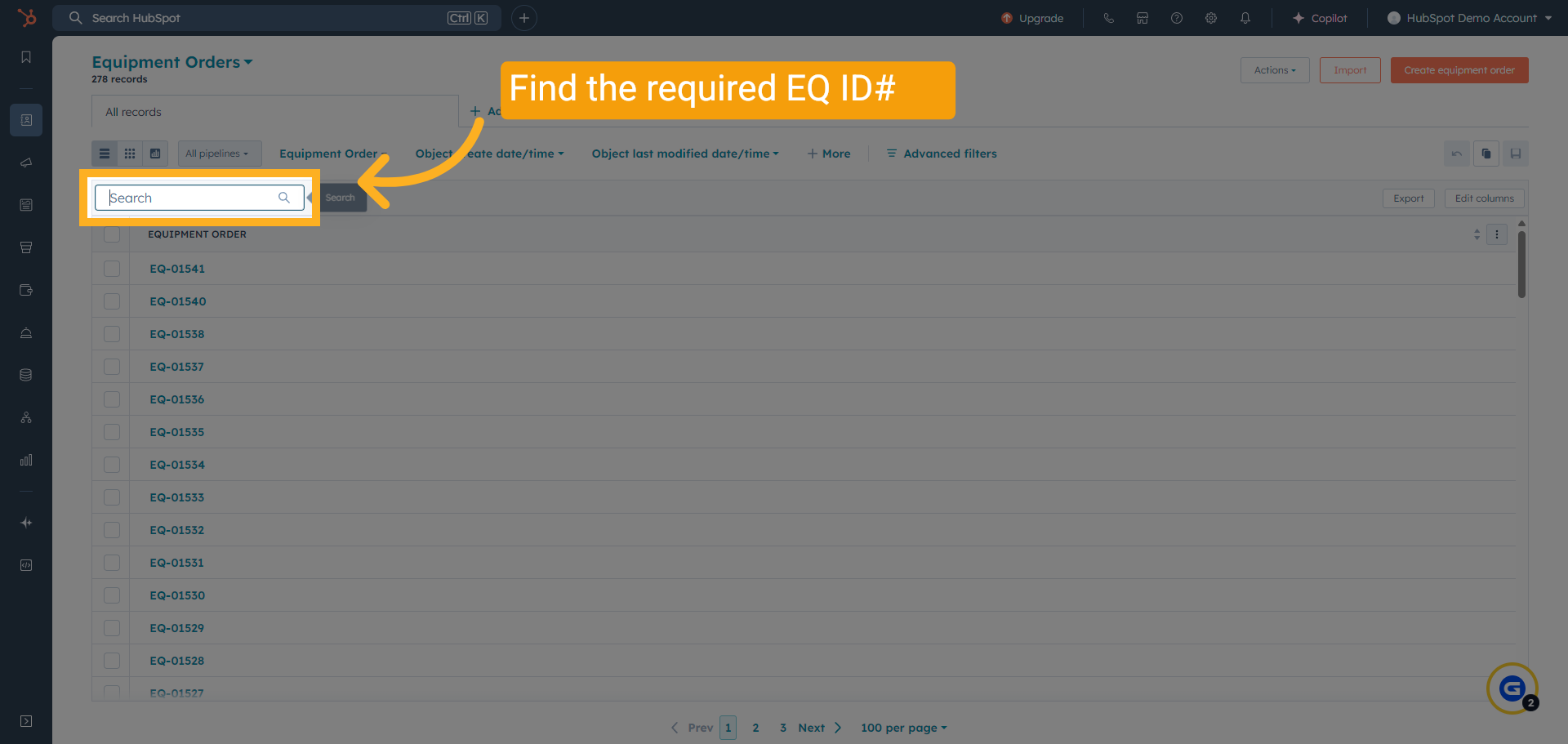
Search for the required EQ. Enter the equipment order number you want to find.
4. Verify Associations
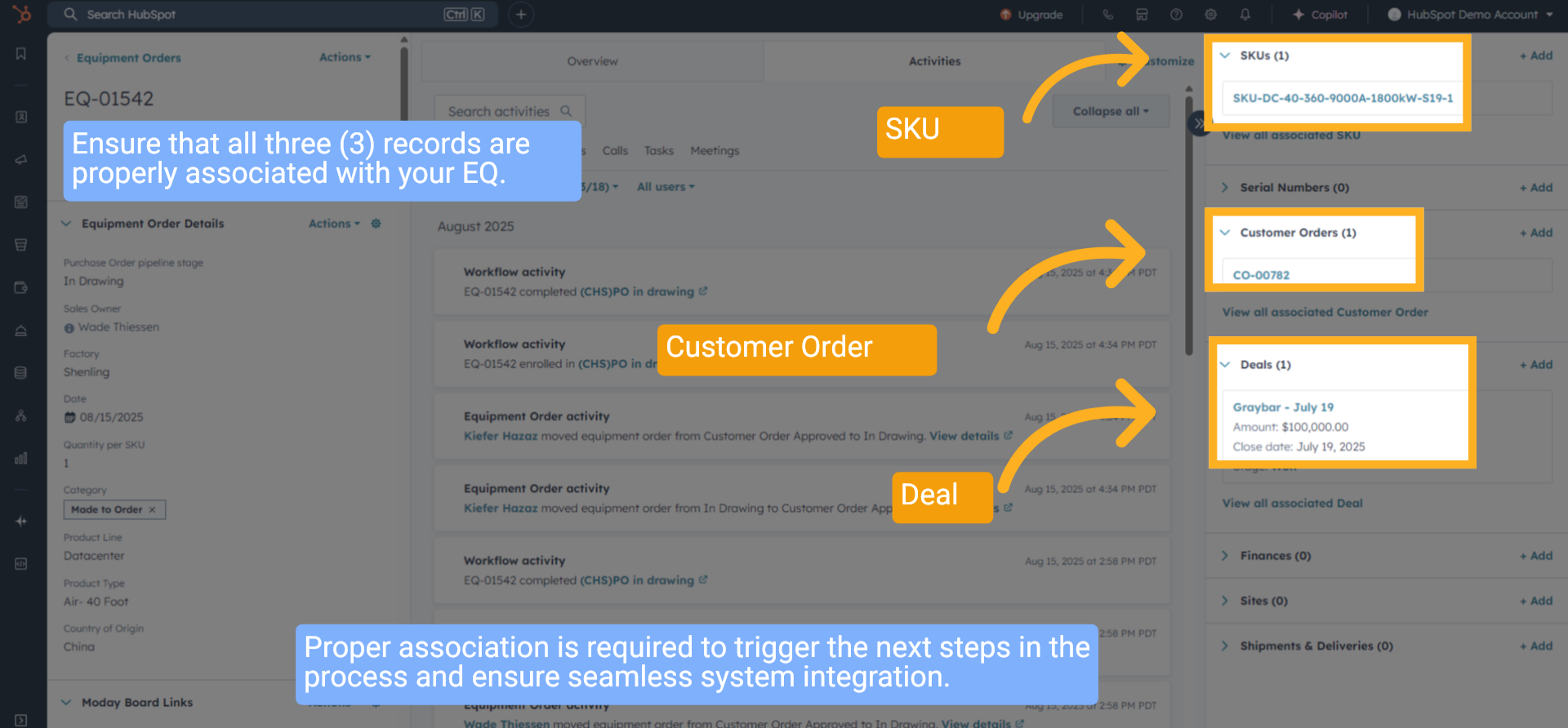
Ensure that all three (3) records are properly associated with your EQ. Proper association is required to trigger the next steps in the process and ensure seamless system integration.
5. Check Quantity
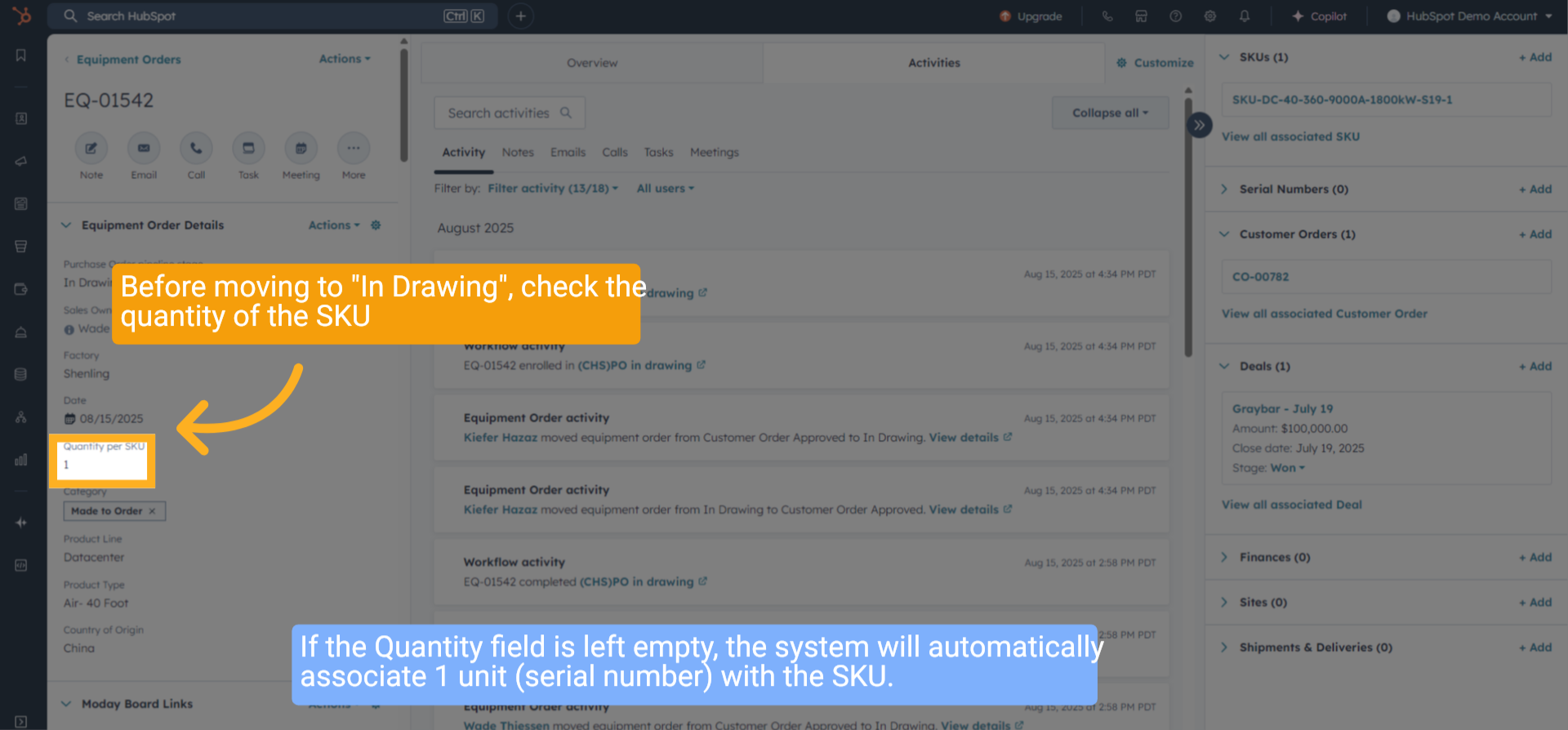
Before moving to "In Drawing", check the quantity of the SKU. If the Quantity field is left empty, the system will automatically associate 1 unit (serial number) with the SKU.
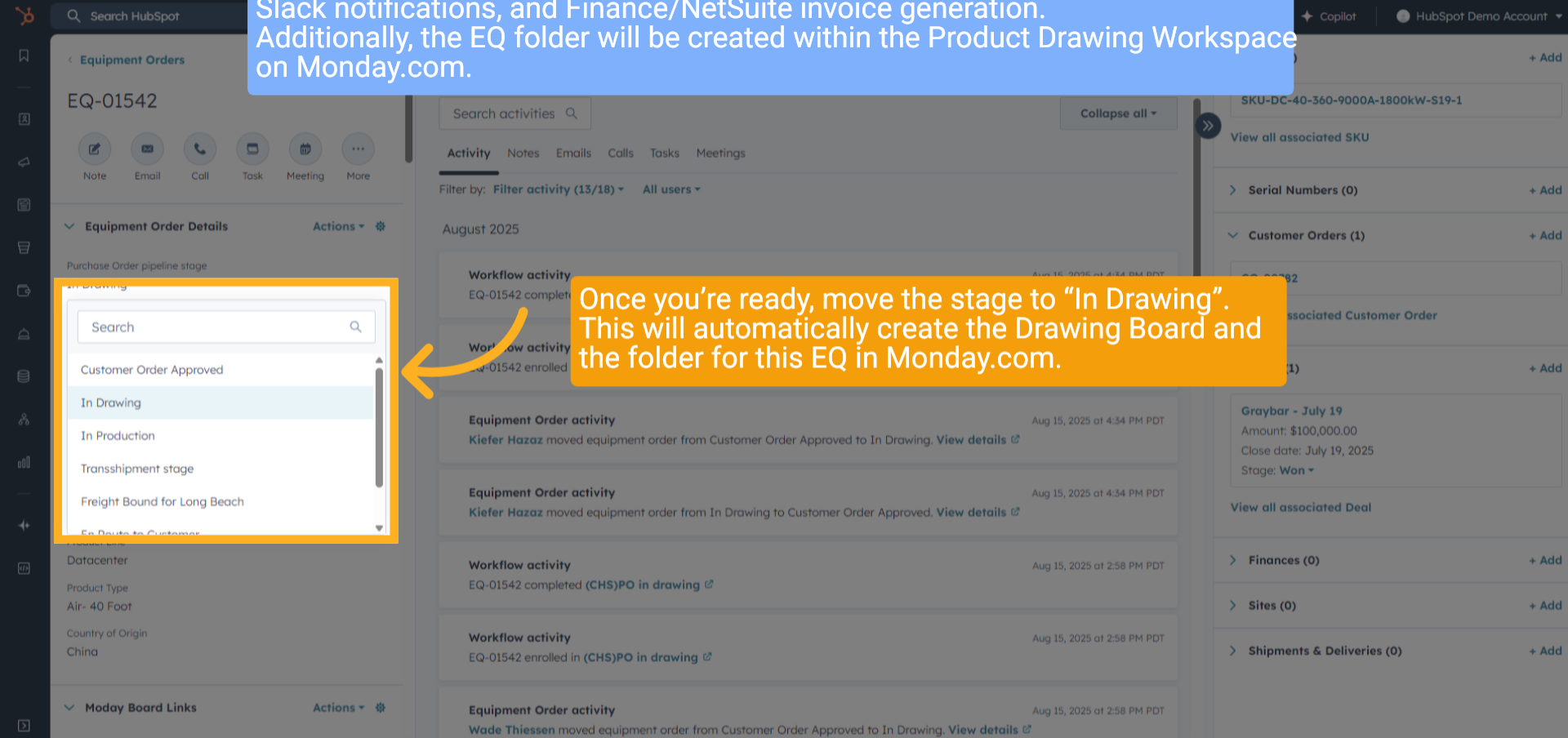
6. Move to "In Drawing"
Please note: This move will trigger the first stage across all systems, including Monday.com, Slack notifications, and Finance/NetSuite invoice generation. Additionally, the EQ folder will be created within the Product Drawing Workspace on Monday.com. Once you’re ready, move the stage to “In Drawing”. This will automatically create the Drawing Board and the folder for this EQ in Monday.com.
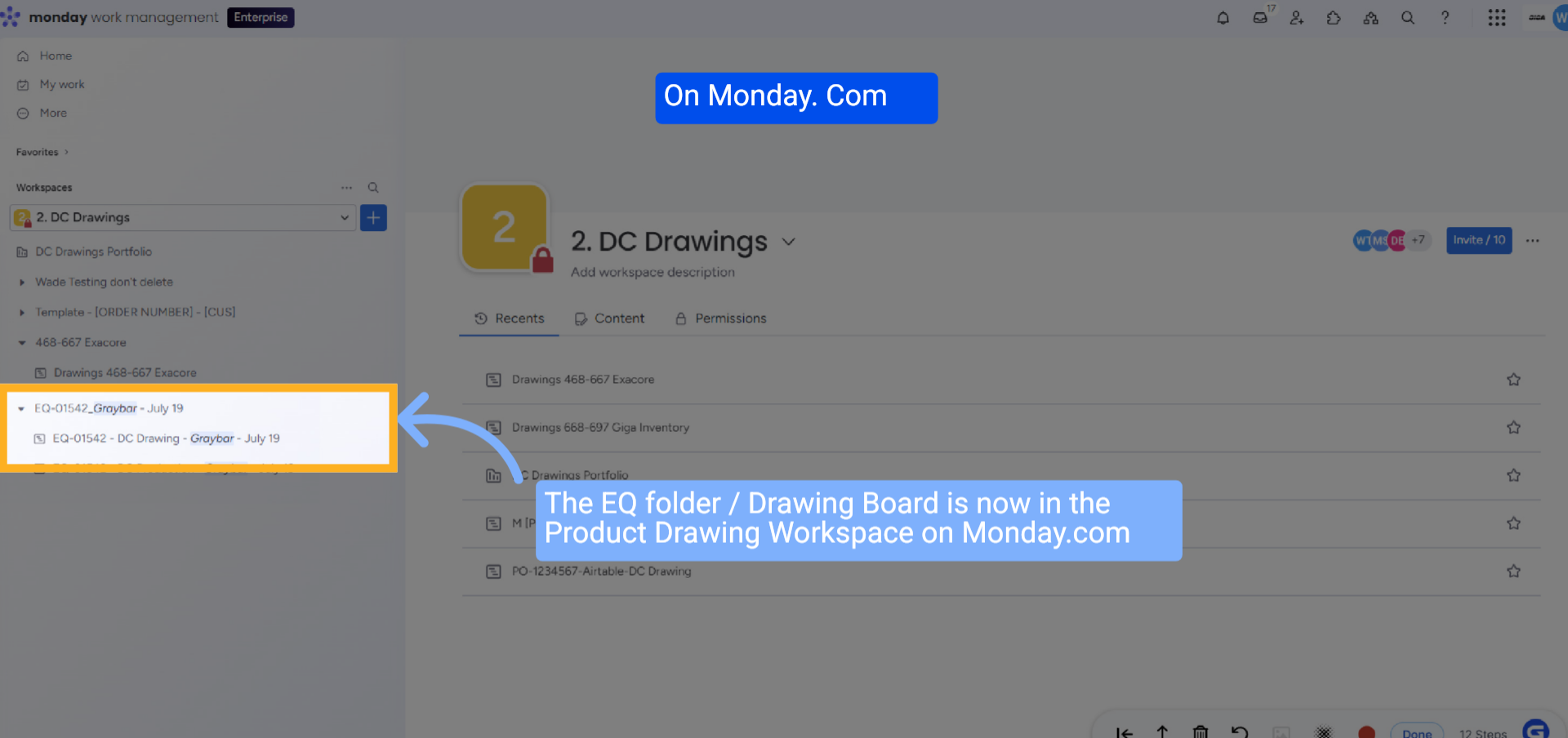
7. Equipment Order Folder Created
The Equipment Order folder is now in the Product Drawing Workspace.
8. Wrap up
This guide covers searching for an equipment order in HubSpot, verifying associated details (SKU, customer order, and deal), and creating the EQ folder in the Product Drawing Workspace, all while ensuring quantity accuracy.
9. Thank You!
Thank You for Watching!