Starting XFMR Drawing Phase
1 Moving to in Drawing
This guide will assist you in transitioning an equipment order to the In Drawing stage while effectively managing its progress. You’ll discover how to update statuses, manage revisions, and seamlessly coordinate tasks between HubSpot and Monday.com, as well as navigate the production transition. Let’s get started!
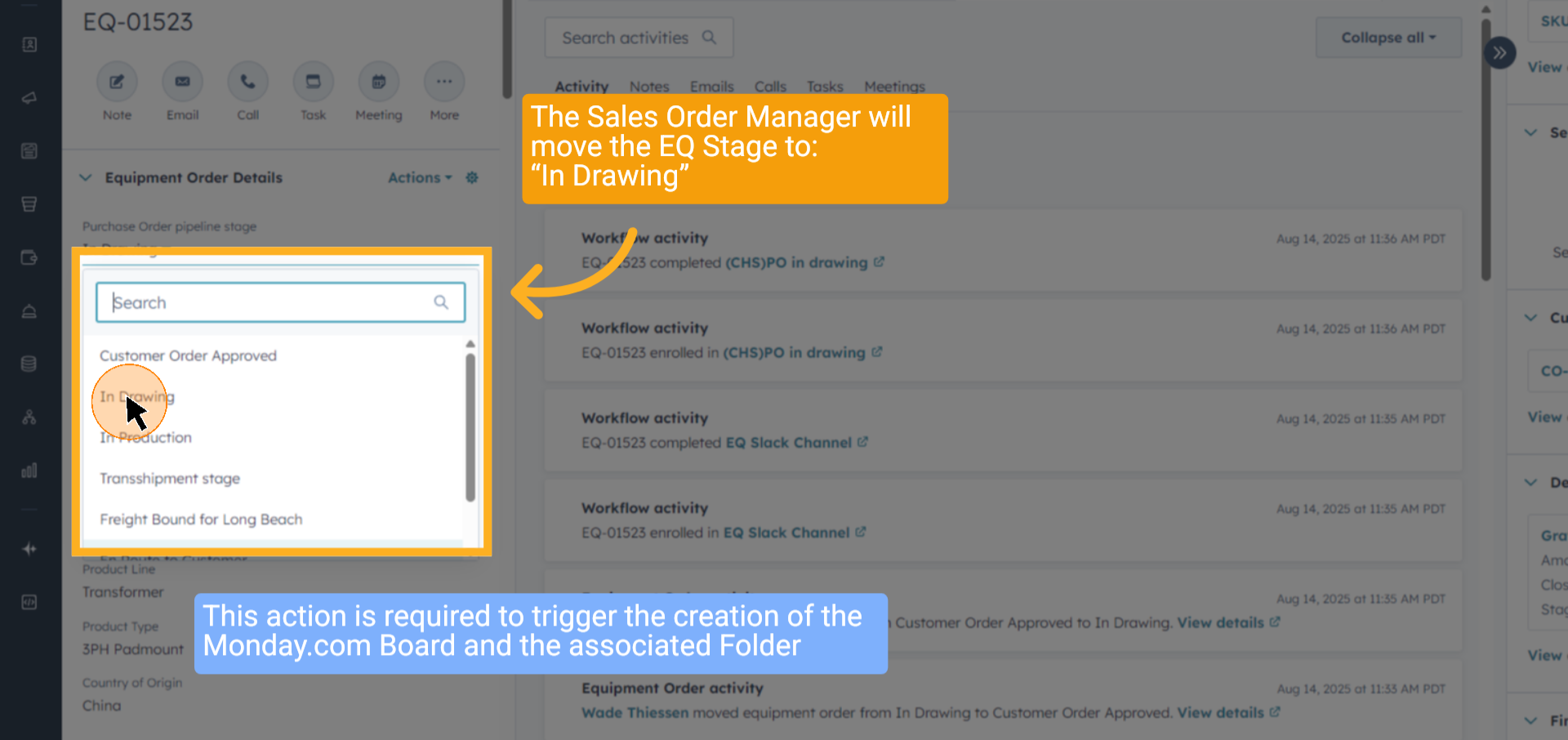
2 Select "In Drawing"
Change the order status to "In Drawing" to indicate the drawing phase has started. When this moves, the project boards for the drawing process are created in Monday.com
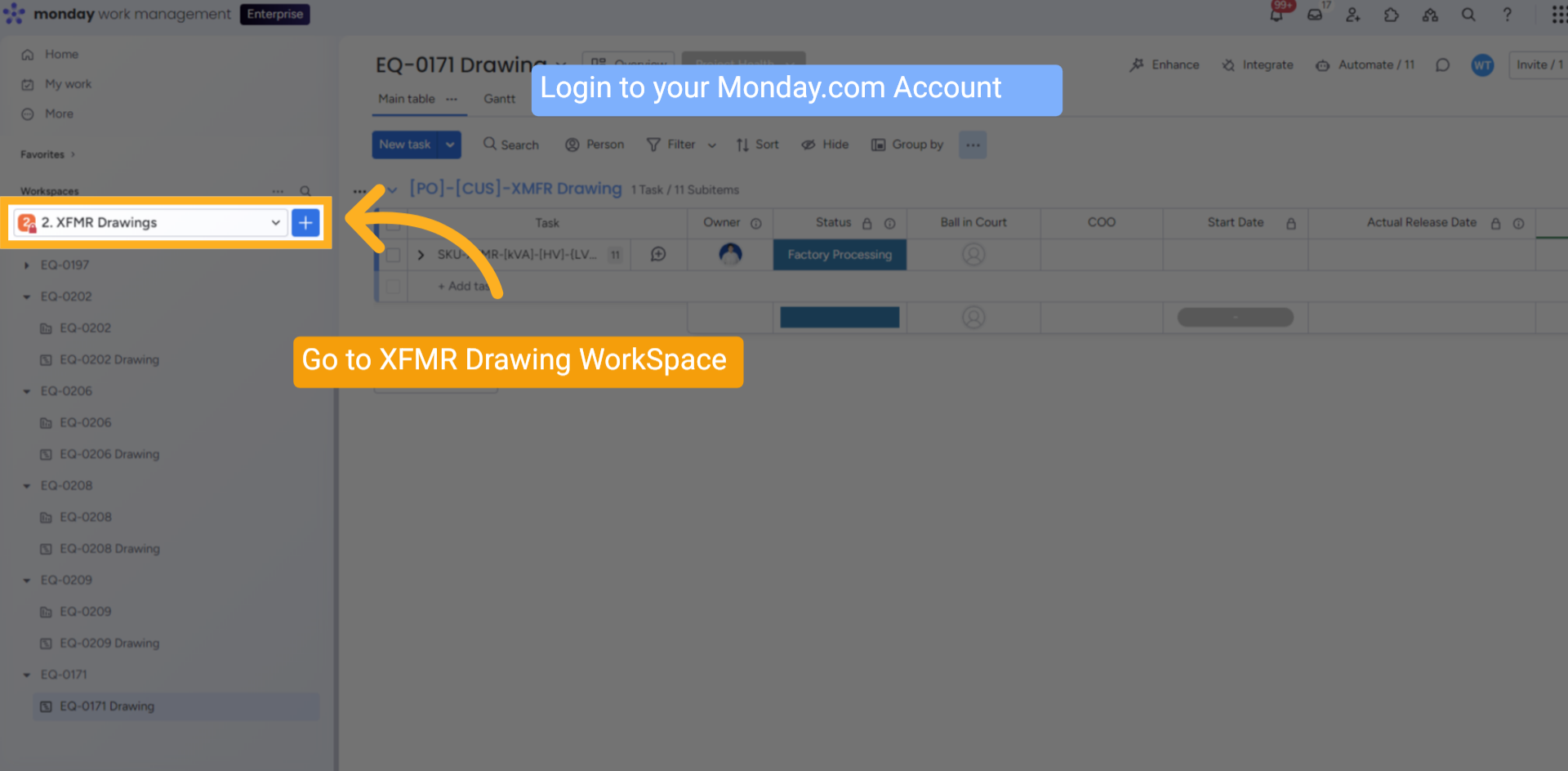
3 XFMR Workspace On Monday .com
Navigate to the XFMR Drawings workspace.
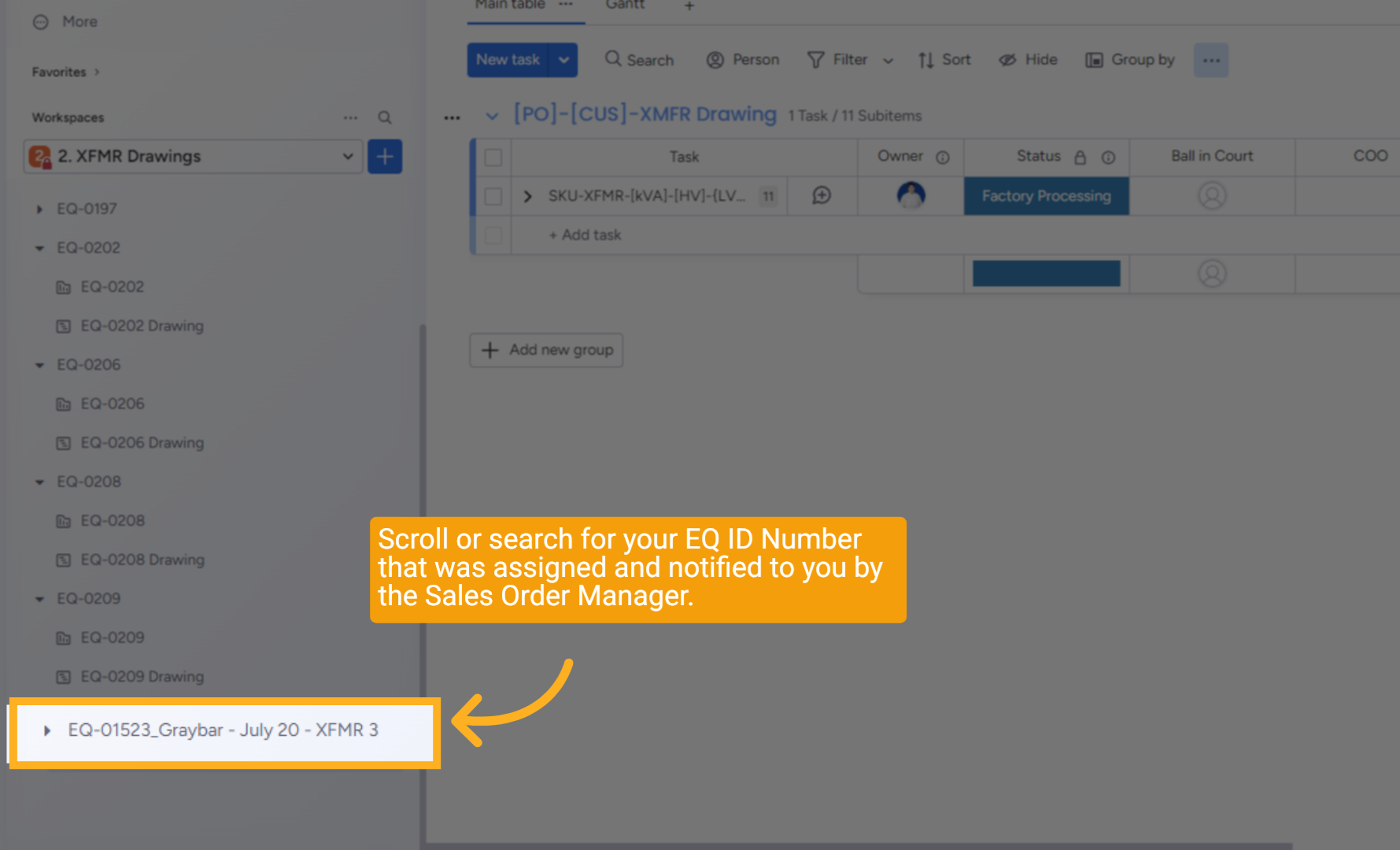
4 EQ folder is created
Find the newly created-eq folder at the bottom of the list.
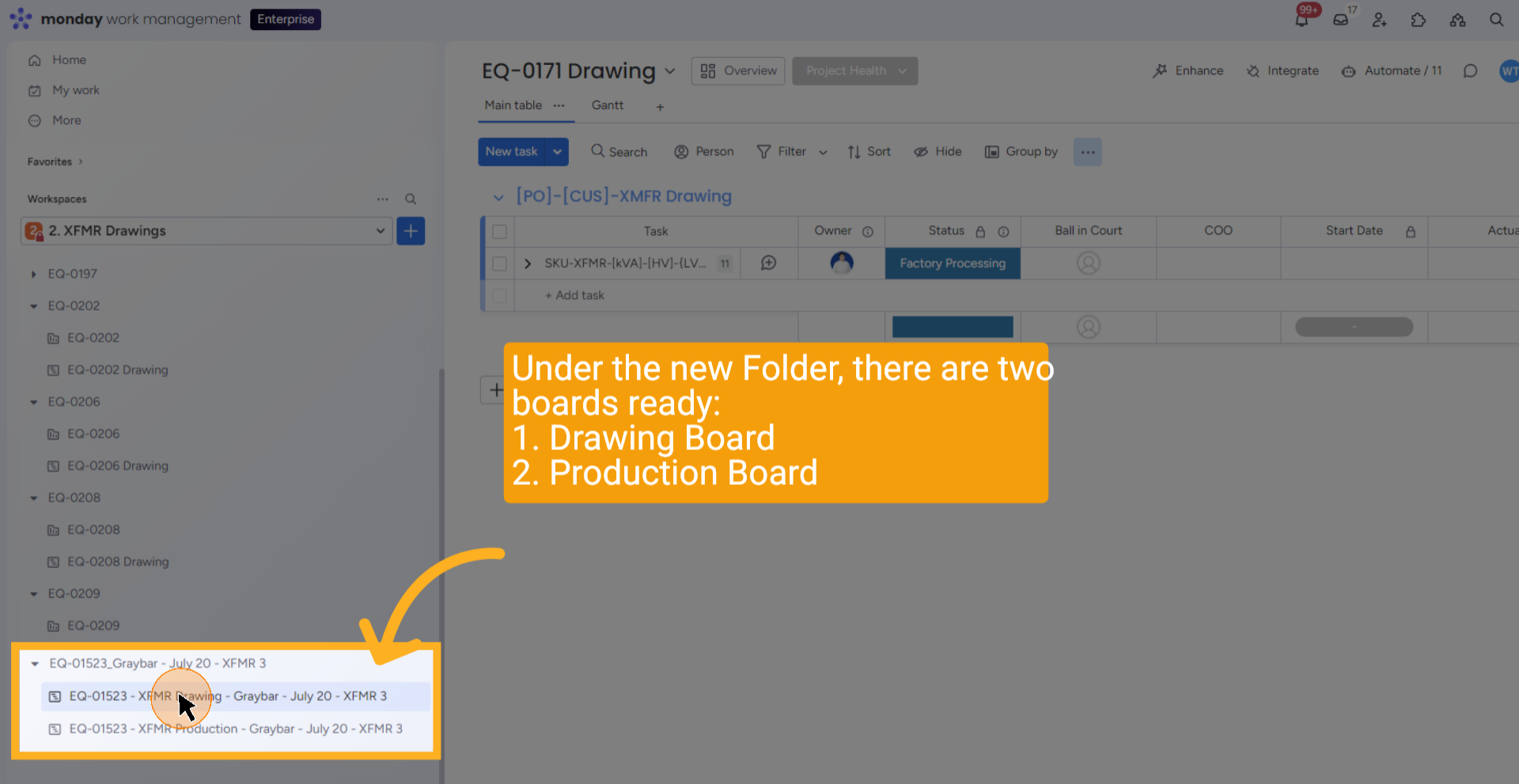
5 XFMR Drawing Project Board
Locate the newly created Drawing Board within the EQ folder. Click on it to display the board on the right side of the window.
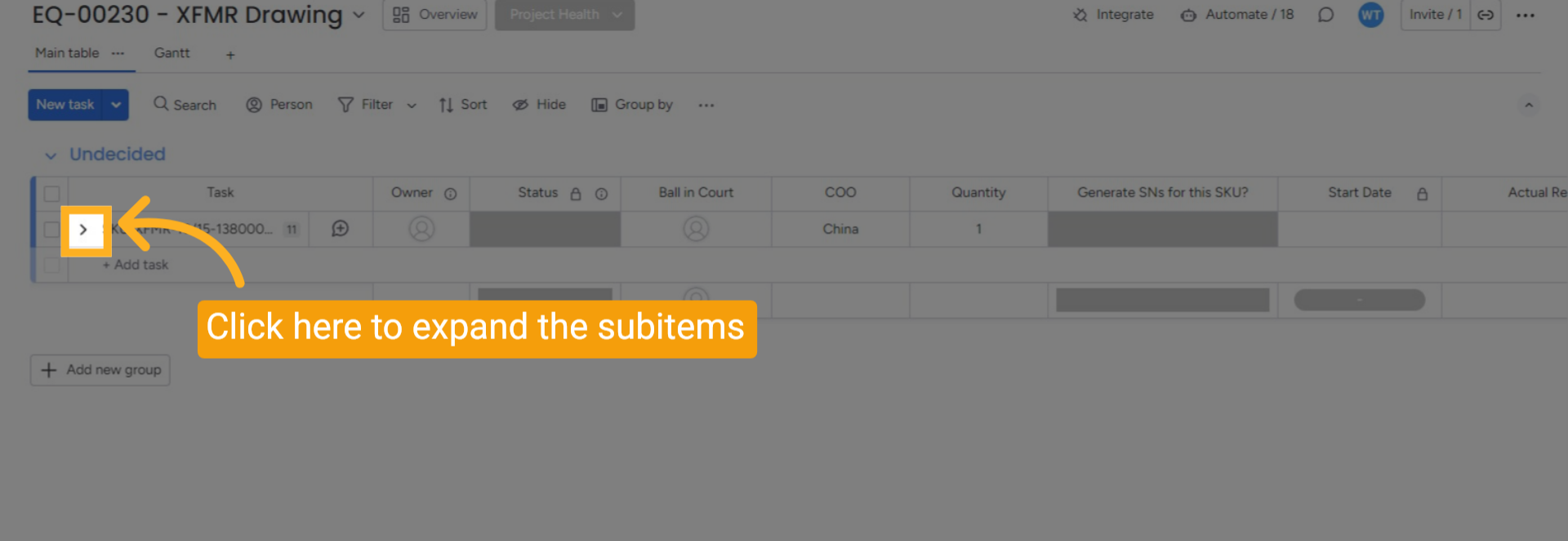
6 Open the Subitems
Expand the item to access the sub-item list.
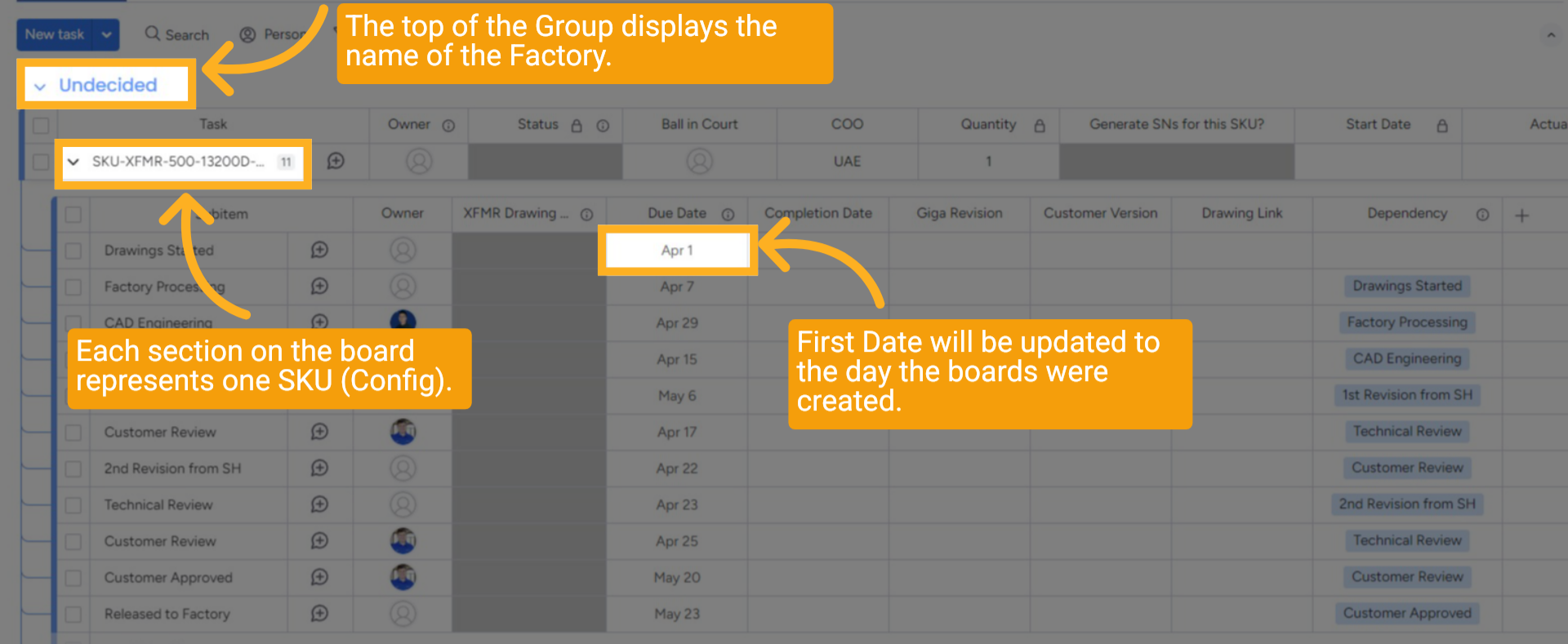
7 Factory, SKU, and Creation Date
When the board is open, you will see key details at the top of the item, including the SKU, the board’s creation date, and the factory assigned for production.
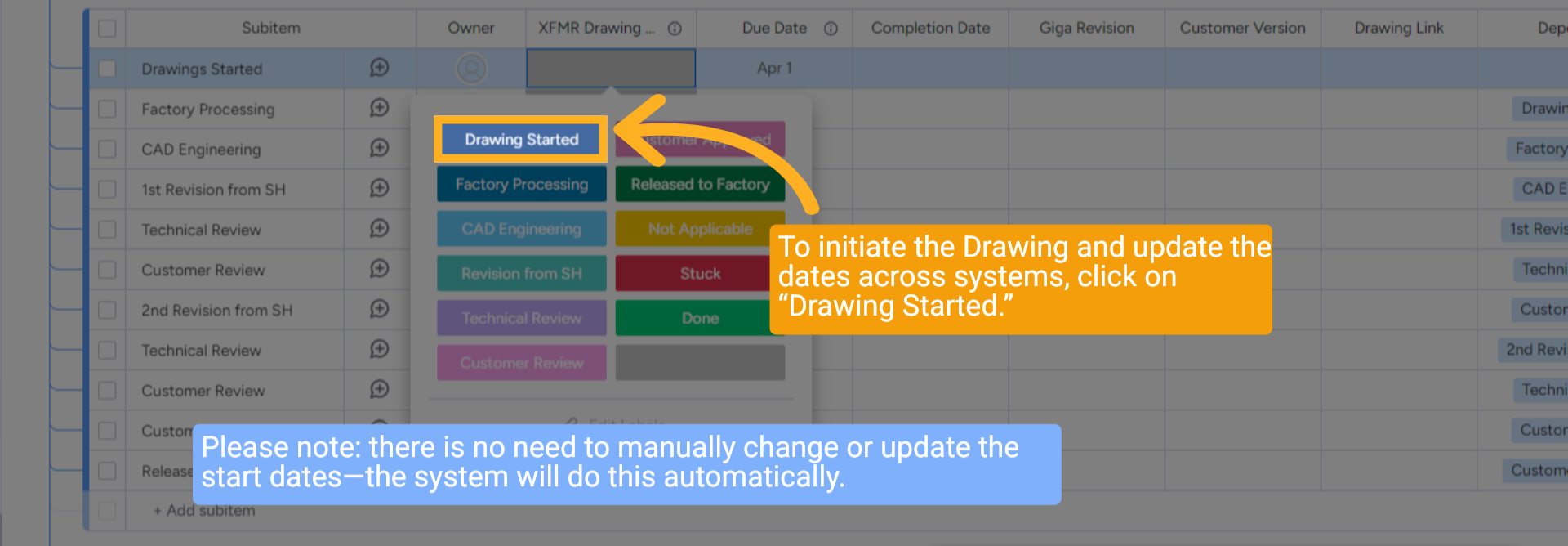
8 Click "Drawing Started"
Select the first status, “Drawings Started” for the “Drawings Started” subitem. This will set the Start Date and update the status.
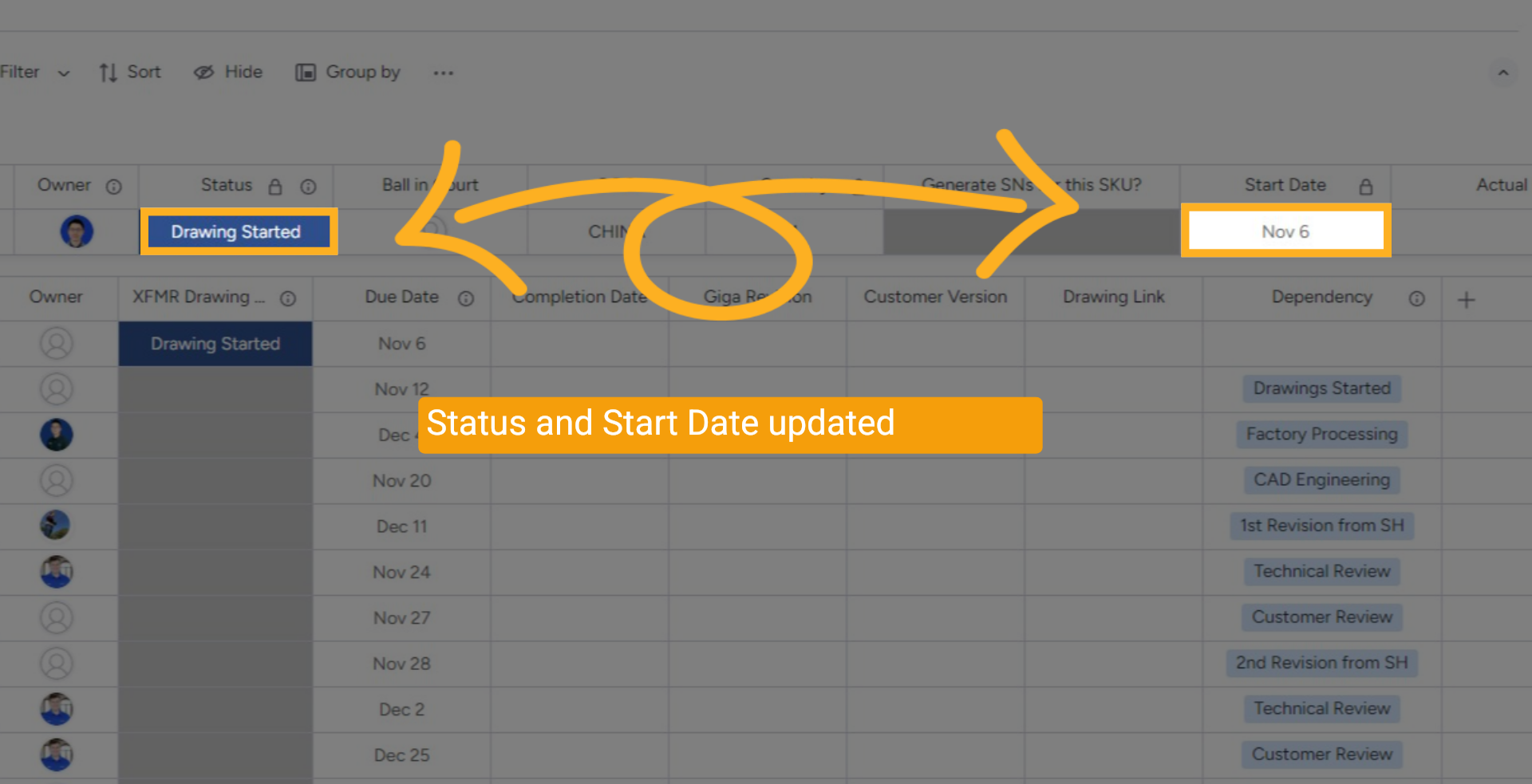
9 Set Start Date
Drawing status and Starting Date are updated and pushed to the EQ on HubSpot
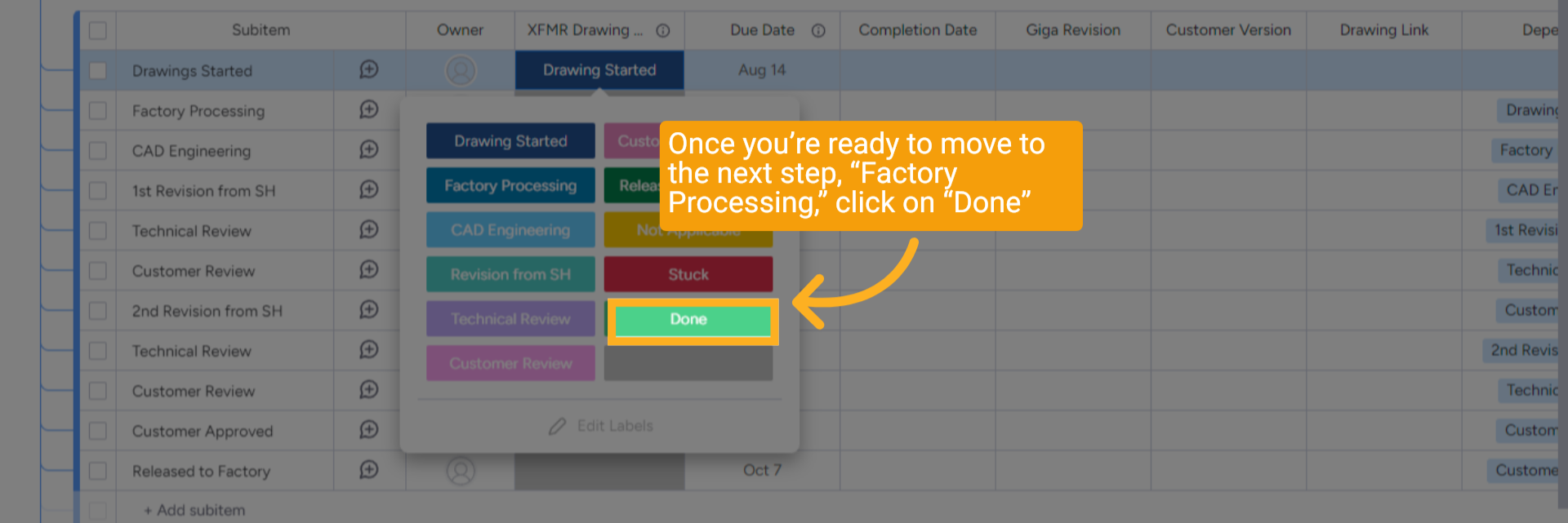
10 Click "Done"
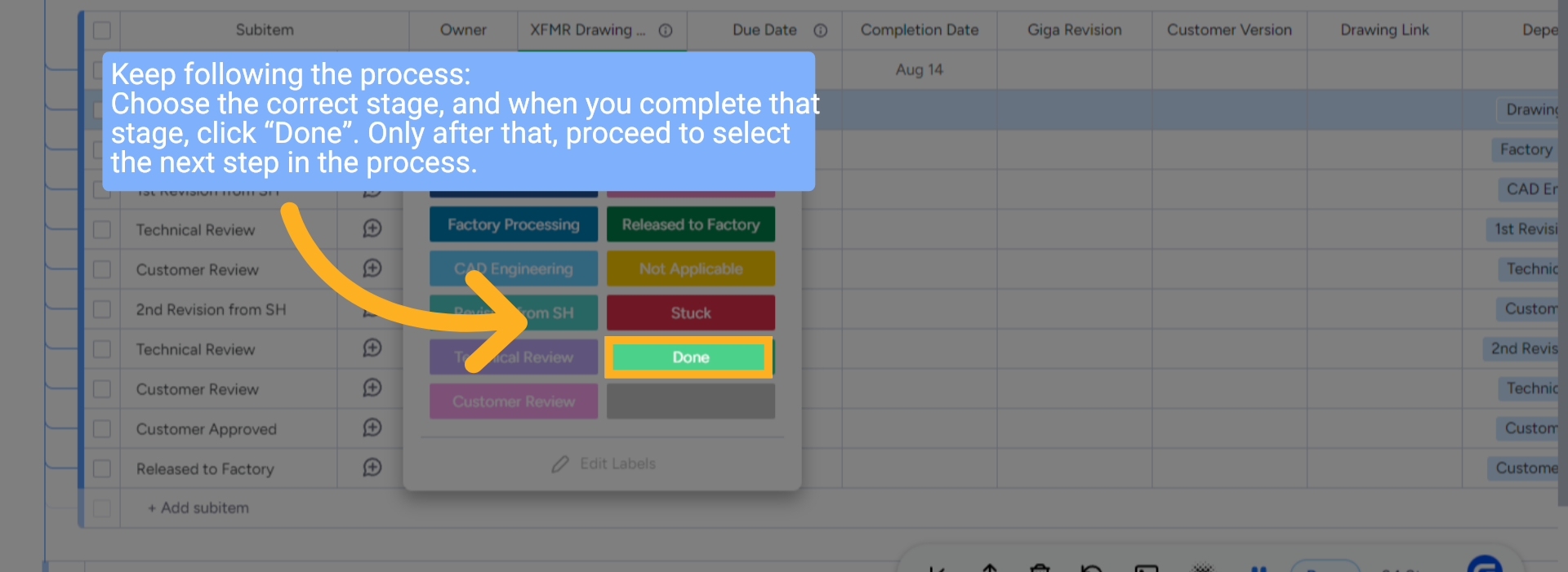
When ready for the next status, select “Done” for the subitem “Drawings Started” to trigger the automation. This populates the drawing-level “Completion Date” column and pushes updates into Hubspot.
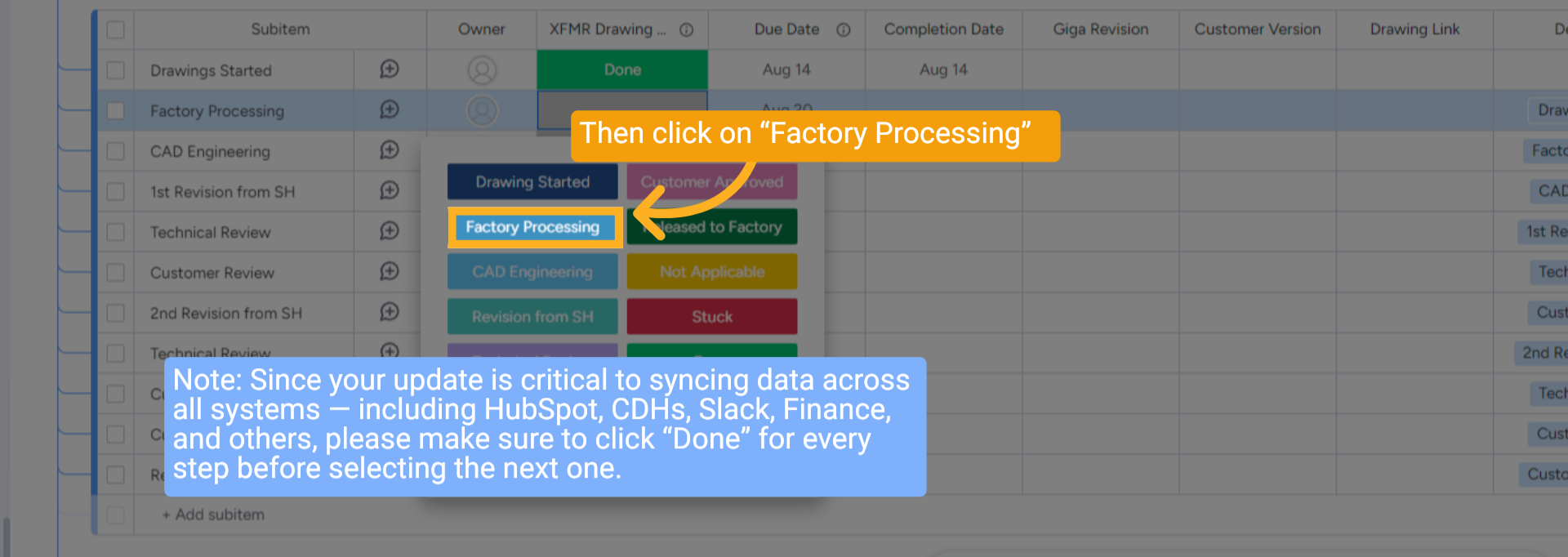
11 Click "Factory Processing"
Then, select “Factory Processing” as the status. This will indicate that the stage is in progress and update the drawing-level status on HubSpot.
12 Click "Done"
Clicking Done will then set the Completion date for the Stage.
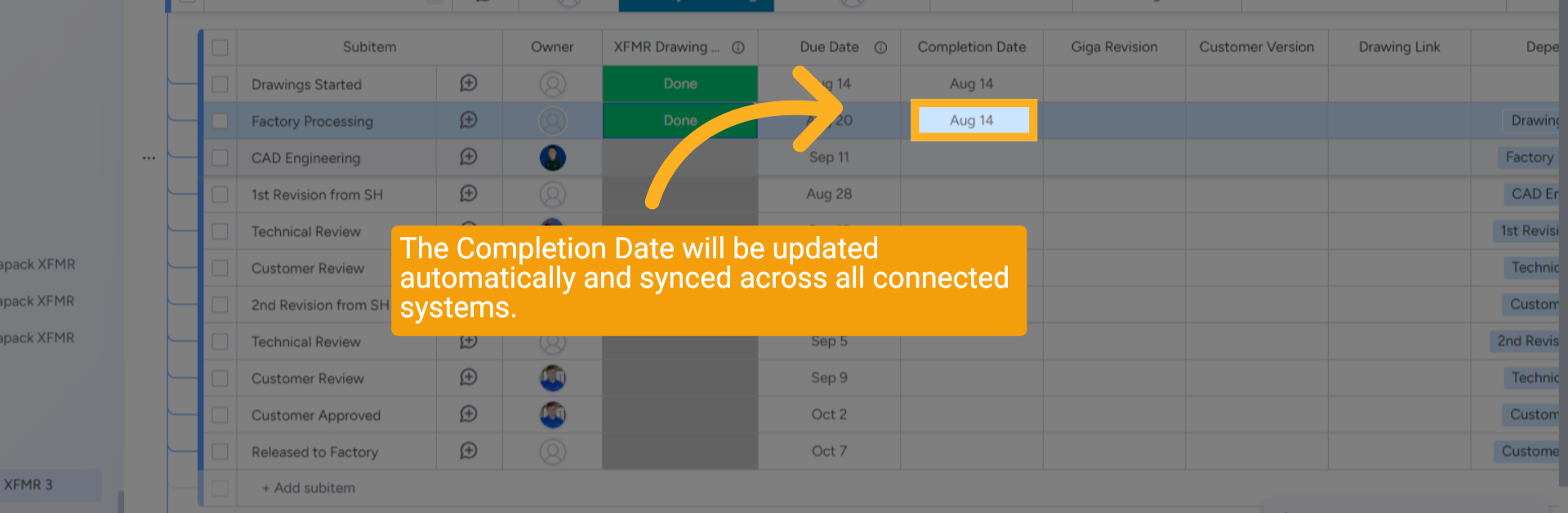
13 Completion Date
The Completion Date will automatically be filled with the date the status is updated on.
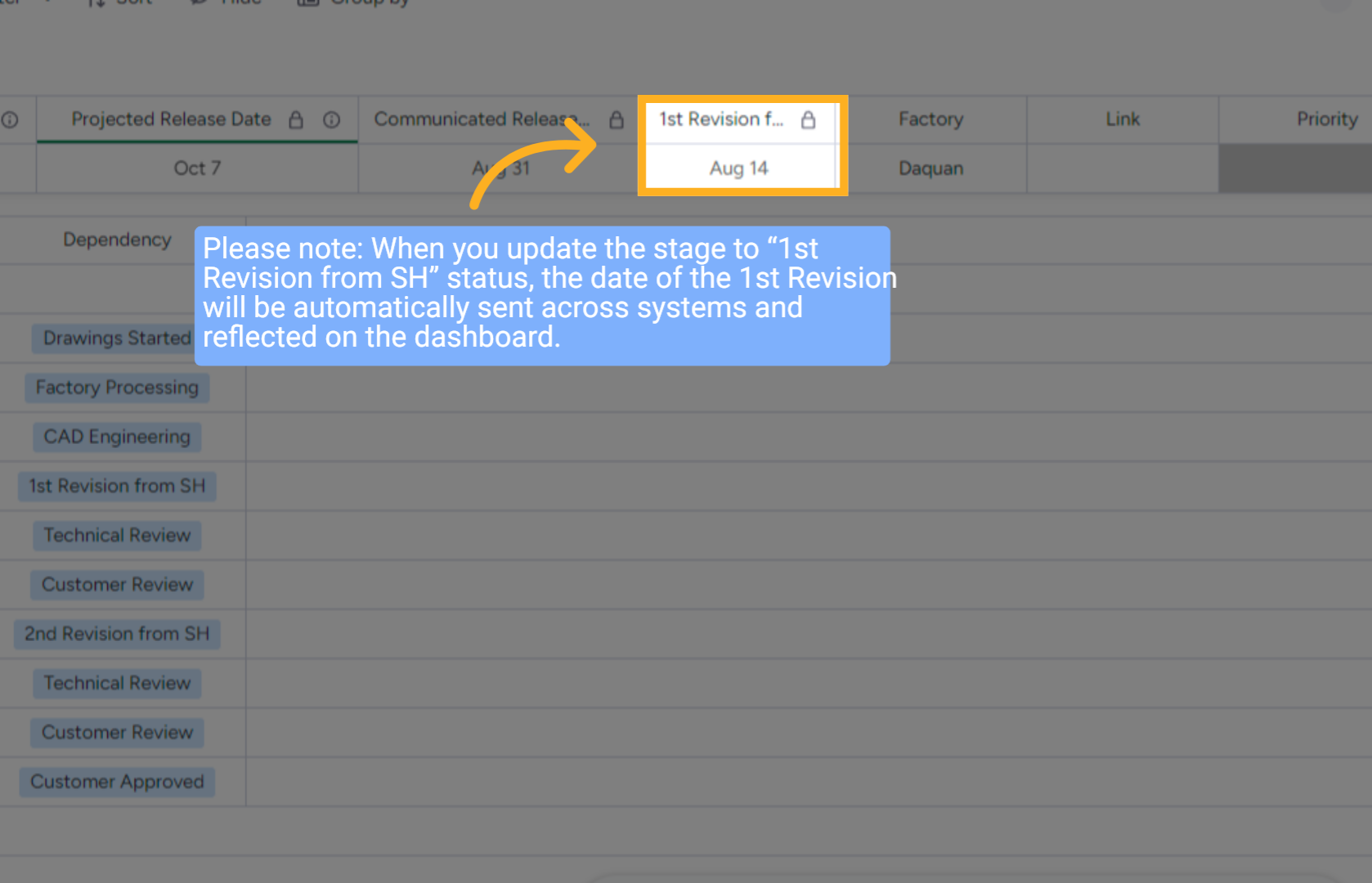
14 "1st Revision from SH" Date
"1st Revision from SH" date are updated and is also pushed to the Portfolio for quick access to all the Drawing board dates
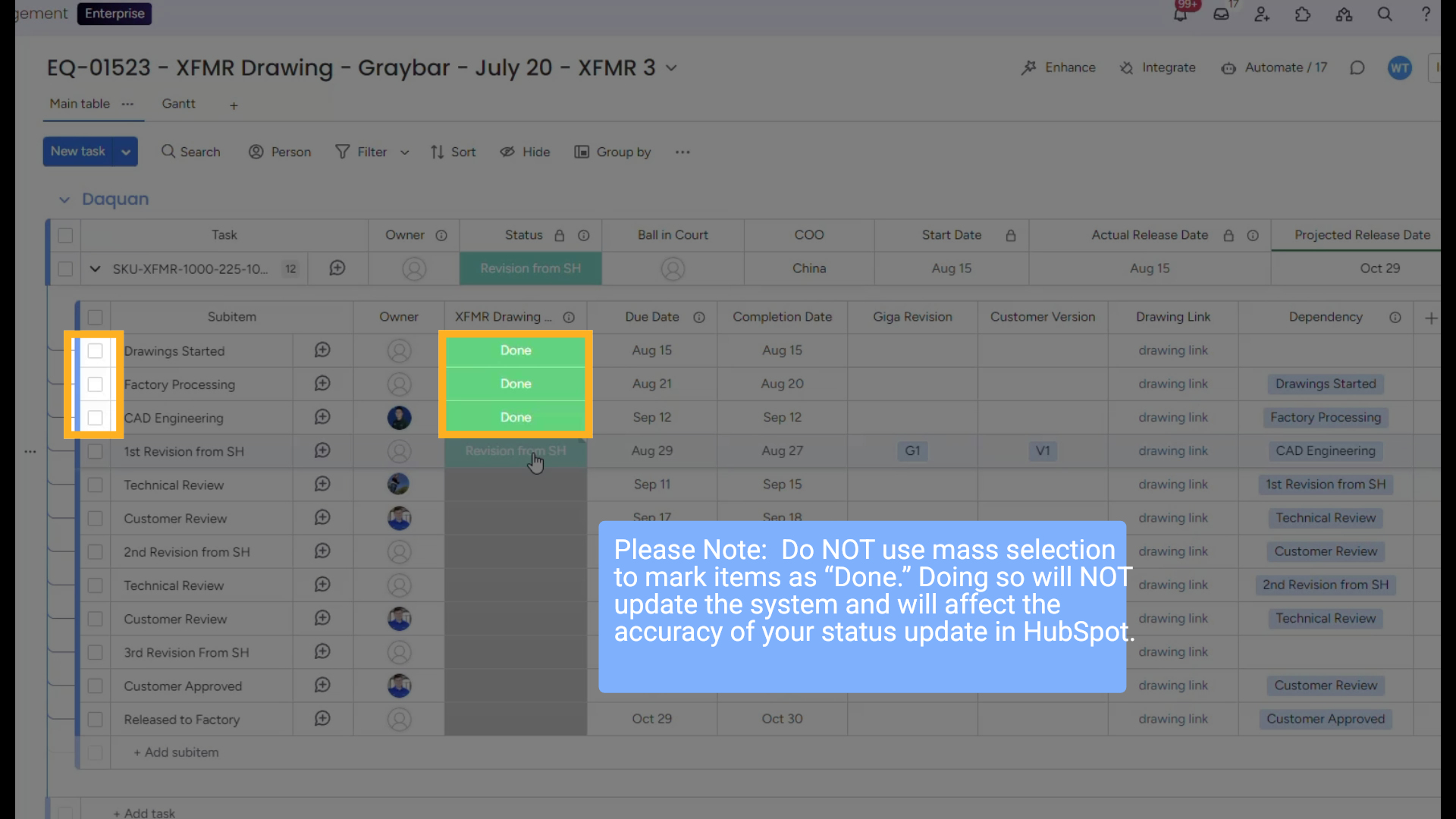
15 Mass Selection
Please Note: Do NOT use mass selection to mark items as “Done.” Doing so will NOT update the system and will affect the accuracy of your status update in HubSpot.
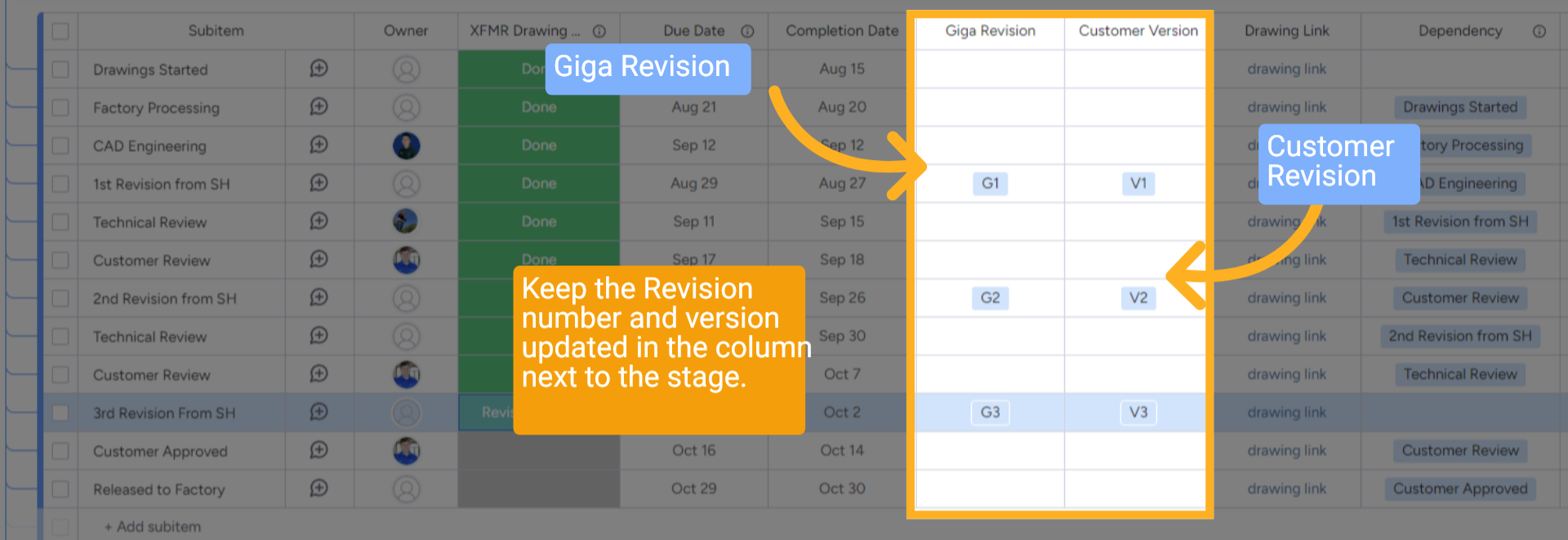
16 Revisions and versions
Guidance on the Revisions and Version numbers: There are 2 types of revisions/versions, Giga (G) and Customer (V)
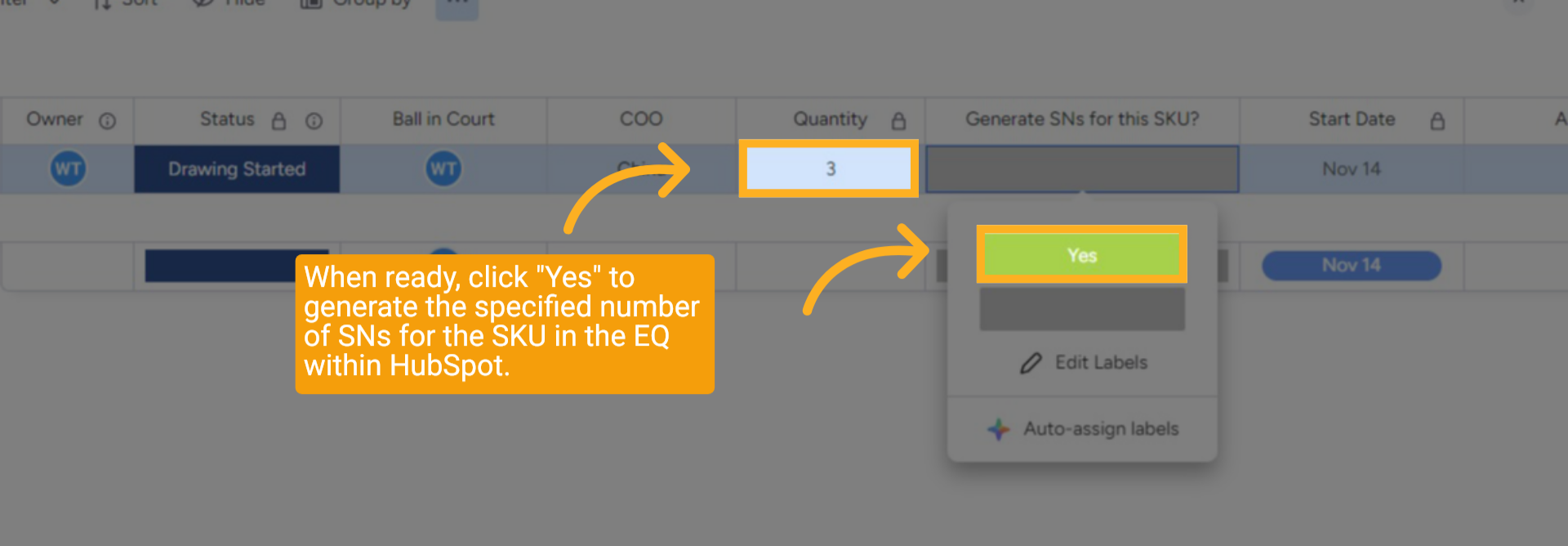
17 Create Serial Numbers
When ready, click "Yes" to generate the specified number of SNs for the SKU in the EQ within HubSpot.
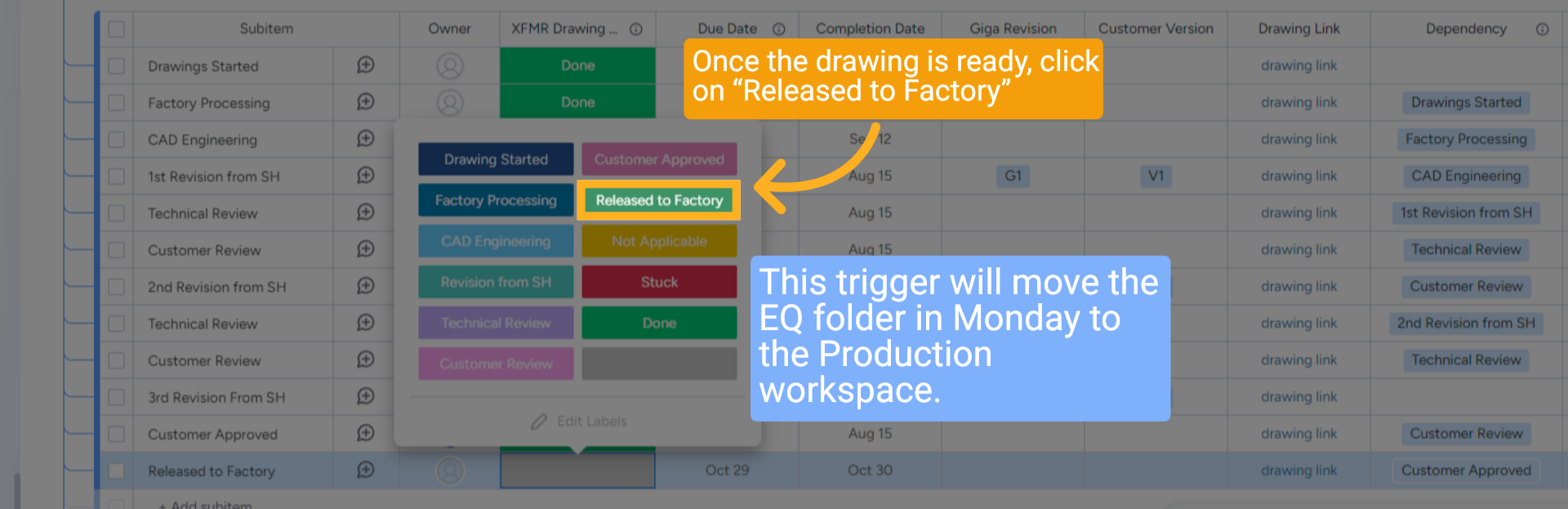
18 Click "Released to Factory"
Once the Drawing Project Board is completed, update the “Released to Factory” status to “Released to Factory”.
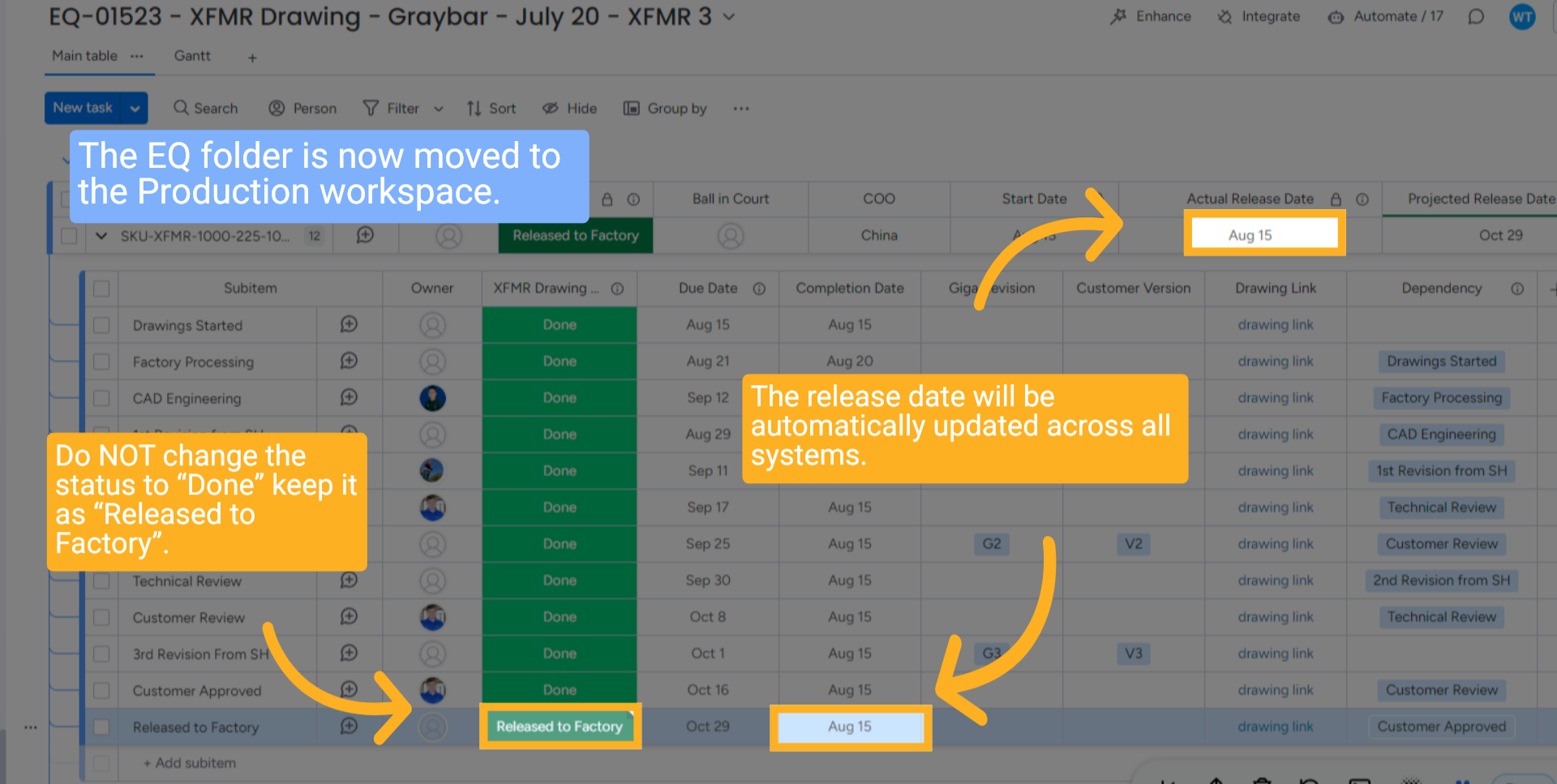
19 Moving to Production
When the final status updates, HubSpot is pushed with the Drawing Completion date. The EQ folder will be moved to the XFMR Production workspace on Monday. Now it is time for Production.
20 Wrap up
This guide explains how to manage the progress of Equipment Orders (EQ) from approval through drawing and revisions in HubSpot and Monday.com. It covers updating statuses, handling revisions, adding links, maintaining accurate task tracking for efficient workflow management, and the process of moving to production.
Thanks for watching.
Thanks for watching.