Create an Equipment Order ID (EQ ID#)
1 Introduction
In this guide, you will learn how to create an equipment order in HubSpot and associate a SKU and a Sales Deal with the Customer Order. This step-by-step process will help you efficiently manage equipment orders and their associated records. Let's get started.
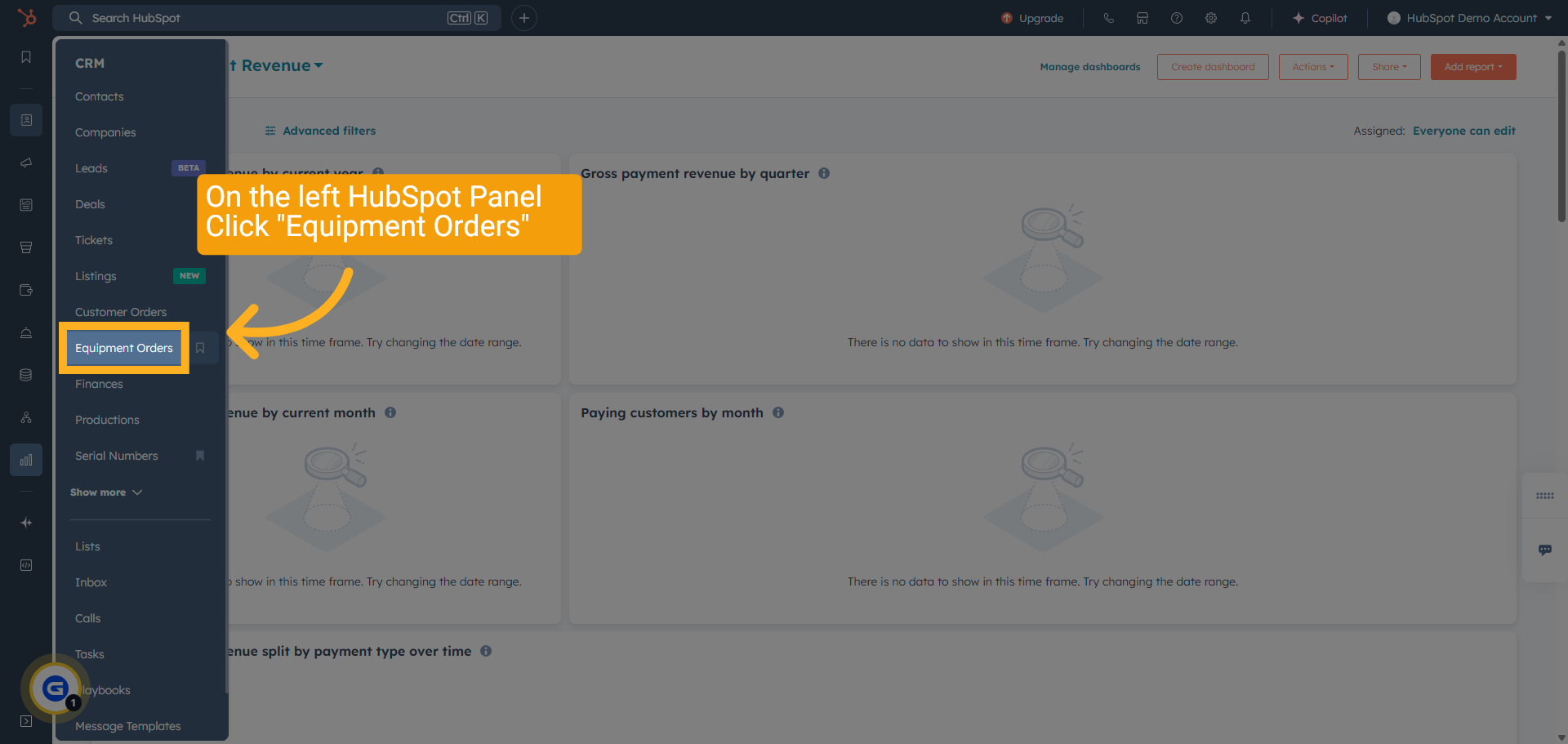
2 Click Menu "Equipment Orders"
Select "Equipment Orders" from the menu in HubSpot.
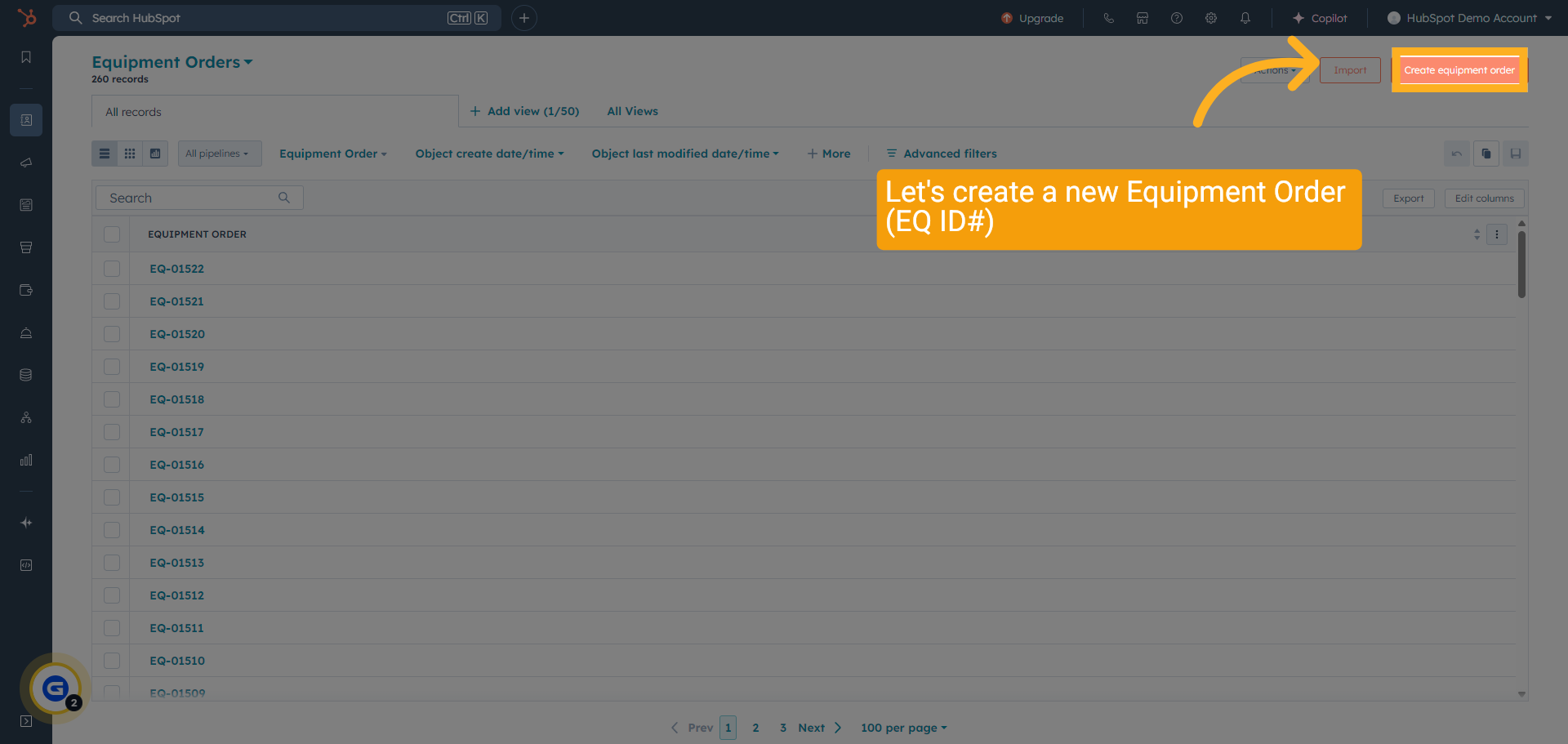
3 Create Equipment Order
Start the process of creating a new equipment order by clicking the "Create Equipment Order" button.
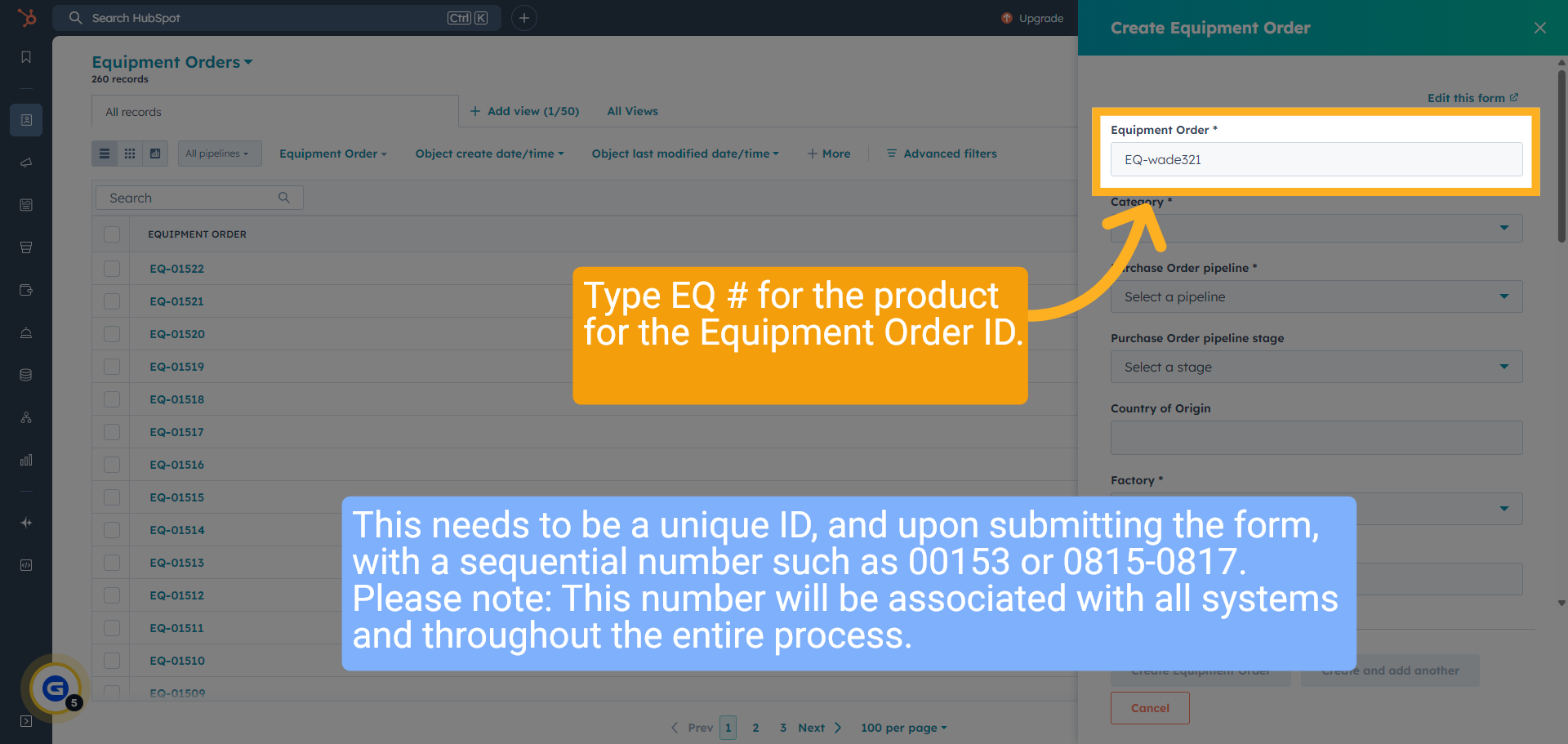
4 Fill in EQ Naming Format
This needs to be a unique ID, and upon submitting the form, with a sequential number such as 00153 or 0815-0817.
Please note: This number will be associated with all systems and throughout the entire process.
Please note: This number will be associated with all systems and throughout the entire process.
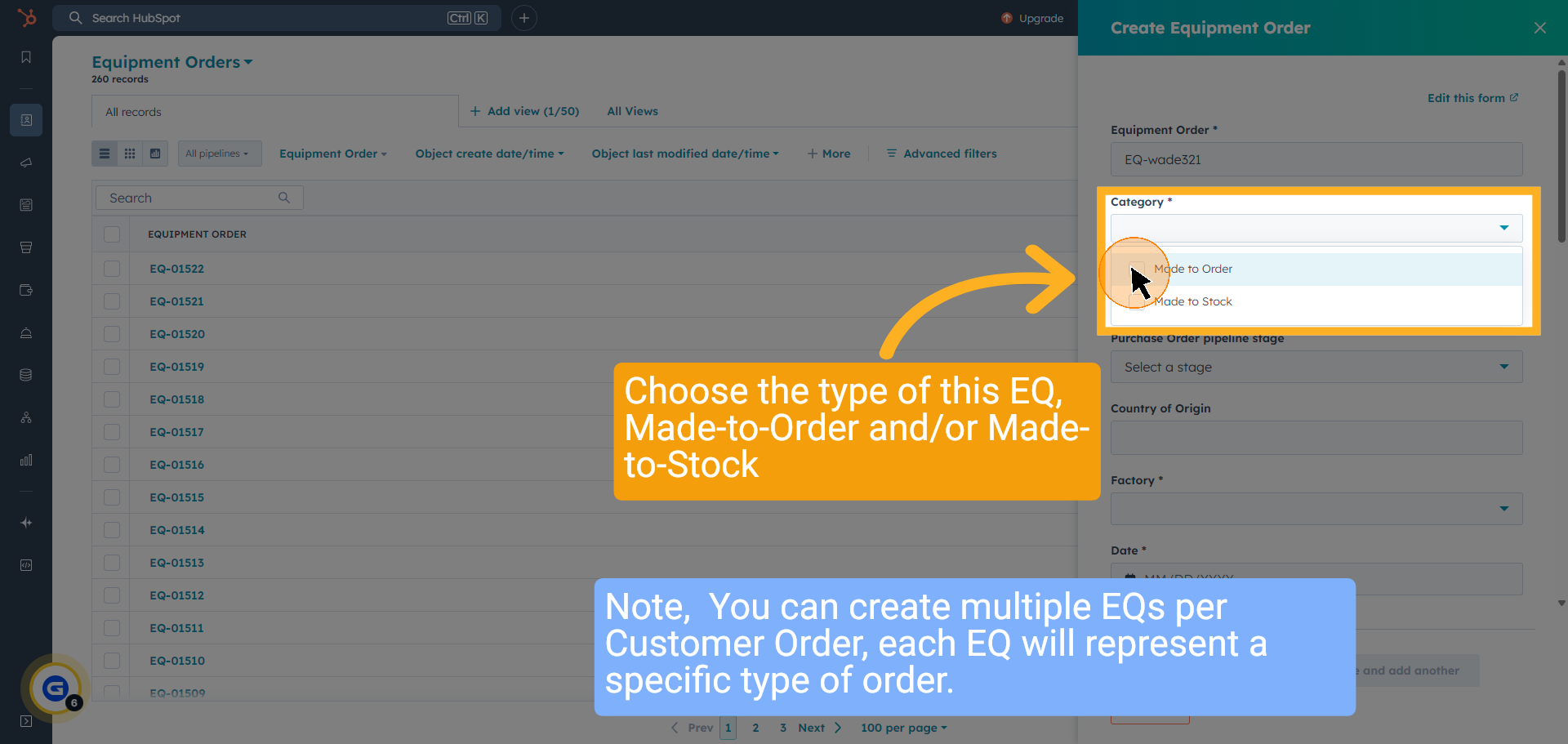
5 Choose Category
Choose the Category type of this EQ,
Made-to-Order and/or Made-to-Stock
Made-to-Order and/or Made-to-Stock
6 Choose Stage
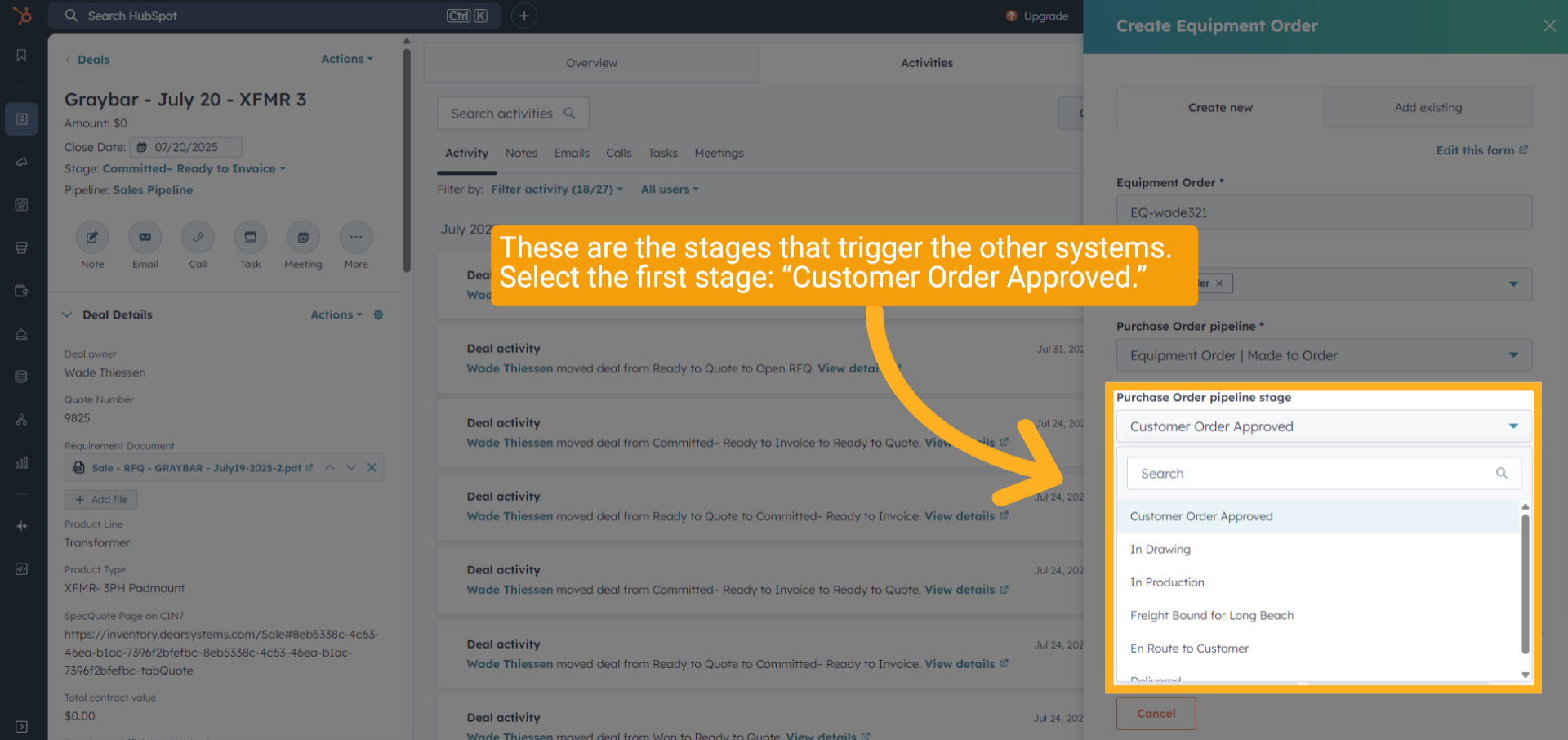
These are the stages that trigger the other systems.
Select the first stage: “Customer Order Approved.”
Select the first stage: “Customer Order Approved.”
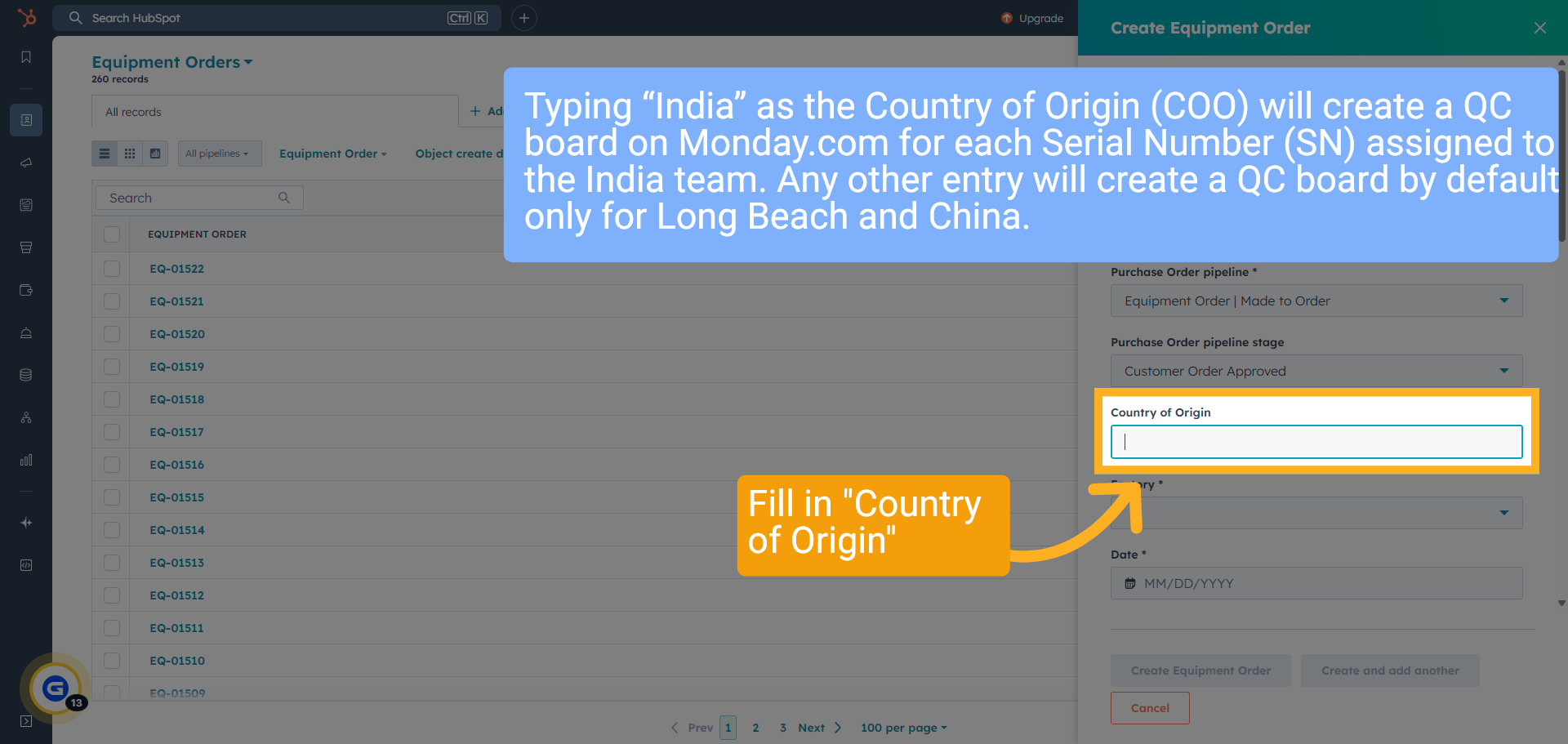
7 Country of Origin
Typing “India” as the Country of Origin (COO) will create a QC board on Monday.com for each Serial Number (SN) assigned to the India team. Any other entry will create a QC board by default only for Long Beach and China.
8 Select the the Factory
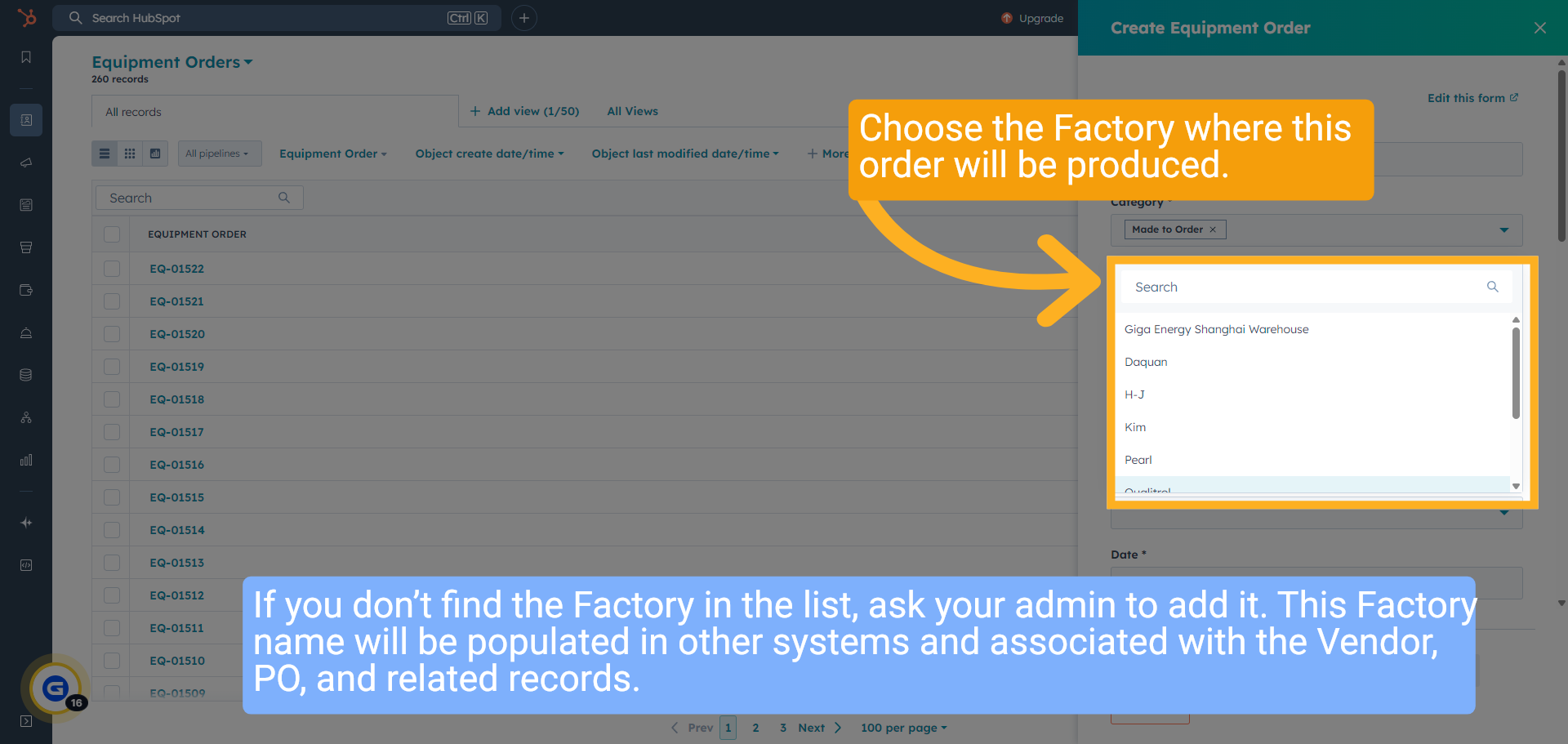
Choose the Factory where this order will be produced.
If you don’t find the Factory in the list, ask your admin to add it. This Factory name will be populated in other systems and associated with the Vendor, PO, and related records.
If you don’t find the Factory in the list, ask your admin to add it. This Factory name will be populated in other systems and associated with the Vendor, PO, and related records.
9 Set the process date.
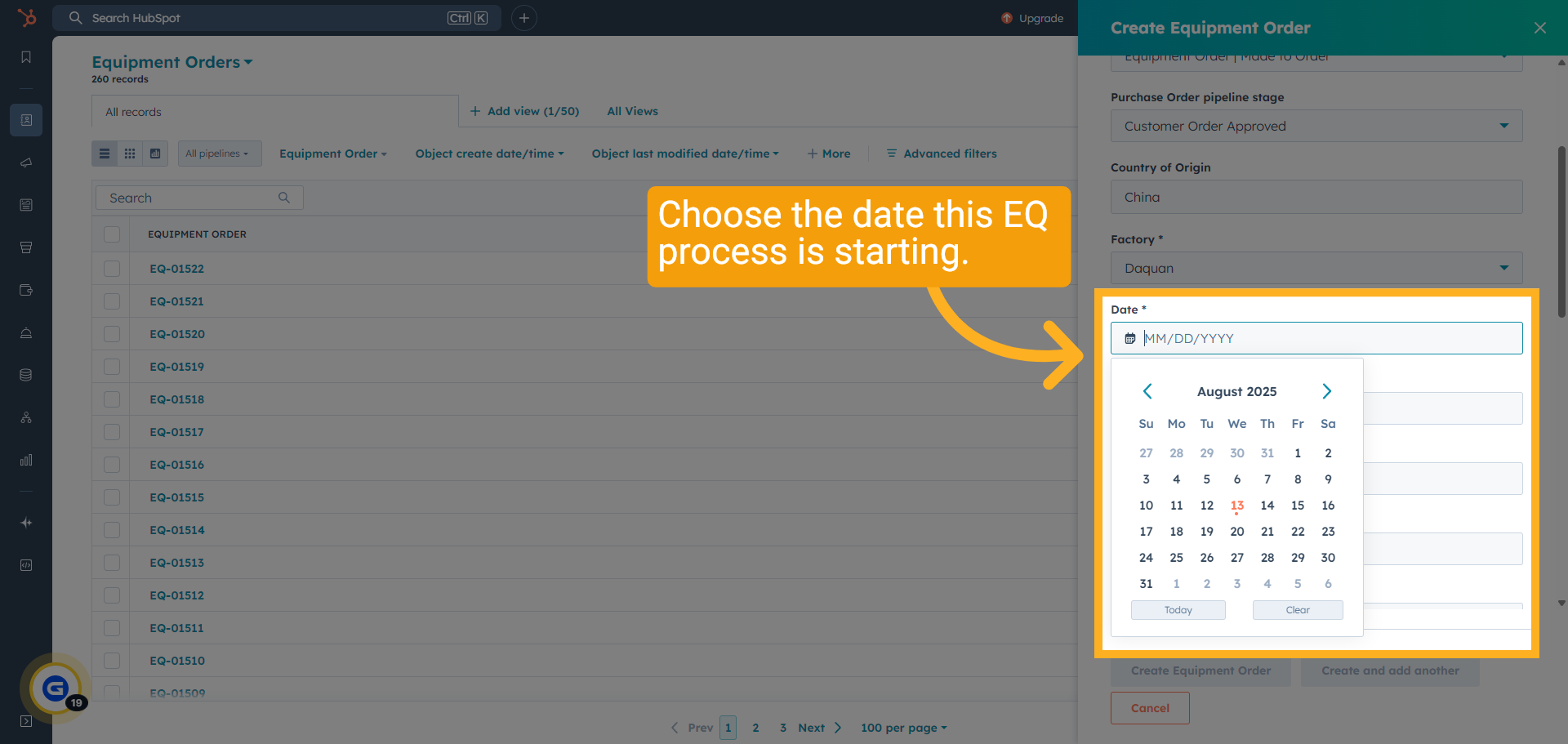
Choose the date this EQ process is starting.
10 Set the "Drawing Communicated Release Date"
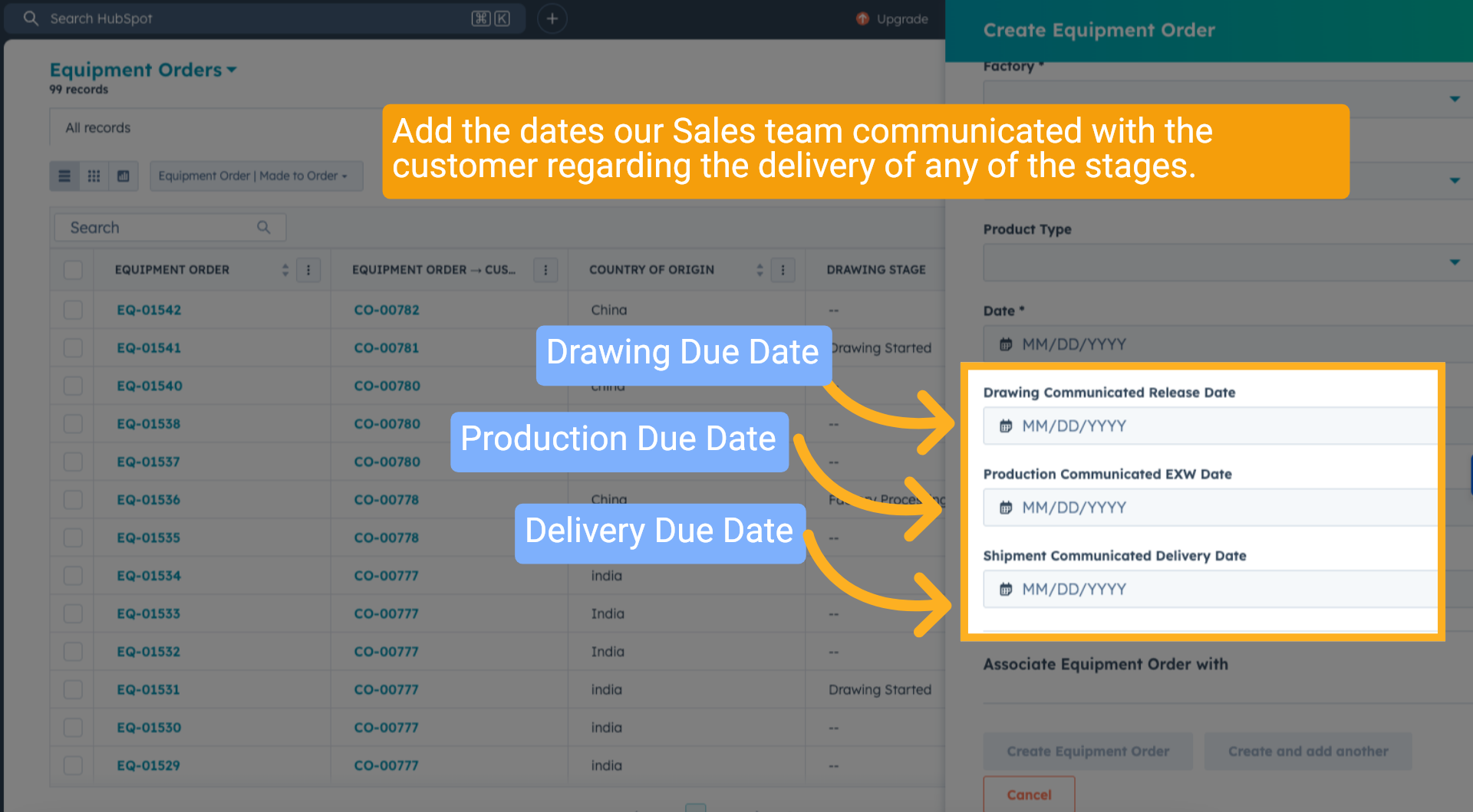
Add the dates our Sales team communicated with the customer regarding the delivery of any of the stages.
11 Select "Product Line"
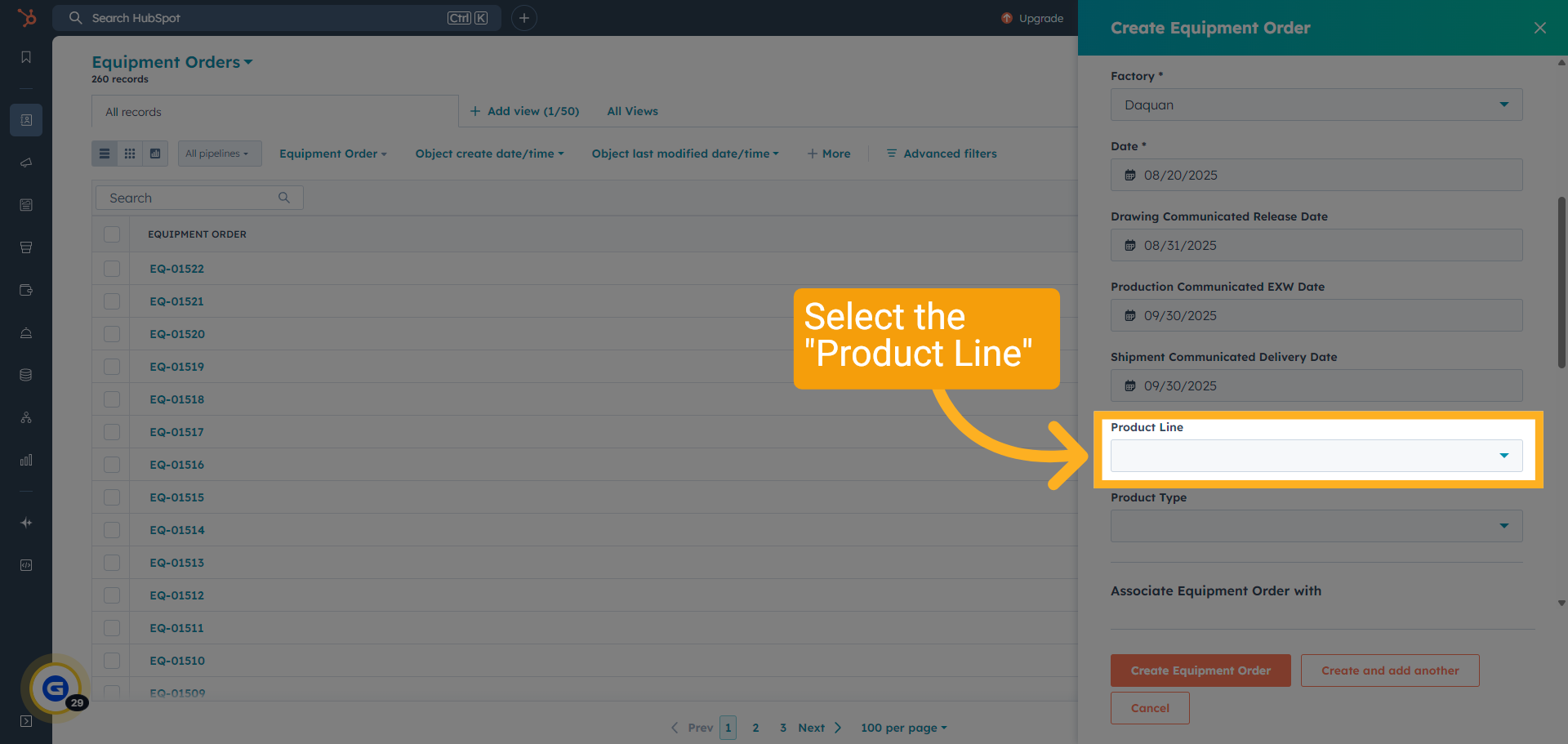
Select "Product Line" and access the equipment line dropdown to specify the product.
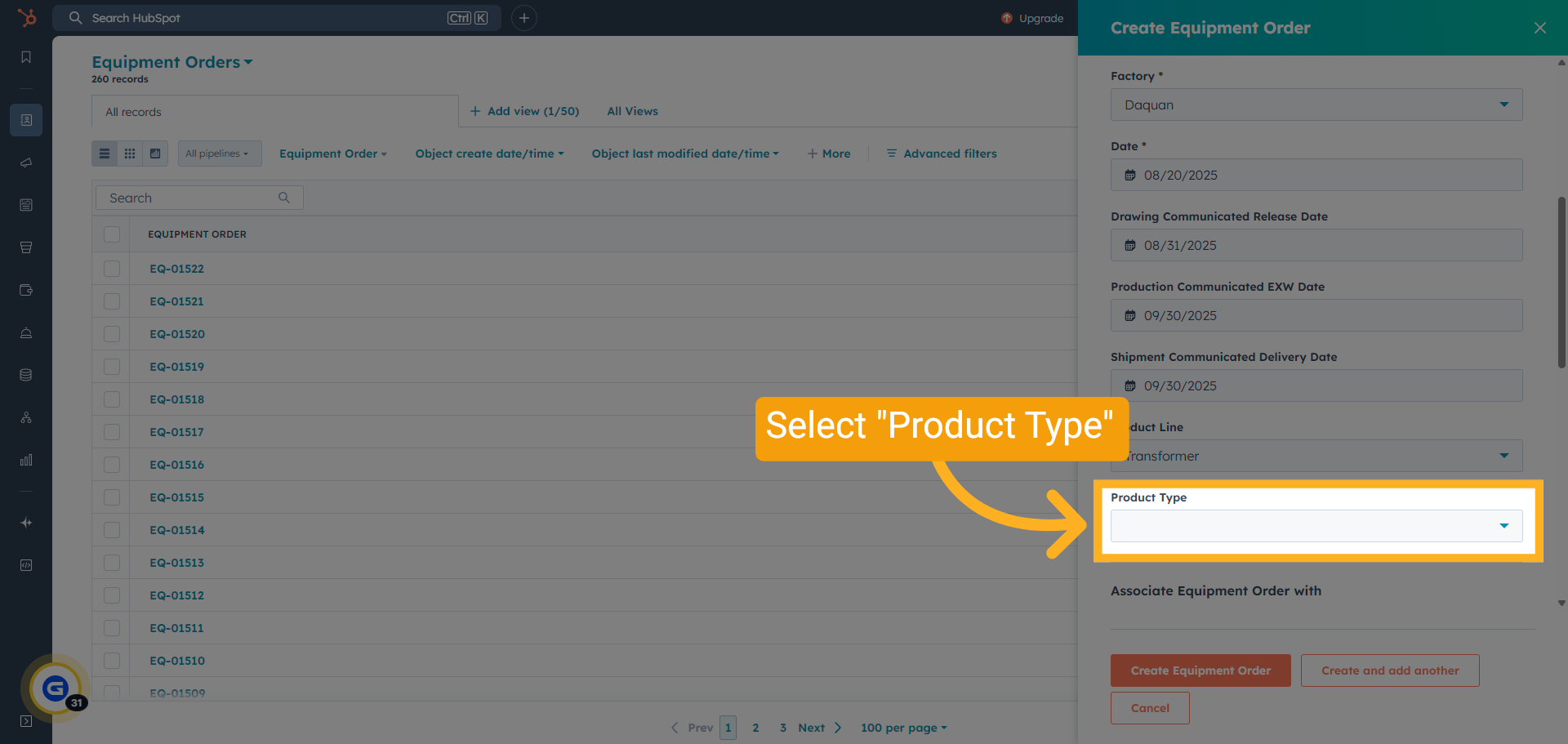
12 Select "Product Type"
Select "Product Type" and access the equipment type dropdown to specify the product.
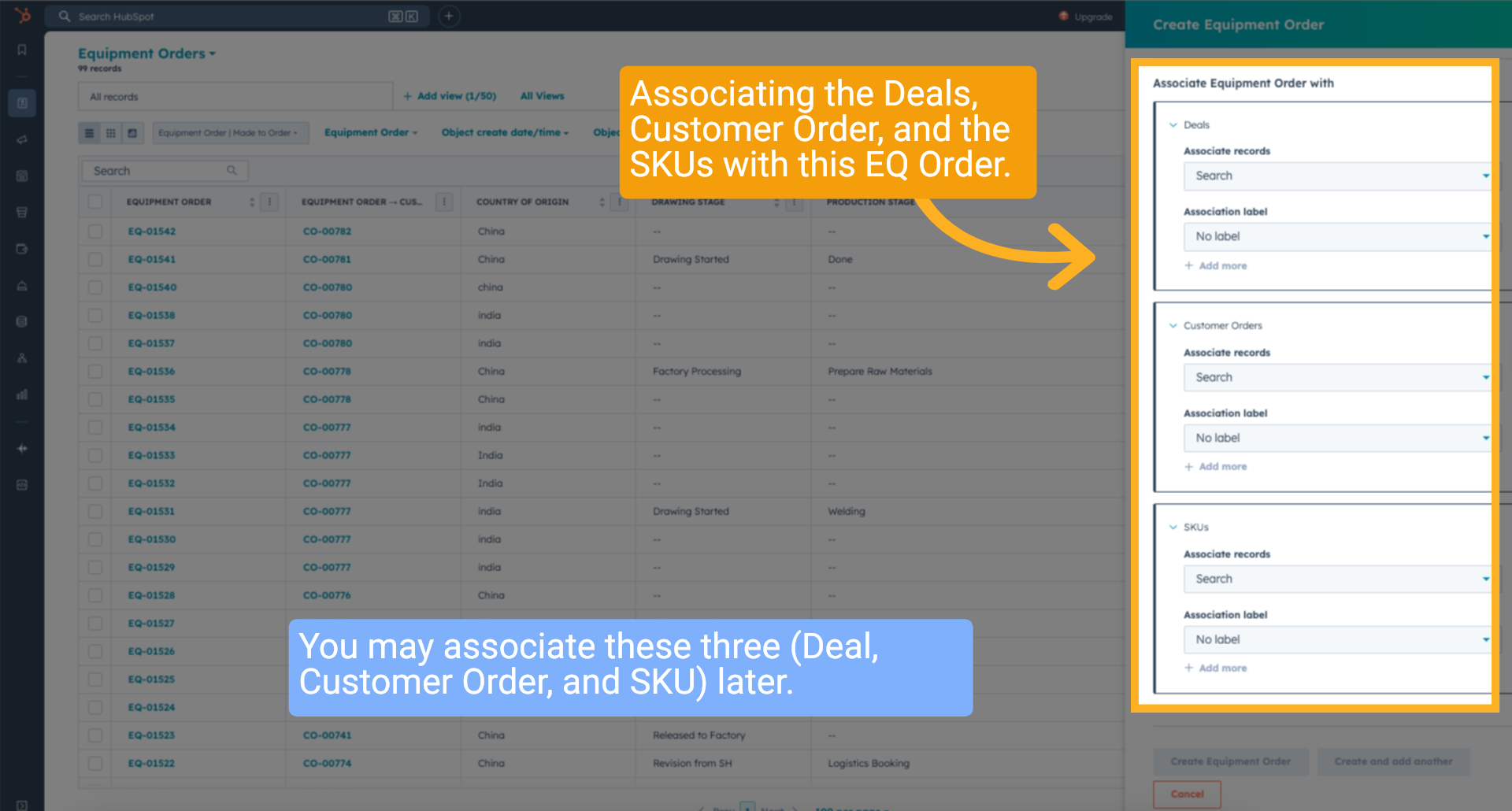
13 Associating Deals, CO, EQ, and SKU
Associating the Deals, Customer Order, and the SKUs with this EQ Order.
You may associate these three (Deal, Customer Order, and SKU) later.
You may associate these three (Deal, Customer Order, and SKU) later.
14 Click "Create Equipment Order"
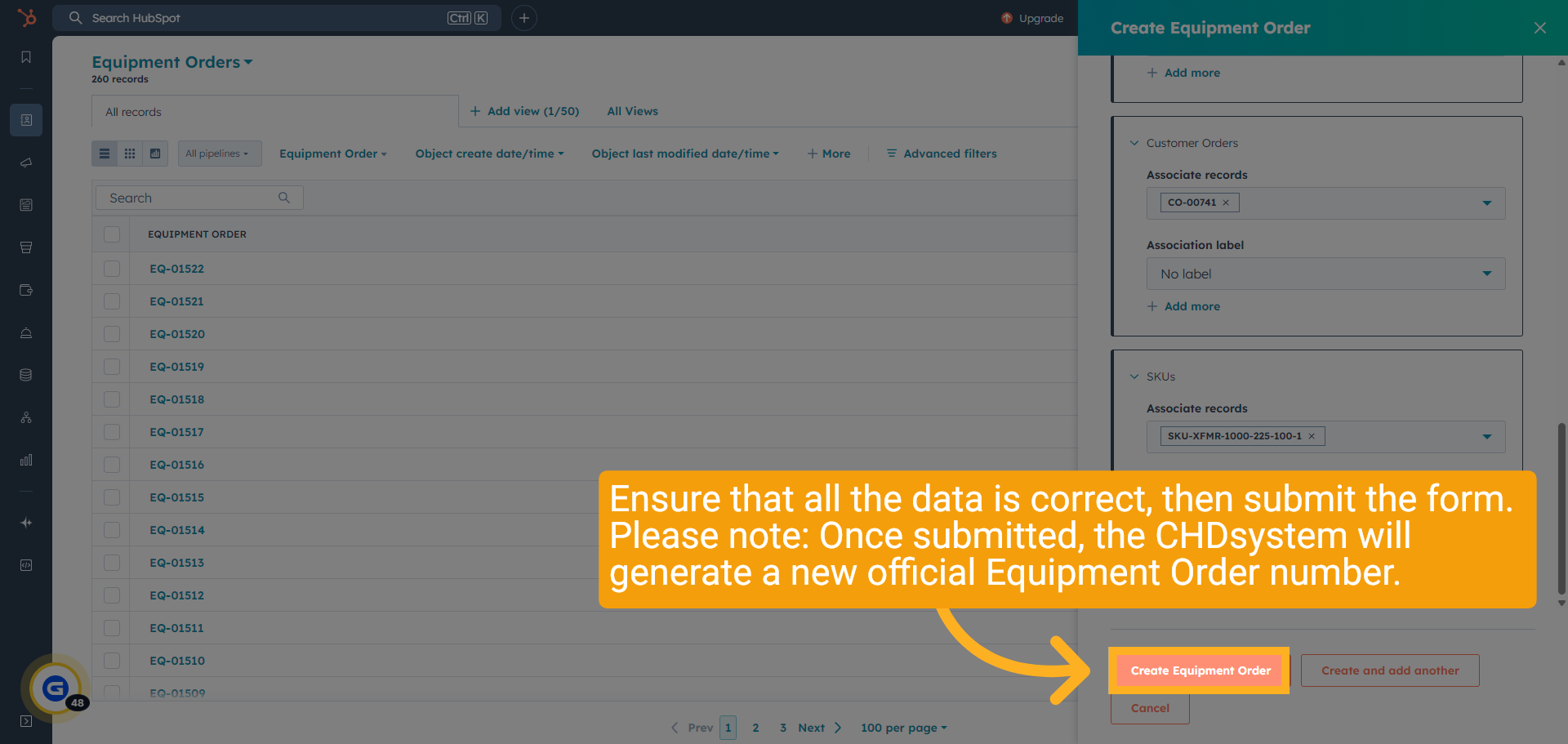
Ensure that all the data is correct, then submit the form.
Please note: Once submitted, the CHD system will generate a new official Equipment Order number (EQ#).
Please note: Once submitted, the CHD system will generate a new official Equipment Order number (EQ#).
15 View New EQ Number
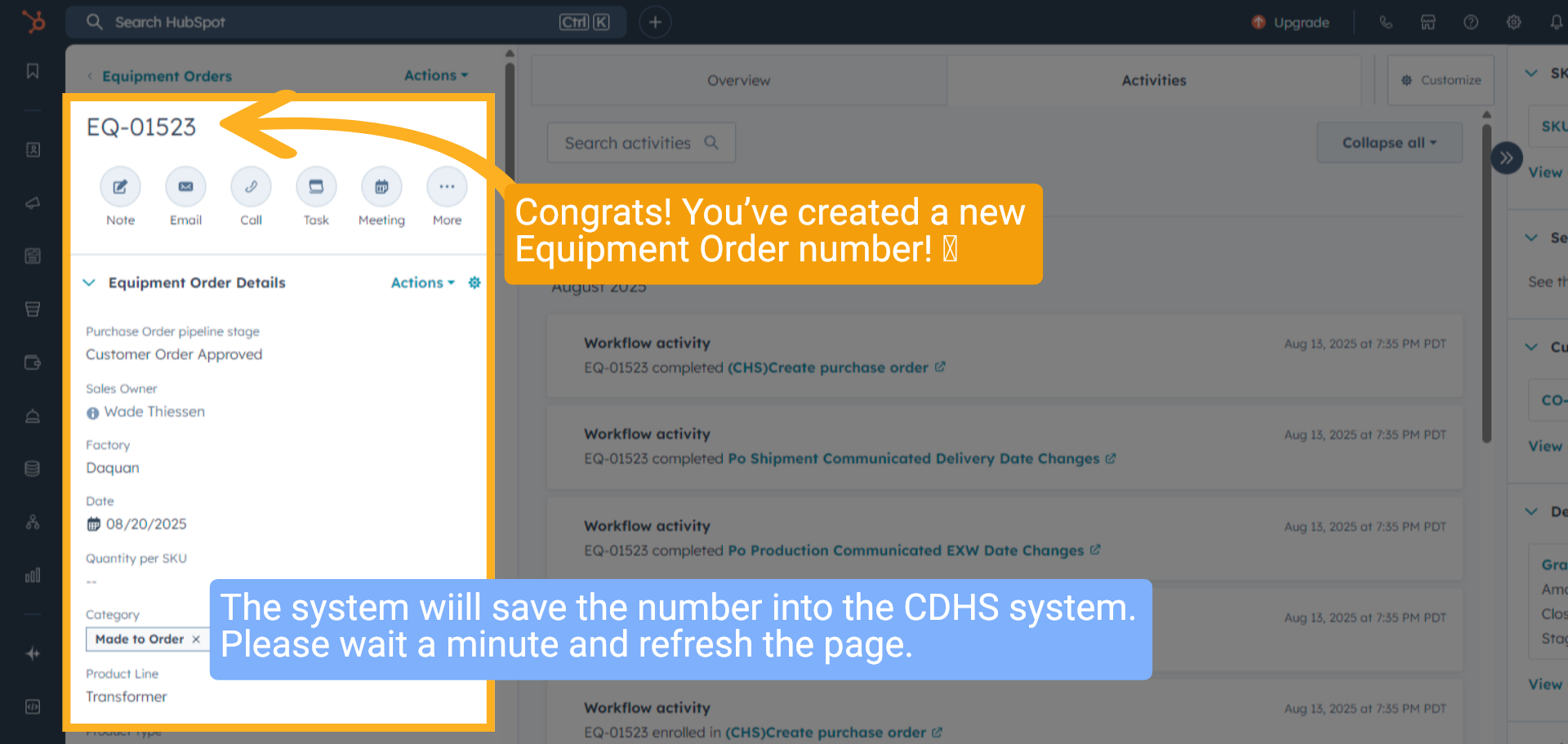
Congrats! You’ve created a new Equipment Order number! The system wiill save the number into the CDHS system. Please wait a minute and refresh the page.
16 SKU Quantity Link
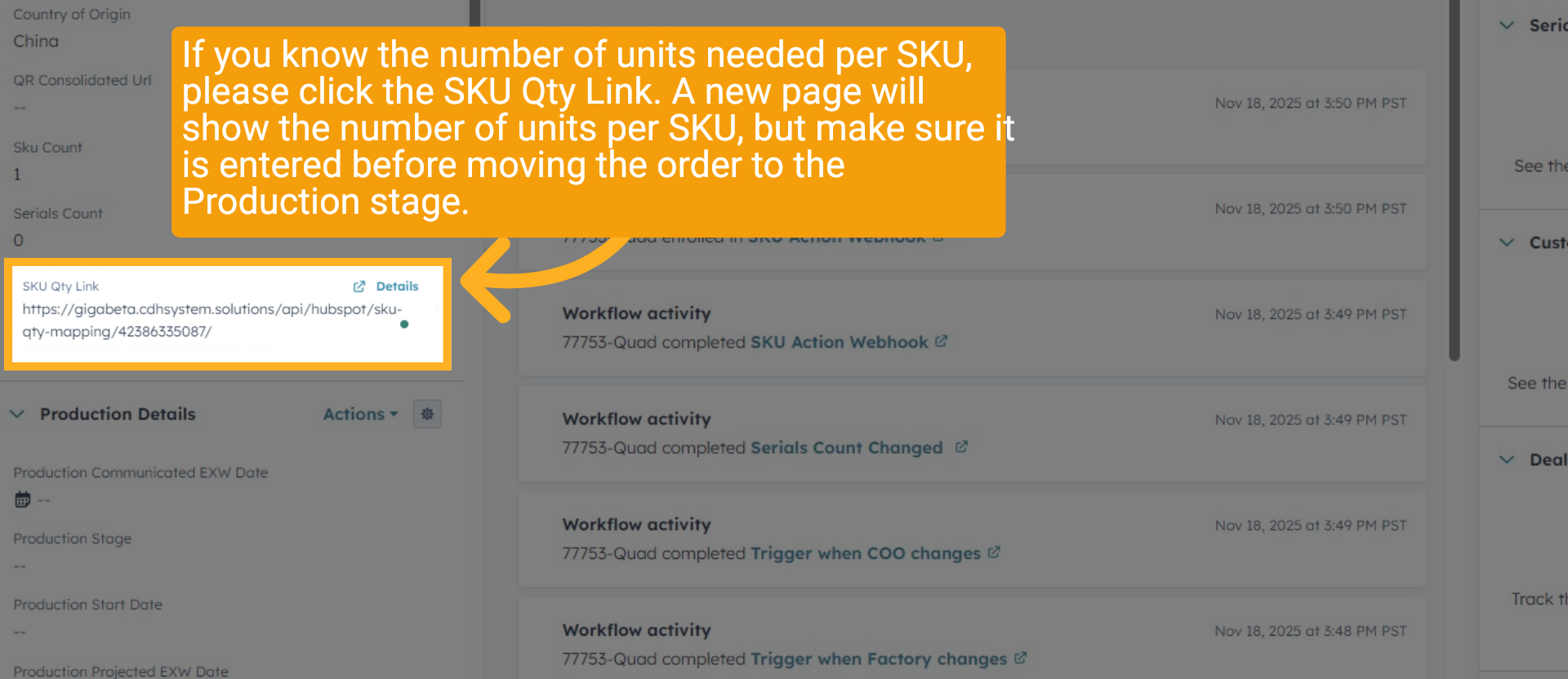
If you know the number of units needed per SKU, please click the SKU Qty Link. A new page will show the number of units per SKU, but make sure it is entered before moving the order to the Production stage.
17 Multiple SKU Quantity
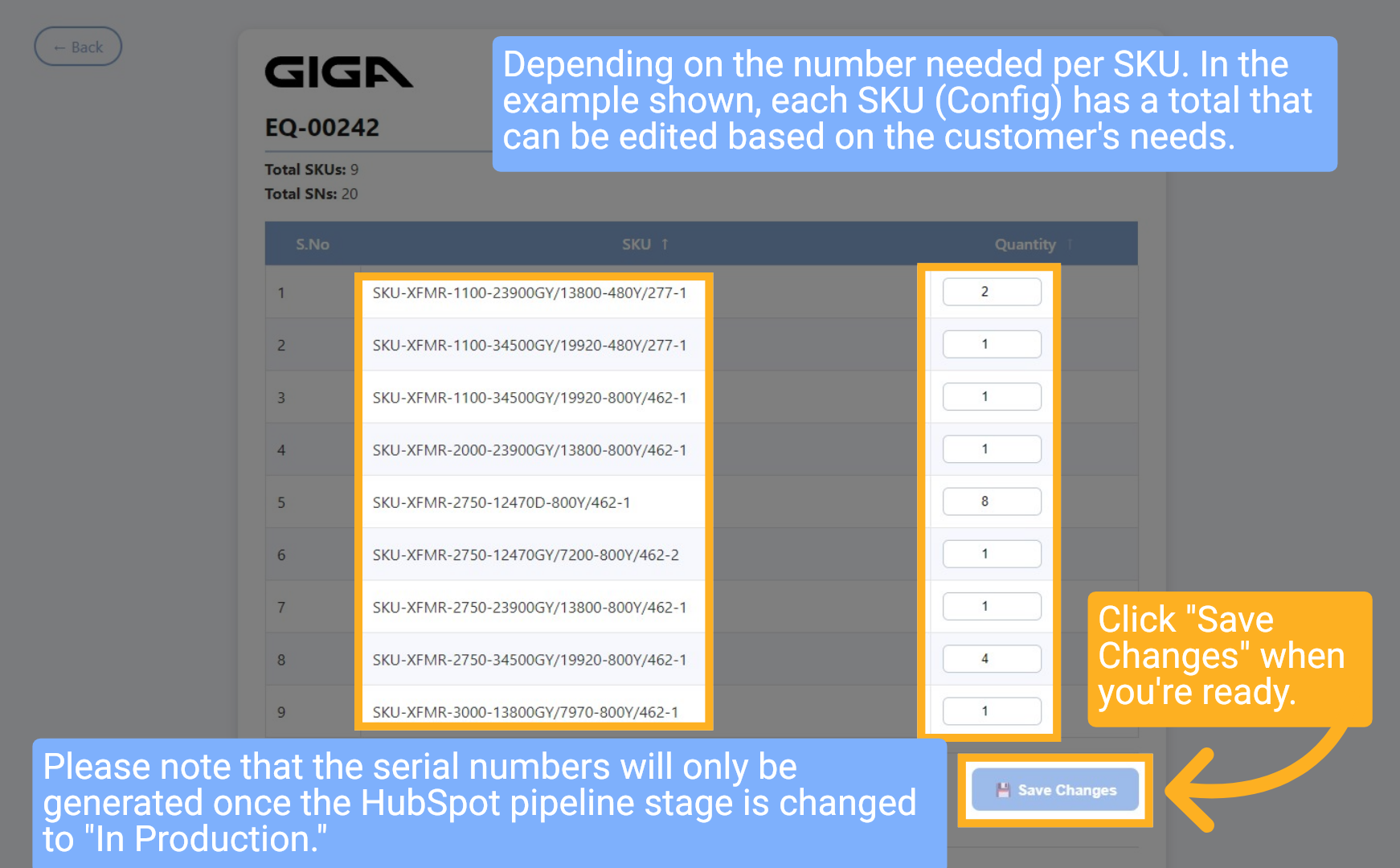
The quantity for each SKU (Config) can be adjusted to meet customer requirements. In the example provided, you can edit these totals as needed. Once you're ready, click "Save Changes." Please note that serial numbers will only be generated once the HubSpot pipeline stage is transitioned to "In Production."
18 Multiple SKU Quantity
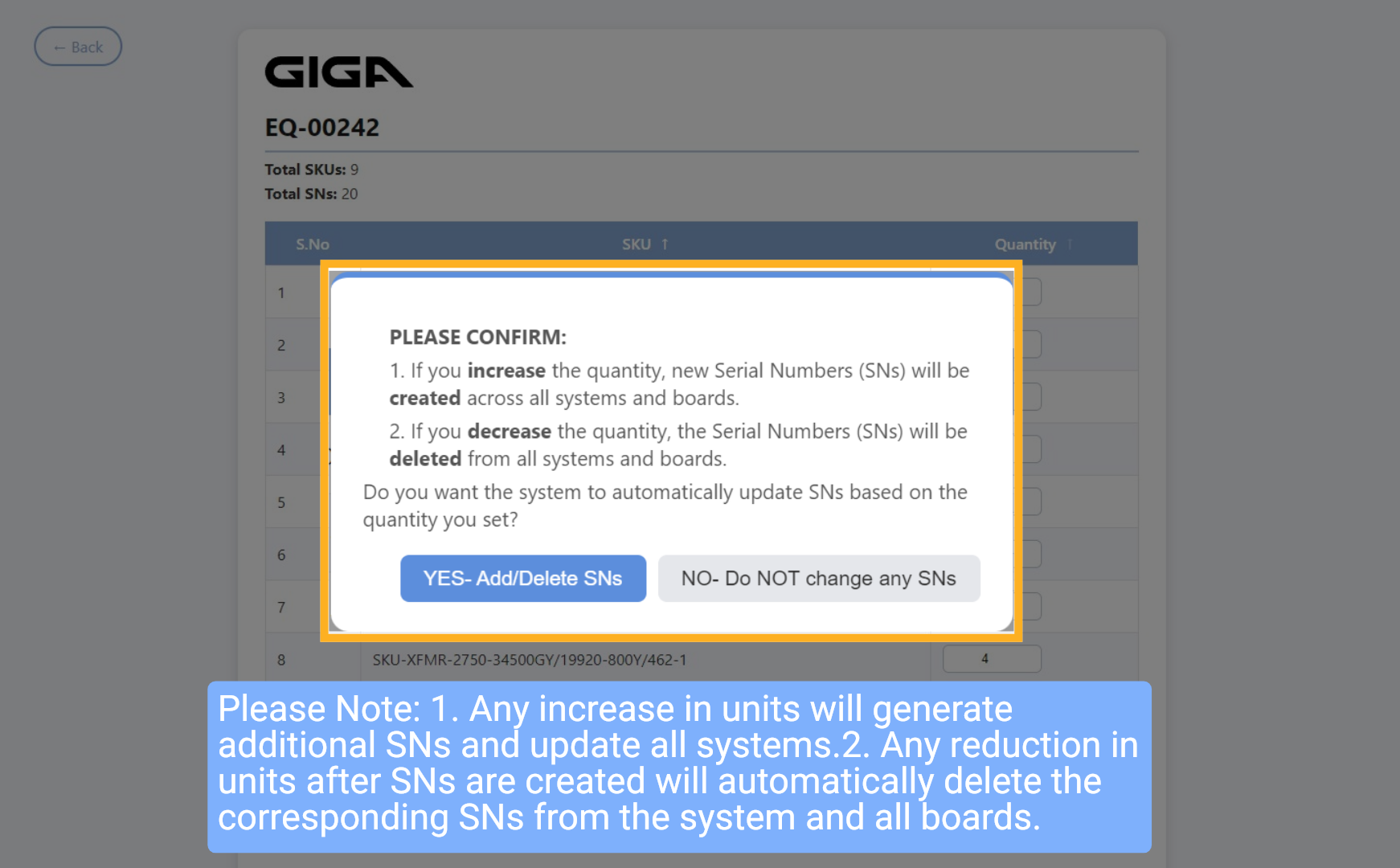
Please Note: 1. Any increase in units will generate additional SNs and update all systems. 2. Any reduction in units after SNs are created will automatically delete the corresponding SNs from the system and all boards.
19 Wrap up
This guide walked you through creating and managing an Equipment Order in HubSpot, including setting order details, selecting pipelines and stages, specifying dates, associating deals and SKUs, and reviewing entries for accuracy.
20 Thank you!
Thank You for Watching!