
Move into Shipping
1 Introduction
This guide explains how to start setting up shipments for the next stage by marking SNs as "Ready to Ship" to move them into the Shipping Phase.

2 Shipping Board
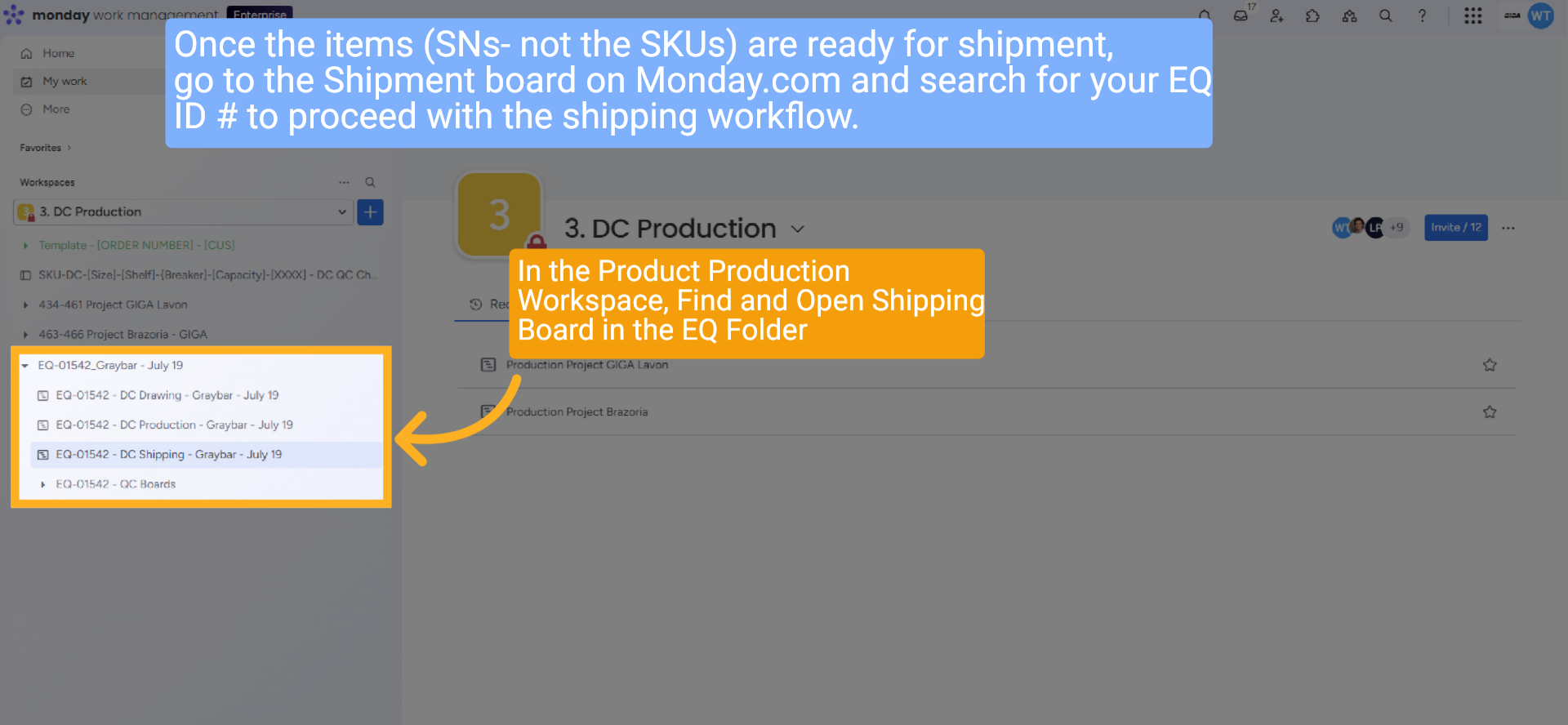
Once the items (SNs- not the SKUs) are ready for shipment, go to the Shipment board on Monday.com and search for your EQ ID # to proceed with the shipping workflow.
In the Product Production Workspace, Find and Open the Shipping Board in the EQ Folder
In the Product Production Workspace, Find and Open the Shipping Board in the EQ Folder
3 Update Status to "Ready to Ship"
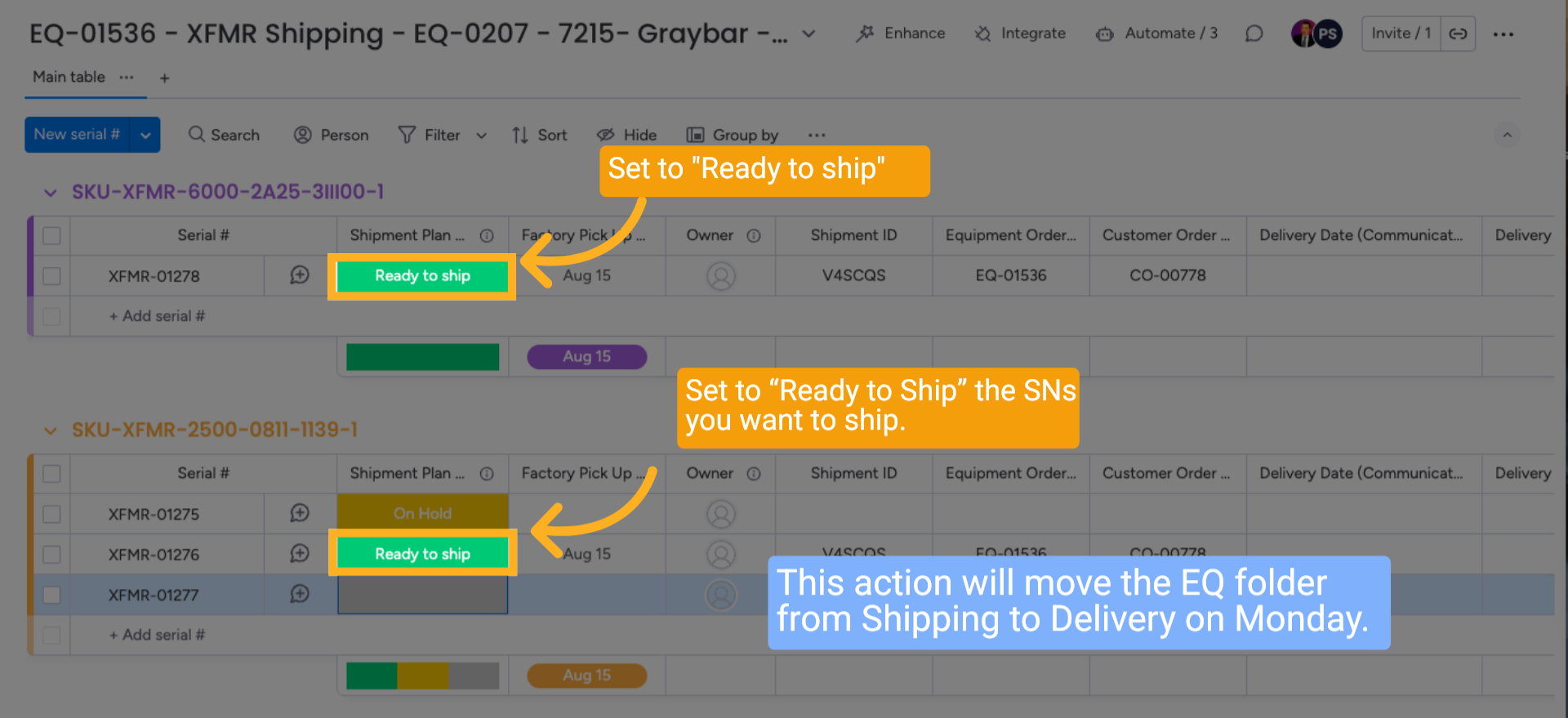
Select the "Ready to Ship" status to initiate the next stage of shipping. Mark the serial numbers (SNs) you wish to ship as “Ready to Ship.” This action will move the EQ folder from Shipping to Delivery on Monday.
4 Update Status
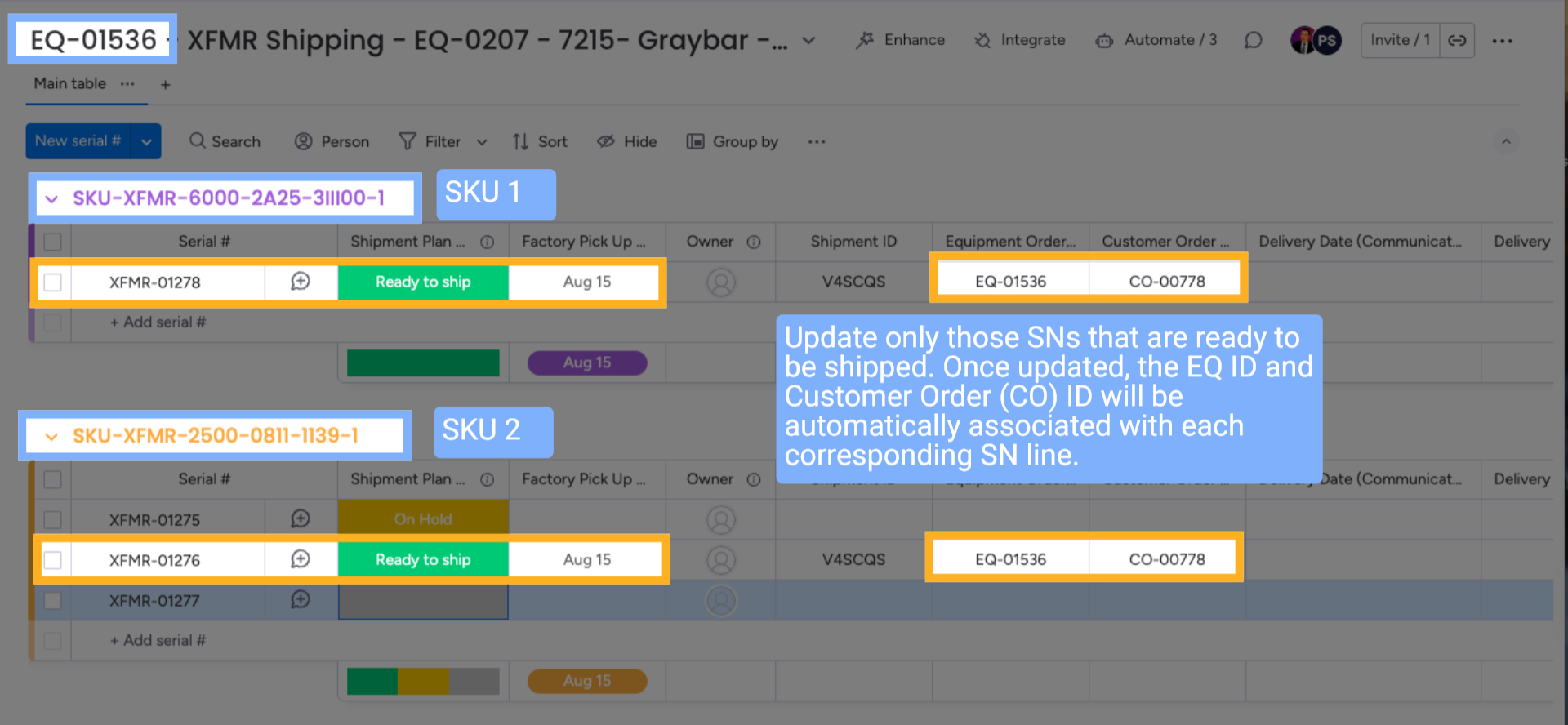
Update only those SNs that are ready to be shipped. Once updated, the EQ ID and Customer Order (CO) ID will be automatically associated with each corresponding SN line.
5 Shipping Information Updated
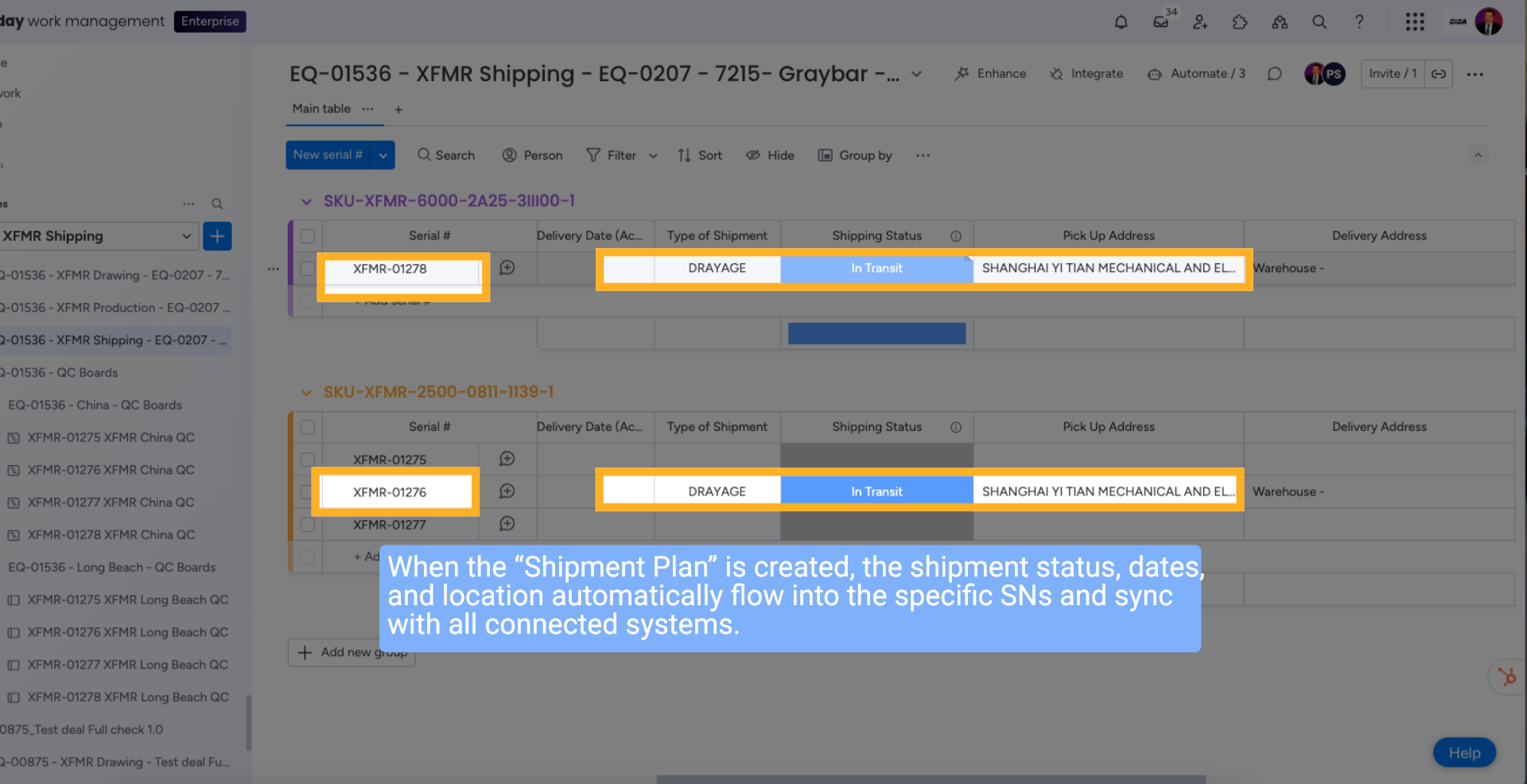
When the “Shipment Plan” is created, the shipment status, dates, and location automatically flow into the specific SNs and sync with all connected systems.
6 Set Shipping Individually for each Serial Number
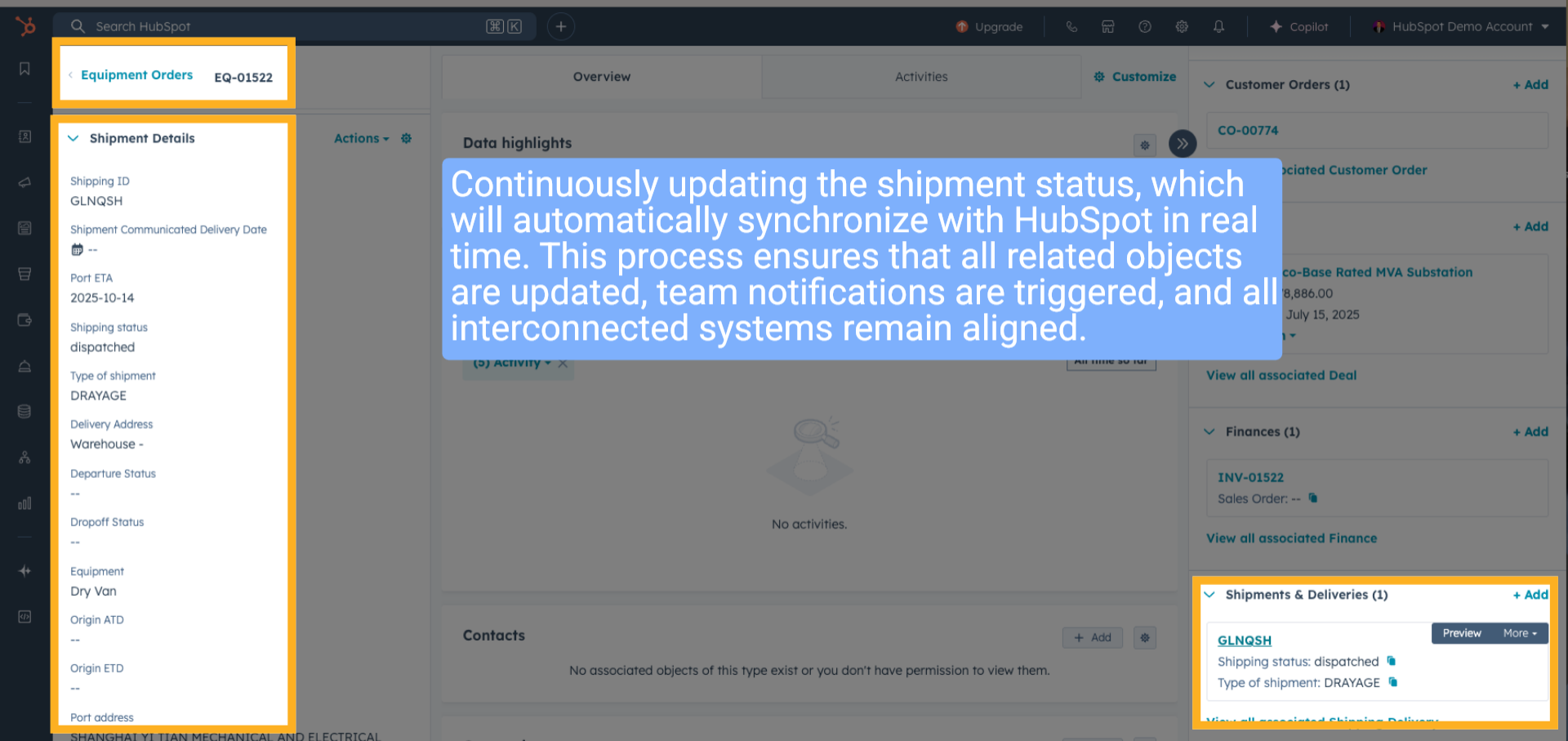
Continuously updating the shipment status, which will automatically synchronize with HubSpot in real time. This process ensures that all related objects are updated, team notifications are triggered, and all interconnected systems remain aligned.
7 Wrap up
This guide covers setting the shipping board to Ready to Ship to move the EQ folder to Shipping, navigating the shipping workflow, and reviewing detailed shipping orders to manage shipments efficiently.
8 Ending
Thank You for Watching!