QR Code Process
1 QR Code Overview
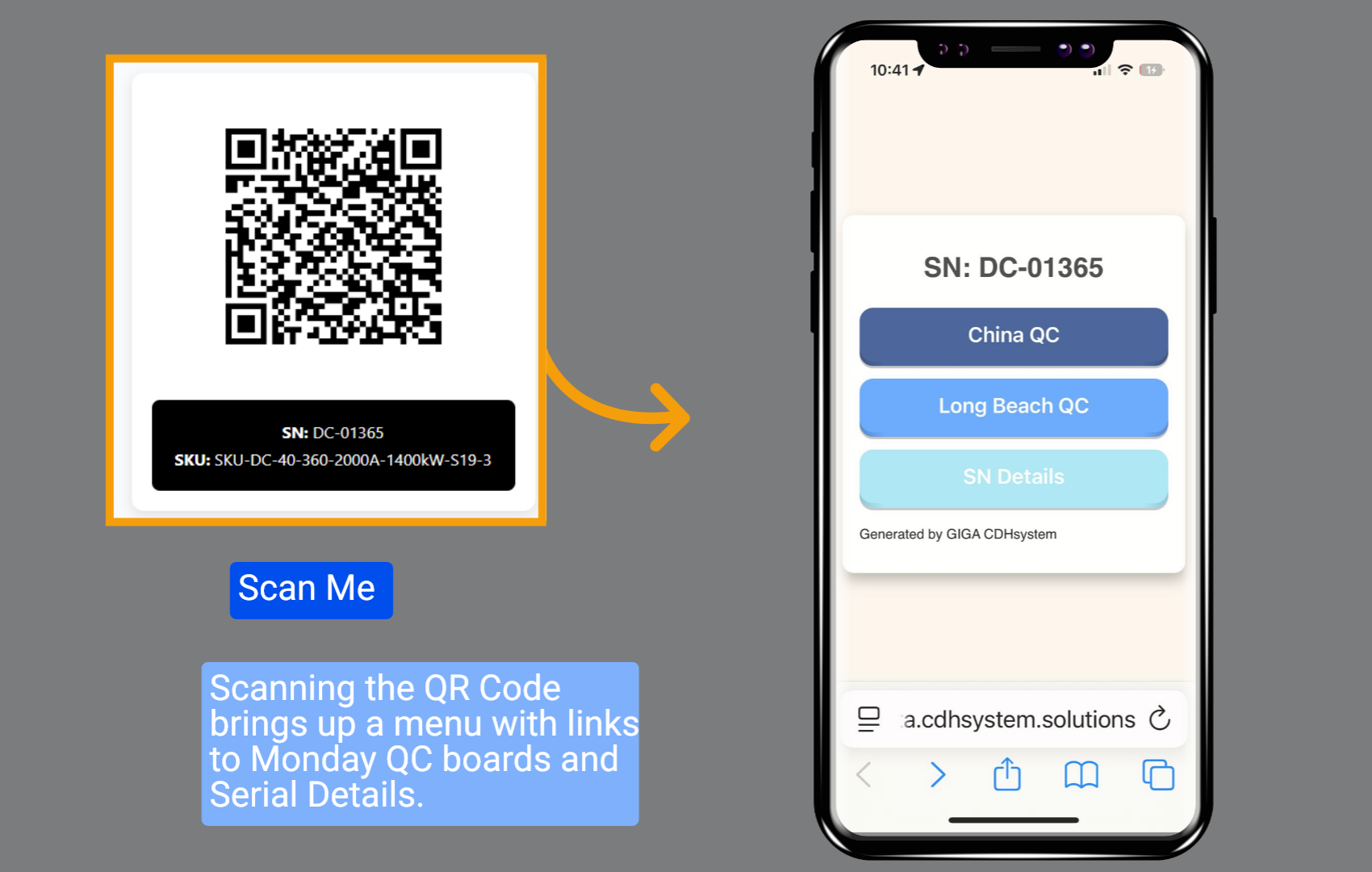
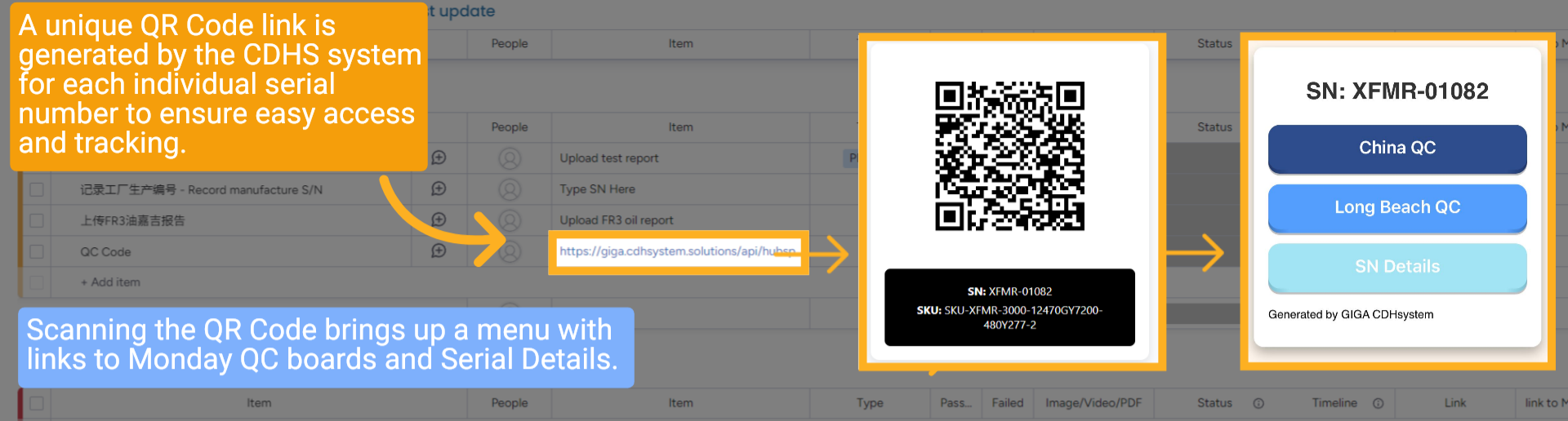
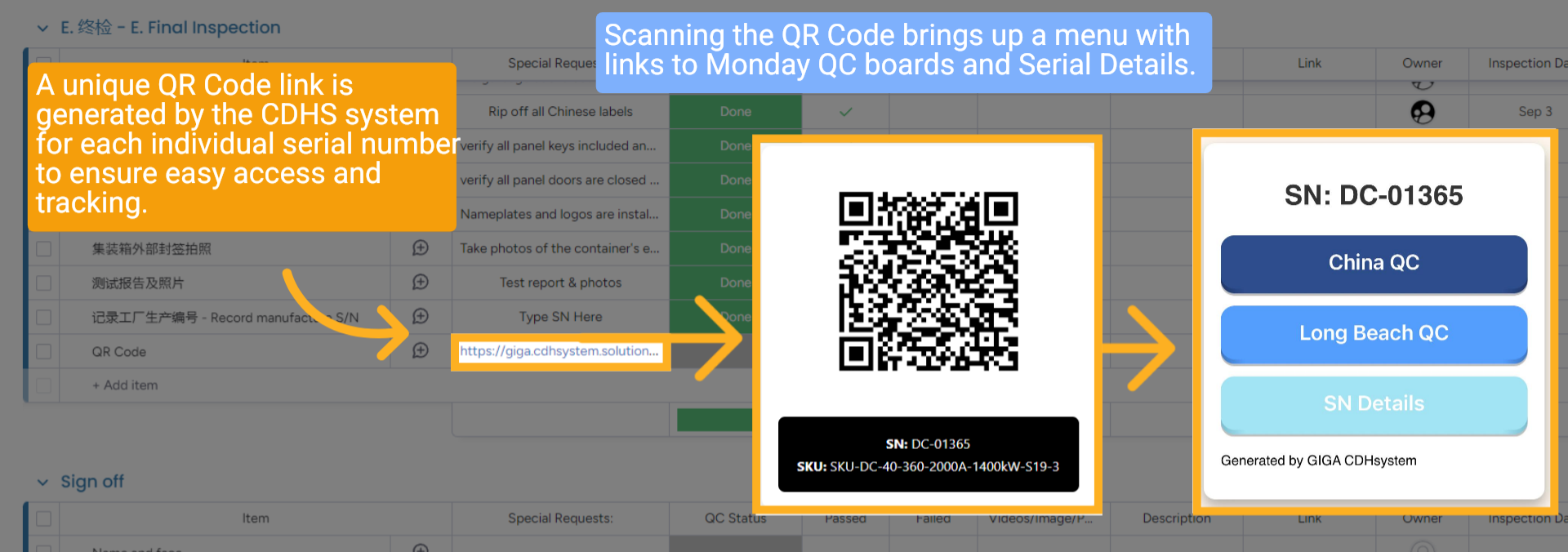
Every unit gets a unique QR code generated automatically by the CDH system. Scanning it instantly provides access to QC boards and serial details — from factory floor to final delivery.

2 How to Scan a QR Code
Use any mobile device camera or QR scanner app. Point → tap the notification → done!
3 What You See After Scanning
A clean mobile menu appears with direct links to:
• China QC Board
• India QC Board
• Long Beach QC Board
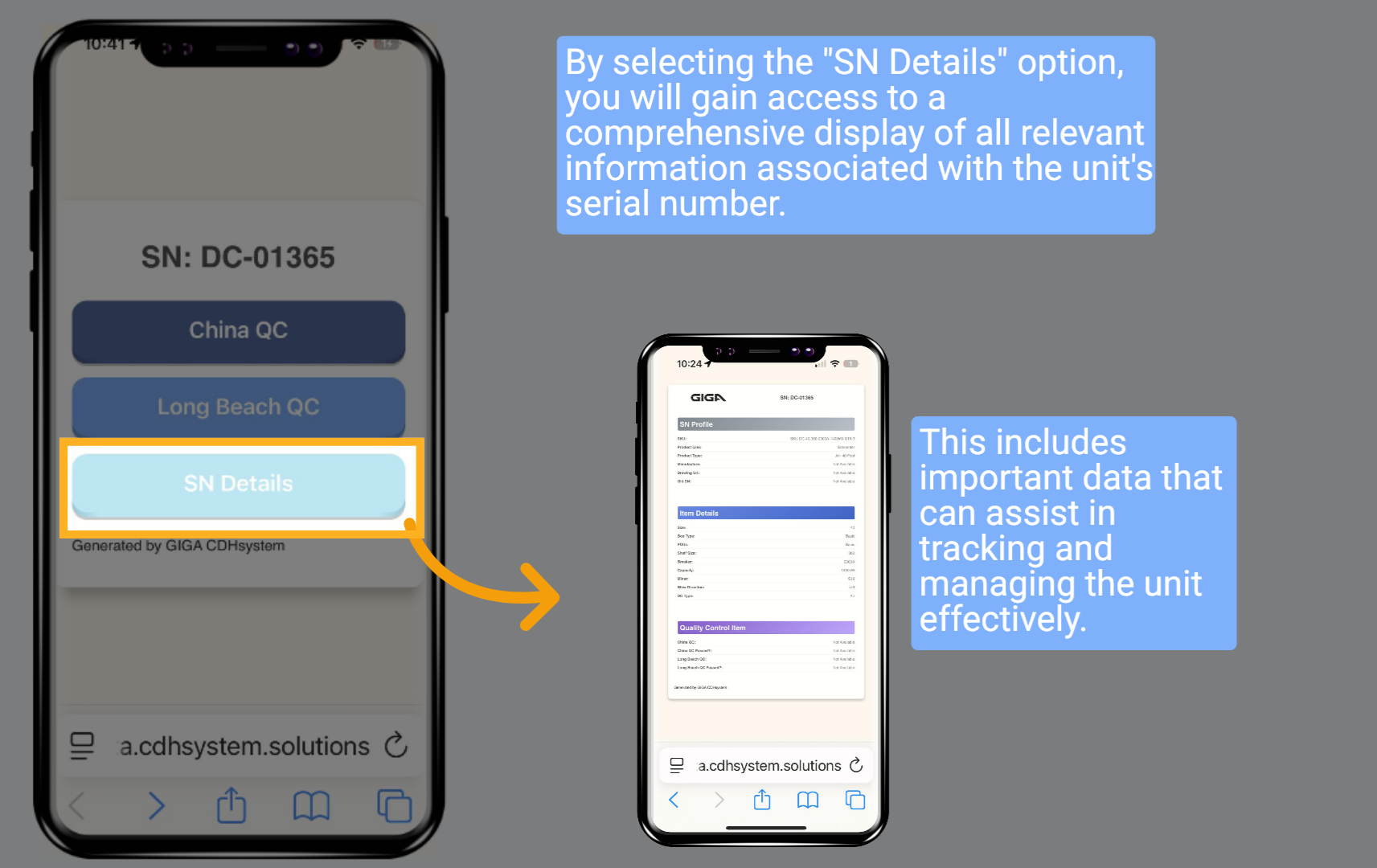
• Serial Number Details
• China QC Board
• India QC Board
• Long Beach QC Board
• Serial Number Details
4 Jump Straight to the Correct QC Board
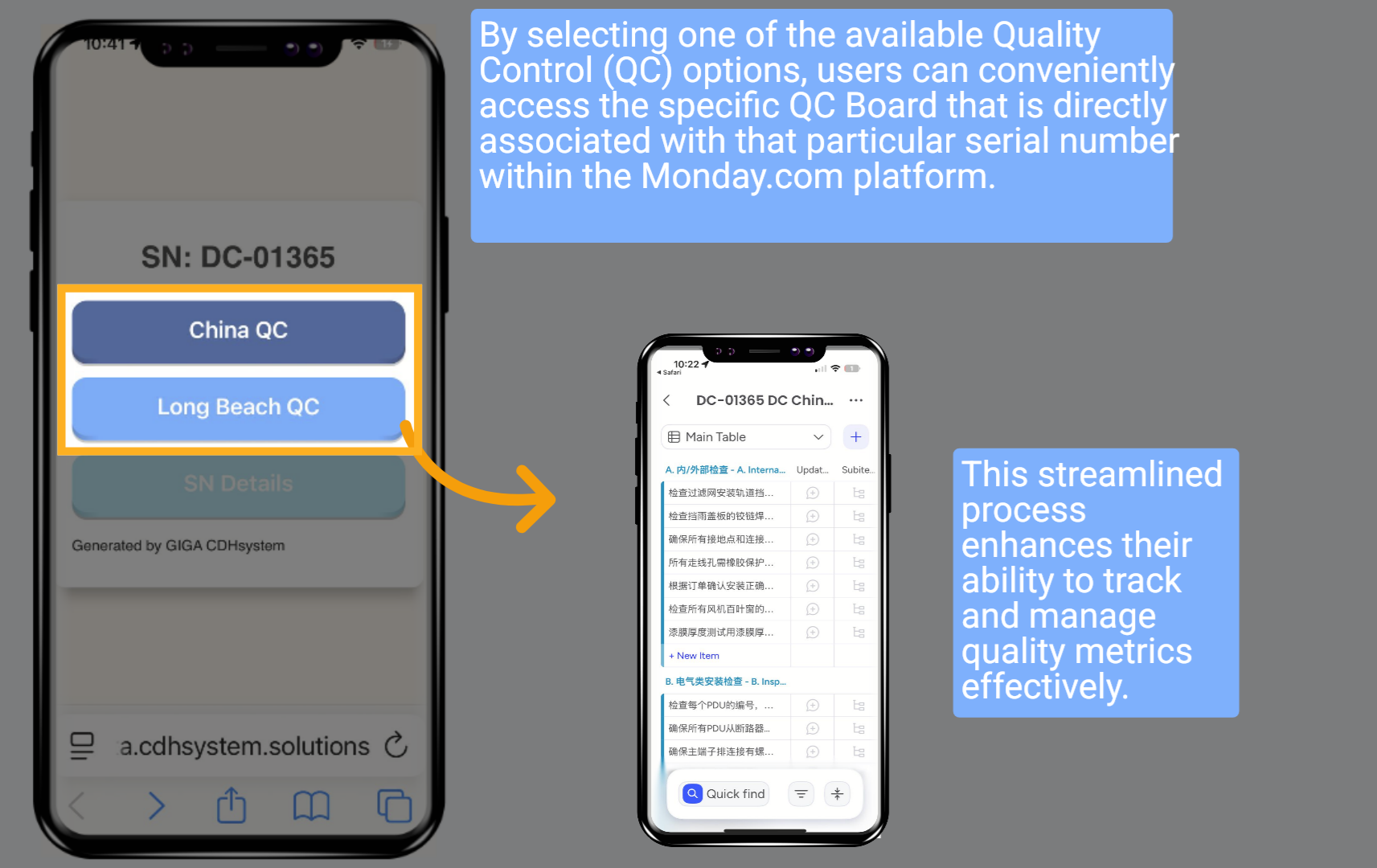
Tap any QC option → instantly opens the exact Monday.com board for that serial number. Perfect for factory inspectors and field teams.
5 View Full Serial Details
Tap “SN Details” → see everything: SKU, customer, order info, production status, shipping details — all in one place.
6 Printing QR Codes – Consolidated View
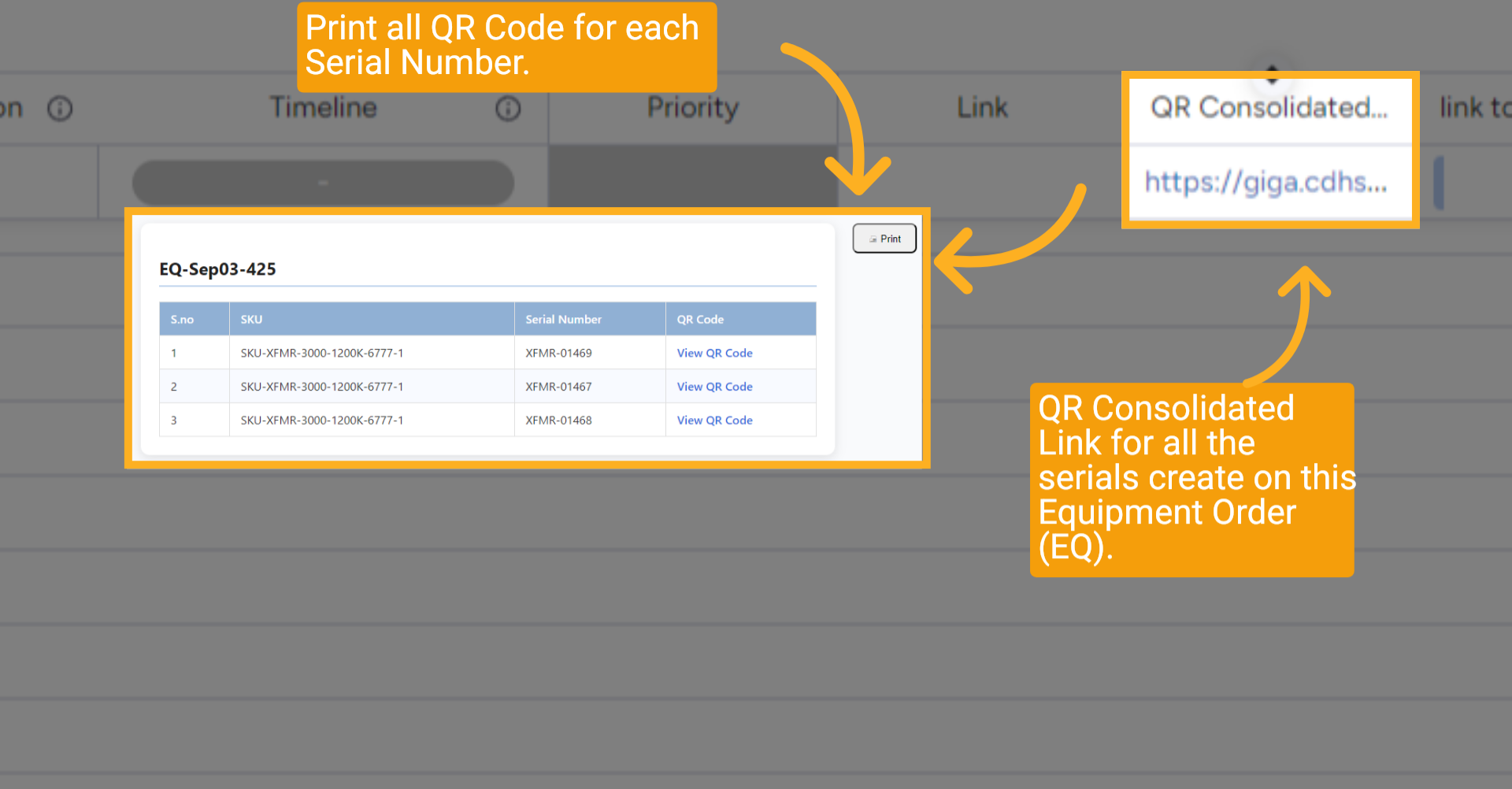
Go to the QR Consolidated URL (available on the EQ in HubSpot or Production board in Monday.com).
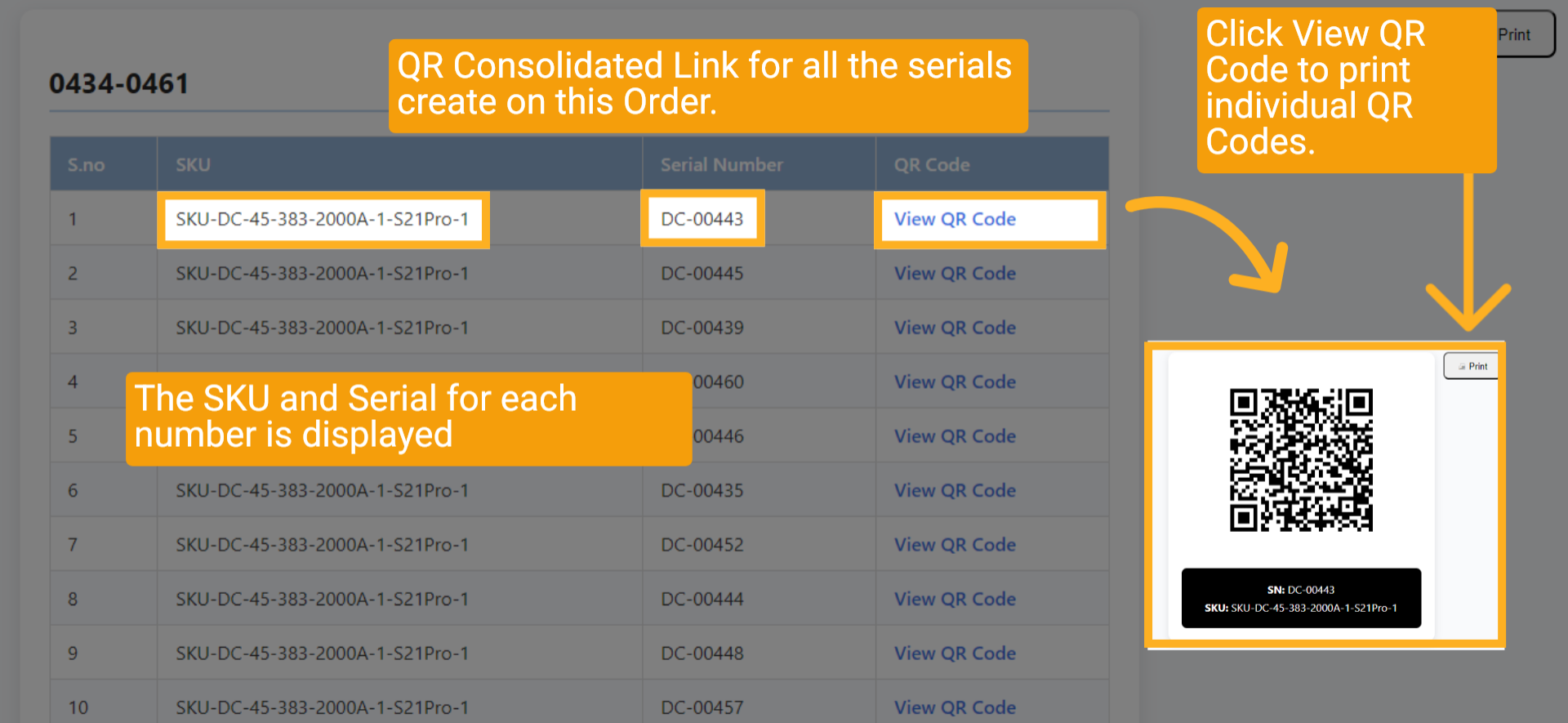
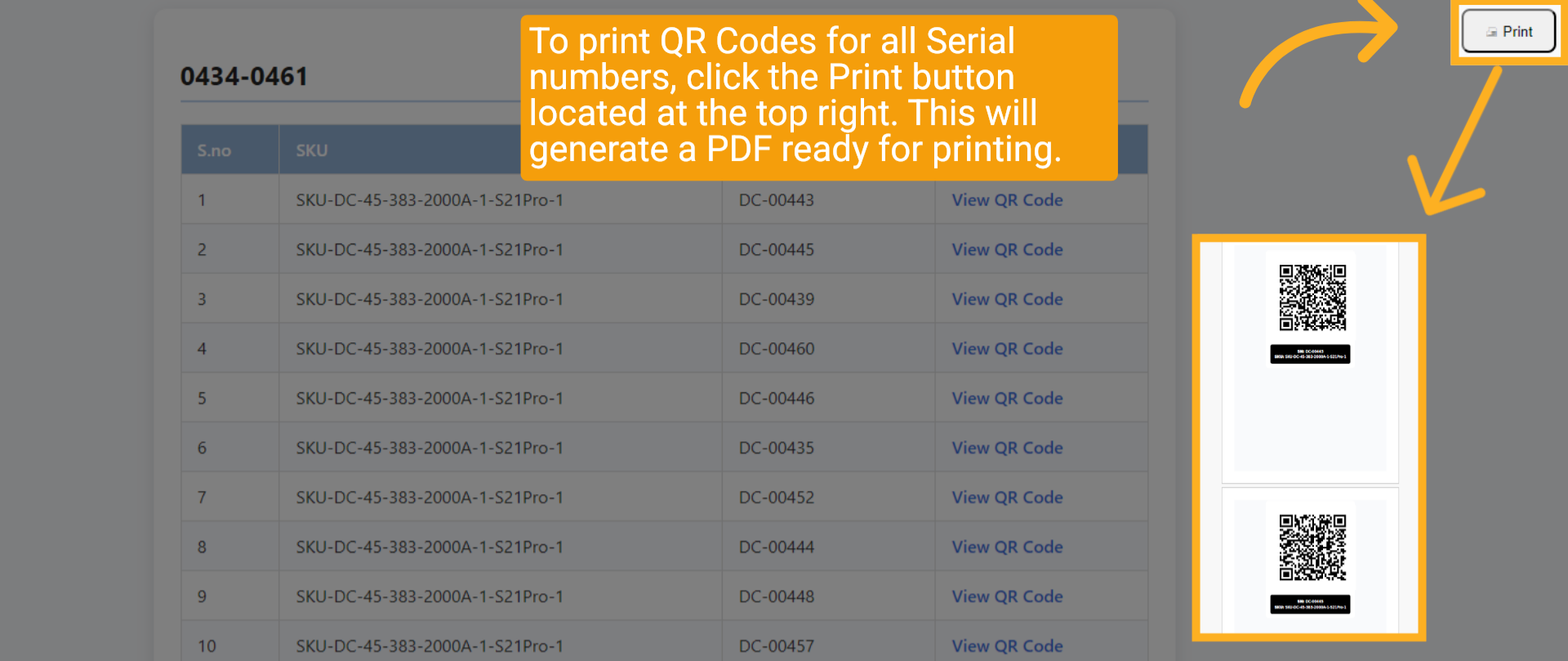
7 Print All or Individual QR Codes
Click the Print button (top right) → generates a ready-to-print PDF with all QR codes for the order.
Or click “View QR Code” next to any serial to print just that one.
Or click “View QR Code” next to any serial to print just that one.
8 Where to Find QR Links
QR links are automatically saved in multiple places:
• HubSpot Equipment Order (Consolidated URL)
• Each Serial record in HubSpot
• Production Board (far-right column)
• Every QC Board (China, India, Long Beach)
• HubSpot Equipment Order (Consolidated URL)
• Each Serial record in HubSpot
• Production Board (far-right column)
• Every QC Board (China, India, Long Beach)

9 Production Board – QR Column
Far-right column on the main Production board → click the link → opens the full consolidated QR page for the entire order.
10 Transformer & DC China QC Boards
Every China QC board (Transformer & Data Center) has its own QR code column — scan or print directly from the board.
11 Wrap Up
QR codes are your single point of truth — from factory inspection to customer delivery. Scan anywhere, access everything instantly, and print with one click.
12 Thank You!
Thank You for Watching!